TOOLNAVIA / BUYING GUIDE
SSD Fresh vs Windows Optimize Drives: Is €29.95 Worth It?
The short answer
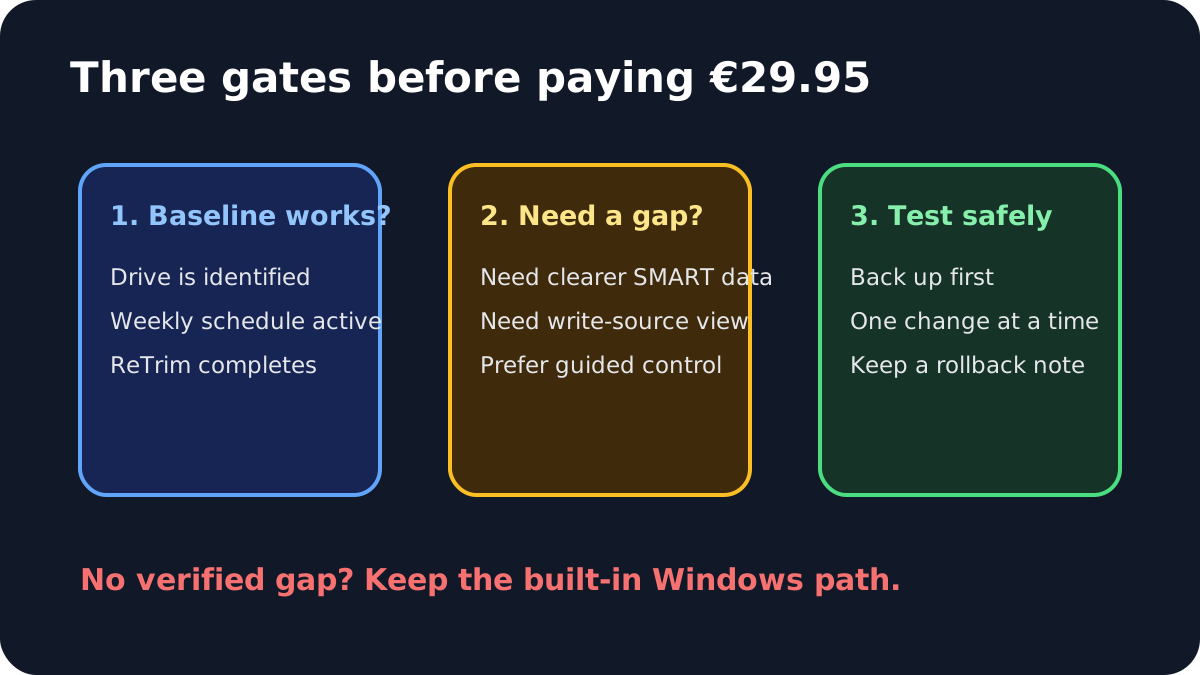
If Windows already recognizes your SSD and runs scheduled optimization, do not buy SSD Fresh merely to “turn on TRIM.” The paid case is narrower: you want one place to view SMART data, temperature and write activity, plus guided explanations for Windows settings. Verify that gap on your own PC before paying the currently displayed €29.95.
*Affiliate disclosure: Toolnavia may earn a commission if you buy through the SSD Fresh link below. That does not change the price shown by the seller or the recommendation to test Windows first.*
At a glance
- Best for
- Windows users who already verified built-in maintenance and want a guided SMART, temperature and write-activity dashboard.
- Price model
- Official English page displayed €29.95 on 2026-11-07; verify final cart, tax, SKU and renewal.
- Check first
- Not needed for routine TRIM alone; cannot repair drive faults or guarantee lifespan.
Short verdict: prove a visibility gap before paying
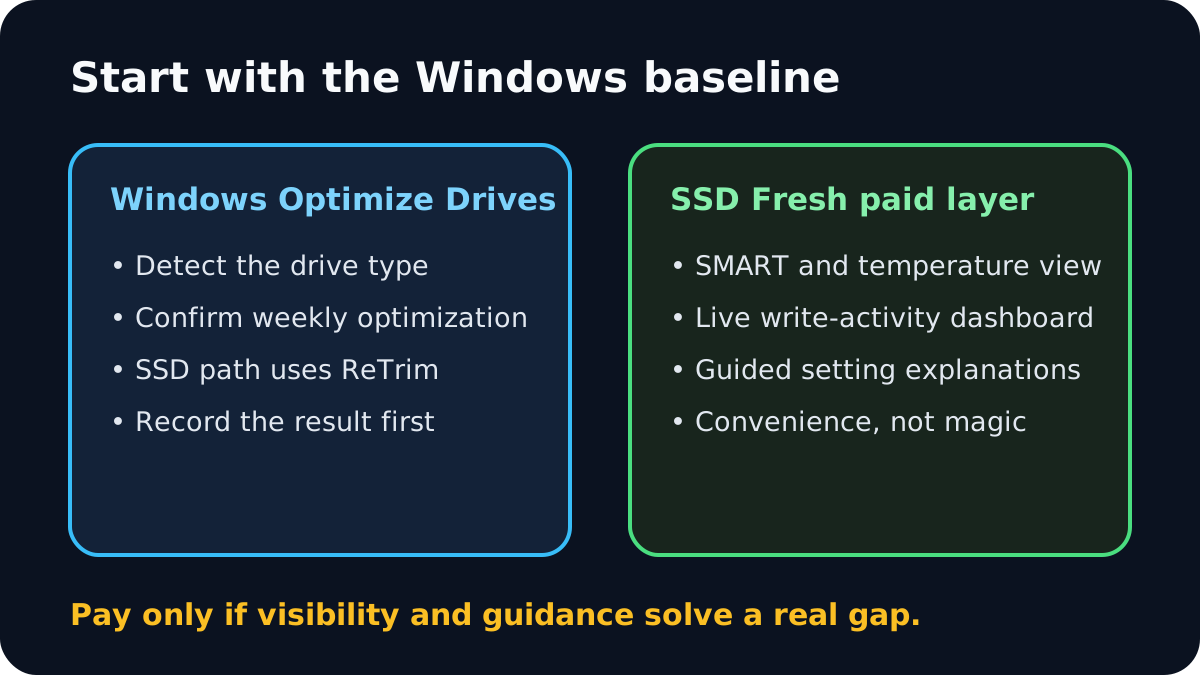
Windows 10 and 11 already include Optimize Drives. Microsoft says the service normally optimizes drives automatically, with a weekly default schedule; on an SSD, the relevant operation is TRIM/ReTrim rather than conventional file defragmentation. Kingston and SanDisk likewise describe TRIM as an operating-system signal that helps the SSD reclaim unused blocks, not as a repair tool.
That makes the first decision simple. Open Optimize Drives, confirm that Windows identifies the device correctly, check the schedule, and record whether optimization completes. If this baseline works and you only wanted routine TRIM, the built-in path is enough.
SSD Fresh becomes a plausible purchase when the problem is visibility and guidance. Its official page lists SMART analysis, temperature, total use and write-operation information, live write-activity analysis and one-click setting adjustments. Those are convenience and monitoring features. They are not evidence that Windows is failing.
Windows already covers the maintenance baseline
Microsoft separates HDD defragmentation from SSD trimming. Its Optimize-Volume documentation says an SSD with TRIM support defaults to ReTrim, while an HDD defaults to defragmentation. This distinction matters because advice to “defrag the SSD for speed” is the wrong buying premise. Independent PCWorld guidance reaches the same practical conclusion: keep TRIM active and do not use conventional SSD defragmentation.
Before installing anything, capture four facts:
1. Does Optimize Drives label the target as a solid-state drive? 2. Is scheduled optimization enabled, and when did it last run? 3. Does a manual Optimize or ReTrim finish without an error? 4. Is the drive internal, external, encrypted or behind an adapter that could change TRIM support?
SanDisk notes that TRIM behavior can vary by file system and external-drive path, even though Windows normally enables it by default. If Windows cannot identify the drive correctly or optimization fails, diagnose the storage path, driver, firmware and backup state first. A dashboard cannot safely substitute for that diagnosis.
What SSD Fresh adds for €29.95
The official English page displayed SSD Fresh 2027 v2027.16.02 at €29.95 on 7 November 2026. It lists Windows 7 through 11, at least six months of updates/new versions, free support and an ad-free paid experience; the trial lacks the background guard. Price, tax, exact SKU and renewal terms can change, so use the live cart rather than this snapshot.
The paid value can be grouped into three jobs:
- **See the drive:** SMART-derived condition data, temperature, hours and write operations. - **See the workload:** live analysis that identifies programs generating write activity. - **Understand settings:** a guided list of Windows behaviors such as boot-file defragmentation, indexing, hibernation, prefetch and TRIM.
MajorGeeks describes both automatic and manual paths and recommends reviewing the manual settings instead of blindly accepting every optimization. That is the right standard. A labeled toggle is useful only if you understand the effect, record the original state and can reverse it.
If you mainly want firmware updates, manufacturer-specific diagnostics or a health self-test, first check the SSD vendor's own utility. SSD Fresh is a cross-setting dashboard; it is not a replacement for every vendor tool.
Resolve the vendor conflict before you buy
Abelssoft marketing says Windows does not fully support SSD technology and presents its optimizations as a way to extend drive life. Microsoft says Windows automatically optimizes drives and trims SSDs. Both claims cannot be used to justify “Windows does nothing, so you must pay.”
For this guide, the Microsoft documentation is the operating-system baseline. SSD Fresh should be evaluated as an extra monitoring and guidance layer. Do not treat the product's green gauge, one-click result or lifespan language as proof that the NAND will last longer. A fair purchase test asks whether the extra dashboard changes a decision you could not make confidently with Windows and the SSD vendor's own utility.
That narrower test also separates this article from our existing SSD Fresh coverage about licensing, update models and device transfer. Here the question is whether the software adds enough actionable visibility beyond Windows—not which license duration to choose.
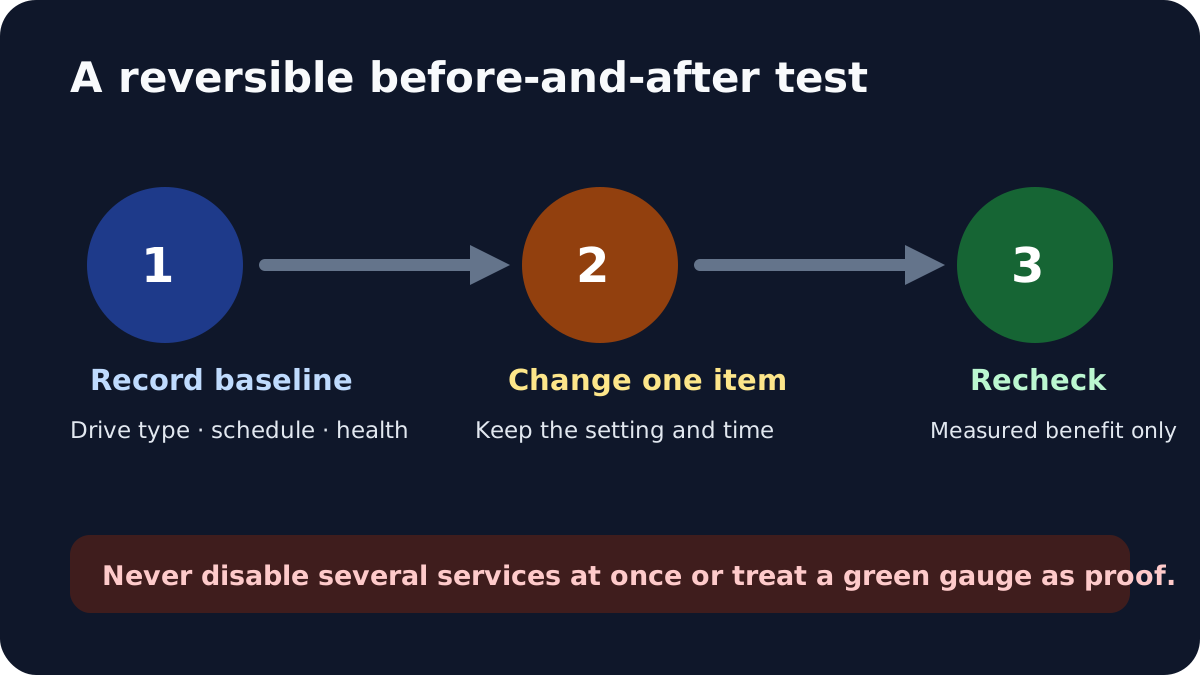
Run a reversible before-and-after test
Use the free version on the exact PC and SSD you plan to keep. Back up important files first. Then:
1. Save screenshots of Windows drive type, schedule and current optimization status. 2. Record SSD Fresh's SMART summary, temperature and top write-producing processes. 3. Change only one setting whose purpose you can explain. 4. Use the computer normally for a defined period. 5. Recheck the same indicators and note any side effect. 6. Restore the original setting if the benefit is unclear or a workload breaks.
Do not disable several services at once. That makes the result impossible to attribute and can harm search, hibernation, diagnostics or application behavior. Also distinguish fewer writes from a meaningful outcome: a lower write counter is not automatically faster performance, safer data or longer drive life.
What TRIM and monitoring cannot fix
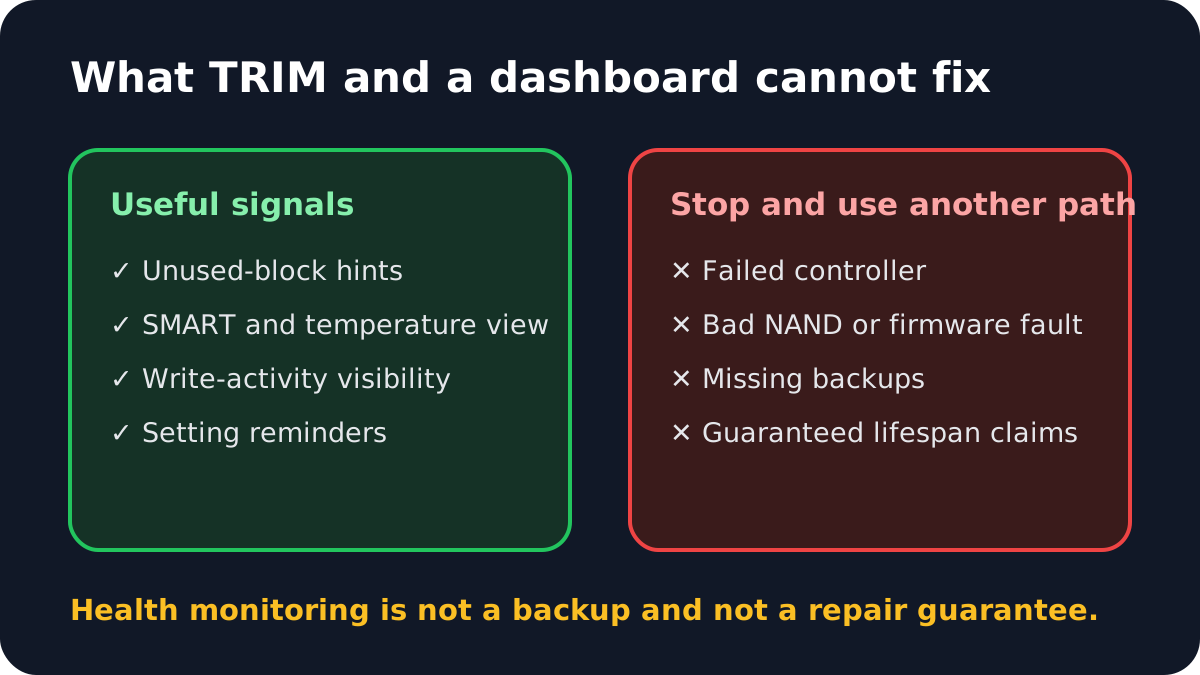
TRIM tells the SSD which blocks are no longer needed; garbage collection remains a controller function. Neither TRIM nor SSD Fresh can repair a failed controller, bad NAND, firmware corruption or a broken cable. SMART data may warn about some conditions, but a healthy-looking gauge is not a backup and cannot guarantee that a drive will not fail.
Stop tuning and move to backup, vendor diagnostics or professional recovery when the drive disappears, reports critical errors, becomes read-only, disconnects repeatedly or contains the only copy of important data. Do not run experiments on the only copy.
Abelssoft's own tutorial says Windows 8 and later already detect SSDs and disable ordinary defragmentation, while highlighting boot-file settings as an additional control. That is another reason to test one specific gap rather than assume every red toggle needs changing.
Buy, wait or skip
**Buy SSD Fresh** if Windows maintenance already works, but you value one readable place for SMART, temperature, write activity and guided settings; the free build proves it sees your actual drive; and the live cart's product, price, tax and update terms are acceptable.
**Wait** if the free build cannot identify the SSD, the dashboard conflicts with the vendor utility, or you cannot explain which setting you would change. Resolve the storage path and firmware questions first.
**Skip it** if your only goal is scheduled TRIM, Windows already reports a healthy optimization schedule, and your SSD vendor's free utility covers the diagnostics you need.
The current approved affiliate route points to [SSD Fresh on the official English product page](https://www.dpbolvw.net/click-101895278-15402688?url=https%3A%2F%2Fwww.abelssoft.de%2Fen%2Fwindows%2Fsystem-utilities%2Fssd-fresh). Confirm that the destination still shows SSD Fresh, your intended license option and the final total before paying.