TOOLNAVIA / BUYING GUIDE
SSD Fresh Plus: When Is SSD Monitoring Worth Paying For?
The short answer
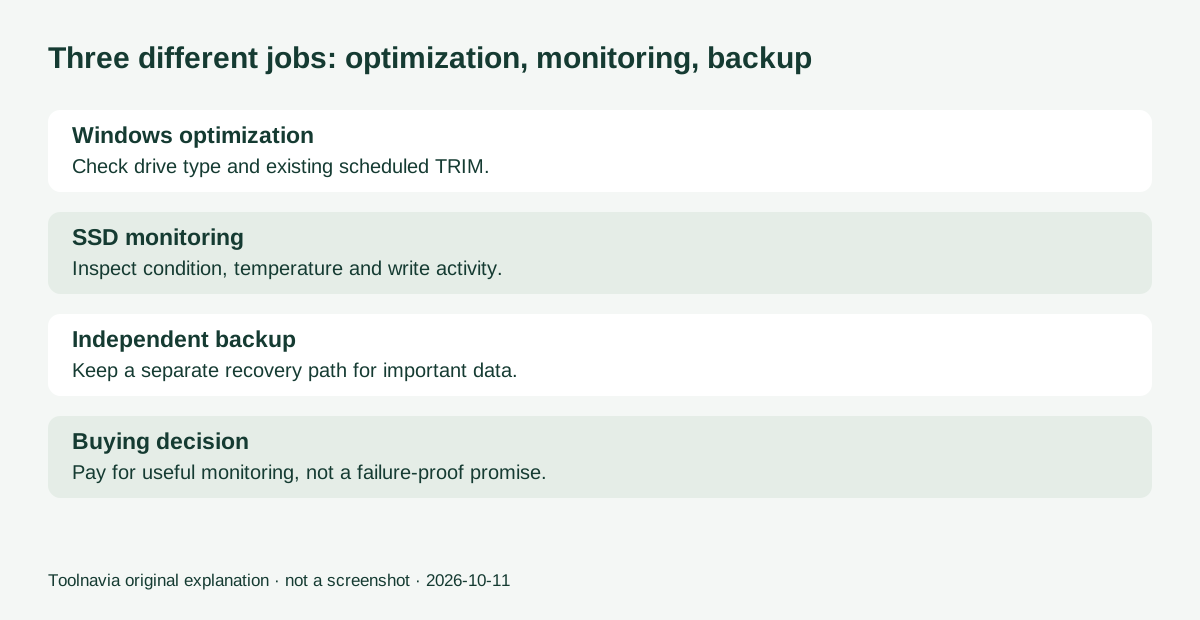
SSD Fresh Plus is most relevant when you want an easier way to keep an eye on SSD condition and activity. It is a monitoring-and-settings convenience purchase, not proof that your drive will last longer. Windows already performs SSD-aware optimization, so judge the paid background guard and readable information rather than buying basic TRIM twice.
At a glance
- Best for
- Users who value the monitoring interface and have a specific need for paid background guard behavior.
- Price model
- Observed EUR/Germany cart:SSD Fresh29.95/year;optional4.95support,automaticannualrenewal.
- Check first
- Users needing only built-in TRIM or expecting guaranteed failure prevention and extra SSD life.
What Windows already does
Microsoft documents that Windows normally optimizes drives automatically, with a weekly default schedule. Its explanation distinguishes hard-disk defragmentation from SSD trimming. You can inspect the recognized drive type and schedule in Defragment and Optimize Drives.
That matters because the SSD Fresh marketing page broadly suggests Windows does not adequately support SSD technology. This guide does not repeat that as a reason to buy: Microsoft's documented built-in behavior gives you a meaningful baseline. An additional interface might still be convenient, but it must solve a separate problem.
If your only goal is enabling ordinary scheduled drive optimization, start with the Windows setting. If you want a clearer view of temperature, health information or write-heavy applications, investigate the utility's display and monitoring workflow.
Four features worth evaluating
S.M.A.R.T. information in one place. SSD Fresh displays condition data such as operating hours and write information. A readable overview may make periodic inspection easier. A reassuring status is not an insurance policy, and this guide does not treat a health indicator as a guaranteed failure prediction.
A visible temperature reading. Seeing temperature beside other drive information can help you notice changes during familiar workloads. Confirm the correct physical drive is selected. Interpret readings against the drive manufacturer's guidance rather than inventing a universal temperature limit for every SSD.
Live write activity. The software identifies applications producing drive activity. This can turn a vague concern into a specific observation: perhaps a program is doing expected synchronization, or an export is still running. Do not stop an unfamiliar process merely because it is busy.
Paid background monitoring. The official page says the free/trial edition shows donation screens and excludes the background guard; Plus adds the paid experience. This is the key recurring-convenience question: do you need background monitoring, or is occasional manual inspection enough? The free edition cannot establish how the missing guard behaves.
Observe before changing settings
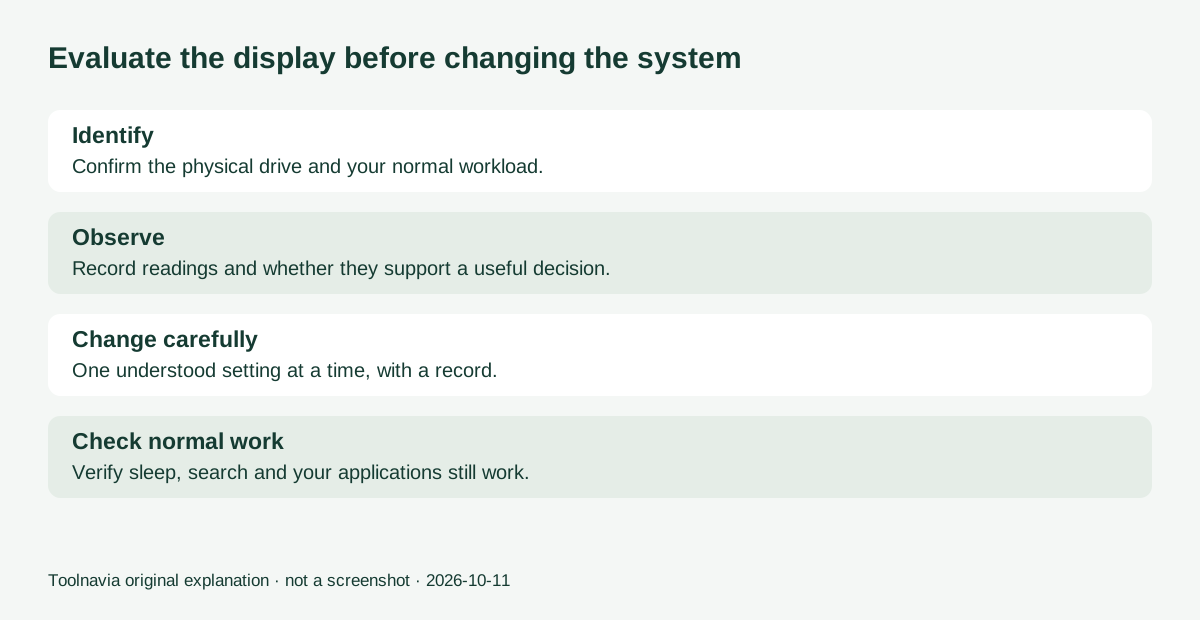
Begin by identifying the drive model, making a current independent backup and recording the workload you want to understand. Inspect the current Windows optimization schedule. Use the utility initially for observation, keeping ordinary power, search and diagnostic behavior intact.
During the same familiar task, record the displayed temperature, write activity and whether the information leads to a useful decision. If the data is merely reassuring and you would rarely open the tool, a paid upgrade may not change your routine.
Only then consider individual settings whose effects you understand. Change one at a time, keep a record and verify that search, sleep, your applications and other required functions still work. Avoid treating every write as waste: saving work is itself a write. No blanket list of services to disable is needed to decide whether this monitoring interface is useful.
This is a proposed evaluation method, not a test we performed. We have not measured an increase in SSD lifetime or demonstrated that the program prevents data loss. Backups and a workable recovery plan remain separate from monitoring.
Price and the paid-edition boundary
The official product page displayed €29.95 on October 11 and listed at least six months of included updates and new versions for Plus. The Plus purchase button opened a €29.95/year Yearly Subscription in the EUR cart with Germany selected, alongside optional €4.95 Premium Support. The cart explicitly stated annual automatic renewal. Abelssoft's general terms distinguish current-version, subscription and lifetime-update arrangements; confirm the actual cart's model, recurring amount, tax and optional support before paying.
Treat future upgrade or renewal costs as part of the decision. You are buying a tool you expect to consult or leave monitoring regularly, so an annual cost should be compared with that recurring usefulness—not with the replacement price of the entire drive.
Older indexed pages may show a previous product-year label. Follow the official current download and compare the exact edition offered; do not use a reseller's older-version offer as proof of the manufacturer's current price or entitlement.
Who should consider Plus
Consider the paid edition if its interface makes drive inspection practical for you and the missing background guard addresses a need you can describe. Ask about that guard before paying if notification behavior is essential. Keep the free baseline if occasional inspection and Windows optimization are enough.
The purchase link goes to the approved official SSD Fresh destination and may earn Toolnavia a commission from qualifying sales. Our recommendation rests on readable monitoring and a clear edition boundary, not on an unsupported promise to prevent every drive failure.