TOOLNAVIA / BUYING GUIDE
PDFelement Watermark vs Page Labels: What Will Recipients Actually See?
The short answer
At a glance
- Best for
- Windows users who repeatedly mark client PDFs and need visible-output, navigation and activated-batch controls.
- Price model
- Verify checkout, tax, renewal, device scope and promotion; no numeric price is asserted.
- Check first
- Page Labels are navigation-only; trial saves carry a product watermark; flattened marks may not be removable as watermarks.
Bottom line
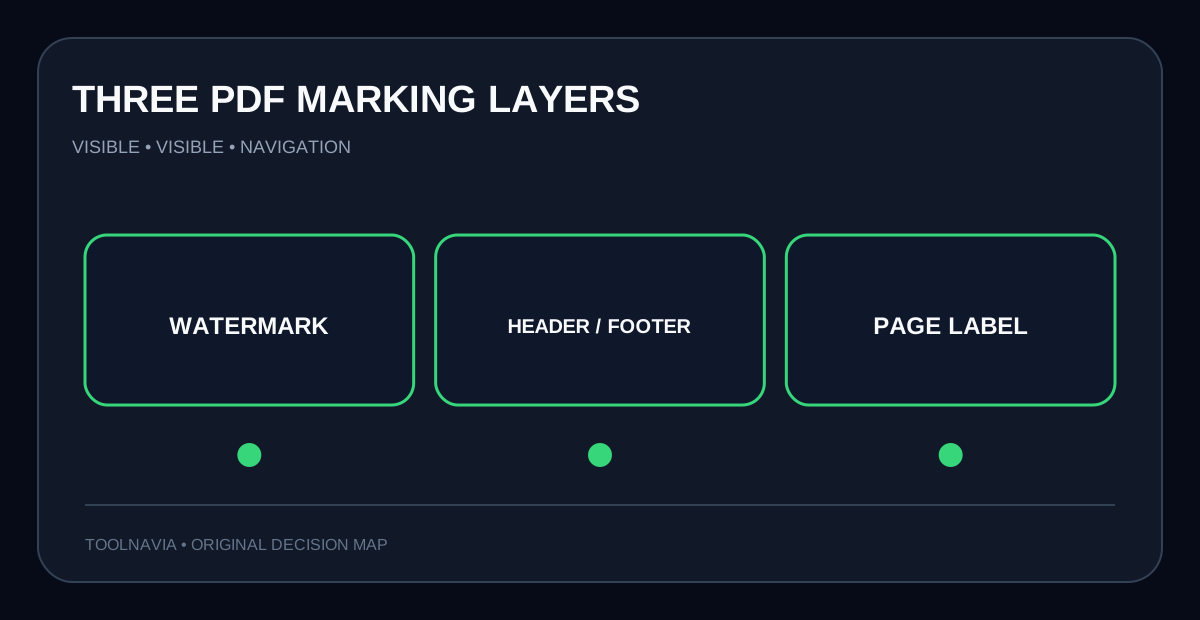
Use **Watermark** when every recipient must see a status or brand mark on the page. Use **Header & Footer** for visible page numbers, dates, filenames or titles. Use **Page Labels** only when the thumbnail pane and navigation bar should say “i, ii, iii, 1, 2…” without printing those labels on the page. PDFelement documents these as separate tools and explicitly says Page Labels affect the Pages panel while visible numbers require Header & Footer.
That is the buying test. For one short PDF, a tool you already own may be enough. PDFelement becomes easier to justify when you must apply a governed mark to many files, reuse a saved template, verify page ranges and deliver clean activated output without a trial watermark.
> **Affiliate disclosure:** Toolnavia may earn a commission if you buy through the approved PDFelement link. The recommendation still requires a representative batch test and clean saved-output inspection.

Three layers that solve different problems
A **watermark** is visible text or an image placed over or under page content. PDFelement supports custom watermarks, absolute sizing and batch processing. Adobe describes a watermark as fixed text or an image embedded into the page for ownership, branding or confidentiality; it can be applied to selected pages or multiple PDFs.
A **header or footer** is also visible, but its job is structured edge content: page number, date, filename, title or a repeated note. PDFelement lists headers and footers with page numbering and dates. Adobe, Foxit and Nitro all treat page numbers as header/footer content, with range and template controls.
A **page label** is navigation metadata. It can map front matter to Roman numerals and restart the main body at 1, but PDFelement says the change appears in thumbnails, not physically on the page. W3C likewise explains that PageLabels drive the navigation toolbar.
| Need | Use first | Visible on page? | |---|---|---| | CONFIDENTIAL or DRAFT across every page | Watermark | Yes | | Page 1 of 24, date or file title | Header & Footer | Yes | | Front matter i–iv, body 1–20 in navigation | Page Labels | No | | Stable evidentiary IDs across files | Bates numbering | Yes, but use the separate Bates workflow |
Batch watermarking is a workflow, not one click
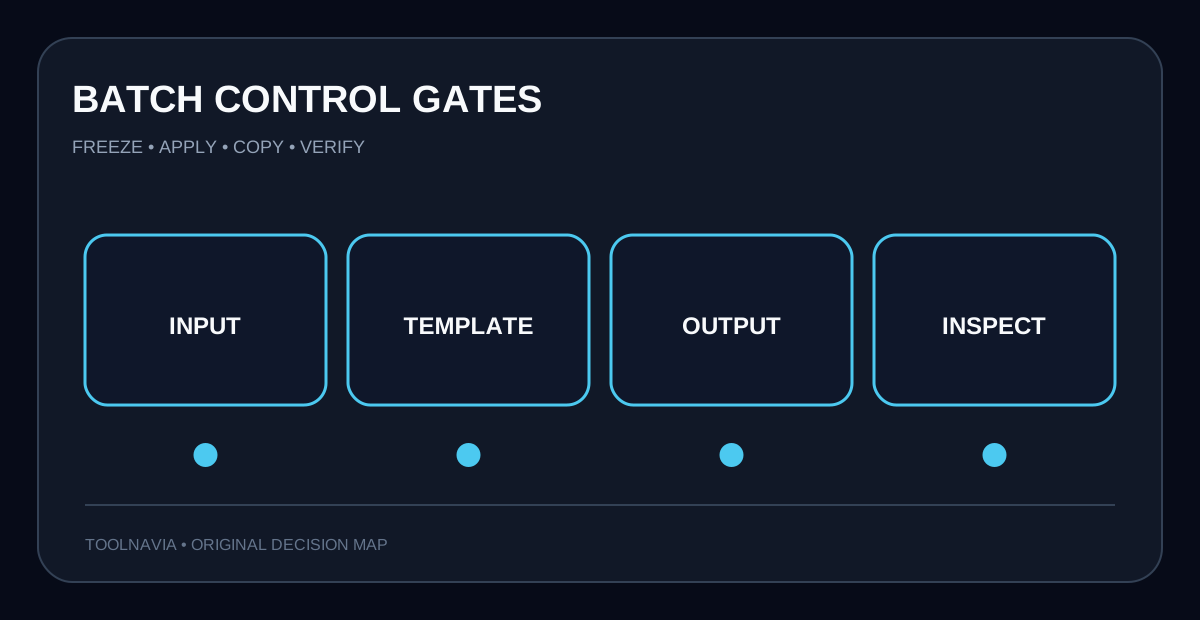
PDFelement says the same watermark can be added to multiple PDFs and watermarks can be removed in batches. For batch addition, save a template first, then add files under Tool > Batch Process > Watermark and apply it. That creates four gates:
1. **Input gate:** freeze the file list and order; do not mix drafts and approved copies. 2. **Template gate:** record text/image source, opacity, rotation, scale, position and page range. 3. **Output gate:** save to a new folder so originals remain available for comparison. 4. **Inspection gate:** open the first, middle and last page of every output family.
The biggest risk is confusing “batch finished” with “mark is correct.” A relative-size watermark may work on letter pages but crowd a landscape page. A header can collide with existing content. A page range can omit a cover or appendix. Test a representative pack with portrait, landscape, scanned and mixed-size pages.

The trial watermark is not your intended watermark
PDFelement says saved trial output receives a PDFelement watermark. A batch that adds a watermark or Bates number still receives the trial watermark. The Windows individual store currently describes a 14-day registered trial, a watermark on saved files, and a three-file/20 MB batch limit.
A trial can prove placement and batch mechanics, but it does **not** prove activated delivery is clean. Test copies, note both your intended mark and the product trial mark, then repeat the same files after activation. Compare page count, size, mark position, text searchability and whether the trial mark disappeared.
Do not treat “Remove Watermark” as a universal eraser. A third-party mark may be flattened into ordinary page content or embedded as an image. Preserve the original, remove only on a copy and visually diff representative pages. Official guides establish supported workflow, not guaranteed recovery of every PDF.

Competitor controls reveal the purchase test
Adobe separates Watermark from Header & Footer: watermarks control text/image, opacity, rotation, size, range and multi-file output; page numbers are inserted through header/footer fields. Foxit supports saved header/footer templates and multi-file operations, while its watermark workflow handles text or image marks and batch add/remove.
Nitro uses reusable profiles for both watermarks and headers/footers. Its guides allow text, image or PDF content, with import/export for repeatable work. The valuable feature is not “put text on a PDF.” It is a repeatable, inspectable profile applied to the right pages and files.
If you already own Acrobat, Foxit or Nitro and the batch works, switching solely for watermarking has weak economics. PDFelement is more rational when the exact Windows offer also replaces other paid PDF tasks you genuinely use and its workflow passes your real document pack.
A seven-minute acceptance test
Create four disposable PDFs: a portrait contract, landscape sheet, scanned image PDF and file with Roman-numeral front matter. Then:
1. Apply a diagonal DRAFT watermark to pages 2 through the end. 2. Add a footer with visible page numbers and a short filename. 3. Set Page Labels to i–iv for front matter and 1 onward for the body. 4. Run a three-file batch from a saved watermark template. 5. Inspect first, middle and last pages plus the navigation pane. 6. Print-preview one page to confirm labels alone are not visible. 7. After activation, repeat and verify the PDFelement trial watermark is absent.

Recommendation
Buy the approved PDFelement Windows offer only if the representative batch passes and time saved by reusable templates exceeds verification and license cost. Use Watermark for visible status/branding, Header & Footer for visible numbers and edge metadata, and Page Labels for navigation. Keep Bates numbering in its own controlled sequence workflow.
Do not buy for a one-off file you can safely finish with an existing editor, if trial output cannot be distinguished from activated output, or if you cannot preserve originals and inspect the batch. Final checkout, tax, renewal, device scope and promotion can change; verify them before paying.
[Check the approved PDFelement Windows offer](https://www.jdoqocy.com/click-101895278-11245626)