TOOLNAVIA / BUYING GUIDE
PDFelement for Print-Ready PDF: Where Acrobat Preflight Still Matters
The short answer
At a glance
- Best for
- Routine editing teams with an external or printer-provided final preflight.
- Price model
- Verify checkout, tax, renewal, device scope and promotion; no numeric price is asserted.
- Check first
- Reviewed public PDFelement docs do not establish the same named profile, fixup and report workflow documented by Acrobat/Foxit.
Bottom line
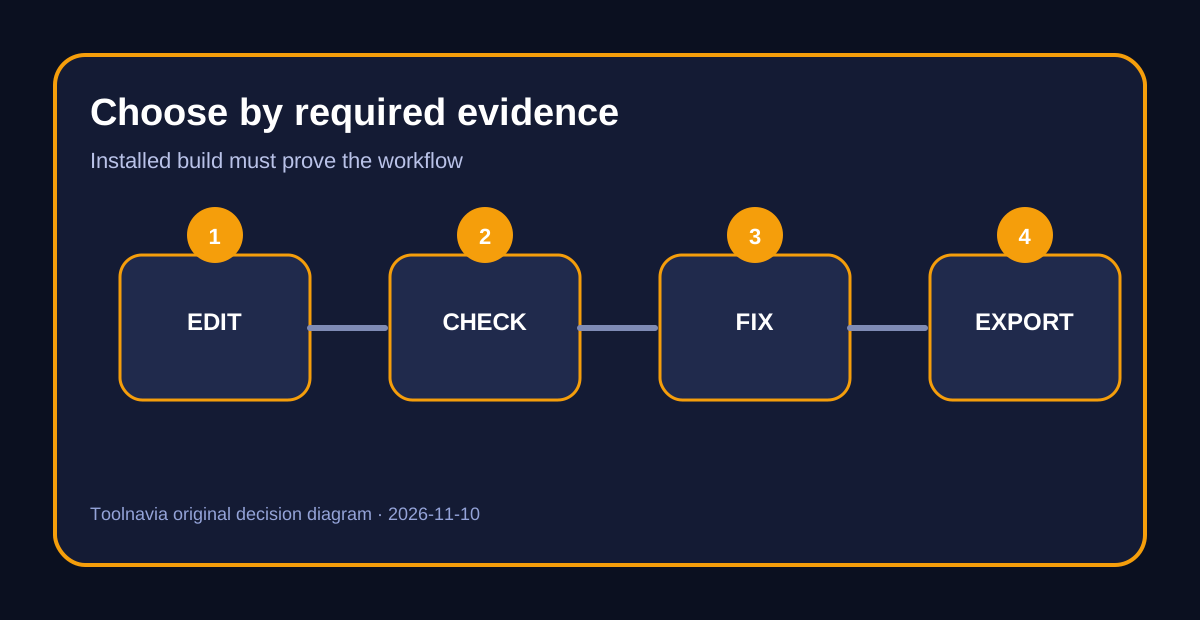
PDFelement is easy to justify for ordinary PDF editing, conversion, forms, page resizing and print setup. It is not safe to assume that a **Print** button, page boxes or a “print-ready” export equals a commercial-print **Preflight**. Wondershare’s current overview lists routine document and print tools, while its page-size guide explicitly points to Acrobat Pro Preflight for precise scaling and fixups.
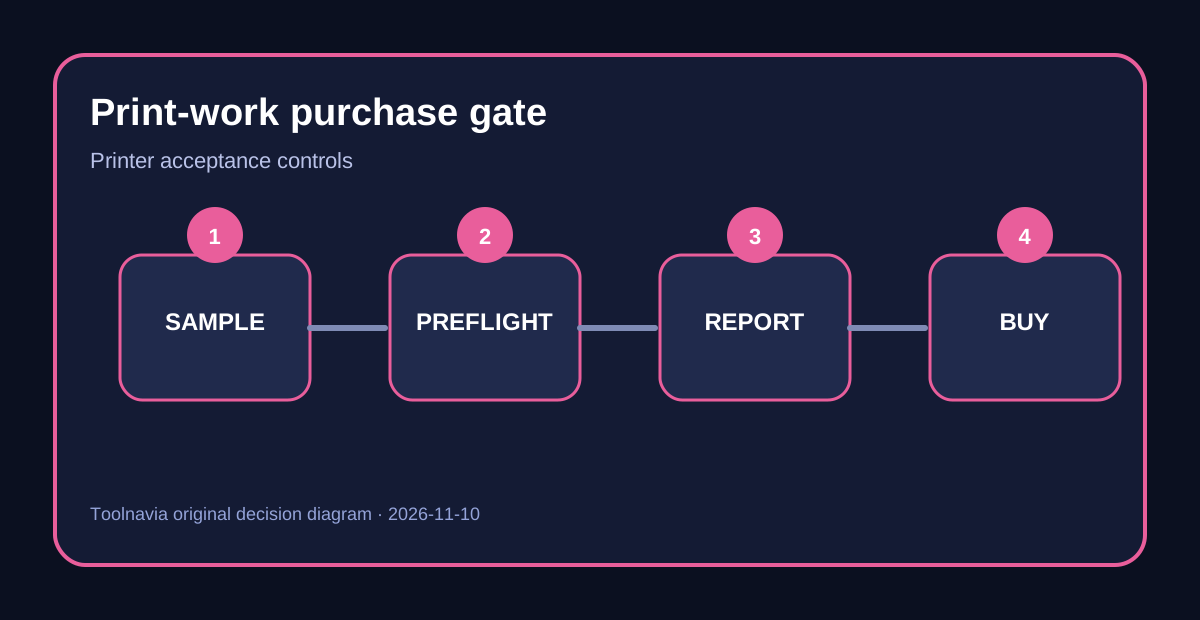
If your printer requires a named PDF/X profile, output intent, missing-font checks, spot-color or transparency inspection, or a saved compliance report, verify that exact workflow in the installed PDFelement trial before paying. Acrobat Pro and Foxit publicly document profiles and reports; this does not prove PDFelement lacks every version-specific function, but it sets the purchase boundary.
> **Affiliate disclosure:** Toolnavia may earn a commission if you buy through the approved PDFelement link. The recommendation remains conditional on an installed-build test and the printer’s acceptance result.

“Print-ready” has two different meanings
For office delivery, “print-ready” often means the page size is correct, margins look right, images are visible and the file opens. PDFelement documents printing, editing, conversion, forms, Bates numbering and page resizing, so it can be a sensible editor for this routine layer.
A commercial printer may mean something stricter: the file must conform to a specified PDF/X variant; fonts must be embedded; bleed, trim and media boxes must be correct; color spaces and spot colors must match the job; transparency must be acceptable; and the output intent must be present.
Adobe describes creating and verifying PDF/X through Print Production > Preflight, with profiles and fixups. Foxit similarly documents standards inspection, fixable errors and reports. The PDF Association explains why missing fonts, malformed objects, color and transparency can make a PDF fail even when it looks fine on screen.
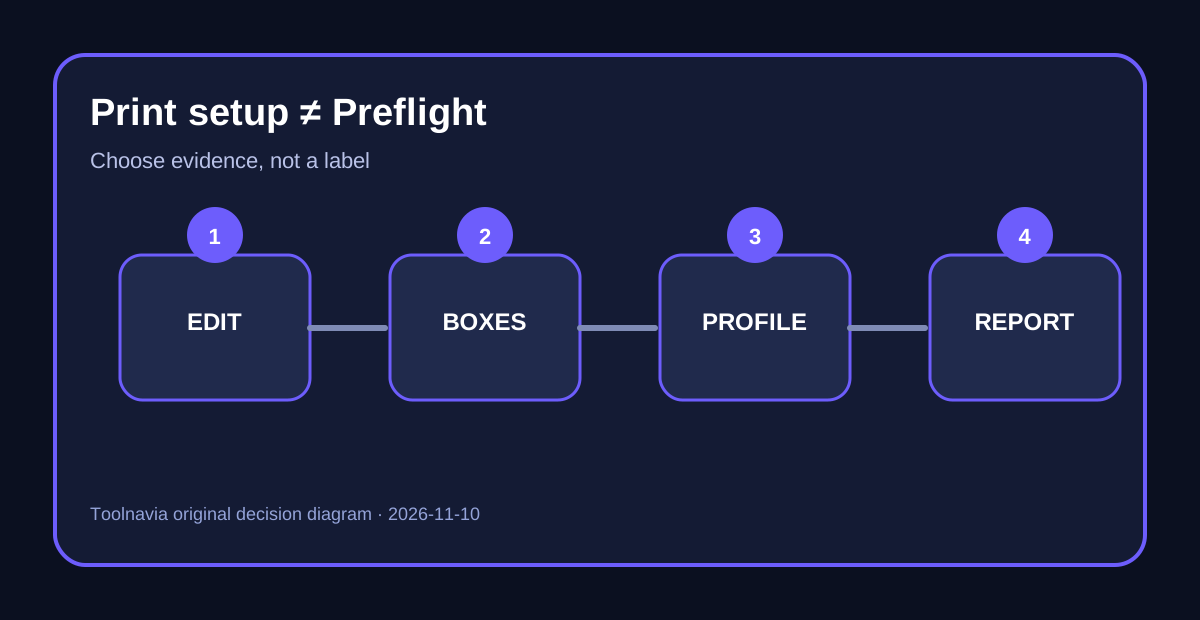
Therefore, page boxes are necessary for many jobs but are not a complete preflight verdict.
Run a five-file printer handoff test
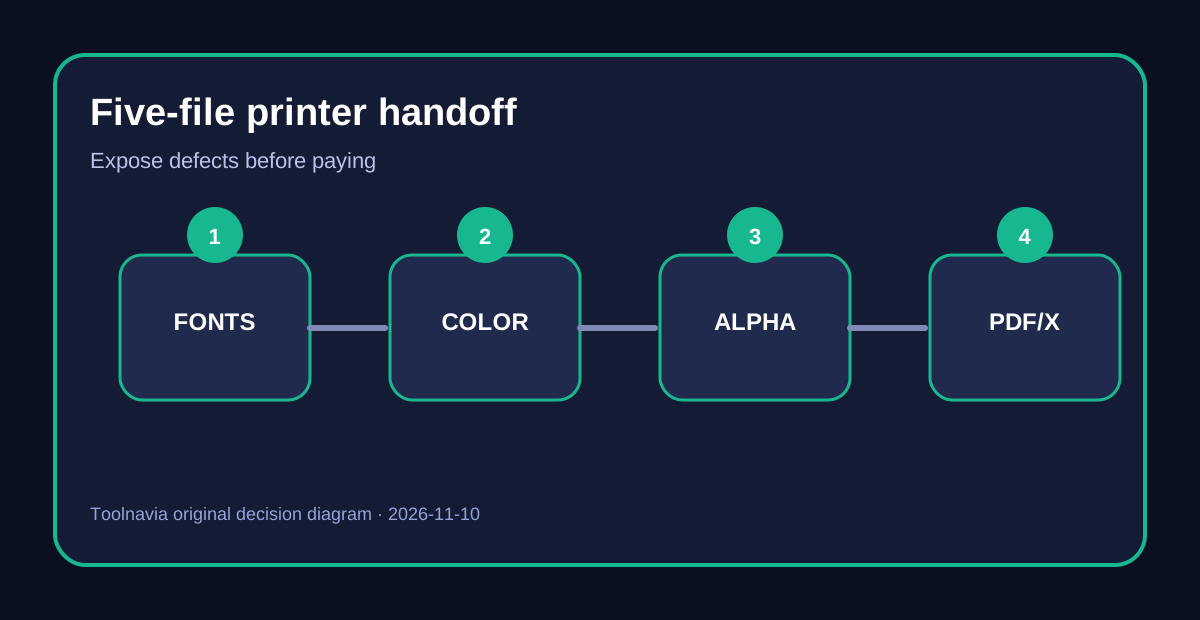
Do not test only a clean brochure. Ask the printer for the exact profile and prepare five disposable files:
1. **Fonts:** one document with a licensed font subset and one deliberately missing or unembedded font. 2. **Color:** one RGB image, one CMYK image and one named spot color. 3. **Transparency:** one vector or image effect that remains live. 4. **Geometry:** a file with explicit bleed, trim, crop and media boxes. 5. **Standard:** the printer’s required PDF/X variant and output intent.
Use PDFelement for the edits and page-box work it officially documents.
Then ask the installed build to identify each seeded defect and produce the printer-required report. If it cannot expose the requested profile, output intent or defect, do not infer a pass from appearance. Run the same files through the printer’s validator, Acrobat Preflight or Foxit’s documented standards workflow.

Acrobat and Foxit reveal the feature boundary
Adobe’s documentation names predefined profiles for digital printing, prepress analysis and PDF/X compliance, plus fixups and standards verification. Foxit names PDF/A, PDF/E, PDF/X, PDF/UA and PDF/VT inspection, reports and compliant creation in Pro. These are concrete buying signals because they tell a production operator what can be checked, repaired and recorded.
PDFelement’s current public material reviewed here names ordinary creation, editing, conversion, forms, print settings and page-box operations, but does not establish the same full profile-and-report workflow. This is an evidence boundary, not a claim of technical impossibility. Product versions change, documentation can lag and an installed build may expose more. The safe decision is to demand the exact printer-required result before treating the tool as a preflight replacement.

The economics are about the failed handoff
PDFelement can still be the better buy when most work is routine editing and the printer provides its own final preflight. Its value can come from conversion, OCR, forms, signatures and page operations rather than replacing a dedicated prepress tool.
The upgrade becomes weak when a missed defect causes another proof cycle, a delayed press slot or a rejected upload. Compare the editor license, external-preflight time and expected cost of one failed handoff. If one rejection costs more than the upgrade, the cheaper editor is not necessarily the cheaper production system.
Do not rely on a generic “PDF/X” badge alone. Record the exact profile, result, fixups applied, output intent and report file. The printer—not the editor’s marketing page—decides acceptance.
Recommendation
Buy the approved PDFelement Windows offer if your real need is routine PDF editing and its installed trial passes your five-file sample. Do not buy it on the assumption that page resizing or ordinary print setup automatically includes PDF/X Preflight.
For printer-mandated standards, choose a tool or external service that can identify the required profile, expose the relevant defects and produce an acceptable report. Keep originals, test copies and the printer’s final validator result together. Checkout price, tax, renewal, device scope and promotions can change, so verify them on the official store before payment.

[Check the approved PDFelement Windows offer](https://www.jdoqocy.com/click-101895278-11245626)