TOOLNAVIA / BUYING GUIDE
PDFelement eSign Limits: Check Cloud Costs Before You Buy
The short answer
PDFelement can prepare client PDFs and request signatures, but a desktop purchase does not establish unlimited sending. For recurring agreements, check the signature category, remaining allowance and Cloud billing term before buying. Those details determine whether the workflow fits your budget.
*Official-documentation analysis, checked October 28, 2026; no sending test performed.*
At a glance
- Best for
- An individual Windows user who prepares client PDFs and values recipient order, reminders, completion records and repeat templates, after confirming the exact Cloud category and usable allowance.
- Price model
- Cloud separately shows $8.99/month or $89.99/year, auto-renewing; Windows desktop buttons are a different offer. Confirm tax, renewal and signature units.
- Check first
- Someone who only needs local signing or expects a desktop/perpetual license to guarantee unlimited remote requests; a recurring certificate workload with an unconfirmed counting unit cannot be confidently budgeted from the headline allowance.
Separate the signing job from the license
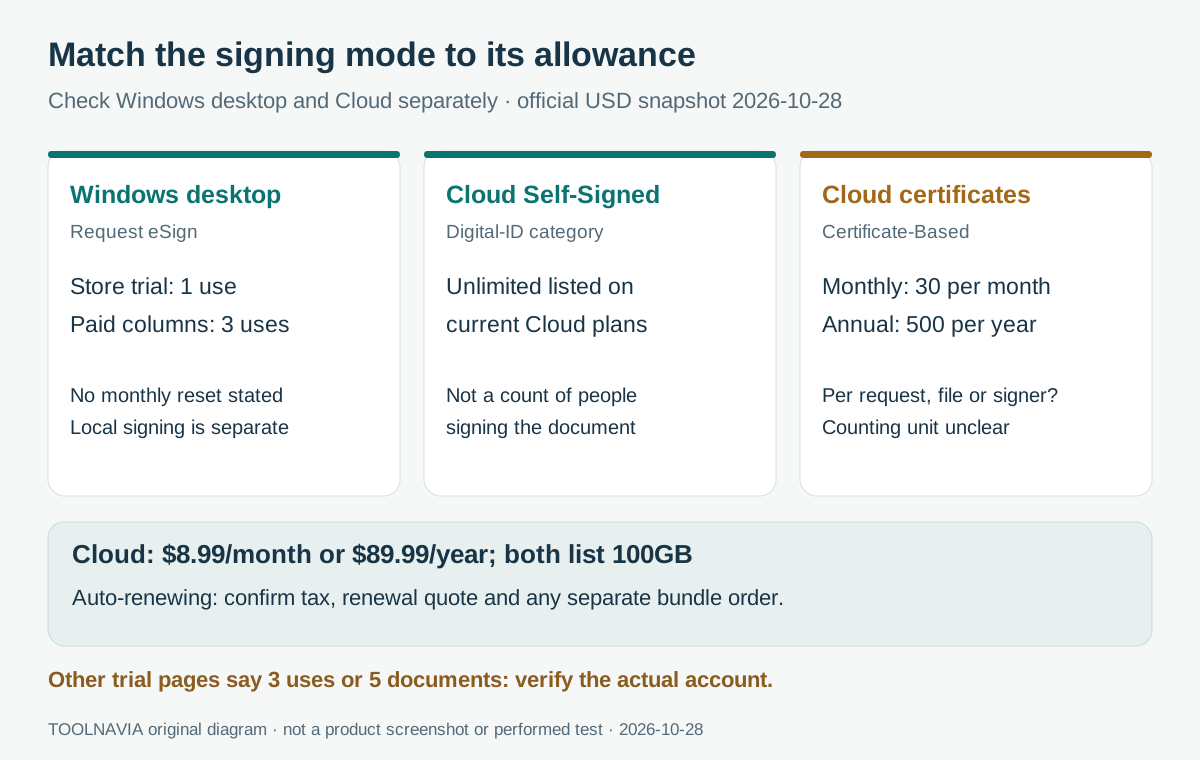
PDFelement 13 for Windows separates **Request eSign**, which collects recipients' signatures, from local **Sign Document** digital-certificate signing and drawn or image signatures. Local signing is not evidence of remote-request capacity.
Cloud's **Self-Signed Electronic Signatures** category describes a self-signed digital ID, not how many people sign. Its **Certificate-Based Digital Signatures** category uses a certificate-authority-issued ID. Recipient trust is a separate question covered in our [PDFelement certificate guide](/en/software/pdfelement-digital-signature-certificate).
Read the trial allowance carefully
The Windows table lists Request eSign once in its 14-day trial and three times in paid columns, without promising a monthly reset. Another support page gives new users three trials; a Cloud FAQ says five documents. These pages do not establish one current allowance for every account. Check your actual plan, category and balance.
A support answer promises unlimited files after buying Cloud. It does not explain whether certificate allowances count requests, documents or signers, or whether cancelled sends consume them. Do not treat that wording as unlimited certificate capacity.
Ask whether a multi-signer agreement consumes one unit or several, and what triggers a balance reset for your exact plan. Save the answer with your order.
Budget for the Cloud plan
Official USD storefront snapshot, October 28, 2026:
| Standalone Cloud term | Displayed charge | Certificate-Based Digital Signatures | | --- | --- | --- | | Monthly | $8.99 each month | 30 per month | | Annual | $89.99 paid yearly | 500 per year |
Both plans renew automatically and list 100GB storage plus unlimited Self-Signed Electronic Signatures. The annual 500 is not a monthly replenishment; rollover is unstated.
Cloud marketing mixes desktop-access wording with separate purchase cards. A **PDFelement + Cloud bundle is separately shown at $119.99/year**. Confirm the order's line item instead of assuming standalone Cloud includes the editor.
At unchanged prices, twelve monthly charges total $107.88, or $17.89 more than annual billing. This compares term totals, not cost per request. Final taxes, regional eligibility and renewal amounts remain unverified; crossed-out reference prices are not confirmed renewal quotes.
*Toolnavia may earn a commission through the Windows desktop purchase buttons. They do not purchase the Cloud plans above.*
Four ways the workflow can help
- **Prepare and request from one PDF.** Open Request eSign from the edited agreement to keep client preparation and collection together. This convenience does not increase the included allowance.
- **Coordinate several recipients.** Set signing order, reminders and assigned fields so each person receives the relevant task. Check addresses and field ownership before sending.
- **Collect completion records.** Agreement List tracks progress; download the completed PDF and audit report for the client handoff. An activity record alone does not establish legal acceptance.
- **Reuse a familiar setup.** Cloud templates let you send the same form to new recipients without rebuilding it. Confirm template access and sending charges for the actual plan.
Check one request from start to finish
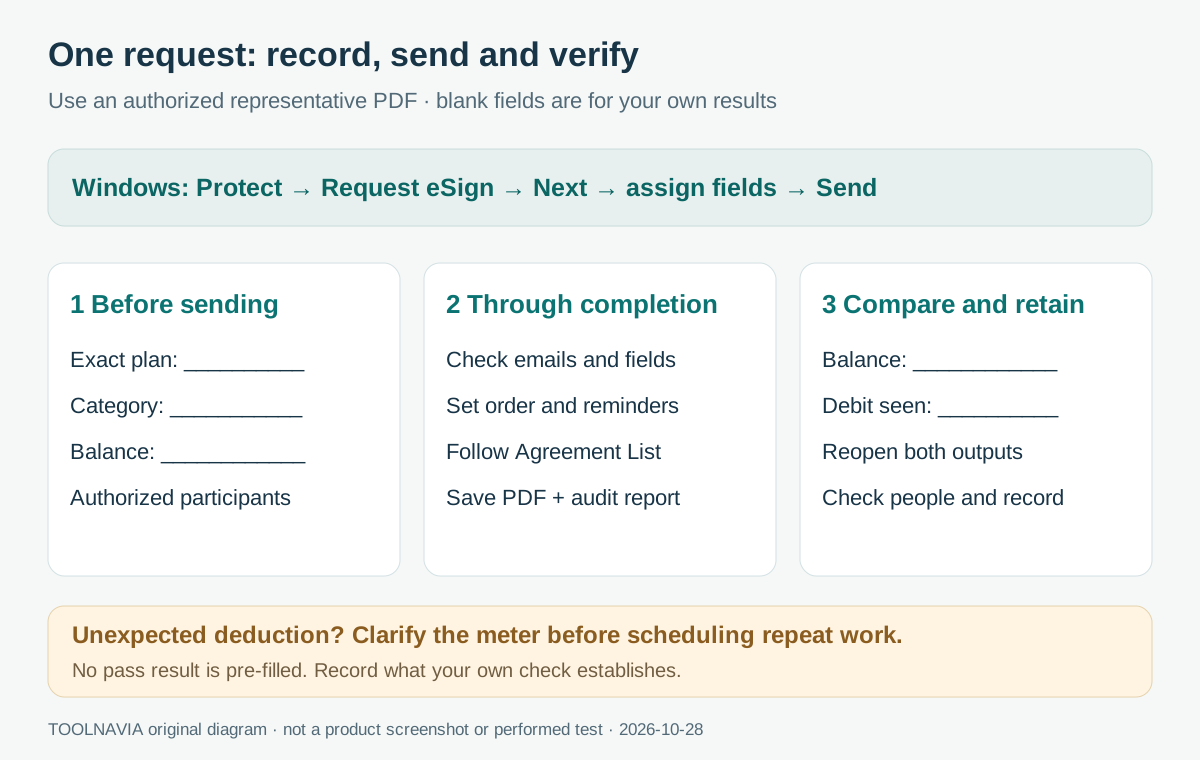
Use this suggested procedure before committing recurring work:
1. Choose a harmless representative PDF and authorized participants. Record the exact plan, signature category and available balance before sending.
2. On Windows, open the PDF and select **Protect → Request eSign**. Add recipients, signing order and reminders, then select **Next**.
3. Place signature and date fields, assign each to the correct recipient, check the document and select **Send**.
4. Follow the Agreement List through completion. Download both the completed agreement and audit report; retain them with the original request details.
5. Compare the remaining balance with your starting record. Reopen both outputs and check the expected participants and completion record. Resolve unexplained deductions before planning a month's workload.
Match the purchase to your workload
For occasional sending, compare the unit before the headline allowance. Dropbox Sign defines a bundled request and renews three free requests every 30 days; Docusign counts envelopes; Adobe allowances depend on the service level. Their definitions cannot fill Wondershare's missing counting rules.
Choose **Windows desktop plans** when PDF preparation is itself valuable. If you already have an editor, price the exact Cloud service; if you need both, compare the bundle before buying twice. For recurring certificate-based work, confirm the counting unit and reset rules before committing to a term.