TOOLNAVIA / BUYING GUIDE
Parallels USB Devices on Apple Silicon: Check the Driver Before You Buy
The short answer
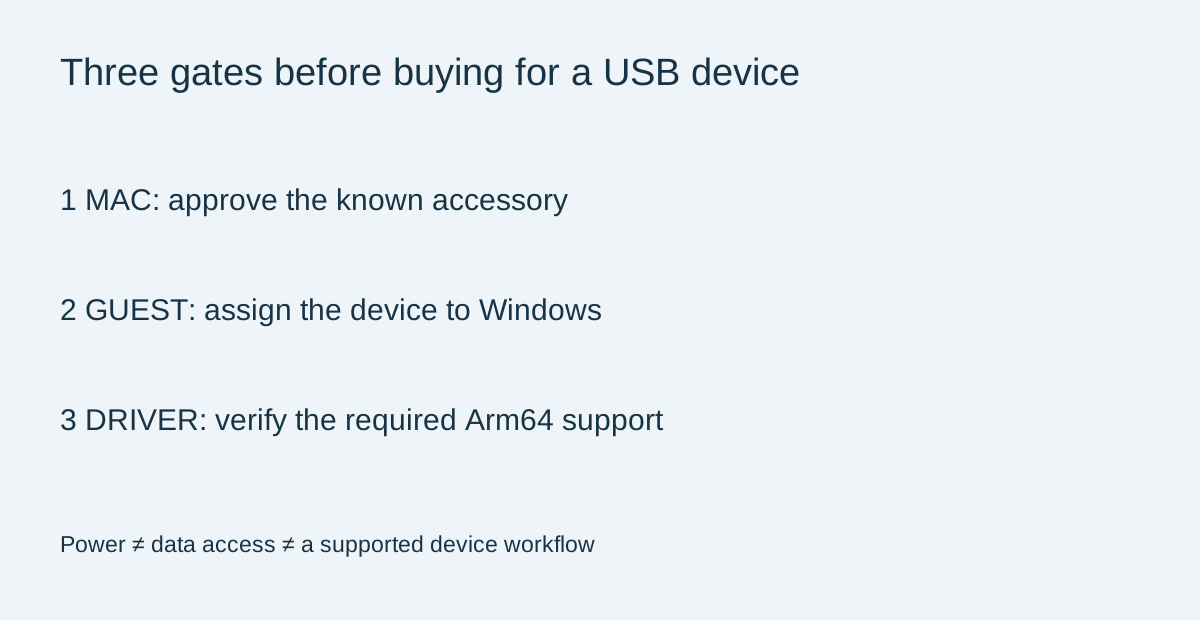
Parallels can be worth buying to keep a necessary Windows application beside your Mac work. When that application depends on a scanner, printer or another USB accessory, however, the purchase has three separate gates: the Mac must allow the connection, the virtual machine must receive the device, and Windows must support its driver. An application opening is not the finish line.
At a glance
- Best for
- One supported peripheral-dependent Windows job on a Mac.
- Price model
- Current Standard checkout; Windows licensing separate
- Check first
- An application opening does not prove the device works.
Gate one: a powered accessory is not a connected accessory
On Apple-silicon Mac laptops, macOS can ask you to approve a new USB accessory. Apple notes that a refused accessory may still charge, even though it has no data access. Unlock the Mac and approve only the known accessory you intend to use; do not disable the approval policy just to remove a troubleshooting step. Managed laptops may need their administrator's help.
Record the exact accessory model and connection path, including any hub. A successful light or charging indicator answers a power question, not whether your software can exchange data with the device.
Gate two: decide which system owns the device
Parallels' version-20 device guide documents choosing macOS or Windows for devices that cannot serve both simultaneously. It also describes manually connecting an already-attached device and releasing a Mac application that is using it. Menu wording may differ in your installed release.
These controls offer practical convenience: you can keep the Mac as your main computer, choose the guest for a specific job and avoid physically moving an accessory between two computers. Remembering an assignment can reduce repeated prompts, but first validate the assignment manually. Automatic routing to the wrong system is not a productivity improvement.
Direct USB printer connection and sharing a printer through the Mac are different paths. The printer guide says direct Windows attachment makes that printer unavailable to macOS at that time. Do not use a successful shared printout as proof that the same route exposes a scanner's document feeder, a device-control utility or another function you actually need.
Gate three: Windows app emulation does not supply a hardware driver
Microsoft states that Windows 11 Arm peripherals need compatible built-in drivers or an Arm64 driver from the manufacturer. An x86 or x64 application may run through emulation while its required driver remains unsupported. Ask the accessory vendor about the exact model, connection type, driver and application version—not just whether it supports Windows 11 generally.
There is a concrete manufacturer warning here. Summa's support page says its USB communication in Windows 11 Arm virtual machines is unsupported because of the driver installer. It lists network connection as a possible alternative for certain models, explicitly without a working-solution guarantee. This is a Summa-specific example, not a statement that every USB device fails.
Paying for more virtual memory or a higher edition cannot, by itself, provide the absent Arm64 driver. When the vendor does not support the required route, preserving a compatible Windows workstation may be less disruptive than trying increasingly complicated workarounds.
Test the result you are purchasing
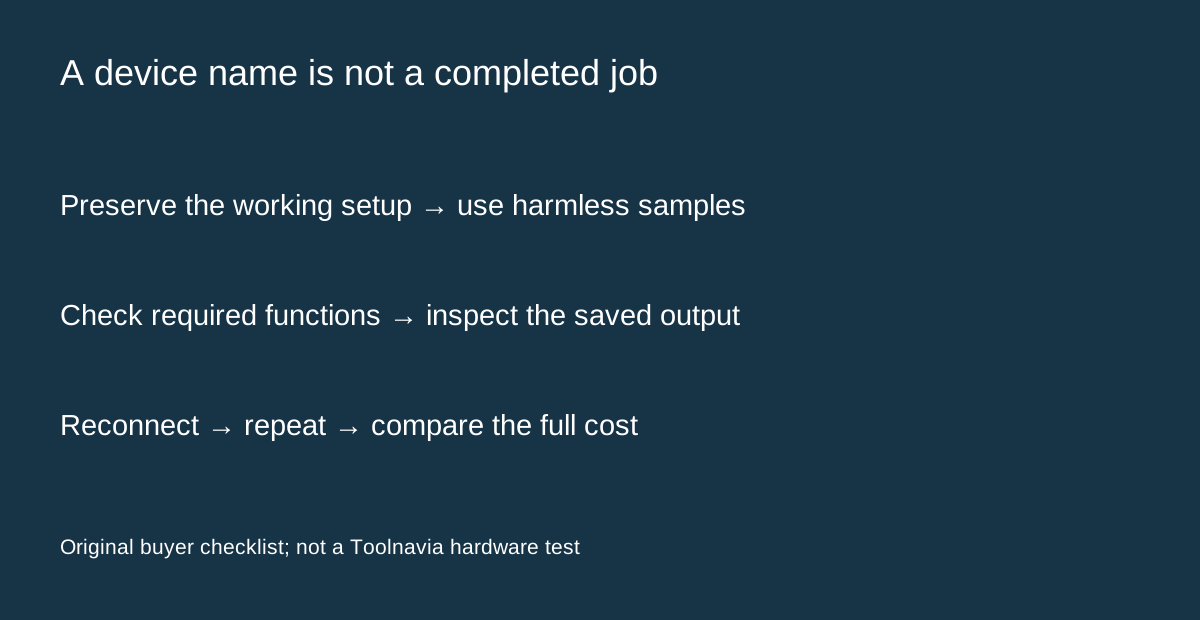
Here is a proposed acceptance exercise, not a Toolnavia hardware test. Keep the working setup intact. Use non-sensitive sample documents, install only the manufacturer's supported driver and complete one ordinary job. For a scanner, verify the pages, page order and required feeder or duplex functions. For printing, check the actual size, color and finishing options your work requires.
Then close and reopen the application, reconnect the accessory and confirm that the assignment still makes sense. Save an output file outside the experiment and inspect it with the software you normally use. A device name in a menu is weaker evidence than a complete, repeatable output.
Compare the whole cost after compatibility passes
The current purchase page offers Standard annual and one-time licensing for one Mac; Windows activation is a separate licensing requirement. It does not expose a dependable numeric checkout quote in this reading, so this guide does not promise a promotional price. Compare the actual Parallels charge, eligible Windows license, application license and any necessary accessory changes against retaining your working setup.
The [Standard licensing guide](/en/software/parallels-desktop) covers the broader payment decision. For print work, also use the [print-ready PDF checklist](/en/software/coreldraw-print-ready-pdf-workflow) to distinguish a correct exported file from a successful physical print.
Choose Parallels when the complete supported job works and the convenience earns its cost. Affiliate disclosure: Toolnavia may earn a commission through the Parallels buttons. They use our issued Desktop referral, not a preselected edition or guaranteed discount.