TOOLNAVIA / BUYING GUIDE
Movavi Video Editor AV1: Test Import, Export, and Hardware Support
The short answer
AV1 support is not one yes-or-no feature. An editor may export AV1 but fail to decode one of your AV1 sources; it may open an MP4 but reject the same codec in WebM or MKV; and it may expose an AV1 preset while the CPU still does most of the work. Movavi documented an MP4 (AV1) export preset in Video Editor 25.2, while its current support pages say codec availability depends on the operating system, device, configuration, and sometimes separately installed codecs.
That makes the buying test simple: use your own AV1 source files, verify import and timeline behavior, export a short AV1 sample, and play that result on the real destination. Do not pay because a release note contains “AV1.” Pay only if the complete source-to-delivery path works on your machine.
Affiliate disclosure: Toolnavia may earn a commission if you buy through the approved Movavi link below. The commission does not change the test procedure or the checkout price.
At a glance
- Best for
- Creators who can test representative AV1 sources and the real delivery destination.
- Price model
- Live checkout controls current price, tax, renewal, build and device scope.
- Check first
- AV1 behavior depends on build, OS, codec pack, container, profile, driver, GPU and destination.
Verdict: separate AV1 import, editing, and export
Movavi is a reasonable candidate for creators who want a friendly timeline and an AV1 MP4 delivery option without learning a command-line encoder. The official change log says Version 25.2 added an MP4 (AV1) Save Video preset. Current requirements pages identify the product as a 27.x generation and explain that media support is partly supplied through Windows Media Foundation or macOS AVFoundation.
Those facts do not establish universal AV1 input support, every container/profile combination, or hardware acceleration on every GPU. Movavi's own import troubleshooting page says unsupported codecs can produce missing video, missing audio, incorrect imports, or complete failure. Its current WebM guide repeats that codec availability varies by system.
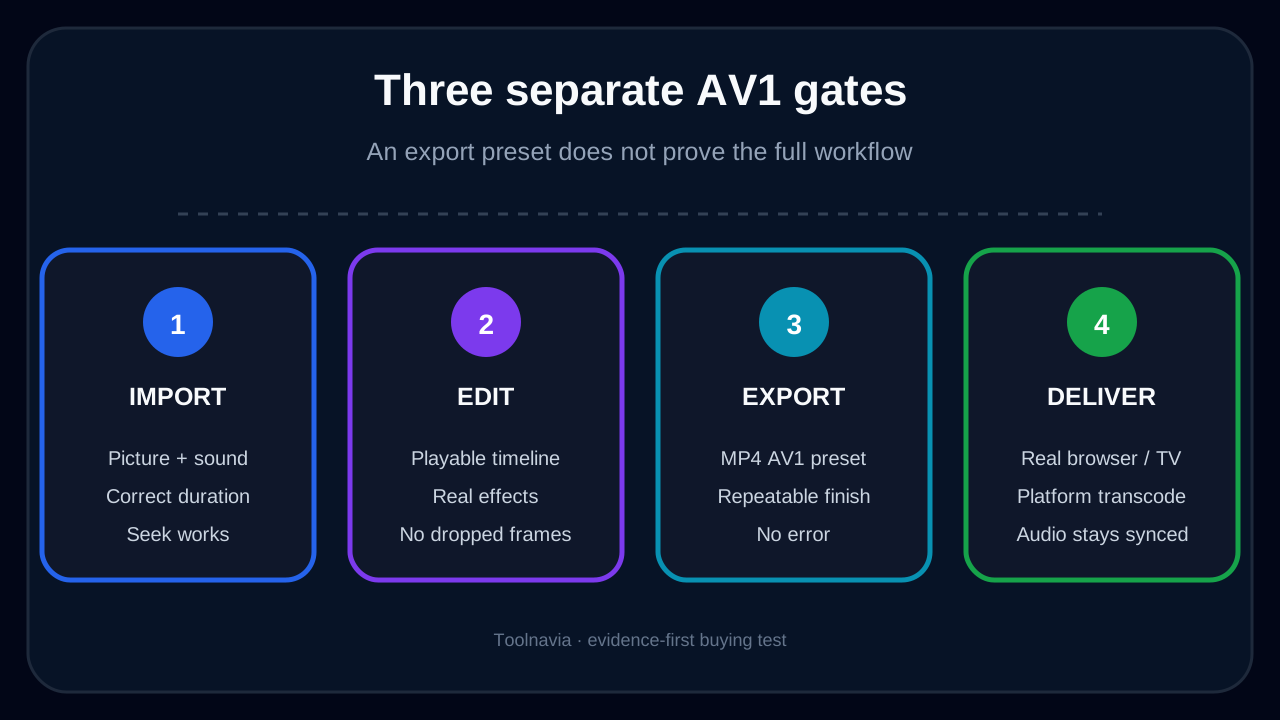
Buy only when three separate gates pass: your representative AV1 files import correctly; the timeline remains usable for the edits you perform; and the exported AV1 file plays on the intended browser, application, television, or platform. If only the export button passes, you do not yet have a proven workflow.

What the official pages actually prove
The strongest product-specific evidence is the release note: Movavi added an MP4 (AV1) save preset in January 2025. That proves an AV1 export route existed in the documented build. It does not promise that every current build, operating system, source profile, bit depth, chroma format, or container behaves identically.
The current system-requirements page adds the key boundary. It says codec availability may vary with the OS version, device, and configuration; Movavi accesses media through Windows Media Foundation on Windows and AVFoundation on macOS; and some codecs may need separate installation. Microsoft likewise lists AV1 as a decoded format on Windows but notes that the corresponding optional codec pack may be required.
The official import troubleshooting page gives the practical symptom list: a file can show audio without video, a black preview, incorrect import, or no import when the system cannot decode its codec. That is why “the file extension is supported” is weak evidence. MP4, MKV, and WebM are containers; the AV1 stream, audio codec, profile, bit depth, and system decoder determine whether the file works.
Movavi's current WebM article says WebM can contain AV1, yet its workflow advice still depends on the installed system and recommends exporting an MP4 for broad compatibility. Treat this as a prompt to test, not as a blanket guarantee for AV1-in-WebM.
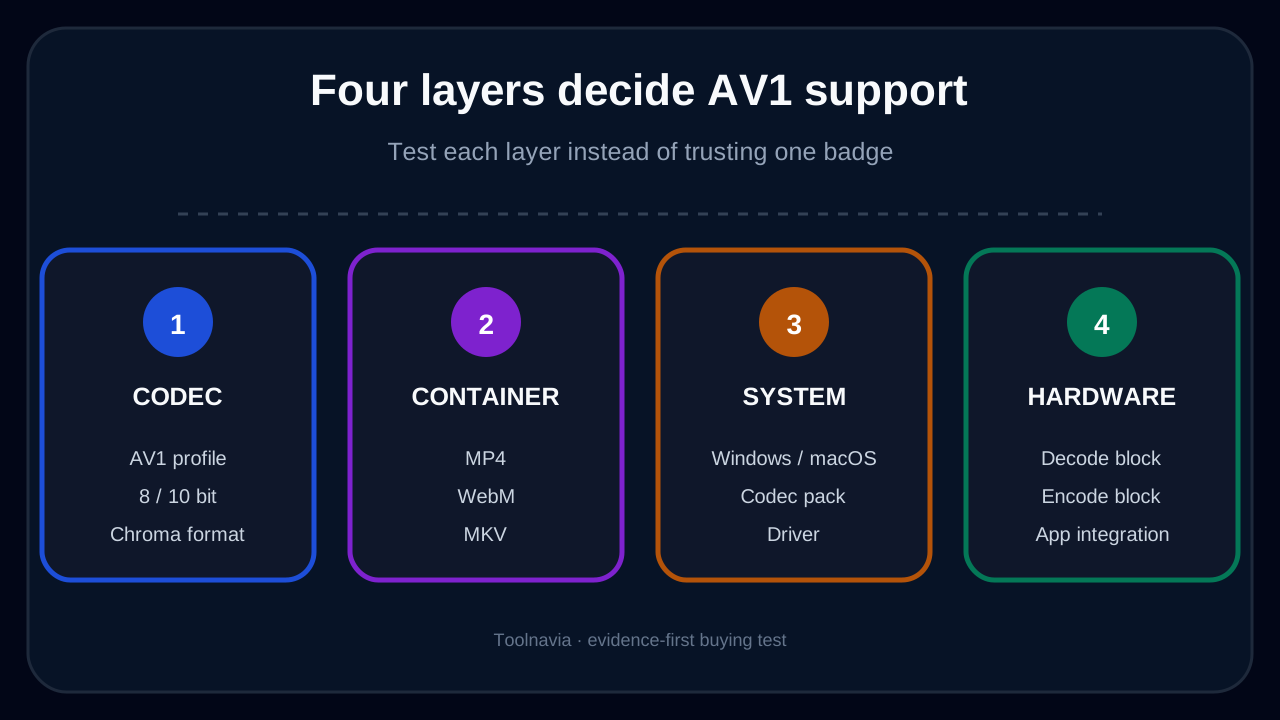
Decode, encode, container, and GPU are four layers
AV1 decoding turns the source bitstream into frames for the timeline. AV1 encoding turns edited frames into the delivery file. These are different hardware paths. A GPU that decodes AV1 may not encode it, and an application may use one path but not the other.
NVIDIA documents AV1 decode through NVDEC and AV1 encode through NVENC on supported hardware, but an application must integrate those APIs and the exact GPU must expose the capability. HandBrake documents software AV1 encoding through SVT-AV1 plus hardware routes through Intel Quick Sync, NVIDIA NVENC, and AMD VCN. This comparison matters because it shows why CPU usage, GPU generation, driver version, filters, and preset choice can change export speed.
Blackmagic publishes a container- and platform-specific codec table for DaVinci Resolve, including explicit AV1 decode and encode conditions. Movavi's public pages reviewed here do not provide the same complete matrix. That is an evidence gap, not proof that a combination fails. The safe response is to build your own small matrix instead of inferring support from one badge.

Run a six-file AV1 acceptance test
Prepare files you are allowed to test. Use at least three source variations, then create matching short exports:
1. an ordinary 8-bit 4:2:0 AV1 MP4; 2. an AV1 WebM or MKV from the device or service you really use; 3. a 10-bit AV1 sample if your production sources include 10-bit media; 4. a five-second fast-motion section that reveals dropped frames; 5. a gradient or dark scene that reveals banding and crushed detail; 6. a clip with the real audio and subtitle configuration you deliver.
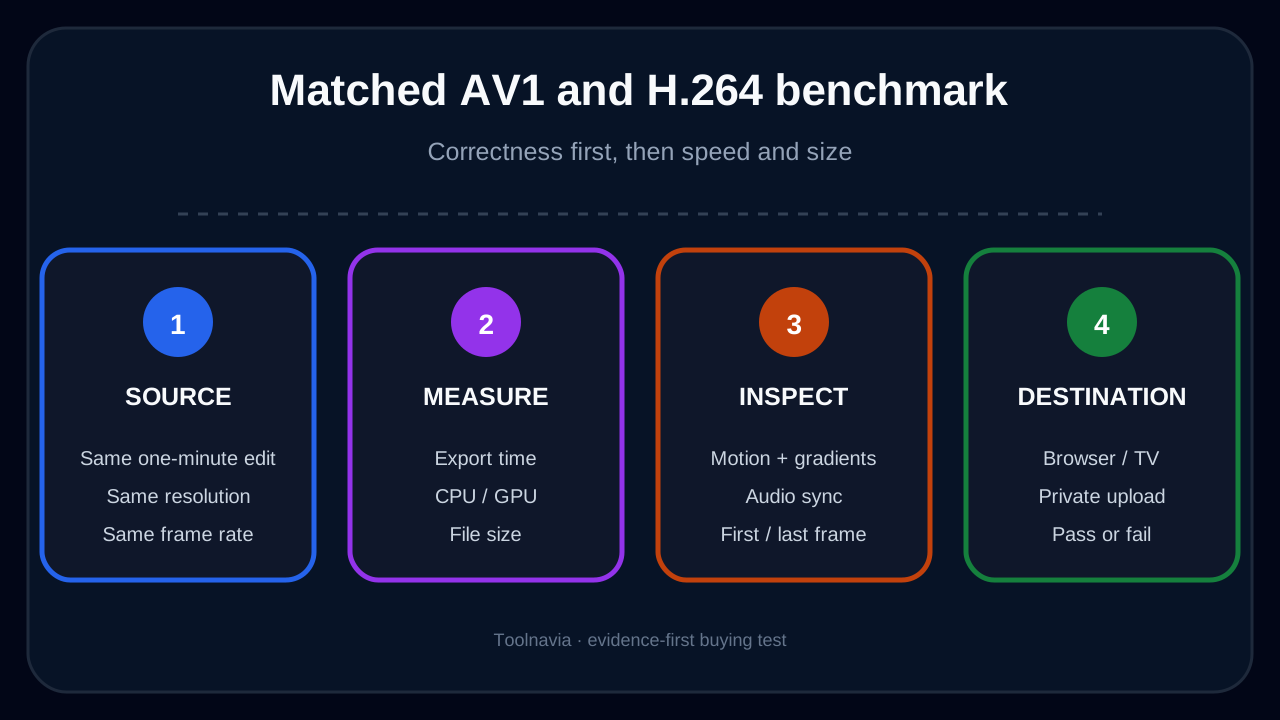
Record the container, AV1 profile, bit depth, chroma format, resolution, frame rate, and audio codec. Open each file in the current Movavi build. Check whether picture and sound appear, whether duration is correct, whether seeking lands on the expected frame, and whether the first and last seconds are intact.
Place all passing files on one short timeline. Add only representative work: a cut, one resize, one color adjustment, text, and the heaviest effect you commonly use. Watch the preview at normal speed and scrub through the fast-motion section. A file that technically imports but makes the timeline unusable is not a purchase pass.
Export the same one-minute timeline to the documented MP4 AV1 preset and to a broad-compatibility H.264 reference. Keep resolution, frame rate, and audio comparable. Record export time, CPU/GPU utilization, file size, and any error. Do not claim “hardware accelerated” merely because GPU usage is above zero; filters, decoding, compositing, audio, and encoding can use different resources.
Judge the result on the destination, not the editor preview
Play both exports locally, then on the real destination. For a web delivery, test the browsers and operating systems your audience uses. For a television or signage player, use the actual model. For a social or video platform, upload a private sample and inspect the platform's transcode.
Check motion cadence, audio sync, gradients, dark detail, color, subtitles, and the opening/closing frames. Compare file size only after the picture passes. A smaller AV1 file is not a benefit if a customer device cannot decode it or the platform makes a poor derivative.
If AV1 import fails but H.264 works, Movavi's own support route is to transcode to a compatible format and try again. That may be acceptable for occasional footage, but it adds time, storage, and another generation. Measure that cost before calling the editor cheaper. If AV1 export works but the destination does not, deliver H.264 or another accepted format and preserve the AV1 experiment separately.
Use hard gates rather than one average score. An import with missing video is a fail. Incorrect duration or audio drift is a fail. A delivery device that cannot play the result is a fail. Slower-than-expected export is a trade-off only after correctness passes.

Version, price, and performance boundaries
Movavi's public pages can show different 27.x minor versions depending on the page and crawl time, while the AV1 export note dates to Version 25.2. Confirm the installed build through Help > About and verify the AV1 preset there. Do not assume an old release note guarantees the same controls on every current platform.
The approved offer points to Movavi's official Video Editor store, but live checkout controls the price, tax, renewal, trial restrictions, supplied build, and device scope. Save a screenshot of those terms before payment. The free build may impose watermark, duration, quality, codec, or feature limits depending on the build, so a trial failure must be classified: codec incompatibility, trial restriction, or hardware bottleneck are different problems.
Hardware vendors can establish that a GPU contains AV1 encode or decode blocks; they cannot prove Movavi uses them for your exact container, profile, effect chain, and driver. Measure the one-minute timeline twice after a warm-up, note the driver and app version, and keep the slower result. If AV1 saves meaningful upload/storage cost without breaking delivery, the extra export time may be acceptable. If every job requires a transcode before editing, include that time in the decision.
You can inspect the current plan through our [approved Movavi Video Editor link](https://www.jdoqocy.com/click-101895278-13233645) after the test. Trust the checkout and installed-build evidence over any fixed price or generic capability statement.
Who should buy—and who should wait
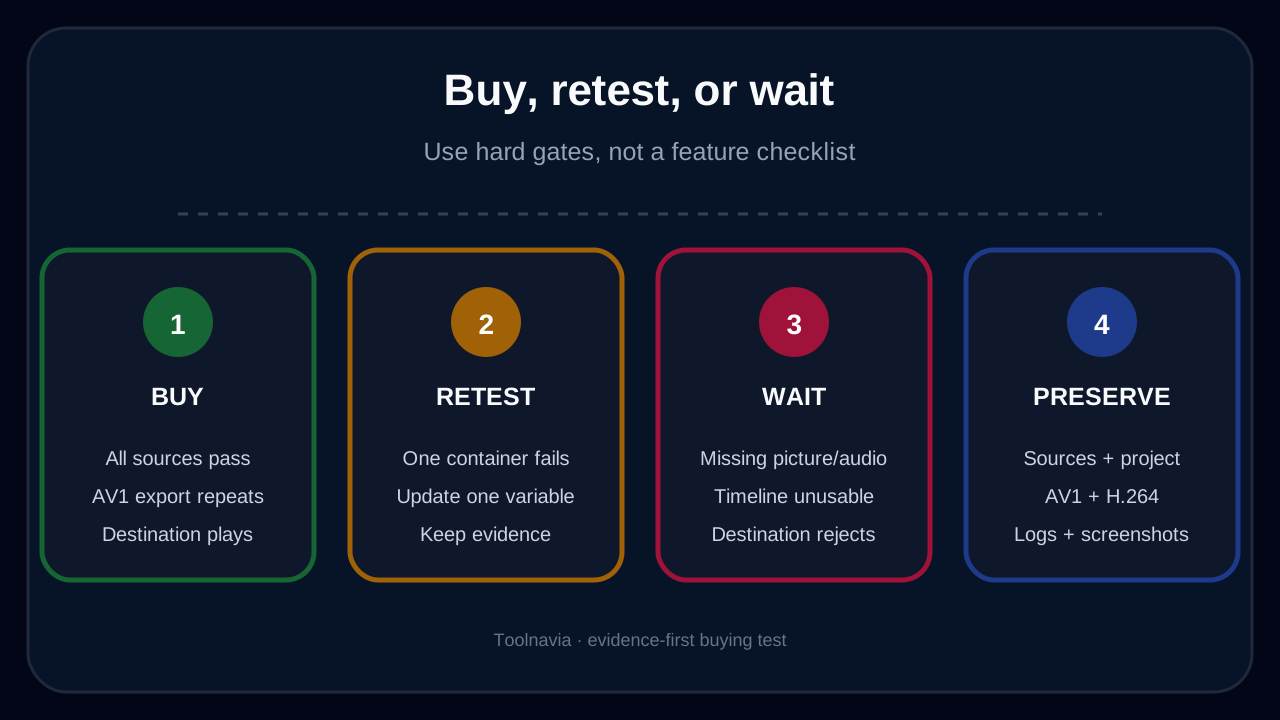
Buy when your real AV1 MP4/WebM/MKV samples import with picture and sound, the timeline remains responsive enough, the MP4 AV1 export completes repeatably, and the real destination plays it correctly. The purchase is strongest when AV1 materially reduces delivery size or bandwidth and you already value Movavi's editing workflow.
Retest when only one container fails, a codec pack or driver update changes the result, or the GPU path is unclear. Change one variable at a time. Keep the source, project, export settings, logs, utilization screenshots, AV1 output, H.264 reference, and destination result so a future update can be compared.
Wait when you cannot identify the source profile, the file opens without video or audio, the timeline drops frames, export fails, the destination rejects AV1, or the workflow requires an unplanned transcode for every job. Also wait if the only evidence is the presence of an AV1 preset. An export menu is the start of the acceptance test, not the end.