TOOLNAVIA / BUYING GUIDE
Movavi Screen Recorder License: One Computer, Transfer, or Shared Access?
The short answer
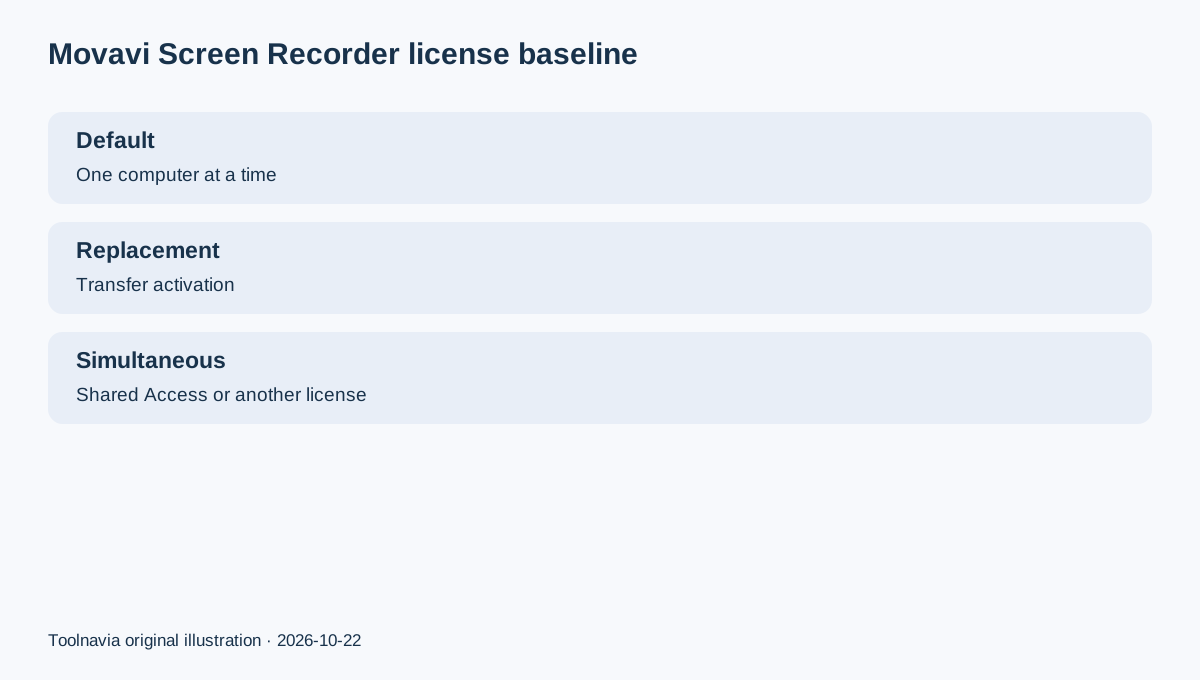
A Movavi Screen Recorder Personal license is best understood as a one-computer license by default—not a disposable license tied forever to the first PC. If you replace that PC, you normally transfer the activation through Movavi Customer Service. If you want to record on a desktop and laptop at the same time, transfer is the wrong mechanism: check whether Shared Access is offered for the exact Screen Recorder order, or buy the additional license the order requires.
At a glance
- Best for
- Personal buyers replacing one PC or deciding whether multiple active computers need Shared Access or another license.
- Price model
- No fixed Shared Access price asserted; live localized checkout controls.
- Check first
- Exact order and EULA control; Shared Access availability, device count, price and tax vary; reseller transfers may use the original seller.
The decision in one minute
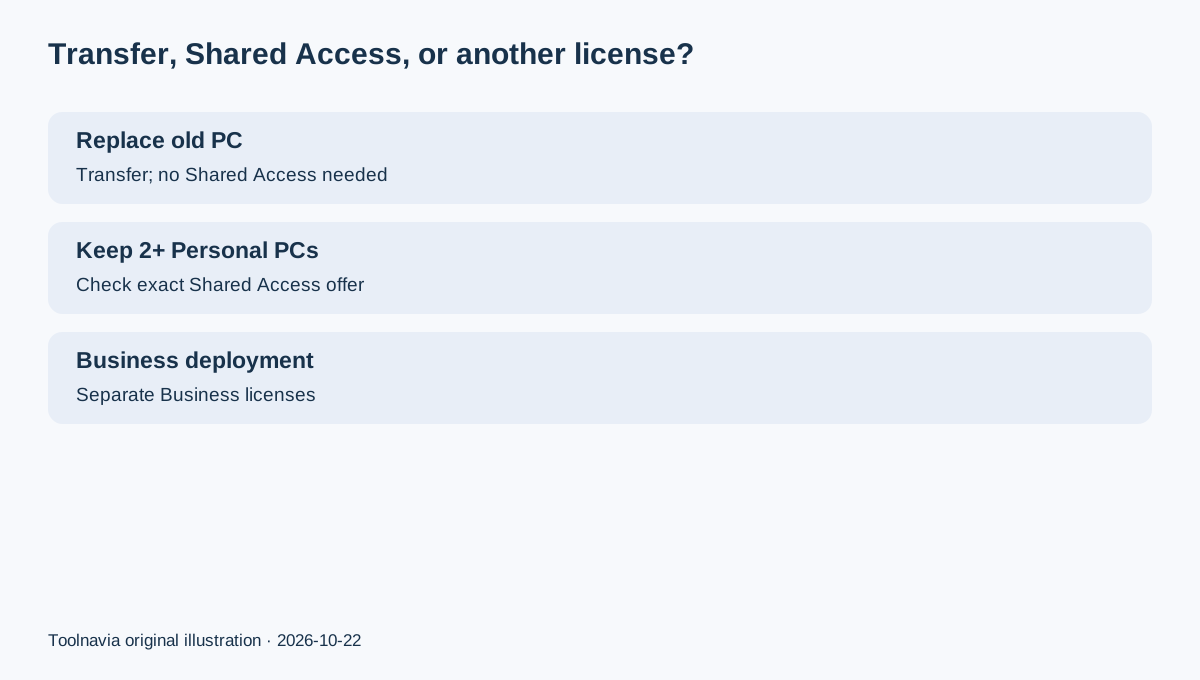
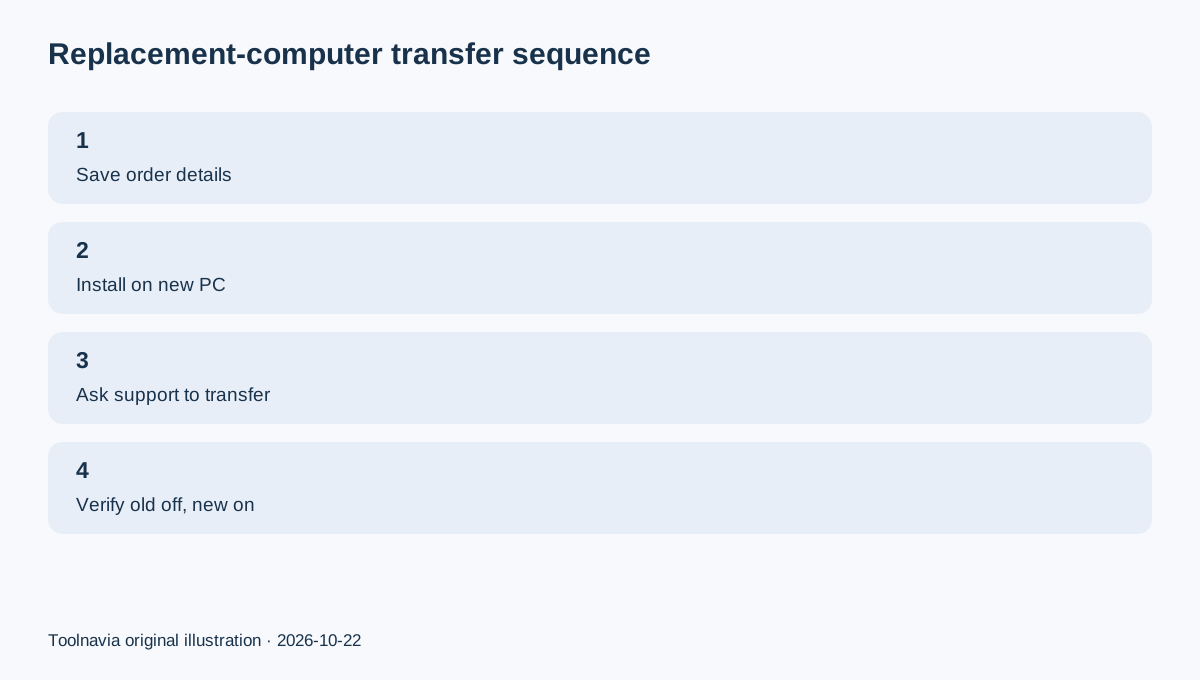
For a replacement PC, install Screen Recorder on the new machine, keep the order details, and ask Movavi support to transfer the license. The old activation is deactivated and support provides a key for the new computer. You do not need Shared Access merely because hardware changed.
For simultaneous Personal use, verify Shared Access at checkout. Movavi describes it as a separate subscription for eligible Personal licenses and says a typical setup can cover one primary computer plus additional computers, but the exact number, availability and price vary by product and offer. The individual order controls.
For Business use, Shared Access is not the answer. Movavi says Business licenses are generally licensed per computer, so additional workstations need additional licenses unless the order explicitly grants something else.
“One computer” does not mean “one installation forever”
Movavi's activation rules separate device scope from legitimate replacement. A Personal license generally covers one computer at a time. Reinstalling on the same computer, or moving to a new one after retiring the old activation, is different from keeping two active copies.
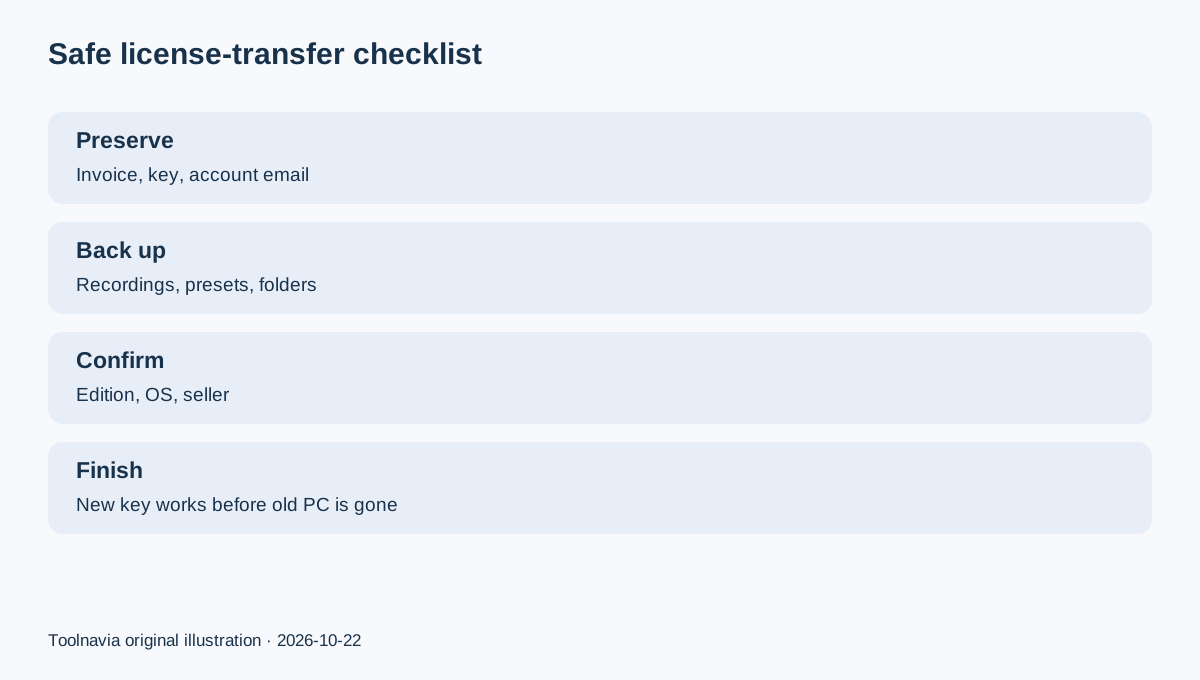
The official transfer workflow is support-assisted: install on the new computer, contact Customer Service with the purchase information, let Movavi deactivate the old activation, then use the replacement key. Do this before wiping or selling the old PC when possible. Save the order email, activation key, account email and support case number.
A license transfer moves the right to activate; it does not automatically move recordings, export presets or local folders. Back those up separately before the old machine disappears.
When Shared Access is worth checking
Shared Access matters when two or more personal computers must remain usable at the same time—for example, a desktop in the studio and a laptop while traveling. It is an optional recurring add-on, not a general promise attached to every Movavi purchase. The current public checkout is localized by region, and the crawl did not expose a stable US add-on price. Toolnavia therefore does not publish a fixed Shared Access price or promise that it appears for every Screen Recorder order.
Compare the live add-on cost with the price of another exact license. Also verify the permitted device count, whether the add-on renews separately, and whether every target device uses a supported operating system. The cheapest-looking route can change with region, tax and the order shown.
Personal, Business and third-party purchases
A Personal license is for personal use under the individual terms. Business use has a separate license type and generally requires one license per computer. Do not buy Personal Shared Access as a workaround for commercial deployment.
If the purchase came from an app store, Steam or another reseller, the original seller may control activation or transfer. Start with the receipt and seller account rather than assuming Movavi can reissue the key directly. Independent discussions and reviews confirm that this distinction is a real buyer concern and that one-device-at-a-time framing is common, but official order terms remain authoritative.
Safe transfer checklist
1. Confirm the old and new computer details and the exact Screen Recorder edition. 2. Save the invoice, order number, activation key and account email. 3. Back up recordings, screenshots, presets and any folders you need. 4. Install the current compatible build on the new computer. 5. Ask Movavi Customer Service for a replacement-computer transfer. 6. Confirm the old activation is deactivated and the new key works. 7. Only consider Shared Access if both machines must remain active.
Movavi runs an open cash affiliate program, and Toolnavia's exact Screen Recorder one-year offer is approved, market-confirmed and enabled. Commercial links use the matching [Movavi Screen Recorder route](/go/movavi-screen-recorder-one-year-official-usd); no raw tracking URL or coupon claim appears here.
Decision rule
Replacing one PC: transfer the license. Keeping multiple Personal computers active: verify product-specific Shared Access or another license. Deploying for work: use the required Business licenses. The device count and add-on price shown in your final order—not a generic review—are the controlling purchase facts.