TOOLNAVIA / BUYING GUIDE
Movavi Mouse Clicks & Keystrokes: Pay for Tutorial Cues?
The short answer
# Movavi Mouse Clicks & Keystrokes: Pay for Tutorial Cues?
**Short verdict:** Movavi Screen Recorder is worth paying for when you publish software tutorials often enough that visible cursor movement, click emphasis, and shortcut cues save repeated explanation. It is not automatically the best choice if you need to redesign those cues after recording. Movavi’s current pages document capture-time cursor, click, and keystroke controls; they do not promise a separate, fully editable cursor-data track after capture. Test one real lesson in the seven-day trial before buying.
> **Affiliate disclosure:** Toolnavia may earn a commission if you buy through the approved Movavi link below, at no extra cost to you. The recommendation and pass/fail test do not depend on a purchase.

At a glance
- Best for
- Recurring tutorial creators who can approve cue design before recording.
- Price model
- No stable price quoted; verify final checkout.
- Check first
- No official promise of an independently editable cursor-data track after capture; keystroke overlays can expose secrets.
1. What you are actually paying for
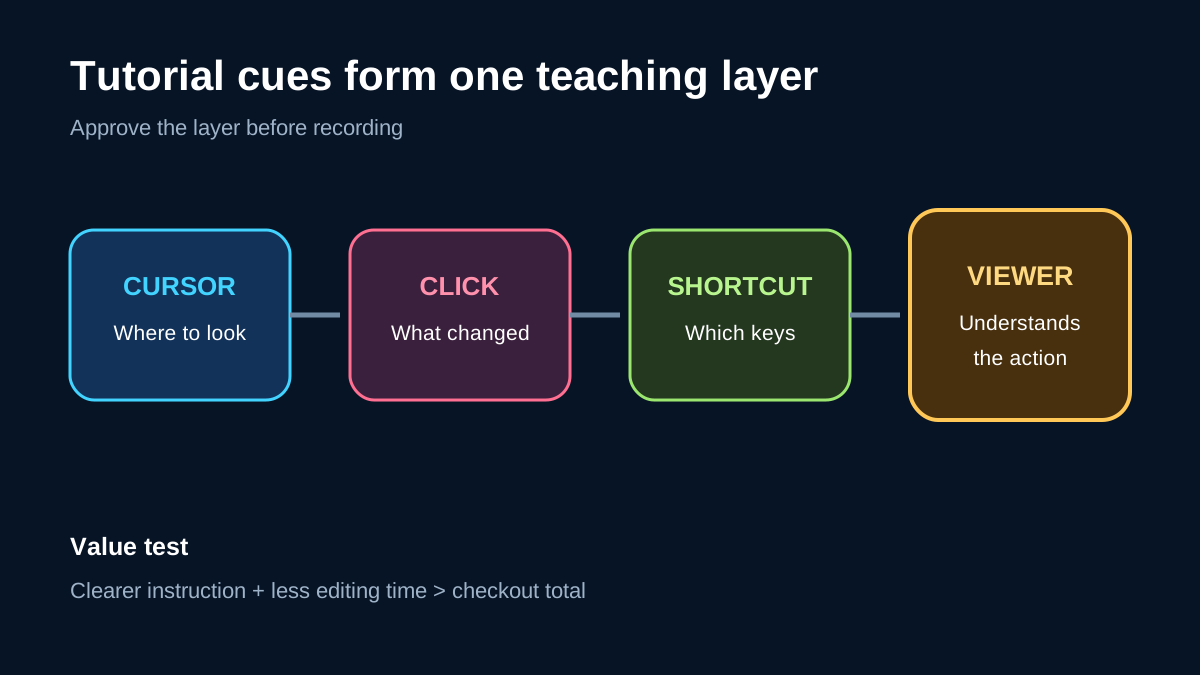
For a tutorial viewer, a pointer is not decoration. It answers “where should I look?” A click cue answers “what action just happened?” A shortcut label answers “which keys produced that result?” Movavi’s official feature pages say the recorder can show the cursor, highlight cursor movement or clicks, add click sounds, and display keystrokes or shortcuts. The recorder can also capture system audio, microphone, webcam, and on-screen annotation.
That combination reduces production friction: you can record a short walkthrough with the teaching cues already visible instead of rebuilding every click in an editor. The value is highest for recurring onboarding, support, classroom, and product-demo work. A single casual recording rarely justifies a subscription by itself.
The boundary matters. “Visible while recording” is not the same promise as “editable as independent metadata later.” Camtasia explicitly says it records mouse data, cursor clicks, and keystrokes for editing, and its cursor effects can be adjusted or removed on the timeline. ScreenPal documents hiding cursor and click highlighting in selected edited sections. Those are materially different post-production workflows.
2. The capture-first tradeoff
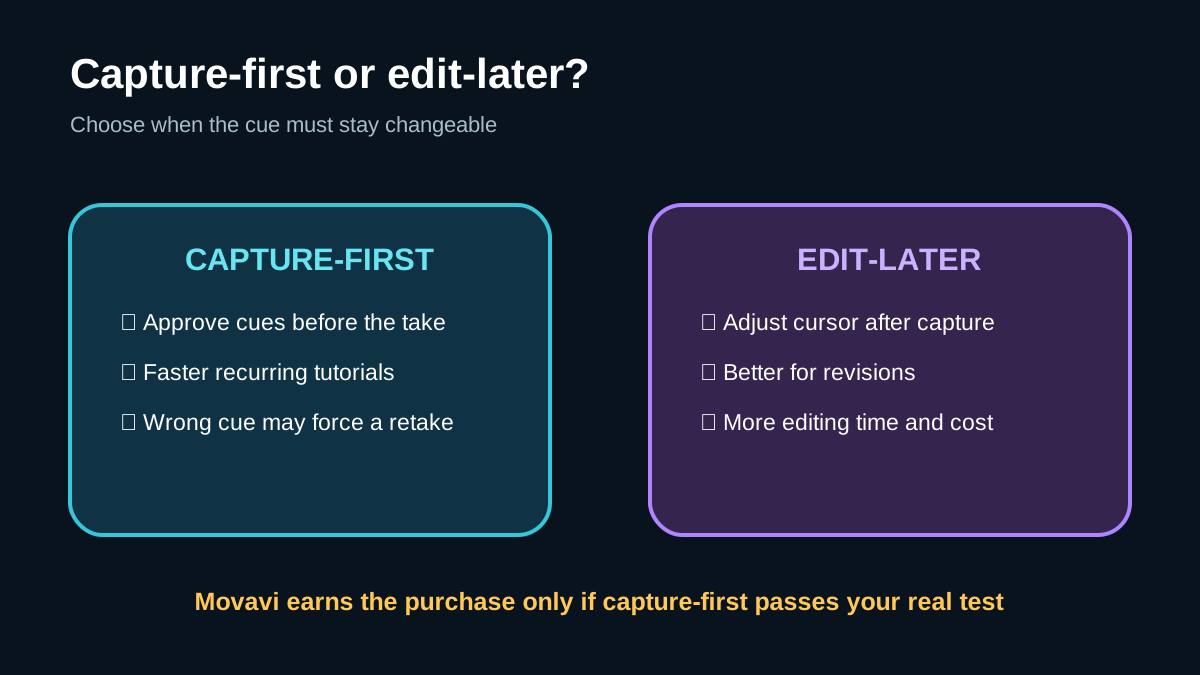
Movavi’s approach is attractive when speed matters more than forensic editability. Set the cursor and keyboard behavior, rehearse, record, and export. If the cue style is acceptable, you avoid a second editing pass. If the pointer size, click color, or shortcut density is wrong, however, a capture-first workflow can force a retake or a covering edit.

Compare three legitimate baselines:
- **Movavi:** integrated capture, click emphasis, keystroke display, audio, webcam, and drawing tools; best when the cue design can be approved before the take. - **Camtasia:** captures cursor actions for later editing and lets creators change or remove cursor effects on the timeline; better when post-production control is worth more time and budget. - **OBS Studio:** its official Display Capture documentation exposes a Show Cursor switch. That is a useful free visibility baseline, but this article does not assume undocumented click-animation or keystroke-overlay behavior.
ScreenPal sits between these patterns because its editor can hide mouse and click highlighting in selected sections. The right comparison is therefore not “which recorder has a cursor?” but “when must the cue remain changeable?”
Descript’s official tutorial and lecture guidance likewise treats click highlighting as a viewer-orientation aid, which supports the teaching use case but does not change Movavi’s editability boundary.
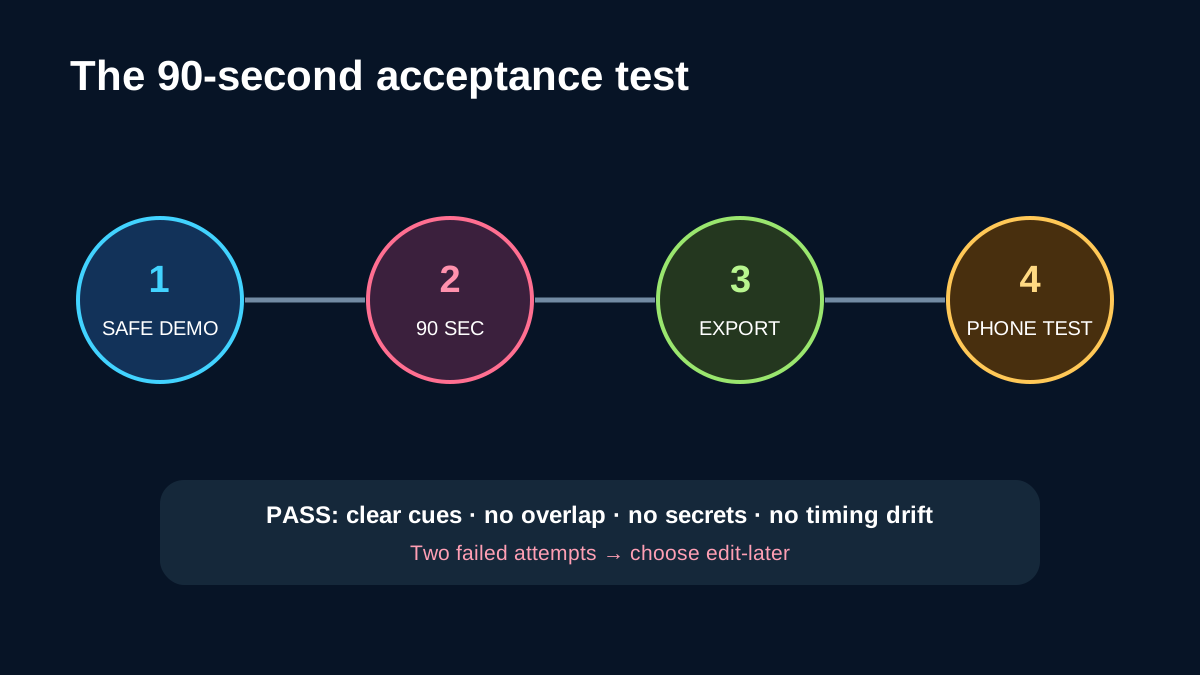
3. Run this 90-second acceptance test
Do not decide from a feature list. Record the exact teaching pattern you expect to publish.

1. Open a harmless demo project with no real customer data. 2. Enable cursor visibility, a restrained click highlight, and only the shortcuts viewers truly need. 3. Record 90 seconds: move between two controls, make a left and right click, use two shortcuts, type ordinary text, and add a brief voice explanation. 4. Export with the resolution and frame rate you actually plan to use. 5. Watch once on a laptop and once at phone width, at normal speed. 6. Fail if the pointer is hard to follow, click cues feel noisy, shortcut labels cover the interface, audio timing drifts, or any sensitive input appears. 7. Change one setting and repeat. If two attempts still require substantial repair, choose an edit-later tool instead.
The trial is useful because Movavi currently describes a seven-day trial with a watermark. A watermark prevents a publish-ready test, but it does not prevent evaluating cue legibility, timing, and workflow friction. Protected streams may not be capturable, so test your lawful, ordinary application workflow—not a DRM bypass scenario.
4. Keystroke overlays create a privacy risk
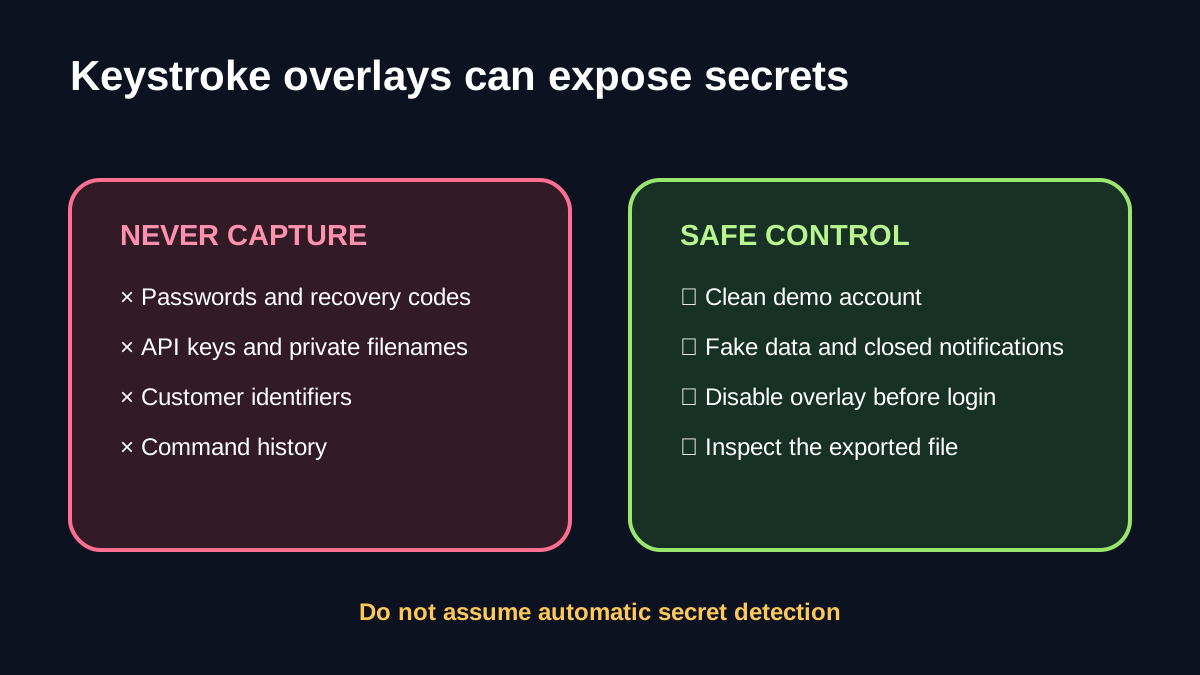
A keyboard overlay can teach a shortcut and expose a secret with the same mechanism. Passwords, API keys, recovery codes, private filenames, customer identifiers, and command history must never enter the capture while keystroke display is active.

Use a clean demo account. Pre-fill fake data. Close password managers and notifications. Disable the keystroke overlay before any authentication step, then verify the exported file rather than trusting the live preview. If the tutorial requires a login, cut from a safe pre-login state to a safe post-login state. This is a production control, not a claim that Movavi detects secrets automatically; the official pages reviewed here make no such promise.
Click emphasis also needs restraint. A persistent halo can help a beginner follow a dense interface, but flashing every click can distract experienced viewers. Use one visual cue system consistently, and keep click sounds off when they compete with narration.
5. Price and offer boundary
Movavi pricing and promotions change by country, platform, tax, term, and campaign. The official purchase and comparison pages observed during research displayed time-sensitive figures, so this guide deliberately does not freeze a promotional price. Verify the product name, personal one-year term, currency, tax, renewal wording, refund terms, and supported platform at final checkout.
The approved direct affiliate offer is for Movavi Screen Recorder’s personal one-year plan. It is a fit only if the 90-second test passes and your publishing frequency makes saved setup or editing time worth the checkout total.
[Check the current Movavi Screen Recorder offer](https://www.dpbolvw.net/click-101895278-13687046)
Do not buy merely because cursor effects exist. Wait if you publish rarely, need post-capture cursor redesign, record sensitive workflows that cannot be safely staged, or cannot make the cues readable on a phone-sized preview.
6. Who should buy, wait, or choose another route
**Buy** when you produce repeated tutorials, onboarding clips, support replies, or classroom demonstrations; you can approve the cue design before recording; and the trial export passes on both desktop and mobile-size playback.
**Wait** when you have not timed the workflow, still need to decide which shortcuts viewers need, or the checkout term and renewal are unclear.
**Choose an edit-later tool** when cursor paths, click effects, or key labels must remain adjustable after the take. Camtasia’s official pages make that post-capture control explicit. ScreenPal is also worth testing when selective cursor visibility during editing matters.
**Use the free baseline first** when you only need the pointer visible. OBS documents cursor capture for Display Capture, so a paid tutorial-cue workflow should earn its cost through clearer instruction or less production time—not through cursor visibility alone.
7. Final decision
Movavi’s mouse and keyboard cues solve a real tutorial problem, but their value comes from a fast, rehearsed capture workflow. Pay when the cue design works before the take and recurring output converts saved editing time into value. Do not pay on the assumption that every cursor or keystroke element will remain independently editable afterward.
Run the 90-second test, inspect the export for privacy leaks, compare the result with one edit-later alternative, and verify the exact term at checkout. That sequence turns “nice feature” into a defensible purchase decision.