TOOLNAVIA / BUYING GUIDE
Movavi Screen Recorder 7-Day Trial: Test Before You Pay
The short answer
Movavi Screen Recorder's seven-day trial is long enough to answer a buying question, but not to deliver a clean client video. Movavi says the trial exposes capture, annotations, scheduling and export, while trial video carries a watermark. Treat the week as an acceptance test: prove your screen, audio, webcam and export workflow on the device you will actually use, then pay only if the convenience beats a watermark-free alternative.
This is a documentation-based buying guide, not a hands-on benchmark. Trial behavior, checkout terms and platform permissions can change. Keep the original source material for every test recording, because a watermarked export may need to be recreated after activation rather than magically cleaned.
At a glance
- Best for
- Buyers who can test screen, audio, webcam, scheduling and export during the seven-day trial.
- Price model
- Current localized checkout; verify currency, tax, term and renewal
- Check first
- Trial video is watermarked; requirements do not guarantee smooth performance.
First, understand what the trial can and cannot prove
The trial can show whether capture controls are easy to find, whether system sound and microphone stay synchronized, whether webcam placement is acceptable, whether scheduled recording starts correctly and whether your preferred export opens elsewhere. It cannot prove that every future call, browser, driver or protected stream will work. Movavi also says copy-protected audio and video cannot be captured.
The watermark is a licensing boundary, not a surprise defect. Do not schedule the only copy of a paid webinar, customer demo or course lesson during the trial and assume you can publish it later. Independent reviews consistently describe the seven-day build as useful for evaluation but unsuitable for clean final output.
Day 1: run a 60-second capture baseline
Record one minute from the exact display and application you plan to use. Include motion, small text, a cursor movement and one spoken sentence. Stop, trim the beginning and end, export, then reopen the file in a different player. Check dimensions, frame smoothness, text readability, audio sync and where the watermark sits.
If that short clip fails, fix the capture area, source selection, permissions or display scaling before attempting a long session. Do not interpret a successful preview as a successful deliverable; the exported file is the buying evidence.
Days 2–3: test system audio, microphone and webcam separately
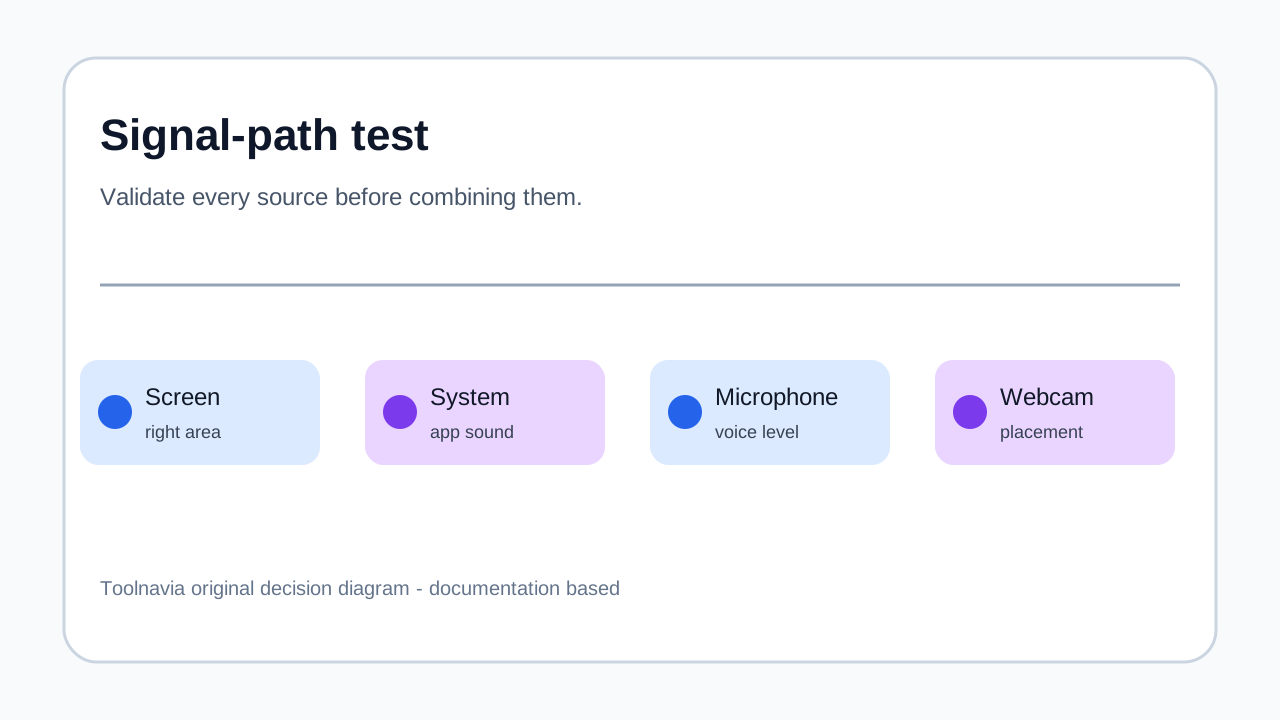
Make three clips: system audio only, microphone only, then both together. Add webcam only after the audio paths are stable. Movavi's current audio page says it can capture system audio and microphone in one session, while the Mac guide warns that internal sound may require an audio driver and macOS privacy permissions.
Listen with headphones. Check voice level against application sound, drift after several minutes, background noise and whether the selected microphone silently changed. If you create tutorials, enable cursor or keystroke cues and verify that they remain readable after export. A feature existing on a product page is not the same as a usable result on your hardware.
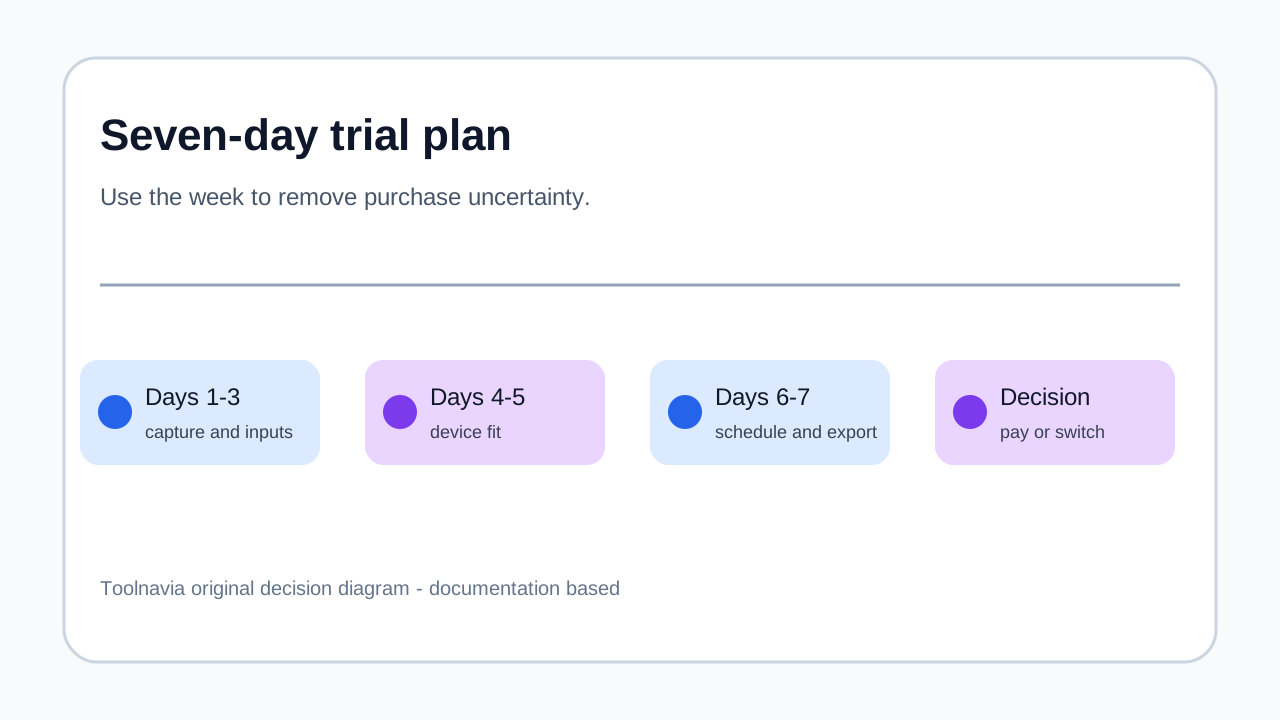
Days 4–5: test the actual Windows or Mac machine
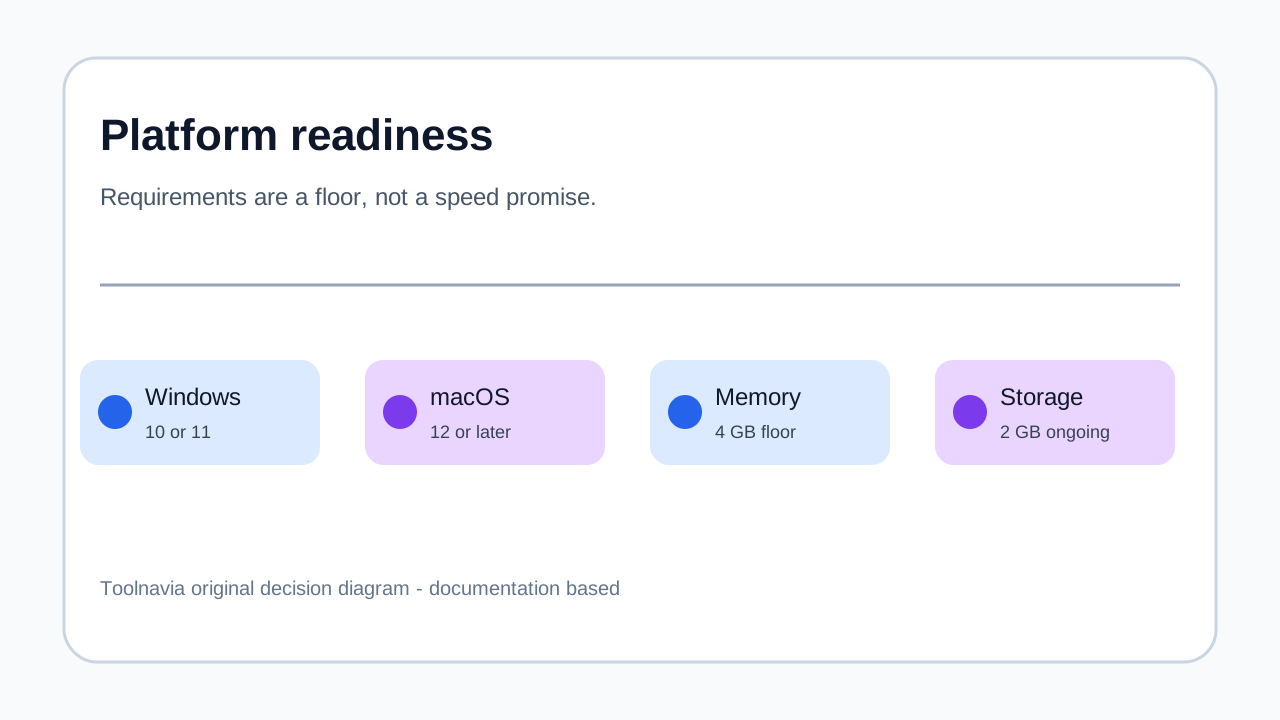
The current requirements page lists Screen Recorder 2026 version 24.8.2. For Windows it specifies Windows 10 or 11 64-bit, 4 GB RAM and 2 GB of ongoing disk space; for Mac it specifies macOS 12 or later, a 64-bit Intel processor or Apple M1 or newer, 4 GB RAM and 2 GB of ongoing space.
Those numbers are eligibility floors, not a promise of smooth 4K recording. Run the longest realistic capture on the computer, monitor and storage destination you will keep. On Mac, restart after granting permissions if requested, then repeat the audio test. On either platform, check free disk space and thermal or fan behavior before an important session.
Day 6: test scheduling and failure recovery
Create a five-minute scheduled recording with a clear start and stop time. Leave the recorder idle, then confirm that it captured the intended region and audio sources. Movavi positions scheduling as a core convenience for webinars and streams, but convenience has value only when the result is predictable.
Repeat once after closing and reopening the app. Decide what your fallback is if the computer sleeps, an app updates or the audio device changes. For irreplaceable events, a second authorized recording path is safer than trusting a single unattended test.
Day 7: export, inspect the watermark and make the purchase decision
Export the same representative clip in the format you expect to deliver. Confirm that the watermark makes the trial output evaluation-only. EaseUS notes that activation does not automatically repair a watermark already embedded in an exported file; plan to re-export or re-record cleanly after activation if the source remains available.
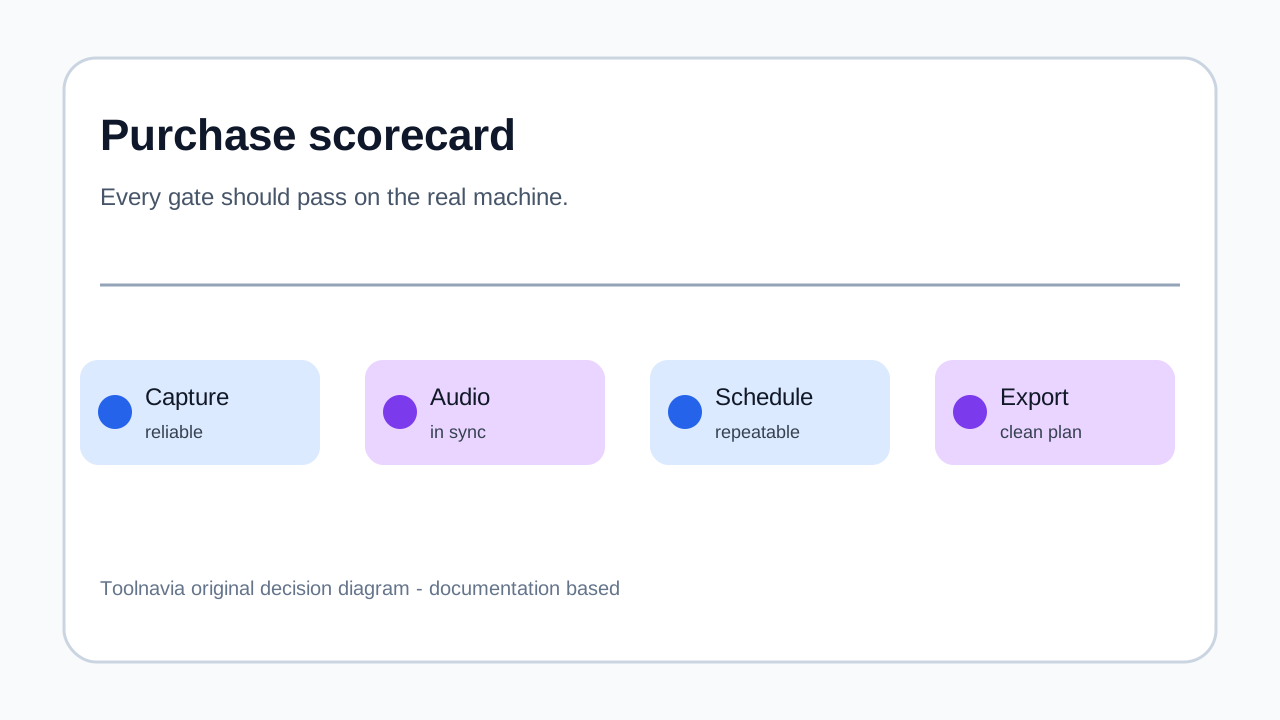
Use this scorecard:
| Gate | Pass condition | |---|---| | Capture | Correct screen or window is recorded reliably | | Audio | System sound and microphone are synchronized | | Webcam | Placement and quality suit the real use case | | Scheduling | A repeat test starts and stops correctly | | Export | The file opens elsewhere at acceptable quality | | Recovery | Original material remains available for a clean post-activation export |
When paying makes sense
Pay when the recorder saves enough setup time to justify its current checkout terms, and every gate above passes. The approved Toolnavia route opens Movavi's exact Screen Recorder offer, but the destination can localize currency, tax, billing term and renewal. Verify all of those at checkout; this guide intentionally does not freeze a price.
Do not pay merely to rescue one watermarked file. If you need permanently free, watermark-free recording and can tolerate more setup, compare OBS Studio. If game capture is the main job, Download.it notes that Movavi Screen Recorder is not optimized for it.
Use the seven days to validate a repeatable recording system, not to produce a final client asset. Buy only after screen, audio, webcam, scheduling, export and recovery all pass on the real computer. Otherwise, keep the test notes and choose a tool whose free or paid boundary matches your output requirements.
Disclosure: Toolnavia participates in Movavi's approved CJ affiliate program and may earn a commission from qualifying purchases.