TOOLNAVIA / BUYING GUIDE
Movavi Screen Recorder Separate Audio: Fix Silent Mic Playback Before Paying
The short answer
**Primary decision:** Movavi Screen Recorder’s separate-stream option can make narration fixes easier, but only if your real Windows workflow preserves and exposes both the microphone and system-audio tracks. A file that sounds silent in one player may still contain both tracks. Before buying, record two controlled 20–30 second samples, inspect them in both an ordinary player and a multitrack editor, and confirm what your export actually keeps.
> Affiliate disclosure: Toolnavia may earn a commission if you buy through the approved Movavi link. This does not change the price you pay or the test criteria below.
At a glance
- Best for
- Buyers who can verify both mic and system audio, stream selection and output with controlled short recordings before buying.
- Price model
- Verify actual localized annual checkout and renewal
- Check first
- Official KB macOS heading/Windows-body conflict; regional trial and final cart must be independently verified.
The decision in one minute
Choose Movavi Screen Recorder if you want a lightweight capture workflow and your paired test proves that:
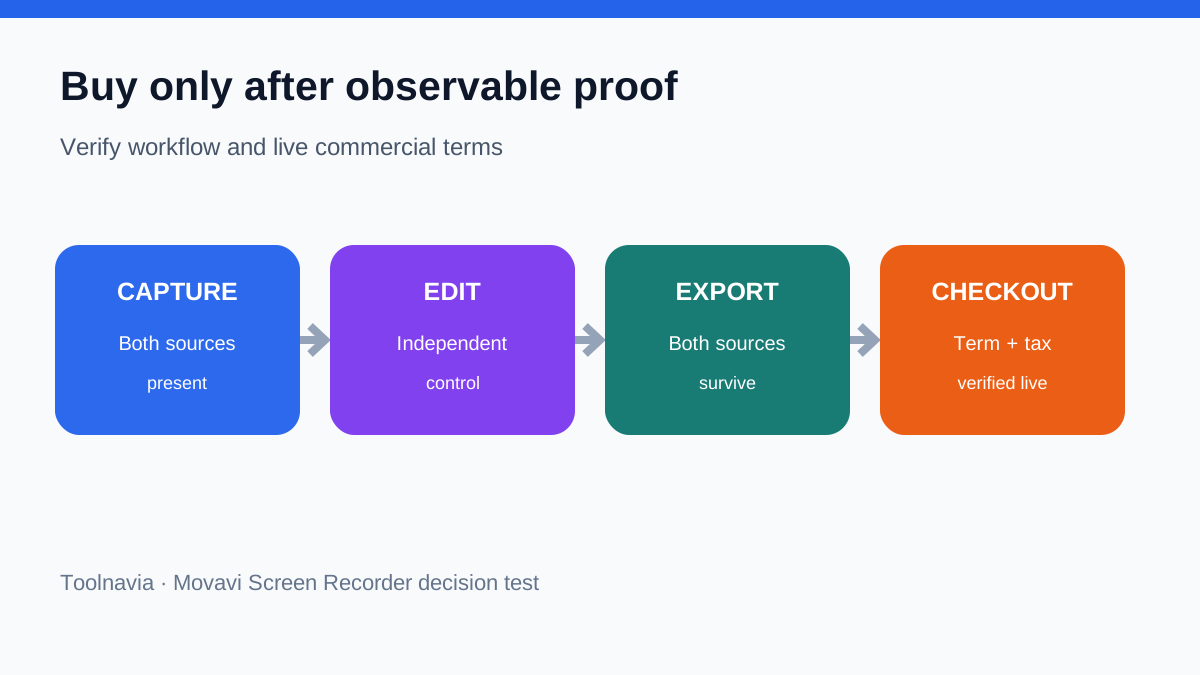
1. microphone and system audio are both captured; 2. “separate streams” creates the track layout you expect; 3. your normal player and editor can both handle the resulting file; 4. the export preset you will use keeps the audio you need; and 5. the current checkout, license term, tax, currency, device rules, and trial restrictions match your budget.
Wait or choose a more explicit multitrack workflow if you cannot identify both audio sources after the test, must hand files to editors who use simple players only, or need a documented fixed number of tracks across machines and versions.
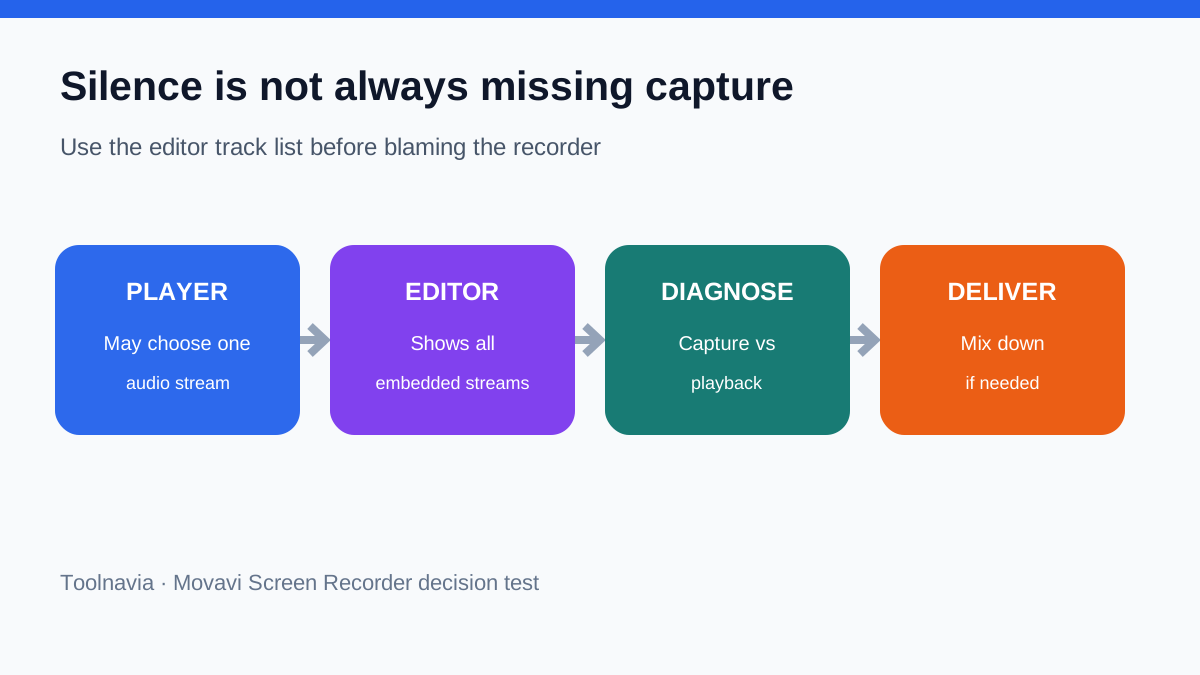
The crucial distinction is **capture versus playback**. “I cannot hear the microphone” does not prove the microphone was never recorded. Some containers can hold multiple audio streams while a basic player selects only one. An editor that exposes the track list can reveal a second stream that the player ignored.
What “mixed” and “separate” change
In a mixed recording, microphone and system sound are combined into one audio stream. That is easy to play and share, but a loud notification, quiet voice, or room echo is baked into the same stream. You cannot clean one source without affecting the other.
In a separate-stream recording, the sources are stored independently when the application, selected format, and version support that path. This can let an editor lower the game, meeting, or browser audio without lowering the narration. It can also confuse a basic player that chooses one stream by default.
Movavi’s public help material creates an important verification issue. One help URL is titled for macOS, while its body includes Windows instructions and a “Capture separate streams” control. Treat that as evidence that the feature exists in the documented workflow, not as proof that every current Windows build, container, license state, or export preset behaves identically. Movavi’s marketing describes independent microphone and system tracks, but Toolnavia has not independently tested every operating-system and version combination.
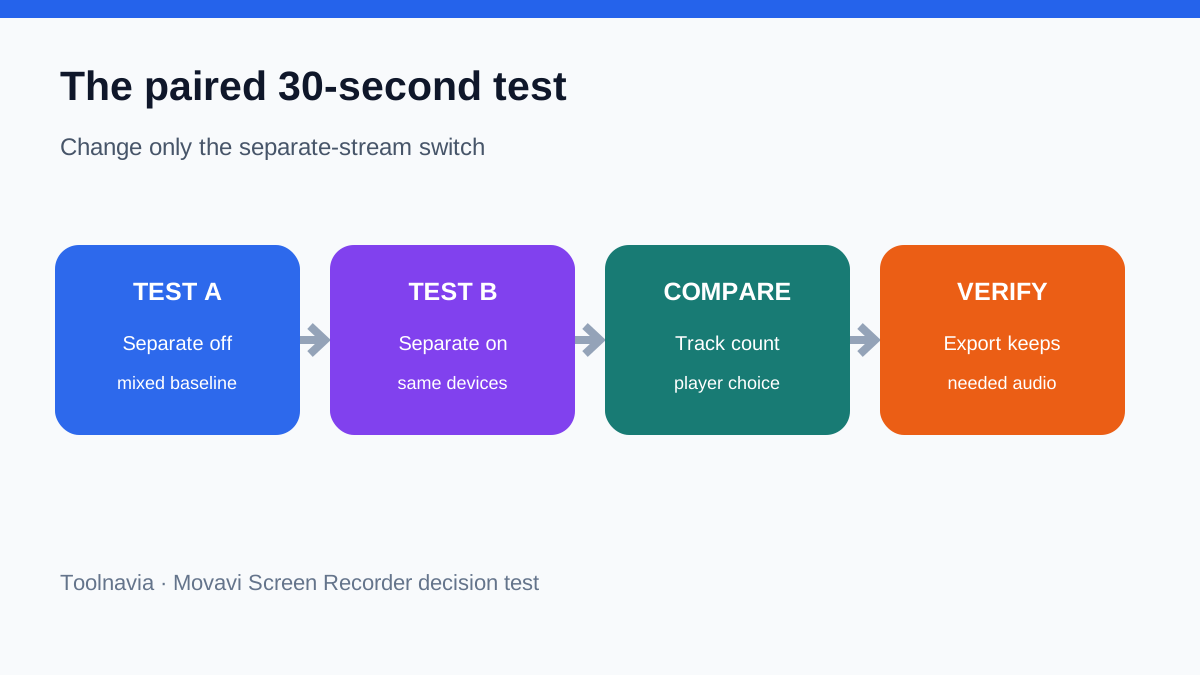
Run this paired 30-second test
Use only audio you own or have permission to record. Do not capture private calls, protected streams, or other people without consent.
Test A: mixed output
1. Connect the exact microphone and headphones you normally use. 2. Open Movavi Screen Recorder and select the intended microphone and system-audio devices. 3. Turn **Capture separate streams** off. 4. Play a short self-owned audio clip at a moderate level. 5. Say “microphone one, two, three,” pause, then say a second phrase while the clip plays. 6. Stop after 20–30 seconds and save the file without changing the default container. 7. Play it in your ordinary player, then import it into your normal editor.
Expected result: the player and editor should both produce one combined stream containing the two sources.
Test B: separate streams
Repeat the same test with **Capture separate streams** on. Keep the same microphone, headphones, clip, levels, duration, and container. Open the result in the same ordinary player and editor.
Record four observations:
- how many audio streams the editor shows; - which stream the ordinary player chooses; - whether mic and system audio can be muted independently in the editor; - whether the exported delivery file contains both sources.
Do not change three settings at once. If Test B fails, repeat only after checking the selected input device and Windows microphone permission. Movavi separately documents missing sound, low audio quality, and unavailable audio-device paths; those are different diagnoses from a player selecting the wrong embedded stream.
Player silence versus missing capture
Use the file itself as the diagnostic object.
| Observation | Likely explanation | Next check | |---|---|---| | Player has system sound; editor shows two streams | Player selected one stream | Switch audio track in the player or export a mixed delivery copy | | Player is silent; editor shows waveforms on one stream | Player/container compatibility issue | Try the editor’s preview and a standard delivery export | | Editor shows only system audio | Microphone input or permission was wrong | Re-select the mic, check Windows privacy access, repeat the controlled test | | Editor shows only microphone | System-audio capture path was unavailable or disabled | Confirm the system-audio control and repeat with a self-owned local clip | | Both streams exist but one is distorted | Gain, enhancement, device, or sample-rate issue | Lower input level and review Movavi’s low-quality guidance | | Capture is clean but exported file loses one source | Export mapped only one stream | Choose an explicit mixdown or map both tracks before delivery |
OBS documents deliberate multitrack audio configuration, and Camtasia and ScreenPal also describe separate handling of microphone and computer audio [S6–S11]. Those sources are useful terminology and workflow comparisons, not proof that Movavi behaves the same way.
Avoid echo and false failures
Use headphones during the test. Speakers can feed system sound back into the microphone and make a valid two-source capture sound like an echo problem. Disable unnecessary virtual devices and confirm that the meters move before recording.
If the microphone is absent, check Windows privacy permission, the selected input, exclusive-device conflicts, and whether another app is holding the device. If system audio is absent, test a local, self-owned file first; DRM-protected services can block or alter capture and are not a fair baseline. If the recording is quiet or distorted, solve the gain and device problem before judging separate-stream support.
Also distinguish the recording master from the delivery copy. Keeping separate tracks in the master can improve editing, while exporting one mixed AAC track can improve compatibility for clients and ordinary players. A sensible workflow can keep both.
What independent recording guides show
OBS documents that containers vary in multitrack support and that standard players usually play one audio track while editors can access several. Camtasia describes distinct microphone and system-audio controls and its setup guide requires correct device selection. ScreenPal documents separate computer audio and narration settings on Windows, and distinguishes paid computer-audio rights from a free narration option. Another same-intent explainer differentiates mixed, multitrack and separate-file recording. None of these other-product guides proves that every Movavi version behaves identically; Movavi's own audio page confirms microphone and system capture features.
Trial and checkout verification
Do not infer entitlement from a regional page or an old review. Movavi’s general marketing has described a seven-day trial, while at least one regional page has described system-audio capture as a paid capability. That conflict means you must verify the current screen shown to your account, region, version, and operating system rather than assuming universal trial behavior.
At checkout, verify:
- product is **Movavi Screen Recorder**, not a bundle or a different editor; - license term and renewal behavior; - number of devices and transfer rules; - operating-system compatibility; - currency, tax, and total charged; - refund terms and support channel; - whether the feature you tested remains available after the trial state changes.
The approved Toolnavia offer points to Movavi’s tracked purchase path, but the live checkout is authoritative for price and commercial terms. Toolnavia does not claim a coupon or a universal discount here.
Buy, wait, or choose another workflow
**Buy** when your separate-stream sample exposes independent microphone and system tracks in your editor, your delivery export keeps the intended audio, and the current license terms fit.
**Wait** when the editor shows both tracks but your team’s player cannot select them. Test a mixed delivery preset first; the software may be fine while the handoff format is wrong.
**Choose another workflow** when you need a fixed, auditable multitrack map, cannot reproduce the expected track layout on your production machine, or must route several applications and microphones separately. OBS may be a better fit for deliberate multitrack routing, though it requires more setup. Camtasia can suit an editing-first workflow. ScreenPal may suit simpler recording and publishing needs. Compare the exact current plans and your tested workflow rather than brand labels.
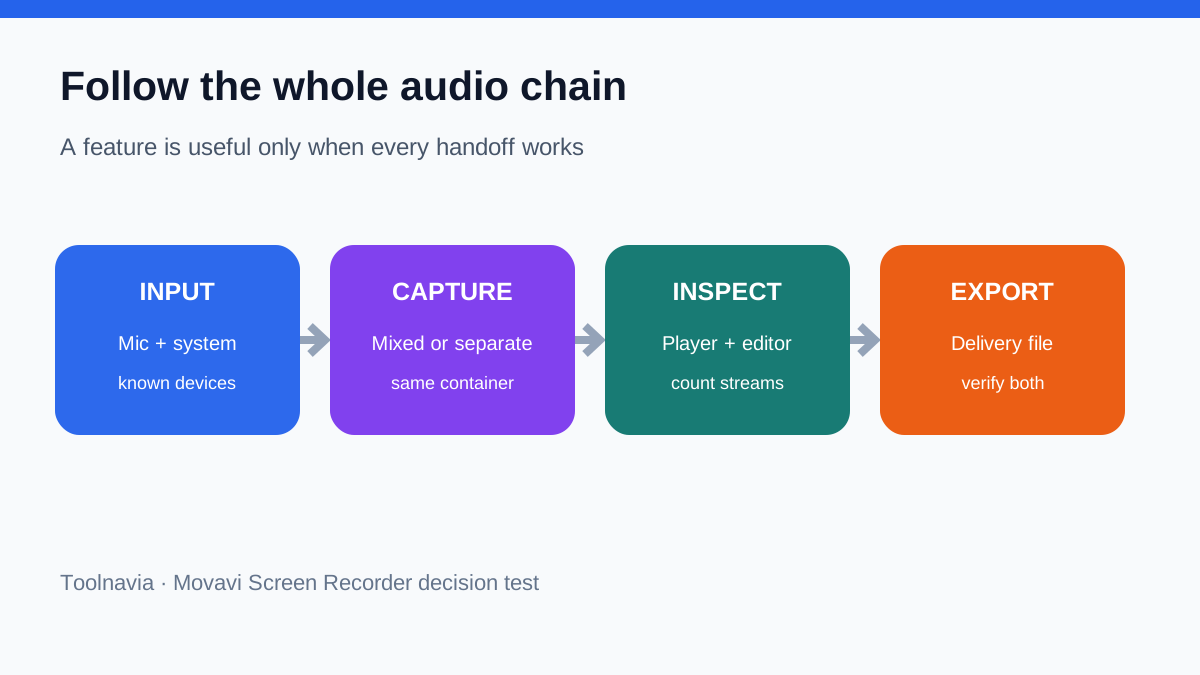
**Bottom line** Separate streams are valuable only when the complete chain works: device selection, capture, container, player, editor, and export. The paired 30-second test turns an ambiguous feature claim into observable evidence. If both sources appear independently in your editor and survive your delivery export, Movavi can be a practical choice. If not, diagnose the first broken link before paying.
Sources
- Movavi Help, separate-stream control page (URL titled for macOS; body includes Windows instructions). - Movavi Help, recorded file has no audio. - Movavi Help, low audio quality. - Movavi Help, audio or microphone unavailable. - Movavi Screen Recorder official checkout. - [S6–S7] OBS Project official multitrack audio documentation. - [S8–S9] TechSmith/Camtasia official microphone and system-audio documentation. - [S10–S11] ScreenPal official computer-audio and microphone documentation. - iTechGuides, audio-stream terminology reference.