TOOLNAVIA / BUYING GUIDE
MiniTool Used-Sector vs Sector-by-Sector Backup: Storage Decision
The short answer
MiniTool ShadowMaker lets a disk or partition image copy only file-system-used sectors or every sector. The choice is not a generic quality slider. It changes what the archive contains, how much destination capacity the first image may consume, how long the job can run, and whether unused-space remnants are preserved.
At a glance
- Best for
- Buyers who can state why unused sectors matter and validate both image storage and restore-target capacity.
- Price model
- Direct-open campaign shows Pro at USD36 for 2 PCs/1 year; confirm auto-renewal, tax and checkout.
- Check first
- Anyone treating exact capture as automatically safer or expecting a smaller image to prove a smaller restore target will work.
Short verdict
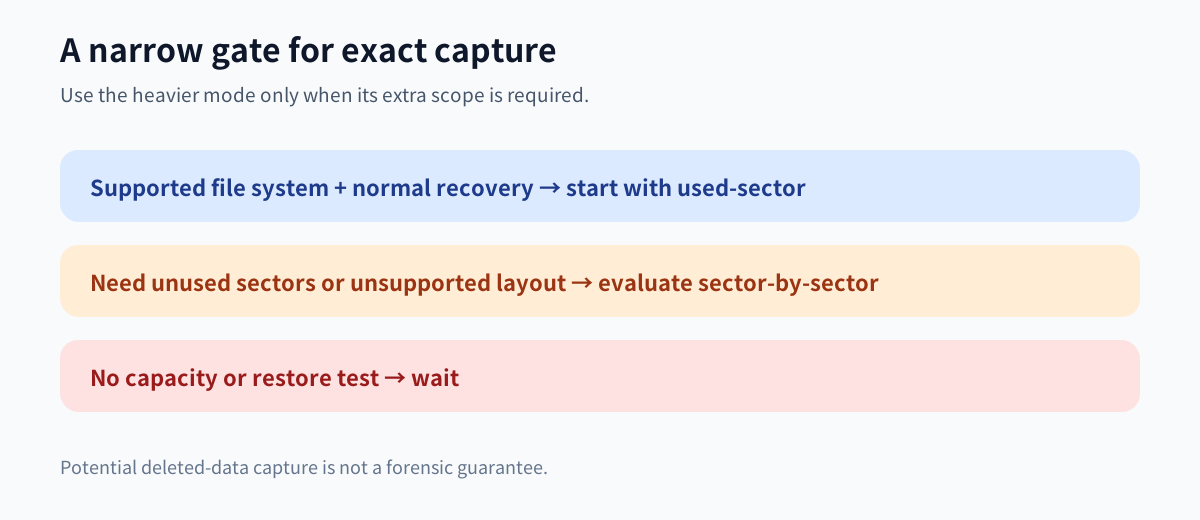
Use **Only used sector** for ordinary system protection when ShadowMaker recognizes the file system and your recovery goal is to restore current files, applications and bootable state. It omits unused sectors, so the first image is usually smaller and faster to create. Choose **Sector by sector** only when the requirement genuinely includes unused sectors, an unsupported or damaged layout, or a controlled evidence-preservation workflow. It copies every sector and can approach the source disk's full capacity before compression.
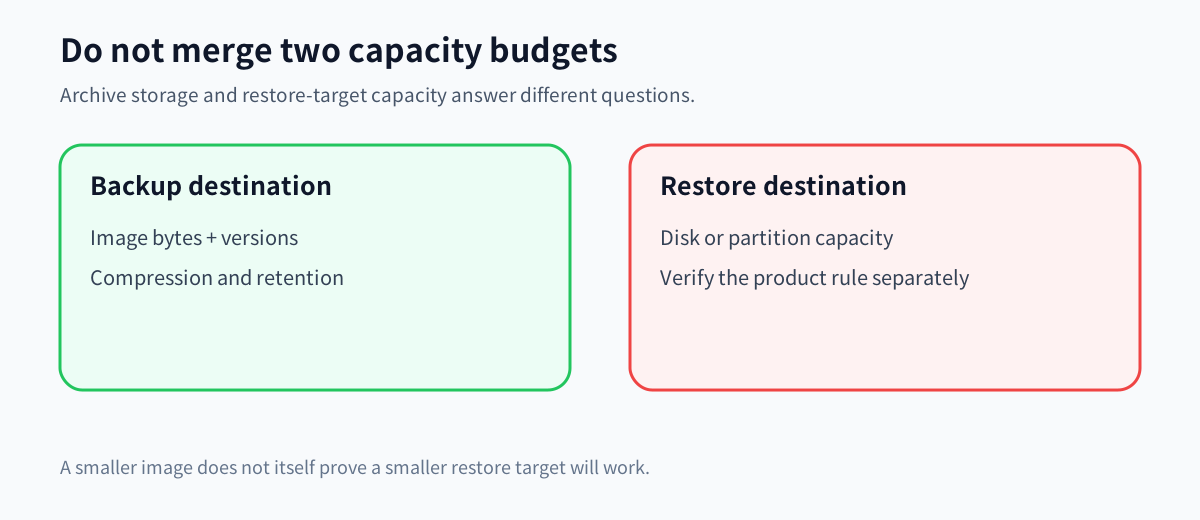
Do not confuse two capacities. **Archive capacity** is the space the backup image consumes. **Restore-target capacity** is the destination disk or partition needed during recovery. A used-sector image can be much smaller while the current MiniTool FAQ still says a disk-image restore target should be the same size as or larger than the original source.
The official campaign page directly opened on November 12, 2026 displays ShadowMaker Pro at US$36 for two PCs for one year, with auto-renewal unless cancelled. Sector scope alone is not a reason to buy; first confirm that the full backup, retention, rescue-media and restore workflow fits.

What each mode actually captures
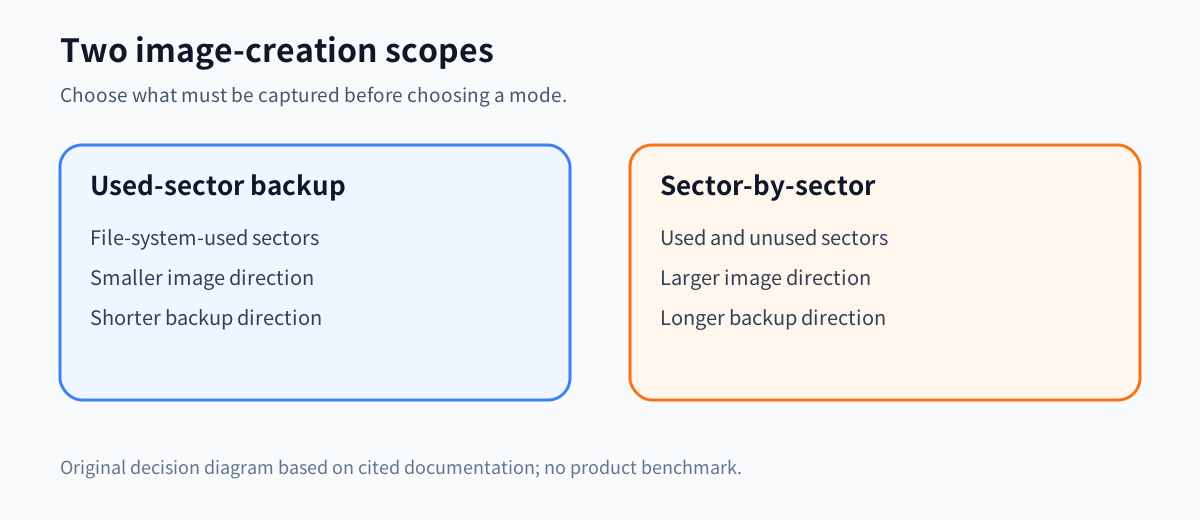
Only used sector follows the recognized file system and copies sectors marked as used. Free space is omitted. That is appropriate for most routine disaster-recovery jobs because the objective is the live file system, not deleted-data residue. MiniTool explicitly says this choice makes the image smaller and shortens backup time.
Sector by sector ignores that optimization and records used and unused sectors. MiniTool says it creates an exact partition copy. Acronis, AOMEI, EaseUS and Macrium describe the same category tradeoff: exact or forensic copying preserves every block but consumes more time and storage.
The extra scope does not guarantee a successful forensic recovery. MiniTool says some deleted files may be recoverable; AOMEI makes a similarly conditional claim. Deleted blocks may already have been overwritten, trimmed by an SSD, encrypted or changed by later writes. Treat exact capture as preserving more raw surface area, not as proof that a deleted file will return.

Plan archive capacity without inventing a ratio
For a source disk with physical capacity **D** and currently used sectors **U**, a used-sector image begins from roughly **U**, while a sector-by-sector image begins from roughly **D**. Compression, metadata, exclusions, change rate and image format then affect the stored result. This is a planning model, not a product benchmark.
Suppose a 1 TB disk contains 260 GB of live data. The used-sector starting surface is about 260 GB; exact capture starts from the full 1 TB. Neither number is the final archive size. Compression may reduce either image, while video, archives, encryption and already-compressed data may reduce very little. Retention can multiply the difference across full, differential or incremental chains.
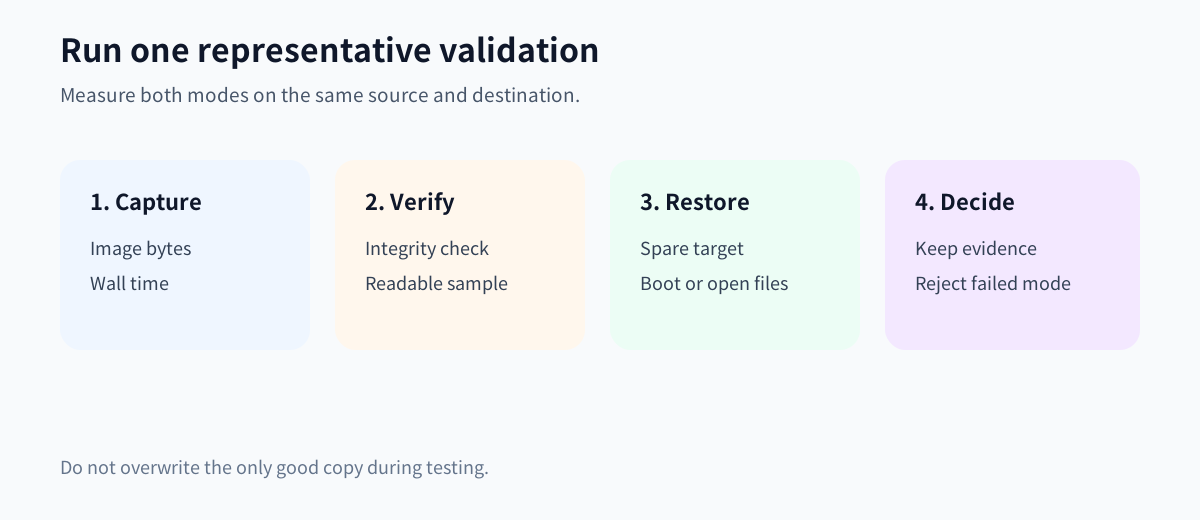
Measure a representative full backup before purchasing a destination. Record source disk capacity, recognized used space, image bytes, elapsed time, verification time and retained-chain growth. Leave operational headroom for temporary files, validation and future data. Do not promise a fixed percentage from another machine's result.
Keep restore-target capacity separate
A smaller archive does not automatically allow restoration to a smaller disk. MiniTool's current FAQ says the restore destination for a drive image should be the same size as or larger than the source drive. AOMEI also requires the same-or-larger destination for sector-by-sector restore.
That distinction matters in a hardware replacement. A 260 GB used-sector image created from a 1 TB source may fit on a 500 GB backup disk, yet the documented restore workflow can still require a 1 TB or larger replacement target. Do not buy a smaller replacement drive based only on the image-file size. Test the exact restore path with spare hardware or a non-production lab before treating shrink behavior as supported.
When exact capture is justified
Sector-by-sector mode can be rational when the file system is unsupported or damaged, when the requirement explicitly includes unallocated space, when a migration must preserve the exact partition surface, or when a specialist has defined an evidence-preservation procedure. Acronis notes that all-sector mode may be used automatically for unsupported file systems; EaseUS points to file-system-error cases.
It is usually a poor default for routine personal backup. The larger archive consumes destination capacity, extends the backup window and increases restore work without improving the recovery of healthy live files. If the only justification is “more complete sounds safer,” return to the recovery objective and test the normal mode first.

Run a controlled validation
Create a non-sensitive sample disk or partition with known live files and enough free space to expose the difference. Make one used-sector image and one sector-by-sector image with the same destination, compression setting, verification setting and ShadowMaker build. Record image size, backup time and verification time. Restore each to a separate test target that meets the documented size rule, then boot or mount it and open representative files.
If unused-space preservation is required, do not test by deleting valuable data. Use a disposable test file on a lab volume and document the limitations of SSD TRIM, overwrite activity and recovery tooling. Keep the original evidence medium untouched when a legal or forensic process applies; a consumer backup article is not a chain-of-custody procedure.
Reject either mode if the image cannot be verified, the backup misses the window, the destination lacks retention headroom, or the restore cannot meet the recovery objective.

Buy, compare or wait
**Buy Pro** when the exact two-PC annual terms are acceptable, the full paid workflow is needed, and a controlled used-sector or exact-mode test meets archive, retention and restore-target requirements.
**Keep the current edition or compare alternatives** when an existing tool already meets the recovery objective, when exact capture is available elsewhere under a better license, or when destination capacity would be cheaper to solve independently.
**Wait** when the file system is not recognized, the restore target has not been sized, the reason for preserving unused sectors is vague, or no representative restore has passed.
After validation, [review the approved ShadowMaker offer](https://www.jdoqocy.com/click-101895278-15509062) and save the device count, term, charged amount, renewal, tax and cancellation date shown at checkout.
*Affiliate disclosure: Toolnavia may earn a commission from eligible purchases. This documentation-based guide did not install ShadowMaker, create an image, recover deleted data, restore a disk or complete a paid checkout.*