TOOLNAVIA / BUYING GUIDE
MiniTool ShadowMaker Compression: Capacity vs Restore Time
The short answer
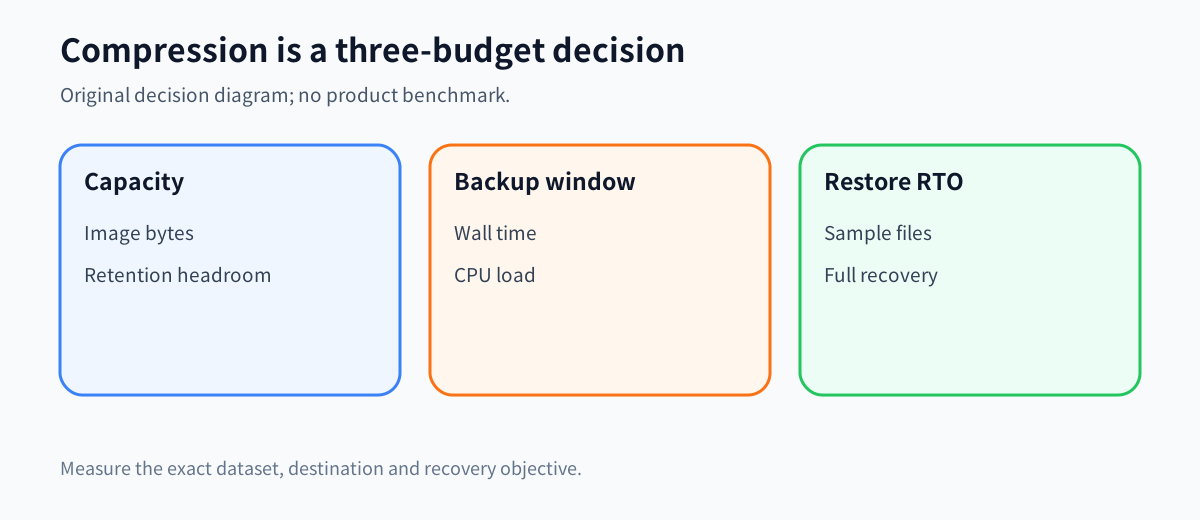
MiniTool ShadowMaker offers None, Medium and High compression, but the smallest image is not automatically the safest choice. Compression changes three budgets at once: destination capacity, the time and CPU needed to create a backup, and the time available to restore it. The right setting is the one that meets all three on your own data—not the label that sounds most efficient.
At a glance
- Best for
- Buyers willing to benchmark the same representative dataset and reject any level that misses the backup or restore window.
- Price model
- Direct-open campaign shows Pro at USD36 for 2 PCs/1 year; confirm auto-renewal, tax and checkout.
- Check first
- Anyone seeking a guaranteed compression ratio or treating a smaller image as proof of faster or safer recovery.
Short verdict
Start with **Medium**, ShadowMaker's default, then benchmark the exact files and destination you intend to protect. Choose **None** when the destination has ample capacity and the backup window or CPU budget matters more than space. Consider **High** only when storage or network capacity is the binding constraint and a timed restore still meets your recovery objective.
MiniTool's FAQ estimates that Medium may produce an image near 50% of source size, None near 100%, and High near 30%. Those are estimates, not guarantees. JPG, PDF, MP3 and other already-compressed data may shrink very little.
The official campaign page directly opened on November 12, 2026 displays ShadowMaker Pro at US$36 for two PCs for one year. The selection is an auto-renewing term unless cancelled. Compare the exact device count, term, tax and renewal shown at checkout; do not treat a struck-through amount as guaranteed savings.

Do not plan capacity from the headline ratio
For a source dataset of size **D**, the first planning estimate is: None about **D**, Medium about **0.5 × D**, and High about **0.3 × D**. These are MiniTool's published approximations, not a storage reservation formula. A 1 TB source would suggest roughly 1 TB, 500 GB or 300 GB for one image before retention, file-system overhead, changed blocks and future growth.
Capacity planning must include the chain, not just one image. If you keep a full image plus incremental or differential versions, total use depends on change rate and retention. A 300 GB first image does not mean a 500 GB disk safely holds a month of versions. Leave working headroom for temporary files, verification and restore output, and test the cleanup rule separately from compression.
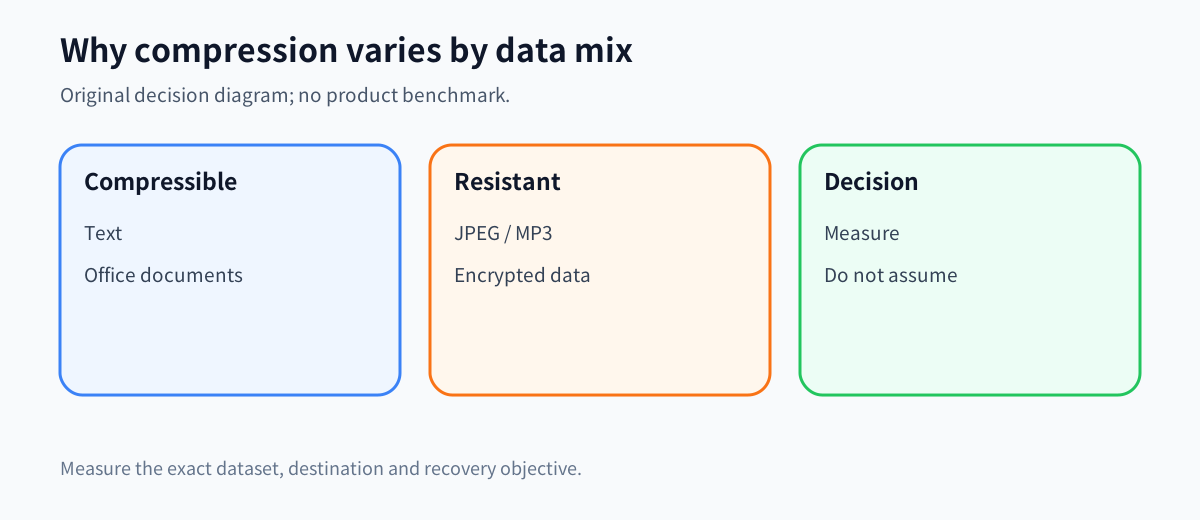
Dataset composition can overwhelm the estimate. Office documents and text may compress well; JPEG photos, video, MP3, archives, encrypted containers and already-compressed application files may not. Acronis documents that even maximum compression may barely reduce JPG, PDF or MP3-heavy backups. EaseUS makes the same category distinction for its own image format. These sources explain the category tradeoff; they do not predict ShadowMaker's exact result on your PC.

The backup window is a real cost
MiniTool says compression can reduce image size but may increase total backup time. High takes longer to create and produces a smaller image than Medium or None. Medium is the default balance.
That delay can matter more than disk cost. A laptop backup that spills into working hours competes with video calls and local applications. A nightly job that runs past shutdown or misses the next incremental point weakens the recovery plan even if the archive is small. For a network destination, compression may save transferred bytes but use more local CPU; whether that helps depends on whether CPU, network or destination writes are the bottleneck.
Do not copy a competitor's multiplier into a ShadowMaker claim. Veeam documents that its own High level can use twice the CPU and restore twice as slowly as its Optimal level. That is useful evidence that restore cost belongs in the decision, but it is not a MiniTool benchmark. MiniTool's public compression documentation reviewed here does not publish a universal CPU percentage or restore-time multiplier.
Restore time is the missing half
A backup is useful only if it can be recovered within the required time. MiniTool's file-restore guide requires selecting the image version, choosing files or folders, choosing a destination and starting the operation. It does not promise one universal restore duration.
Observed restore time also depends on source media, destination media, connection, file count, encryption, antivirus activity and the selected restore scope. A single 50 GB virtual-disk file can behave differently from 500,000 small files with the same total bytes.
Set two recovery objectives before choosing the level: a **sample-file RTO** for a critical folder and a **full-recovery RTO** for the whole protected volume or system. If only the archive-size result is measured, neither objective is proven.

Run a controlled three-level benchmark
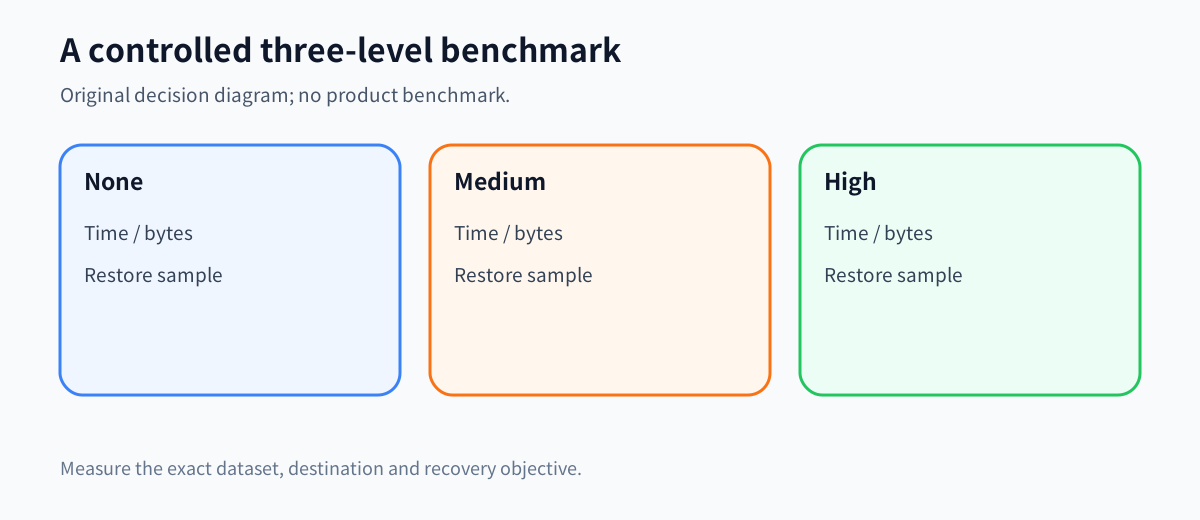
Use a representative, non-sensitive dataset large enough to expose the bottleneck. Keep the source, destination, connection, backup type, encryption setting and ShadowMaker build unchanged. For None, Medium and High, record source bytes, image bytes, backup wall time, observed CPU load, destination throughput, one-folder restore time and full-sample restore time.
Run each test when the system is similarly idle. If caching or background work makes results unstable, repeat the run and use a range rather than one flattering number. Restore to a separate temporary destination and open representative files; do not overwrite the only good copy.
Calculate the observed compression ratio as **image bytes ÷ source bytes** and space saved as **1 − ratio**. Reject any level that misses the backup window or either restore objective, even if its image is smallest.
A worked decision model—not a product benchmark
Suppose a buyer has 600 GB of mixed office files, photos and video, a 1.5 TB destination, a six-hour overnight window and a two-hour target for restoring a critical sample. The published estimates might suggest about 600 GB, 300 GB or 180 GB for the first image.
That arithmetic does not prove the destination is adequate. Retention and growth may make None impractical. High may fit best but could miss the backup or restore window. Medium may be the sensible default if its measured chain fits with headroom and its restore stays inside two hours. The result can reverse for a video-heavy dataset that barely compresses or a slow CPU paired with inexpensive storage. This is a worksheet, not a Toolnavia product test.
Is Pro worth buying for compression?
Compression by itself is not a strong reason to pay. Paragon's community edition lists archive-image compression, showing that the category feature is not unique to paid ShadowMaker. Buy Pro only when the complete workflow—supported backup type, scheduling, retention, recovery environment, device scope and measured compression tradeoff—meets your requirement.
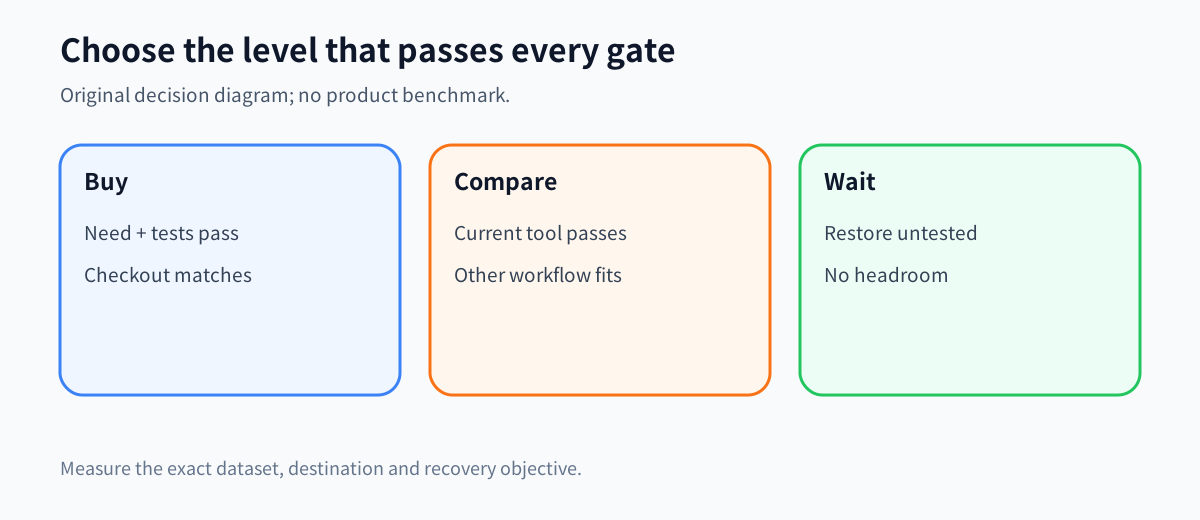
**Buy Pro** when you need the documented paid workflow or two-PC annual scope, the exact checkout terms are acceptable, and your controlled test meets capacity, backup-window and restore objectives.
**Keep the current edition or compare alternatives** when the existing tool already meets the recovery objective, when the dataset barely compresses, or when another product's licensing and recovery workflow fit better.
**Wait** when you have not timed a restore, the destination has no retention headroom, the direct checkout differs materially from the documented term, or High is being selected only because the image is smaller.
After the test passes, [review the approved ShadowMaker offer](https://www.jdoqocy.com/click-101895278-15509062) and save the device count, term, charged amount, renewal terms, tax and cancellation date shown at checkout.

*Affiliate disclosure: Toolnavia may earn a commission from eligible purchases. This documentation-based guide did not install ShadowMaker, create a backup, measure CPU, restore data or complete a paid checkout.*