TOOLNAVIA / BUYING GUIDE
MiniTool System Backup vs Full-Disk Backup: Recovery Scope Guide
The short answer
MiniTool ShadowMaker offers both **System Backup** and **Disk Backup**, but those labels describe source scope—not quality. System Backup automatically selects the partitions Windows needs to boot. Disk Backup can include every selected partition on one physical disk. That difference controls which data returns after a failure, how wide the overwrite risk becomes during restore, and whether a second physical drive remains outside the image.
At a glance
- Best for
- Buyers who can inventory every disk and partition, separate Windows recovery from data protection, and run a WinPE restore drill.
- Price model
- Direct-open campaign: USD12.99 monthly/1 PC; USD36 annual/2 PCs auto-renewing; USD79 lifetime/3 PCs. Confirm checkout.
- Check first
- Anyone assuming System Backup includes all personal data, interpreting full disk as all disks in the PC, or restoring without target verification.
Short verdict
Choose **System Backup** when your recovery objective is to put the same Windows installation, applications and settings back into a bootable state and your independent data volumes are protected elsewhere. Choose **full-disk backup** when the Windows disk also contains data partitions that must travel with the OS, or when you need one image for the complete layout of that physical disk.
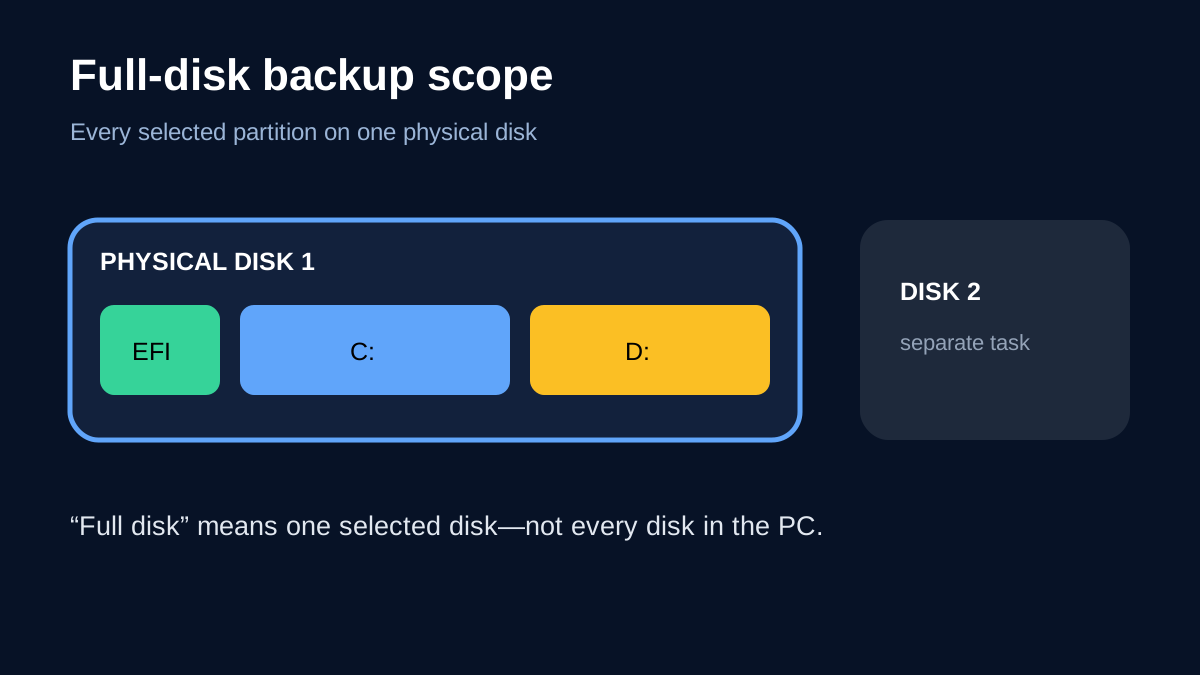
Do not translate “full disk” into “all disks in this PC.” MiniTool documents one hard disk per disk-backup task. A second SSD, HDD or external data drive needs its own task or another protection method.

What System Backup actually includes
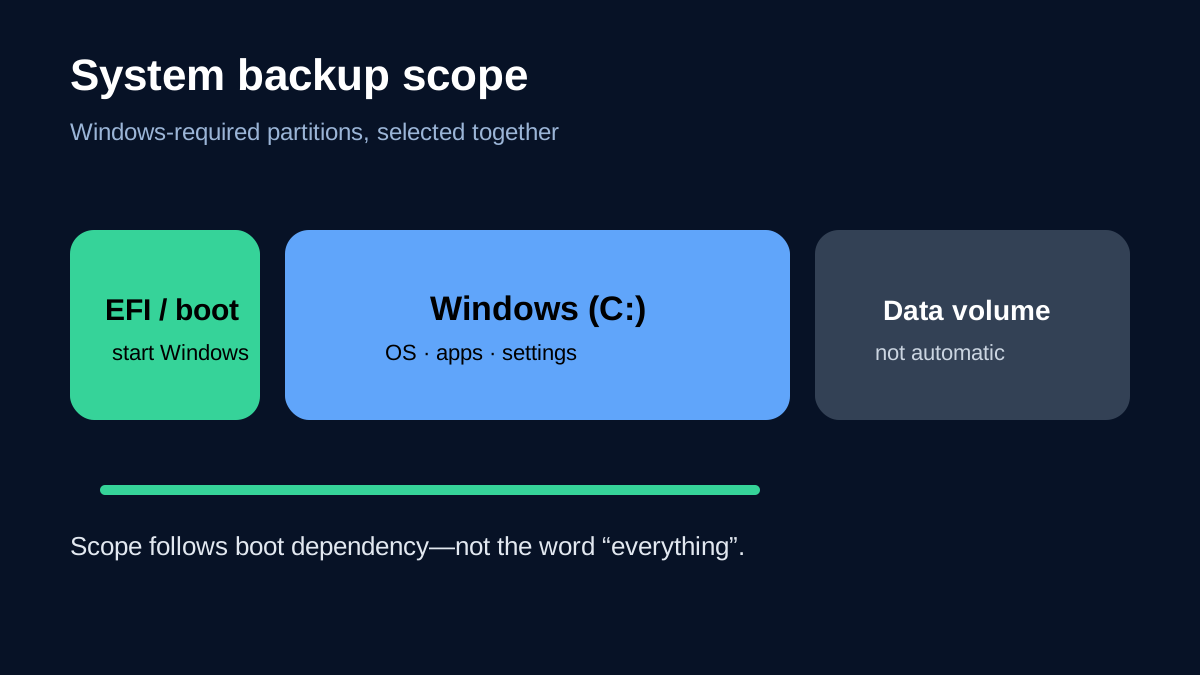
ShadowMaker’s System Backup is the simpler boot-recovery path. It identifies the Windows-related partitions and selects them together. On a typical GPT installation this can include EFI or reserved partitions plus the Windows volume. The resulting image covers Windows, installed applications, settings, system files and boot files.
The convenience is real: you do not need to guess which small hidden partition makes the machine boot. But the automation is intentionally narrow. A separate D: data partition is not guaranteed merely because it sits beside C:, and a data drive on a second physical disk is outside the system image unless protected separately. Microsoft’s current recovery documentation makes the same general boundary visible: recovery media and operating-system recovery are not substitutes for personal-file backup.
Before relying on System Backup, open Disk Management and inventory every physical disk and partition. Mark each volume as boot-critical, application data, user data, scratch/cache or backup destination. If the business-critical files live outside the automatically selected set, add a disk/partition or file-level task.
What full-disk backup adds
Disk Backup expands the source to all selected partitions on one physical disk. That matters when one SSD contains EFI, C:, a recovery partition and D: project data, or when preserving the whole disk layout simplifies replacement. MiniTool says one hard disk can be selected per task, so a two-disk workstation still needs at least two tasks if both disks must be recoverable.
Competitor documentation supports the scope distinction without making products interchangeable. Acronis separates Entire PC, system-disk and ordinary disk/partition backup; its ordinary disk mode exposes selected and hidden partitions, while Entire PC extends across internal drives. EaseUS likewise describes System Backup as automatic boot-partition selection and Disk/Partition Backup as manual scope, including special cases where boot and system partitions sit on different disks.

Full-disk backup is not automatically “safer.” It captures more source data, so it can increase storage, transfer and restore exposure. If D: contains 800 GB of replaceable media, forcing it into every disaster-recovery chain may reduce retention or slow an urgent OS restore. Conversely, excluding D: when it holds irreplaceable projects creates a coverage gap. Scope must follow the recovery objective.
Restore blast radius
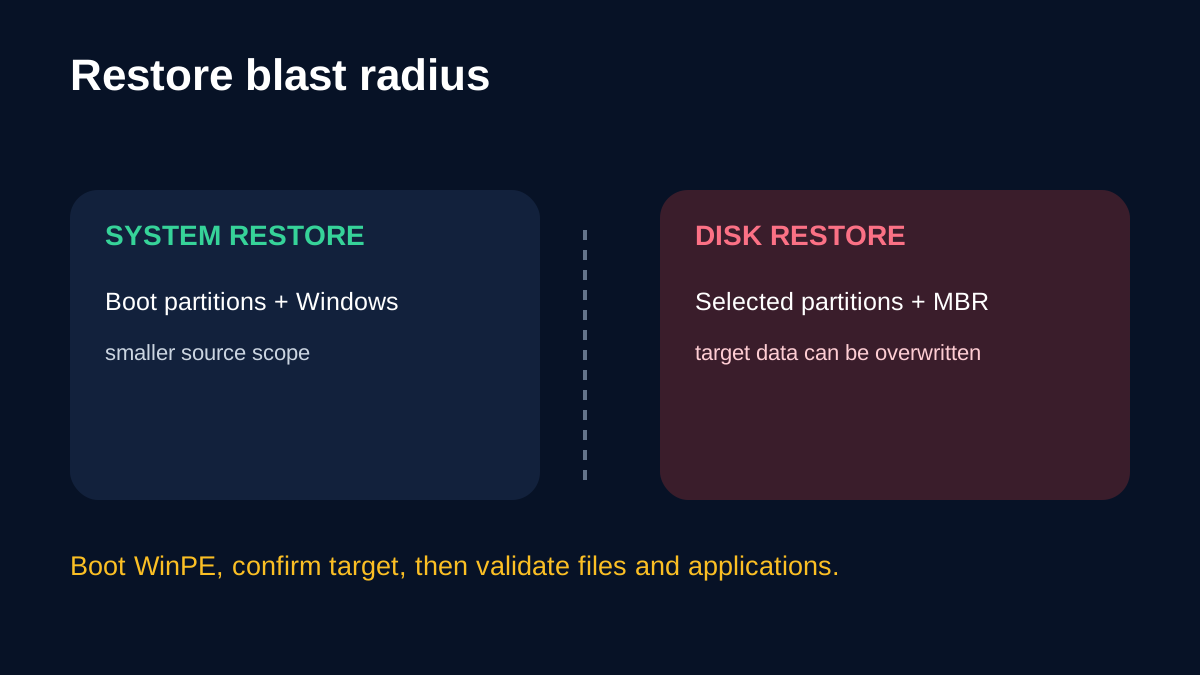
The backup choice also changes the restore decision. MiniTool’s disk-restore workflow can restore selected partitions and, for a system disk, MBR/Track 0. It warns that restoration overwrites data on the selected target and that the disk storing the image cannot simultaneously be the target. A system-disk restore normally requires bootable WinPE media.
That makes target verification a hard gate. Record the source disk model, serial number, capacity, partition layout and encryption state. During a test restore, identify the destination by more than drive letter because letters can change in WinPE. Keep the image on a separate disk or network location, and assume the chosen destination will be overwritten.

A system image can have a narrower source scope, but restore is still a destructive operation. A disk image has a wider possible blast radius because more partitions can be selected. Neither mode removes the need for an independent copy and a tested recovery path.
Current price and license context
On 12 November 2026, the directly opened official ShadowMaker campaign showed Pro monthly at **USD 12.99 for one PC**, Pro annual at **USD 36 for two PCs** with automatic renewal, and Pro Ultimate at **USD 79 for three PCs/lifetime**. The campaign lists disk, partition and system backup plus WinPE media. Prices, tax and renewal terms can change, so confirm the exact checkout before paying.
Those plan labels do not change the scope rule: the product supporting all three backup types does not mean the three types contain identical data. The buying decision should be based on device count, license term and whether your tested workflow covers every required disk—not on the broadest-sounding feature label.
Four-gate validation before purchase
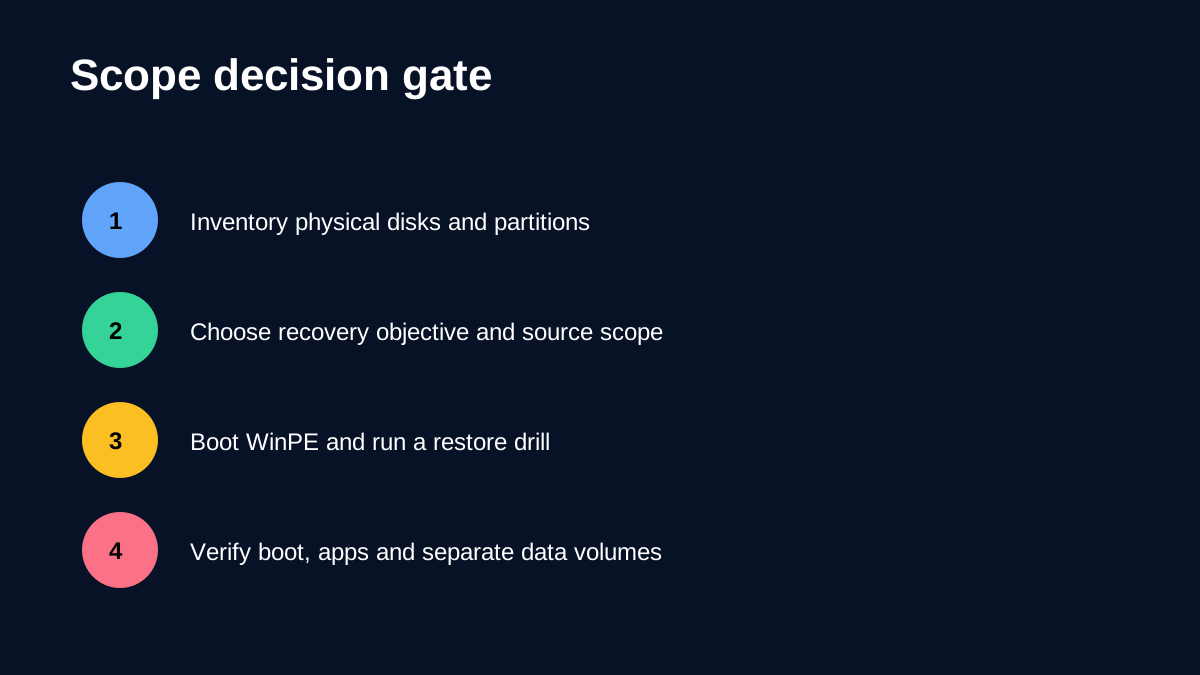
1. **Inventory scope.** List physical disks, partitions and critical folders. Confirm which partitions System Backup selects and which are excluded. 2. **Create independent tasks.** Use System Backup for boot recovery only if separate data is protected elsewhere. Use one disk task per physical disk that must be imaged. 3. **Boot the recovery environment.** Create WinPE media, boot it on the protected hardware and confirm storage, network and image visibility. 4. **Restore and validate.** Restore to a spare target when possible. Verify Windows boots, applications launch, licenses behave as expected, and files from every required data volume are present.

Do not treat “backup completed” or “image verified” as proof that the full machine can be recovered. This review did not install ShadowMaker or perform an owner-run restore benchmark; it is based on current official documentation. A controlled restore drill remains the acceptance test.
Buy, compare or wait
**Buy** when the approved license matches your PC count, you can map every required volume to a task, and WinPE sees the intended image and target. **Compare** when you need one policy across multiple physical disks, centralized reporting or broader fleet management; category documentation shows products differ in how they label entire-PC, system-disk and partition scope. **Wait** when you cannot state which partitions are automatically selected, where the image will live during recovery, or what target may be overwritten.
Affiliate disclosure: if you buy through the link below, Toolnavia may earn a commission at no extra cost to you. The editorial decision is independent.
[View the current MiniTool ShadowMaker offer](https://www.jdoqocy.com/click-101895278-15509062)
The practical rule is simple: use System Backup for a defined Windows recovery objective; use full-disk backup when every partition on that physical disk must return together; create separate protection for every additional disk.