TOOLNAVIA / BUYING GUIDE
MiniTool ShadowMaker Verify vs Test Restore: Is the Backup Recoverable?
The short answer
A backup can pass an integrity check and still leave an unanswered question: can you recover the file, folder, or Windows installation you actually need? MiniTool ShadowMaker exposes Verify, Browse, Restore, and Mount as separate actions. That separation matters when deciding whether the free workflow is enough or whether a paid ShadowMaker license is worth buying.
At a glance
- Best for
- A Windows user who wants dated recovery evidence and has a documented need for the selected paid capability or license scope.
- Price model
- Observed Pro12.99USD/month1PC or36USD/year2PC auto-renew; Ultimate79USD3PCperpetual. Verify checkout.
- Check first
- A buyer expecting one integrity result or a paid license to guarantee bootability, newest-file capture, device access or application recovery.
Start with the claim you need to prove
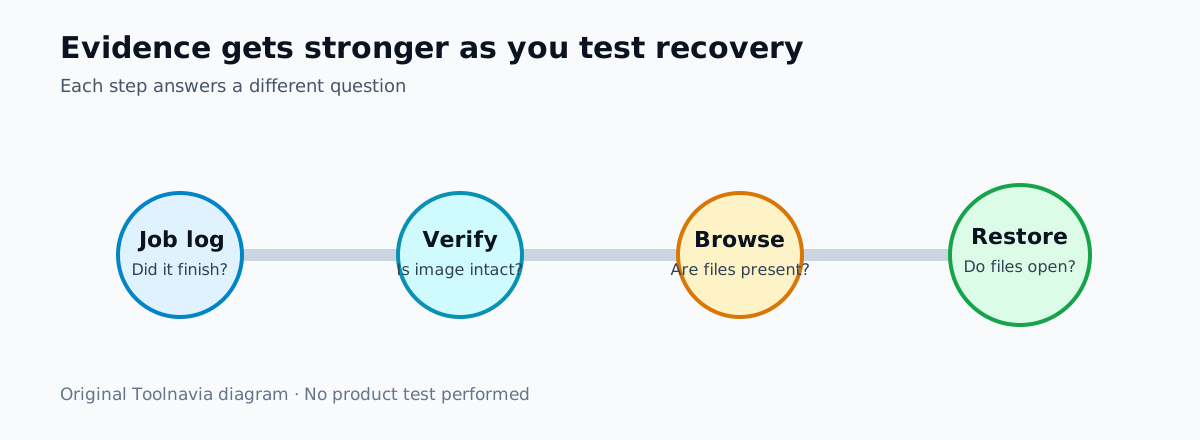
“Backup succeeded” can mean several different things. A job log may show that an operation finished. Verify may confirm that the selected image is internally readable according to ShadowMaker’s integrity process. Browse or Mount may show that expected folders are present. A sample restore goes further by writing selected data to another destination and checking that it opens and behaves as expected.
MiniTool’s Manage guide documents these as different controls. Verify checks the integrity of a selected backup version. Browse lets you select files or folders and restore them to a destination. Restore handles volume recovery, while Mount exposes supported disk, partition, or system images in File Explorer. File backups do not support the same mount operation.
The practical buying lesson is simple: do not treat one green status as evidence for every recovery scenario.
What ShadowMaker Verify does
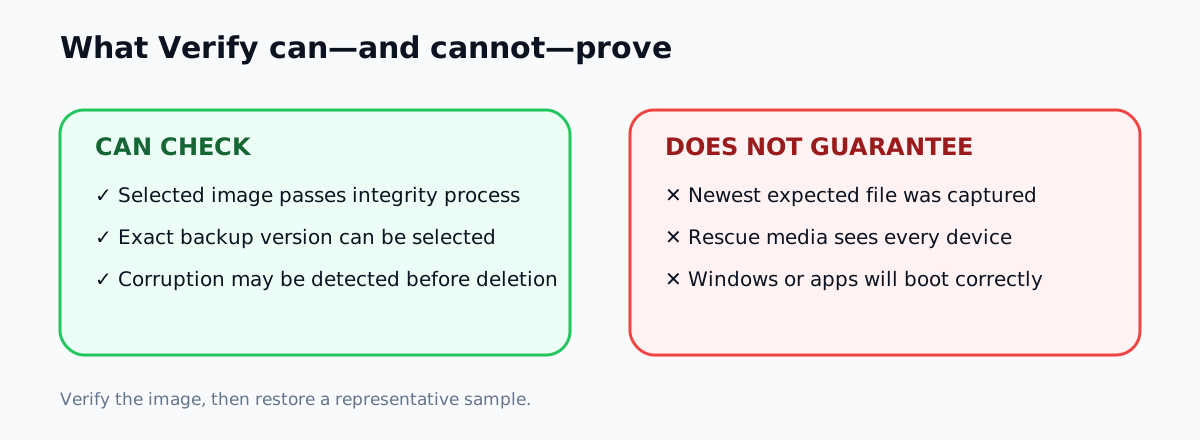
Use Manage, open the task menu, choose Verify, select the exact backup version, and let the program complete its check. This is useful after moving backup files, after a storage warning, or before deleting older restore points. It can detect an image that fails ShadowMaker’s own integrity process.
But the public MiniTool guide reviewed for this article does not document the precise checksum algorithm, every block that is read, or a guarantee that Windows will boot after a bare-metal recovery. Do not borrow Veeam’s CRC and hash implementation or Macrium’s documented verification behavior and quietly attribute it to ShadowMaker. Those products provide comparison context, not proof of MiniTool internals.
A successful verification also does not prove that the newest expected document was included. It cannot confirm that you remember the encryption password, that rescue media contains a working storage driver, or that an application-consistent database will start. Those are separate acceptance questions.
Browse is a useful middle step
MiniTool’s FAQ tells users who want to check whether a backup was made correctly to open Manage and use Browse. The Manage guide then shows how to choose a backup version, select files or folders, choose a destination, and start the restore.
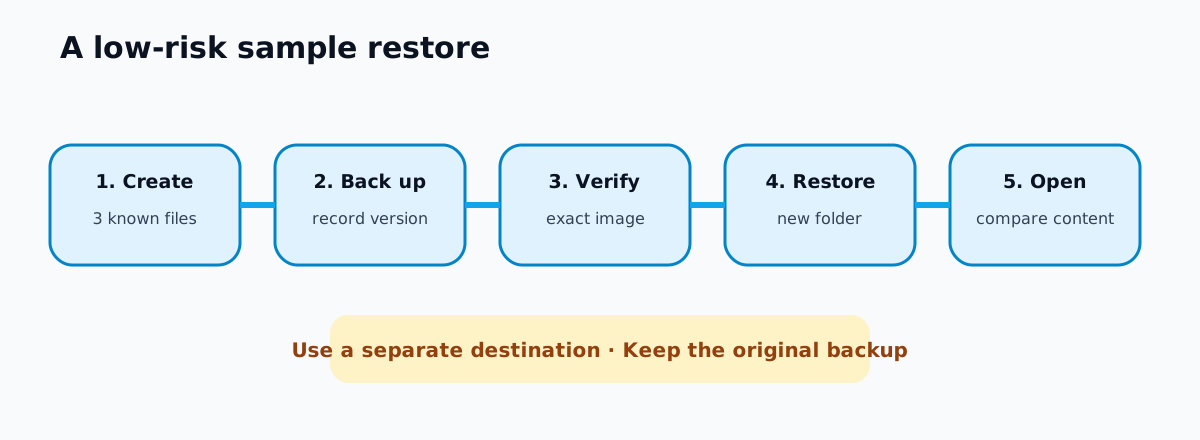
For a low-risk test, create a small folder with three unmistakable files before the next backup: a text note containing the date, a small image, and a spreadsheet or document. After the backup finishes, use Browse to restore those files to a new temporary folder. Open them with their normal applications and compare the contents with the originals.
This owner-run test answers a narrower but more useful question than a status icon: can this version return representative files to a location you control? Toolnavia did not perform this test and is not reporting a benchmark.
Why a sample restore is stronger than verification alone
MiniTool’s newer backup-success guidance layers several checks: inspect logs, verify the image, mount or browse it where supported, and perform a restore test. The steps are complementary. Verification checks the stored image; a sample restore also exercises selection, destination access, decryption, and file output.
Competitor documentation makes the same boundary visible without proving any ShadowMaker behavior. Veeam describes a health check that validates metadata and data blocks, while SureBackup’s full recoverability mode starts machines in an isolated environment and runs tests against them. Macrium documents hash-based image verification for its own product, another reminder not to infer one vendor’s method from another. Acronis recommends validating under bootable media and, when practical, trying a recovery to a spare drive because a backup readable in Windows may not behave identically in another recovery environment.
These examples show why “verified” and “recovered” should not be interchangeable words. They do not mean every home user needs a spare PC or an enterprise lab. They mean the test should match the consequence of failure.
Match the test to what you are protecting
For ordinary documents, restore a representative sample to a separate folder and open it. For a large photo or video archive, restore several files from different dates and compare sizes or application behavior. For a system image, prepare rescue media, confirm it boots, and confirm it can see the keyboard, network or external drive that holds the backup. A full disk restore is destructive, so use spare hardware or an isolated test plan rather than overwriting the only working computer.
Keep at least one separate known-good copy before any destructive recovery exercise. Do not delete the source backup merely because a verification completed.
If the destination is a NAS or removable drive, test with the credentials and connection you will actually have during recovery. If the backup is encrypted, store the password or recovery material securely and prove that the restore workflow accepts it. If the backup chain contains incremental images, test a restore point that depends on the chain rather than only the first full image.
Does this require Pro?
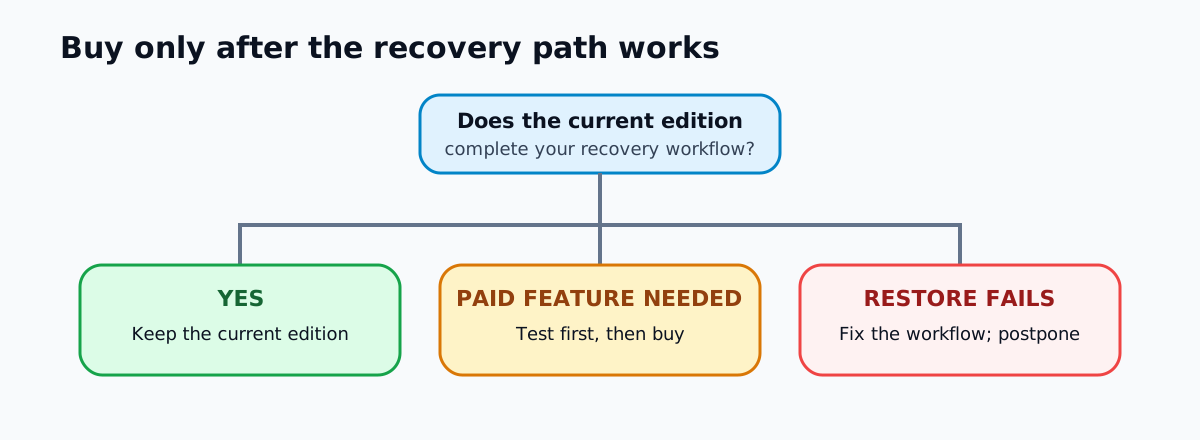
Do not upgrade merely to make a green checkmark feel more reassuring. First test the capabilities present in the installed edition. MiniTool’s public campaign currently displays Pro at US$12.99 for one PC for one month and US$36 for two PCs for one year, both as auto-renewing subscriptions. It also displays Pro Ultimate at US$79 for three PCs with a perpetual license. These were observed on November 11, 2026; campaign prices, taxes, renewal terms, and regional availability can change, so verify the selected checkout.
The purchase decision should be tied to a documented paid capability, license scope, or upgrade service you actually need. Verification and a representative restore are acceptance steps, not reasons by themselves to buy a larger license. If the free or existing edition completes the workflow you need, keep it. If the paid edition is required for your backup type, recovery environment, device count, or automation, test the representative recovery path before the refund window closes.
A five-step acceptance record
1. Record the source, destination, backup version, and expected files. 2. Run the backup and inspect the task log. 3. Verify that exact version in Manage. 4. Browse or restore a representative sample to a different destination, then open it. 5. Record what was tested, what was not tested, and when the next recovery drill is due.
A “pass” means only that this defined test passed on this date. It is not a lifetime guarantee.
Buying verdict
ShadowMaker’s Verify command is valuable for checking image integrity, but it is not a substitute for a representative restore. Start with Verify, then restore a small sample. For system protection, also test the recovery environment without overwriting your live disk. Buy Pro only when a documented paid capability or license scope is necessary and the recovery workflow works on your hardware.
[Review the current ShadowMaker offer](https://www.jdoqocy.com/click-101895278-15509062). Toolnavia may earn a commission from eligible purchases. Toolnavia did not install the software, run Verify, restore files, boot rescue media, or complete a paid checkout for this article draft.