TOOLNAVIA / BUYING GUIDE
MiniTool ShadowMaker File Restore: Recover One Document, Not All Windows
The short answer
A single missing document should not force you to roll back an otherwise working Windows installation. ShadowMaker is worth considering when you want a repeatable backup-and-restore routine, but the useful test is specific: can you recover the right version into a separate folder and actually use it? A backup must already contain that version.
At a glance
- Best for
- A verified selected-file restore within a regular backup routine.
- Price model
- Annual $36/2 PCs or Ultimate $79/3 PCs; test Free first
- Check first
- Payment cannot create an unrecorded earlier version.
Start with the backup that actually exists
Locate the backup made before the unwanted change. Record its date, source folder and storage location, and preserve the current document even when it appears damaged. A backup created after yesterday's text was overwritten cannot manufacture yesterday's text.
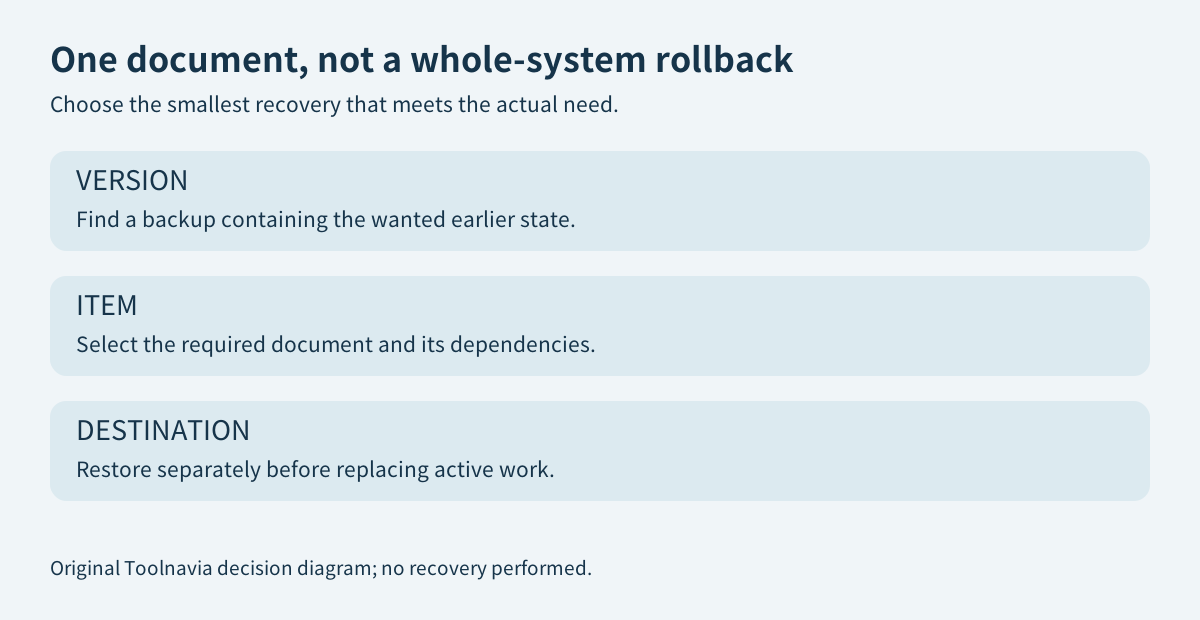
MiniTool's file-restore guide starts from a file-backup image, with an Add Backup route when it is absent from the list. Its documented sequence then selects a version, the required files or folders, and a destination. The guide is dated November 2022, so treat its labels as versioned guidance rather than a screenshot of your installation.
Do not point an unrelated product's archive at ShadowMaker and assume compatibility. Identify the software and backup type that created the archive. A successful purchase does not prove an existing backup is readable.
Four controls that matter more than a large restore button
A version selector helps you choose the state before the mistake rather than automatically recovering the newest state. Selecting individual items narrows the operation to the document you need. A separate destination lets you compare the recovered result with today's file. Manually adding an existing backup helps when the application list is not showing the archive you retained. These are documented workflow controls, not exclusive Pro features or claims of a successful recovery.
For a practical example, suppose last week's budget spreadsheet had a formula removed on Monday. Recovering every folder to last Friday could also replace Tuesday's unrelated work. Instead, select the relevant version and restore the spreadsheet into a clearly named review folder. That example illustrates scope, not measured recovery speed.
Verify the contents before replacing anything
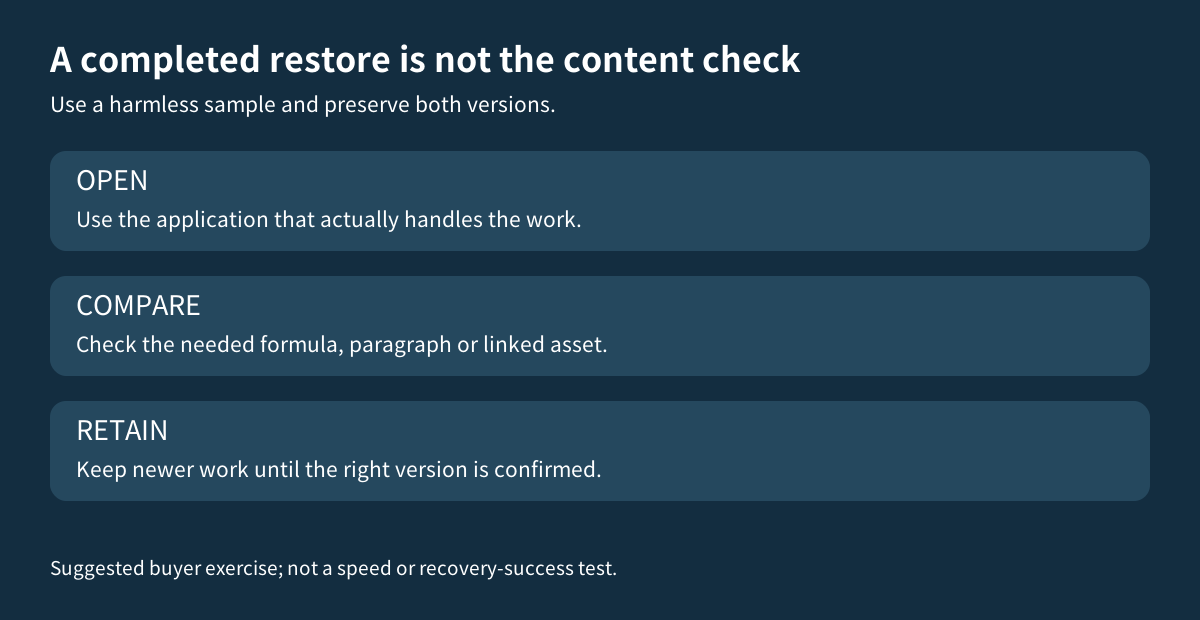
Use an expendable sample first. Keep its original and a known edited version, create the backup through the installed tool, and recover the earlier state into a separate location. Open both files in the application normally used for the work. Check the part you actually needed: the formula, a paragraph, a photo layer or a linked asset.
A matching filename, a plausible timestamp and a completed progress bar do not answer that question. Save any recovered work under a distinguishable name while comparing it. Replace the active document only after you have decided which version is correct and preserved anything newer that still matters. These are proposed buyer checks, not Toolnavia tests on your files.
For a project with several linked documents, one-file recovery may not be enough. List its dependencies before treating one successful opening as the whole job. A complete Windows restore addresses a different objective and is not a necessary first response to every document mistake.
Compare the free and already-owned paths fairly
MiniTool's current Free page advertises file backup and restoration. Therefore recovering one file alone is not a reason to claim that everyone needs Pro. Start with the edition that already performs your required task.
Windows File History can also retain versions of included libraries using a configured external or network destination. Microsoft documents a Restore to option to avoid replacing the current file; restoring over the current version is not undoable through that operation. It helps only when the relevant history exists and includes your folder.
An existing AOMEI or Acronis archive may justify using that product's documented recovery route instead of buying another tool. AOMEI's current guide distinguishes file-backup selection from its paid disk-image exploration options; Acronis' 2025 manual describes file recovery from both file and disk backups. Those are their own formats and entitlements, not features automatically transferred to ShadowMaker.
When the paid ShadowMaker license makes sense
Consider paying when the ongoing backup workflow needs an identified paid capability and the tested recovery process suits your household. The current official campaign lists Annual at $36 for two PCs and Ultimate at $79 for three PCs with perpetual use and lifetime upgrades. Annual renews automatically unless canceled; neither offer removes the need for backup storage and verification. Recheck the actual checkout and local taxes.
Use the [ShadowMaker license guide](/en/software/minitool-shadowmaker) to compare the broader editions, and the [backup-versus-snapshot guide](/en/software/parallels-snapshots-backups) when the document belongs to a virtual-machine workflow. Buy a maintainable recovery routine, not the hope that payment will create a missing past version.
Affiliate disclosure: Toolnavia may earn a commission from eligible purchases through the genuine MiniTool ShadowMaker referral buttons. They open the matching product page, not a preselected license or a guaranteed special discount.