TOOLNAVIA / BUYING GUIDE
Filmora Video Editor: Archive Projects Before Switching Computers
The short answer
An editable Filmora handoff needs the project **and its media**, plus a compatible installation on the receiving computer. Use Archive Project before moving work. Buying another license or sending an MP4 does not preserve a timeline someone can revise.
*Official-documentation analysis, October 28, 2026; suggested workflow, not a performed transfer test.*
At a glance
- Best for
- A Filmora editor or authorized recipient who can use the agreed version, preserve source media and verify a complete copied project before retiring the original environment.
- Price model
- Basic US$49.99/year; Advanced $59.99/year; Perpetual $79.99 for Filmora16. Check renewal, tax and extras.
- Check first
- A recipient who only needs to play or approve a finished video, a team requiring another editors native format, or someone assuming an archive includes a transferable paid license.
Choose the file that matches the delivery
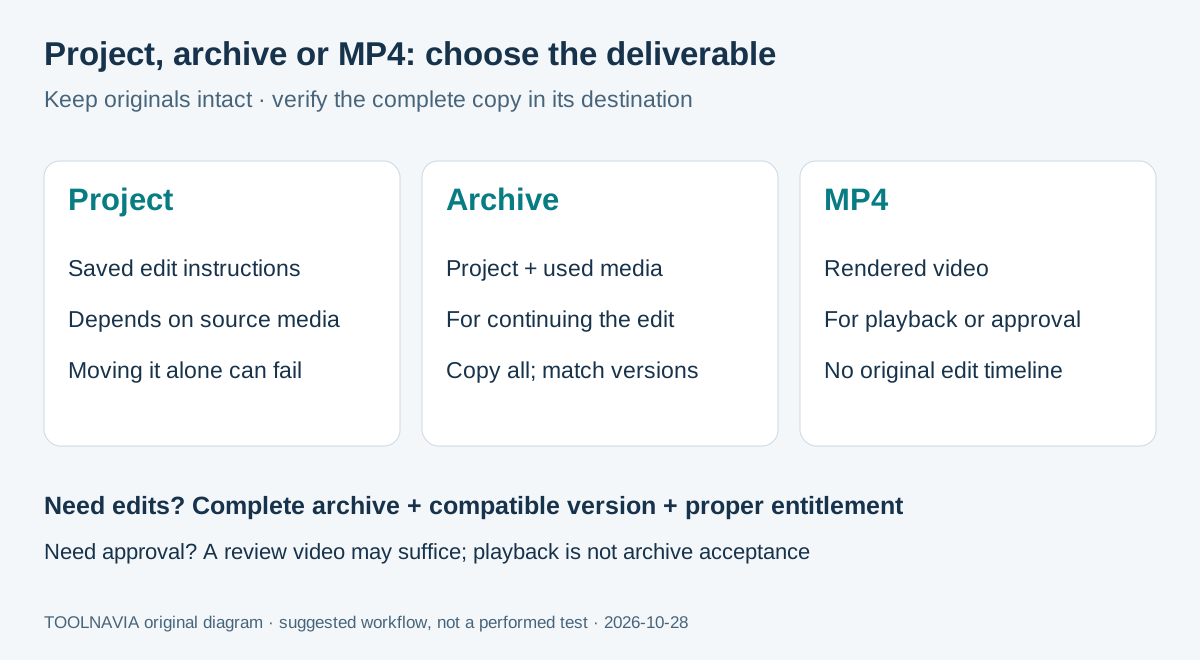
| Deliverable | Useful for | Important boundary | | --- | --- | --- | | Saved project | Continuing work where its media remain available | Moving the project alone can leave missing media | | Complete project archive | Reopening an editable Filmora project elsewhere | Copy the whole package and match versions | | Exported MP4 | Reviewing or playing the finished video | It does not preserve the original editable timeline |
Filmora's current transfer instructions use **File → Archive Project**, then opening the archive's `.wfpbundle` on the destination. Keep a reference MP4 alongside it so the recipient knows what the finished edit should look like.
Four capabilities that make the handoff useful
- **Collect used media with the project.** Archiving gathers the video, images and audio used by the edit. This reduces dependence on scattered folders; missing originals must first be restored or relocated.
- **Continue editing after the move.** The archive carries project data, allowing the receiving Filmora installation to reopen the edit. The useful outcome is a revisable timeline, conditional on a compatible version—not simply a file that can be played.
- **Choose your transfer route.** An external drive, local network or cloud transfer can move the complete archive. A local copy avoids making a large handoff depend on the plan's small included cloud allowance; you still need enough destination storage.
- **Reconnect relocated originals.** Filmora's missing-file dialog offers Relocate. When the actual source files still exist, this can repair references before re-archiving; it cannot recover deleted media.
Media collection is not unique to Filmora: Premiere's Project Manager, Final Cut's consolidation and Kdenlive's archive tools address related tasks. Their native projects are different formats, not interchangeable Filmora archives.
Budget for the editor, not just the transfer
The current individual desktop page lists **Basic at US$49.99/year, Advanced at $59.99/year and Perpetual at $79.99 once**. Annual plans renew automatically; check the renewal quote and taxes before paying. Perpetual covers updates to **Filmora 16**, not future major versions. Basic includes 1GB cloud storage and Advanced 10GB; archiving to a local drive does not require choosing the larger cloud allowance.
The free editor exports with a watermark. Optional Creative Assets trials can renew separately, so inspect the cart's extras. Do not buy Advanced solely to copy an archive: choose it only when its additional editing or AI features fit your work. A recipient needing their own editing entitlement is a separate cost.
*Affiliate disclosure: Toolnavia may earn a commission from purchases through its Filmora links, at no extra cost to you.*
Check the receiving computer before promising delivery
Match the Filmora version first. The transfer guide recommends the same version; separate compatibility guidance describes some older-to-newer support and a Filmora 15 legacy-save route. Neither is a blanket promise that a new project will open in an older release. Preserve an untouched original before changing versions.
Cross-platform project support also has version boundaries. More importantly, project compatibility does not establish license rights: the current shop says Basic and Advanced cover Windows and Mac, while the general device FAQ describes sequential use on two computers with the same operating system. Verify the exact account entitlement before a Windows–Mac move; Perpetual remains platform-specific.
For activation details, use the existing [Filmora device-limit guide](/en/software/filmora-device-activation-license-limit). A client's paid work also needs the appropriate [commercial-use permission](/en/software/filmora-individual-vs-business-commercial-use).
Archive once, then test the copied package
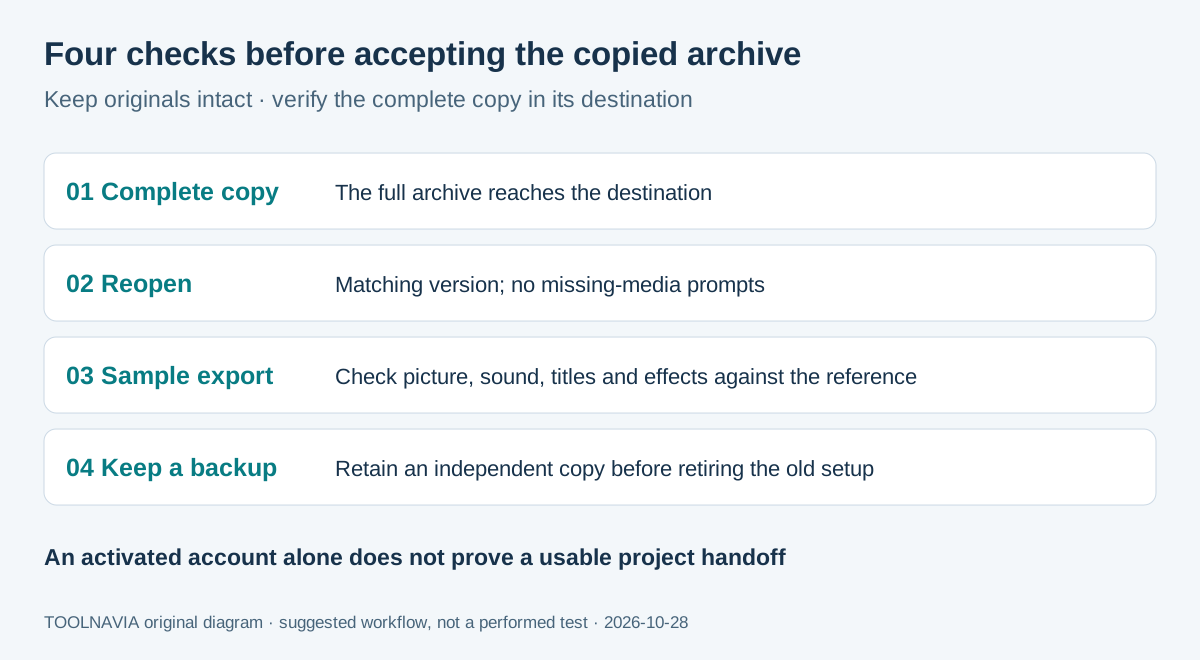
Use this suggested workflow before wiping an old computer or declaring a handoff complete:
1. Save the project, record both Filmora versions and operating systems, and resolve missing-file warnings. Keep the original project and source media unchanged.
2. Select **File → Archive Project**, choose a destination with sufficient space and let packaging finish. Copy the entire resulting archive to the receiving computer.
3. Open the copied archive in the agreed Filmora version. When practical, disconnect the original external media drive for this check; do not delete the originals.
4. Review the beginning, middle and end, including audio, titles, effects and representative cuts. Export a short sample and compare it with the reference MP4.
5. Confirm the copied package opens without missing-media prompts and the sample has the expected picture, sound and licensing status. Retain a separate backup before retiring the old installation.
If media are missing, use Relocate to point to the real originals, save, rebuild the archive and repeat the check. Successful account activation alone does not pass this acceptance test.
Choose based on who must edit next
Filmora fits a handoff when the next editor can use a compatible, properly licensed installation and the copied archive passes the reopen-and-export check. If the recipient only needs approval, send the reference video. If they require another editor's native project, agree a different delivery format before buying or promising an editable Filmora package.