TOOLNAVIA / BUYING GUIDE
Filmora Device Limits: Can You Move Your License to a New PC?
The short answer
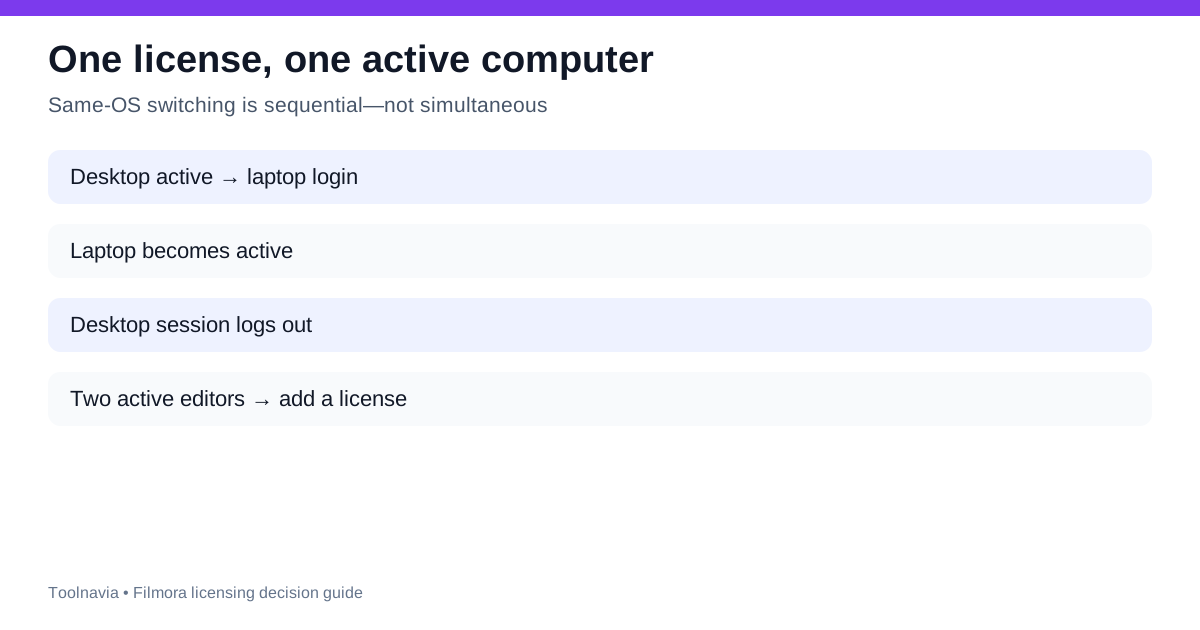
Filmora’s Individual license is easy to misread. Wondershare calls it one license per device, its EULA describes activation on one device, and its current product-specific support page also says the same license may be used on two computers with the same operating system at different times. The second login activates Filmora there and logs the first computer out. That is a sequential handoff, not two simultaneous seats.
This distinction matters before paying. A solo editor who alternates between a Windows desktop and Windows laptop may fit the current support workflow. A household, studio or team that needs two editors working at once does not. A buyer moving from Windows to Mac also cannot assume the same entitlement follows, because platform coverage depends on the exact plan and store channel.
At a glance
- Best for
- One editor alternating between same-OS computers and planning a replacement.
- Price model
- Verify live checkout; plan, platform and device terms vary
- Check first
- One active computer at a time; platform and replacement treatment depend on the exact plan and checkout.
One license is one active editing seat
The clearest current product-specific answer says a single Filmora license allows one computer at a time. It then describes a same-operating-system handoff: install Filmora on the second computer, sign in with the purchasing Wondershare ID, and the first computer should be logged out automatically. If the automatic logout fails, Filmora prompts the user to log out of the other device.
That wording creates a practical model: one person, one active desktop session, and a controlled move between two same-OS computers. It does not create two independent installations for two people. Wondershare’s license-types page separately defines the Individual license as single-user and limited to one device per license, while Team and Business licenses support managed users.
Treat “two computers at different times” as a convenience for one editor, not as a spare seat you may share. If a second person needs to export while the first is editing, the Individual plan is the wrong capacity.
Desktop and laptop switching: what should happen
For a Windows desktop plus Windows laptop, the official support flow is straightforward. Install the same platform version, sign in with the Wondershare ID tied to the order, and expect the previous computer to lose the active session. Save the order email and verify the plan shown in Account Center before opening a deadline-sensitive project.
Run a short watermark-free export after every handoff. A successful login alone does not prove the paid entitlement loaded correctly; the app can open in a free or trial state when the wrong account, platform or plan is used. The purchase page says Filmora activation is tied to the Wondershare ID used for the order.
This workflow is reasonable for occasional travel or a backup machine. It becomes irritating when you switch several times a day, work offline, or cannot reach the old device. In those cases, the cost of the license is not the only decision variable—the account handoff itself is part of the workflow.
Replacing or repairing a computer
Wondershare acknowledges that repeated activation can be triggered by replacing a computer or recovering the operating system. Its support guidance recommends deactivating Filmora on the old device before transferring to a new one and warns that excessive repeated activations can cause the registration code to be treated as compromised.
When Filmora reports that a device is disabled or the limit has been exceeded, the official recovery route is Account Center: open Plan & Products, choose Manage Products, find Manage Devices under Filmora, activate the correct device, restart Filmora and sign in again.
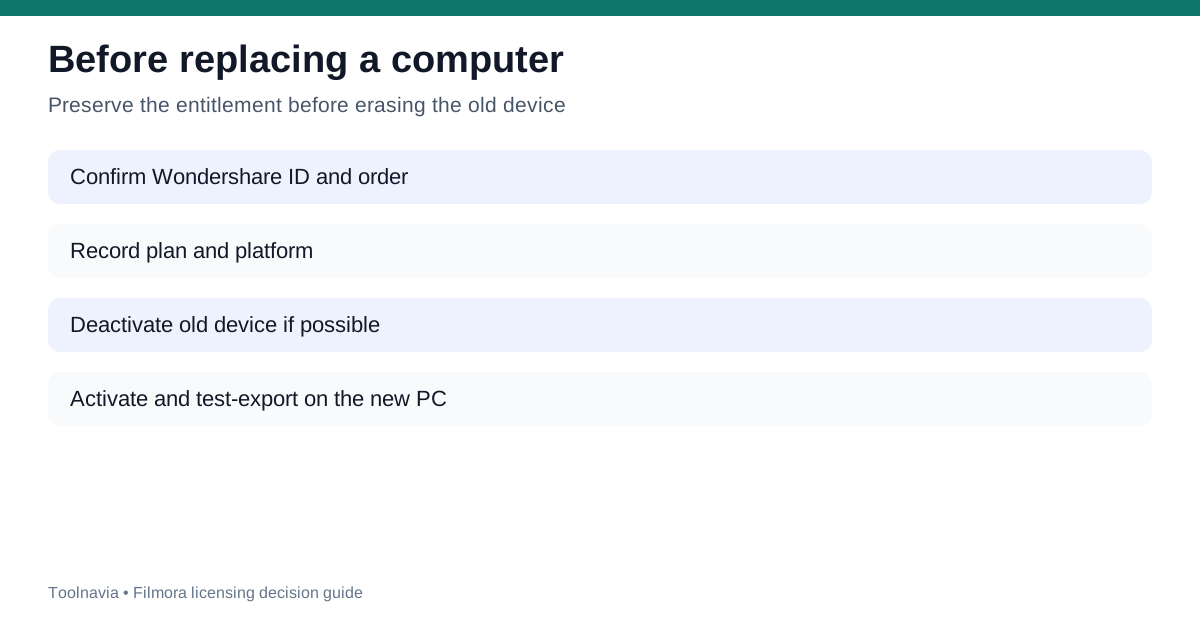
That process is helpful only when the old device or account remains manageable. A failed motherboard, lost laptop or inaccessible account can turn a simple replacement into a support case. The safest pre-change checklist is:
- confirm the purchasing Wondershare ID and exact plan; - record whether the order is Windows, Mac or expressly cross-platform; - sign out or deactivate the retiring computer when possible; - archive projects and media separately—the license does not move your files; - activate the replacement and run a short export before erasing the old machine.
Do not repeatedly retry activation when the account is already warning about limits. Preserve the message and contact support with the order number.
Windows, Mac and cross-platform wording
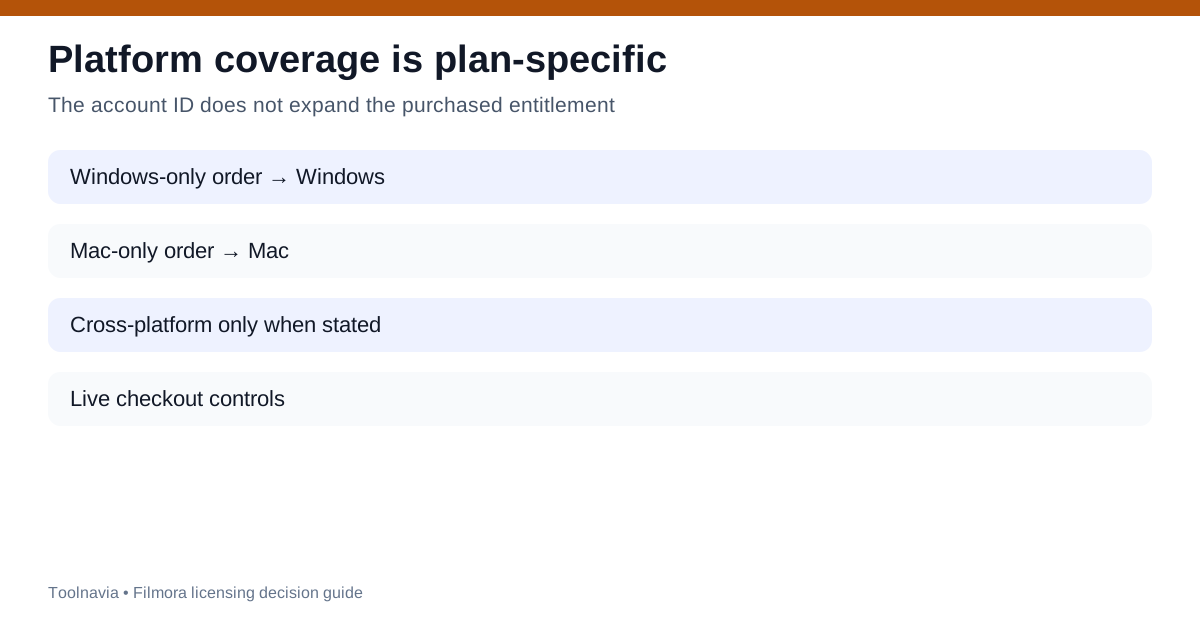
Filmora’s live plan pages do not support one universal platform rule. The main pricing FAQ describes product licenses as platform-specific, while an official Microsoft Store page says certain subscription plans offer multi-platform support and that the Perpetual plan is device-specific. Older Filmora guides also described a cross-platform plan spanning several device classes but allowing only one Filmora instance at a time.
The safe interpretation is plan-specific. A Wondershare ID identifies the buyer; it does not automatically convert a Windows-only order into a Mac entitlement. Check the exact cart, operating system, plan name and Account Center entry. If the checkout does not explicitly say Windows and Mac are both included, budget as though a platform switch requires a different entitlement.
Independent 2026 reviews reach the same practical warning. TVNemu distinguishes cross-platform subscriptions from a device-specific perpetual offer, while Linkeddit notes that Filmora’s FAQ does not allow a Windows-to-Mac transfer. SoftwareAlmanac and TechRadar also emphasize that a perpetual purchase is tied to the purchased major version rather than every future upgrade.
When you need another license
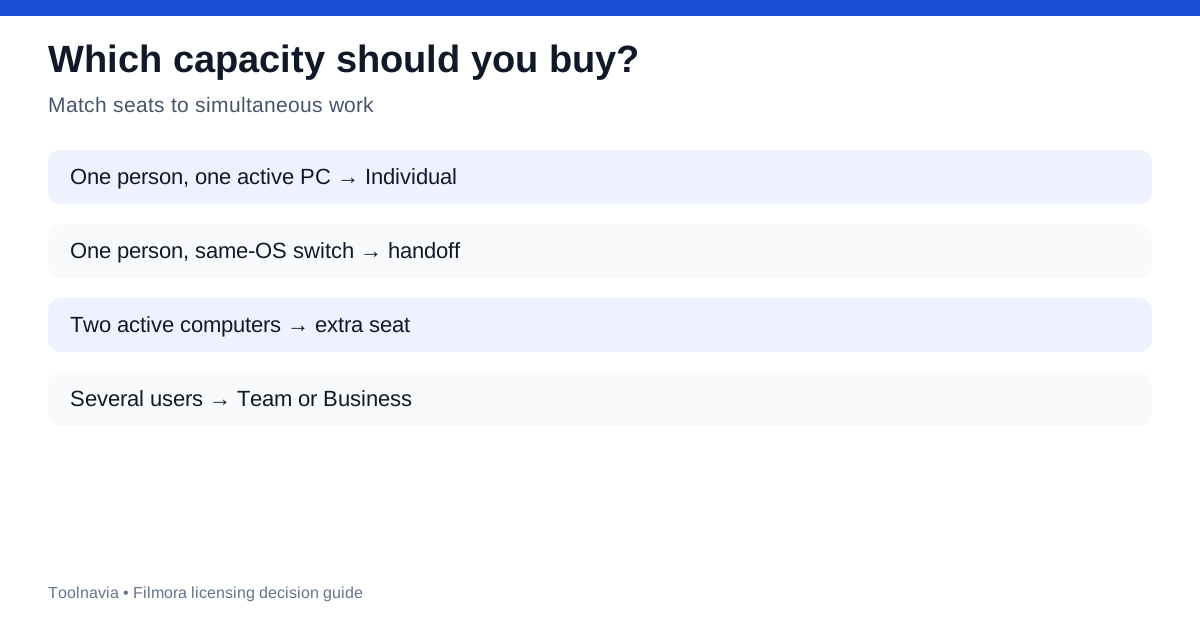
A second license or a Team/Business arrangement is warranted when two computers must run Filmora simultaneously, two people need access, or an administrator must assign seats. The official support page explicitly says simultaneous use on multiple computers requires additional licenses corresponding to the number of devices.
Do not try to solve a two-person workflow by sharing one Wondershare ID. Besides breaching the single-user model, automatic logout can interrupt exports and make it unclear which device holds the active entitlement. A team also needs to consider commercial-use terms, but that separate decision is already covered by Toolnavia’s Filmora Individual versus Business guide; this article stays focused on device capacity and replacement risk.
A five-minute checkout stress test
Before paying, answer four questions.
1. Will only one person use Filmora? 2. Will only one computer need an active editing session at a time? 3. Are the current and replacement computers on the same operating system? 4. Does the exact checkout name both platforms if cross-platform use matters?
If all four answers fit, the Individual license can be workable. If the first two answers are no, price the required number of seats. If the third or fourth is uncertain, capture the cart wording and obtain written support confirmation before relying on a future switch.
The free version can test installation and editing, but its exports carry a watermark. Use that test to confirm hardware performance and project compatibility; do not treat it as proof that a purchased entitlement will cover another platform or simultaneous device.
Verdict
Filmora’s current support material permits a practical same-OS, one-computer-at-a-time handoff for a single user, even though the general one-device language is stricter. The narrow, defensible promise is sequential use—not two active seats, not unrestricted account sharing and not an automatic Windows-to-Mac transfer.
Buy the Individual offer when one editor can tolerate device handoffs and the live checkout covers the required platform. Choose extra seats or a managed plan when work must continue on two machines at once. Before replacing hardware, deactivate the old device where possible, verify Manage Devices in Account Center and preserve the order evidence.
Toolnavia may earn a commission from a qualifying Filmora purchase through the approved link. The link does not change the price, device limit, platform coverage or support outcome.