TOOLNAVIA / BUYING GUIDE
Filmora 16 Compression: 4K Bitrate, Quality and File Size
The short answer
At a glance
- Best for
- Creators already editing in Filmora who can test representative footage and need occasional target-size or platform-ready 4K delivery.
- Price model
- Basic $49.99/year; Advanced $59.99/year; Perpetual V16 $79.99; Premium $99.99/year.
- Check first
- Users needing guaranteed lossless output, one-click mathematical target size, large unattended queues or an unverified specialist codec.
Quick answer
Filmora 16's built-in compressor is enough for many creators who need to fit a 4K export under a platform or client limit, but only if they test the real footage. The useful controls are resolution, frame rate, bitrate, codec and the Advanced Compression modes. The risky shortcut is treating Wondershare's “70% compression without quality loss” message as a universal guarantee. High-motion footage, grain, gradients, faces and small text can reveal losses that a product-page percentage cannot predict.
The current Windows plans shown on the official store are Basic at **US$49.99/year**, Advanced at **US$59.99/year**, Perpetual for Filmora 16 at **US$79.99**, and Premium at **US$99.99/year**, checked on October 29, 2026 Beijing time. Tax, regional pricing, optional assets and checkout terms can change. A perpetual license is tied to Filmora 16 updates; active subscriptions receive major-version upgrades while active.
> Affiliate disclosure: Toolnavia may earn a commission if you buy through the verified Filmora desktop link. That does not increase your price. No coupon or guaranteed saving is claimed.
What the built-in compressor actually changes
Filmora can reduce an export by lowering bitrate, changing resolution or frame rate, choosing another codec, or using Advanced Compression. The current guide describes quality-oriented and YouTube-oriented modes, while the normal export panel also exposes the output settings.
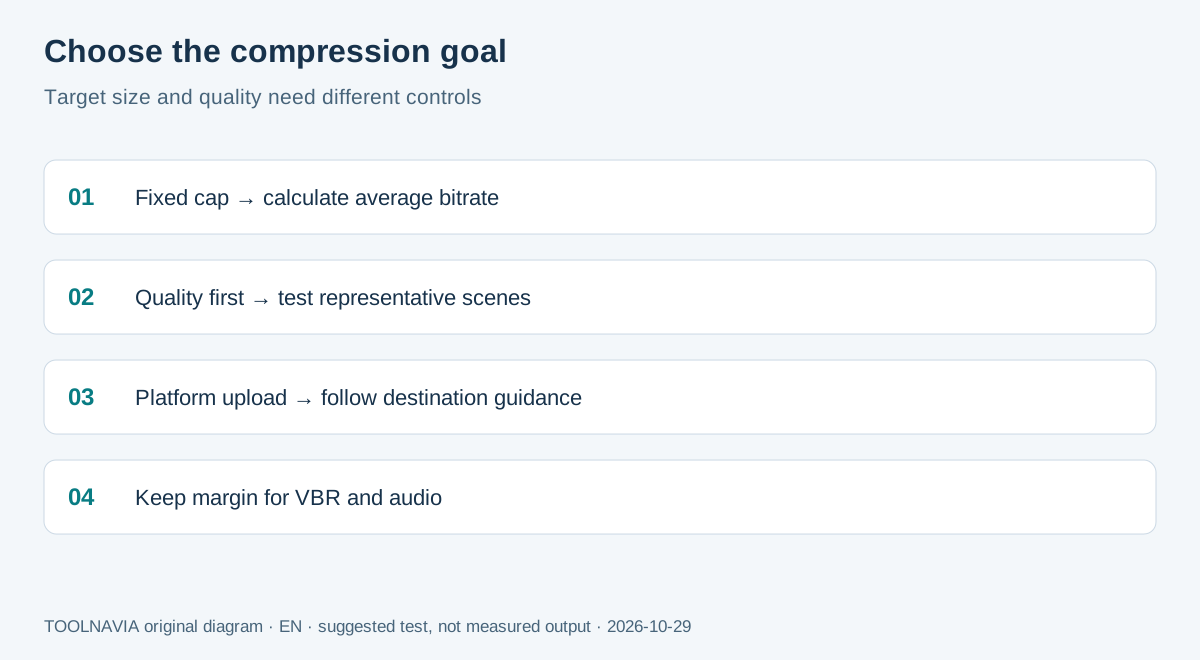
Those controls solve two different problems. A fixed delivery cap—such as “under 500 MB”—needs target-size planning. A quality-first archive needs a visual threshold and may produce an unpredictable file size. HandBrake's documentation makes the same distinction: average bitrate is useful for a target size, while constant-quality output varies with source complexity.
Use this estimate before exporting:
**Approximate bytes = total bitrate × duration in seconds ÷ 8**
A 10-minute video at 40 Mbps is roughly 3 GB before audio and container overhead. Variable bitrate can finish above or below the estimate, so leave margin instead of targeting the exact upload ceiling.
Start from the destination, not a compression percentage
YouTube recommends H.264, variable bitrate, the same frame rate as the source, and about 35–45 Mbps for 4K SDR at 24–30 fps or 53–68 Mbps at 48–60 fps. HDR guidance is higher. Vimeo gives a broader 30–60 Mbps range for 4K. These are upload baselines, not proof that every Filmora preset will preserve every scene.
A client portal, learning platform or ad network may impose a much lower cap. In that case, calculate the required average bitrate from the duration and maximum bytes, then decide whether resolution, frame rate or duration must change. If the required bitrate is far below the destination's normal range, another compressor cannot create detail that the bitrate cannot carry.
The Filmora 16 checked-preset trap
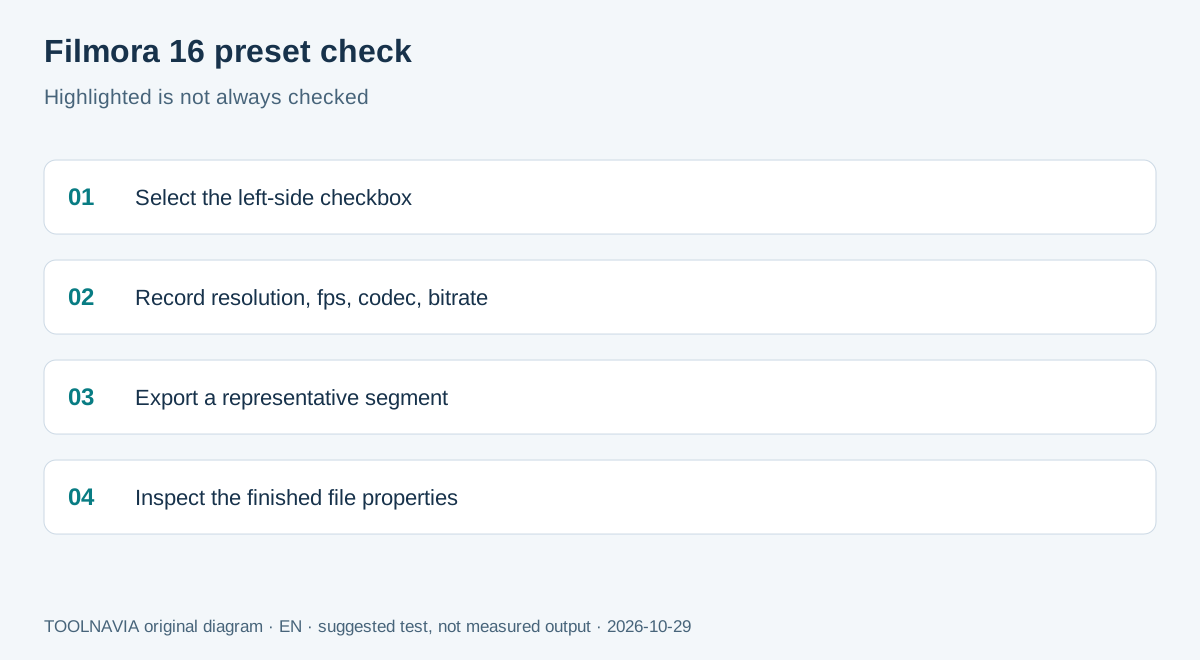
Filmora 16 can display multiple export presets. Wondershare support warns that the preset highlighted on the right is not necessarily the preset selected for rendering; the checkbox on the left controls what is actually exported.
Before clicking Export:
1. Confirm which preset checkbox is selected. 2. Record resolution, frame rate, codec and bitrate. 3. Export a short representative segment. 4. Inspect the output file properties. 5. Compare the actual values with the planned preset.
This is a buying issue, not merely an interface detail. If a user repeatedly exports 1080p while believing 4K was selected, paying for another compressor will not fix the workflow error.
Advanced Compression and GPU acceleration cannot be assumed together
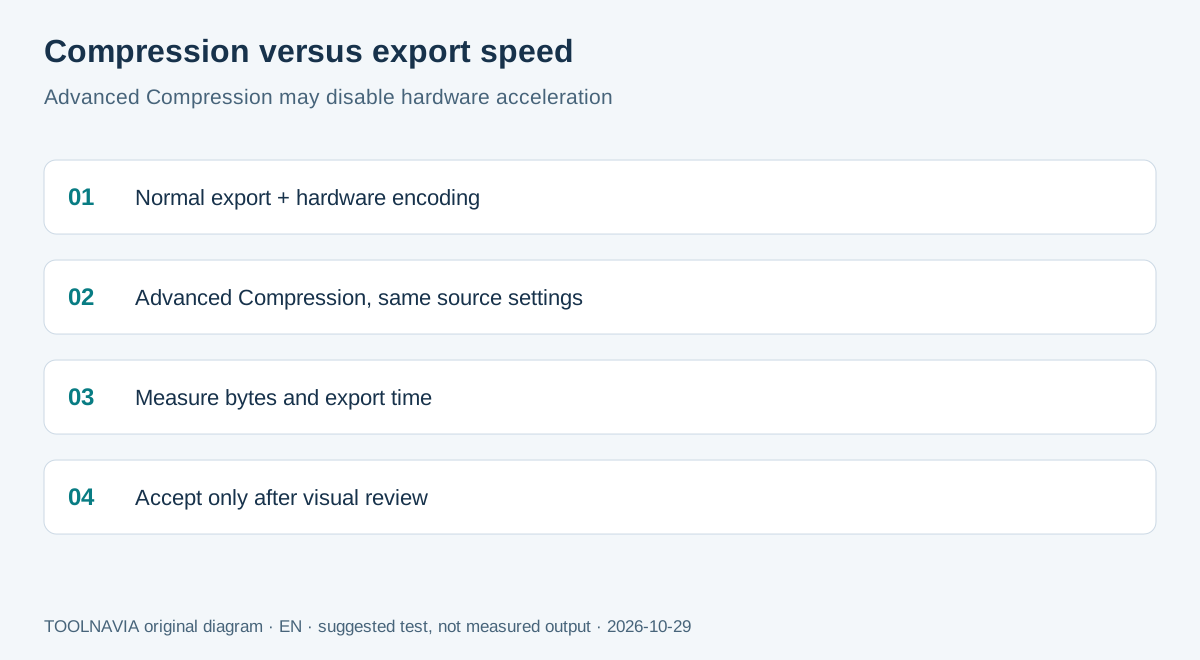
Current Wondershare support says hardware acceleration may be hidden or unavailable when Advanced Compression is enabled. Smaller output can therefore cost more export time, especially on long 4K projects. Test two paths on the same 60-second segment:
- normal export with hardware encoding; - Advanced Compression with the same resolution and frame rate.
Record output size, time, codec, bitrate and visible artifacts. Choose the faster path when both outputs satisfy the destination. Choose the smaller path only when the saved bytes justify the extra time and review burden.
“No quality loss” is a marketing claim, not a measurement
Filmora marketing says large reductions may appear visually lossless. Its support and educational pages also explain that bitrate, codec and source properties affect the result. Adobe, HandBrake and Vimeo describe the same trade-off.
Use two test clips:
- a high-motion or grainy clip; - a clip with faces, gradients and small text.
Compare a reference export with Filmora's quality mode, YouTube mode and a manual-bitrate profile. Check motion edges, skin texture, banding, subtitles, dark areas, audio sync and the platform-transcoded result. Do not rely on the editor preview alone.
Proxy files do not reduce final-delivery size
Filmora proxies are editing copies intended to make the timeline easier to play. They do not by themselves set the final export size or quality. A smooth proxy workflow can still produce a large final file, and a compressed final export can still take time to encode. This article is therefore separate from the existing Filmora proxy guide: the buying decision here is final-delivery compression.
HDR, color and re-encoding risks
A smaller file is not acceptable if HDR metadata, color range or gradients break. Filmora documents HDR handling separately, so preserve the intended color space and test the output on the real destination. Repeated lossy exports compound damage; compress from the best available master instead of compressing an already compressed delivery file.
If the destination will transcode again, upload a file within its recommended range rather than forcing the smallest possible local result. A slightly larger clean master can survive platform processing better than an over-compressed file.
Do you need another paid compressor?
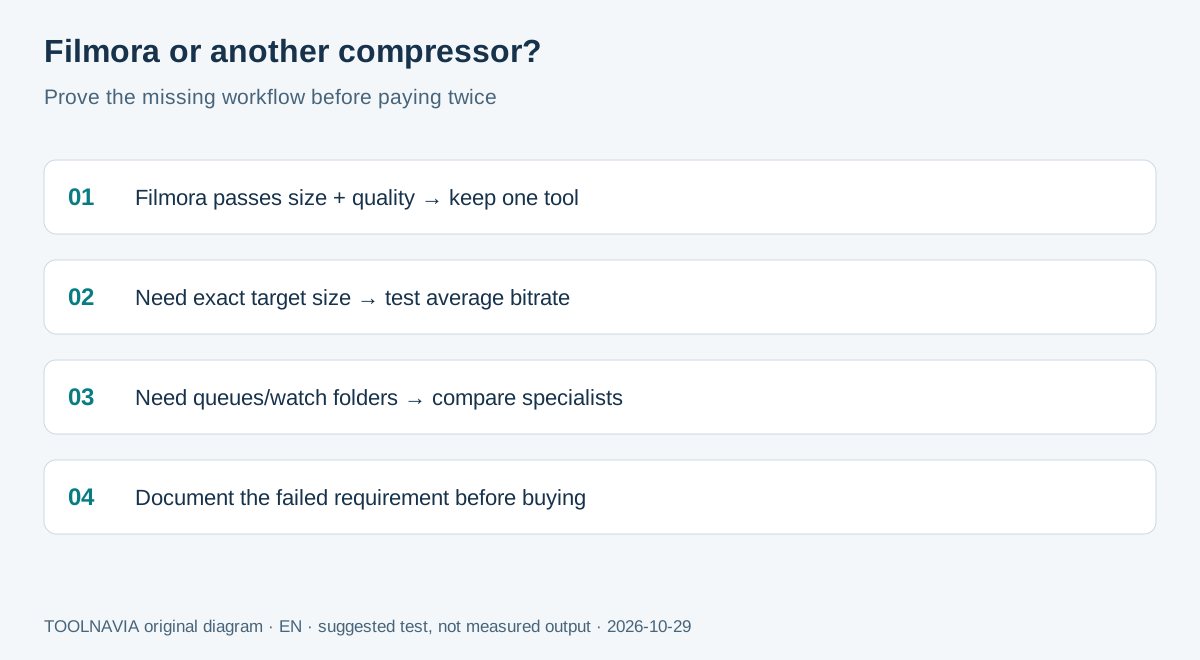
Filmora alone is usually enough when:
- you already edit in Filmora; - the destination accepts common H.264/H.265 files; - a manual bitrate or built-in mode meets the cap; - you can inspect representative scenes; - occasional slower Advanced Compression exports are acceptable.
A separate tool may be justified when you need repeatable batch queues, watch folders, advanced codec controls, exact target-size workflows across many files, or independent quality metrics. HandBrake is a free comparison point for constant-quality and average-bitrate workflows; the need for another **paid** tool should be proven by a missing workflow, not by a generic “smaller file” promise.
A four-export acceptance test
1. Choose a 60-second high-motion segment and a 60-second detail/gradient segment. 2. Create a reference export matching source resolution and frame rate. 3. Export with Filmora Advanced Compression by quality. 4. Export with the Filmora YouTube preset. 5. Export with a manually calculated target bitrate. 6. Record the checked preset, GPU state, codec, bitrate, file bytes and export time. 7. Inspect locally and after destination upload. 8. Accept the smallest output that passes the visible and operational criteria.
Keep the reference and a small manifest. This is especially important for client delivery: “uploaded successfully” is not the same as “accepted for picture, text, color and audio.”
Buying recommendation
Buy or renew Filmora for compression only if the editor already fits your production workflow and a real four-export test shows that its built-in controls meet the destination. Basic may be enough for ordinary editing and export; compare the live plan entitlements before assuming Advanced Compression is restricted to a named tier. Perpetual is a Filmora 16 decision, not a promise of future major versions.
Do not buy another compressor before checking the Filmora 16 checkbox, bitrate and GPU behavior. If Filmora meets the cap and visual threshold, another tool adds complexity. If it cannot deliver repeatable target sizes, batch throughput or the required codec controls, document that exact failure and then choose a specialist tool.