TOOLNAVIA / BUYING GUIDE
Filmora Adjustment Layers: Check Which Tracks and Moments You Change
The short answer
At a glance
- Best for
- Shared looks with deliberate track and time coverage.
- Price model
- Advanced currently US$59.99/year, reference69.99; verify renewal, tax and optional assets.
- Check first
- A shared layer does not replace individual shot correction or output inspection.
Verdict: buy for a repeatable revision scope, not one attractive preview
Filmora can suit an individual creator who repeatedly applies a common visual treatment across several clips. Its Windows guide describes an adjustment layer above the footage, with editable duration and reusable presets. The Mac guide explicitly says effects reach all layers below in stacking order. Decide which tracks and moments should change before relying on one shared control.
This is documentation analysis. No project was opened, effect applied, timeline altered or output rendered, and no time-saving benchmark is claimed.
Review the approved Filmora desktop offer. Toolnavia may earn a commission on an eligible purchase.
Separate a common look from individual shot correction
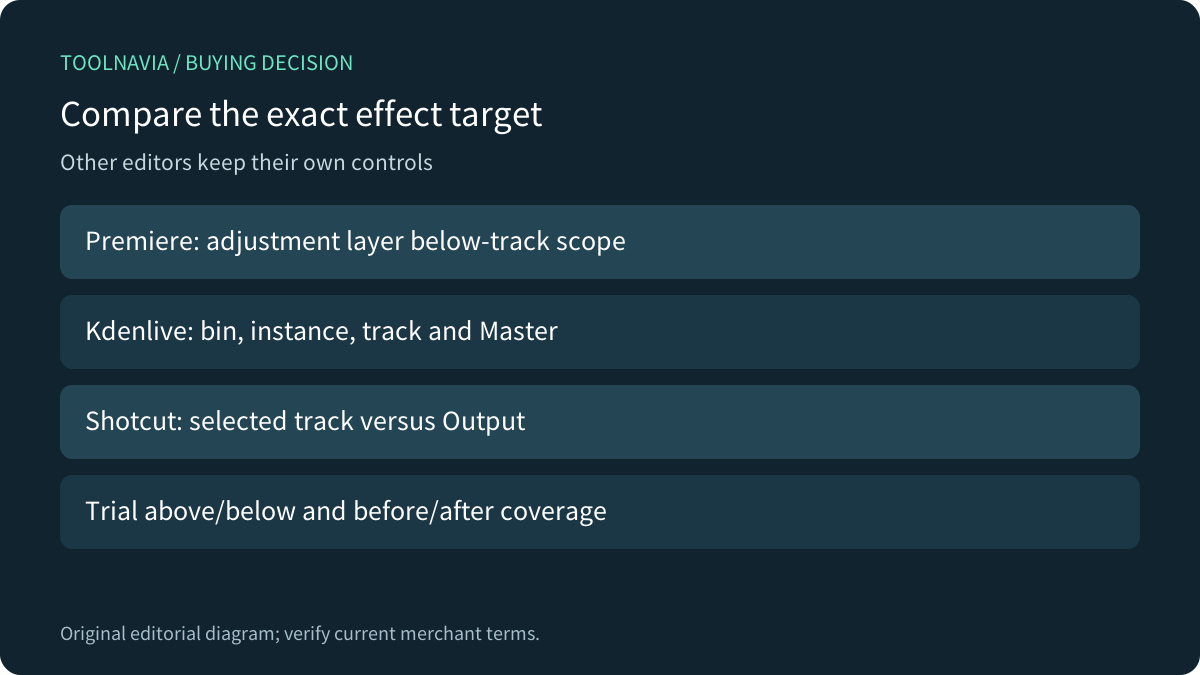
A shared setting is useful when several clips should receive the same treatment. It does not establish that different exposure, lighting or white-balance problems have been corrected. Plan shot-specific repairs separately from the common look, then inspect faces, product colors and graphics throughout the sequence.
Filmora's Windows guide describes Layer, Color and Animation controls and adding effects to the adjustment layer. Four useful capabilities are centralized shared changes, explicit duration, reusable presets and removing that layer's treatment without changing the original footage. None proves every effect behaves identically across all installed builds or platforms.
Track order defines the material under consideration
The Mac documentation's below-layer scope is broader than an automatic nearest-clip-only assumption. Inventory the visible material beneath the layer, including graphics and additional footage that may appear during its interval. Record exceptions before choosing the arrangement. A correct preview of one shot does not establish correct coverage for the rest.
Use the actual installed workflow to decide where shared and clip-specific effects belong. Windows and Mac guides describe related controls but do not certify identical UI or every effect combination. Do not infer audio behavior, automatic isolation or compositing results that the cited adjustment-layer guidance does not establish.
Duration needs maintenance after revisions
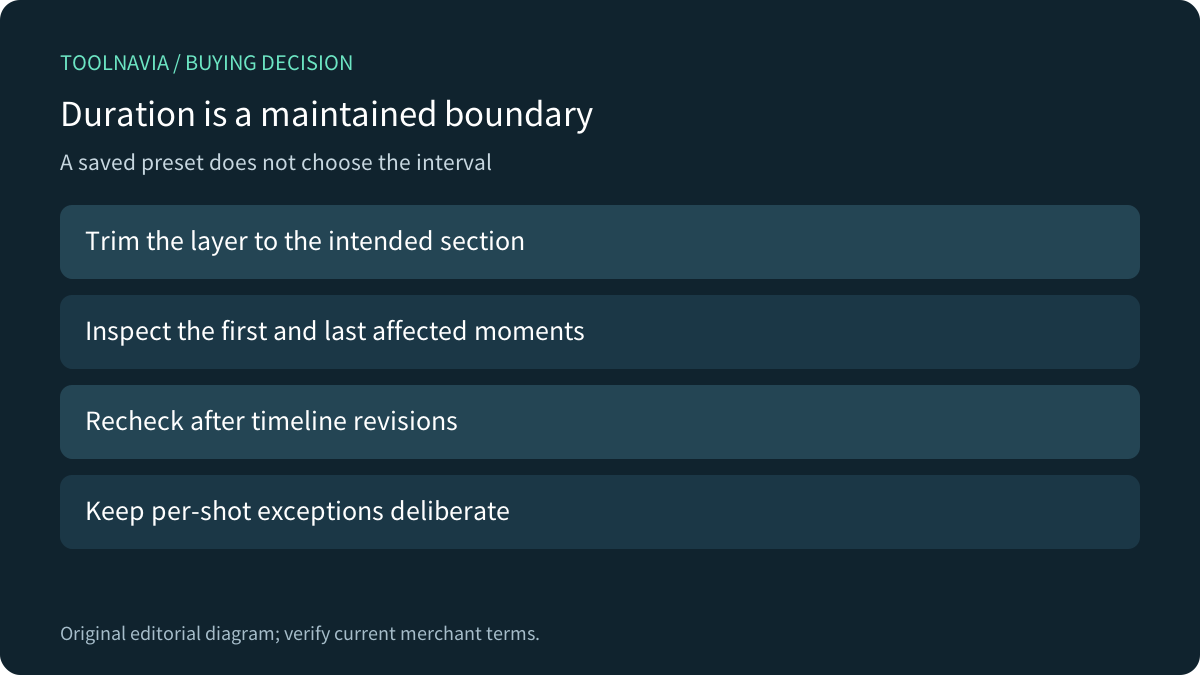
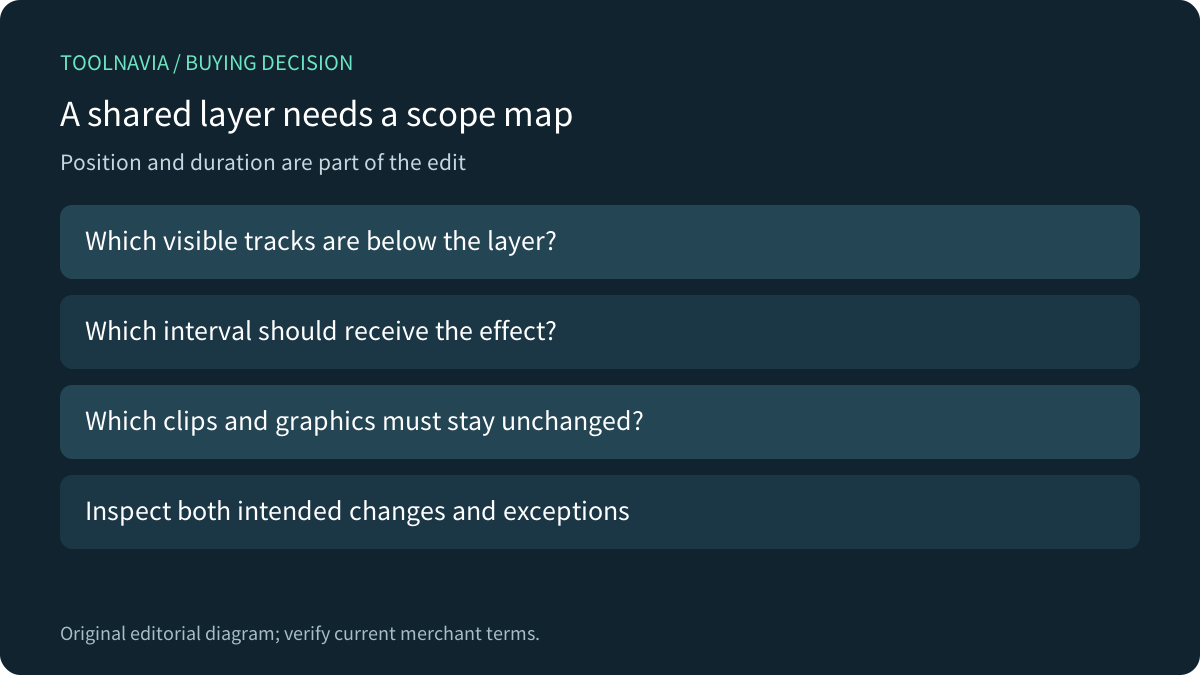
The Windows guide lets you extend or shorten the layer by dragging its edges. The intended effect interval should therefore be part of the edit notes. Inspect the first and last affected moments and revisit them when nearby clips are inserted, moved or trimmed. Do not assume a saved preset chooses the right interval in a new sequence.
The guide also says deleting the layer removes its applied changes. That is useful for controlled comparison, but not a whole-project restore or a promise to undo other edits. Preserve a recoverable project copy before a substantial revision and keep the expected unchanged material in the review reference.
Compare the exact target across editors
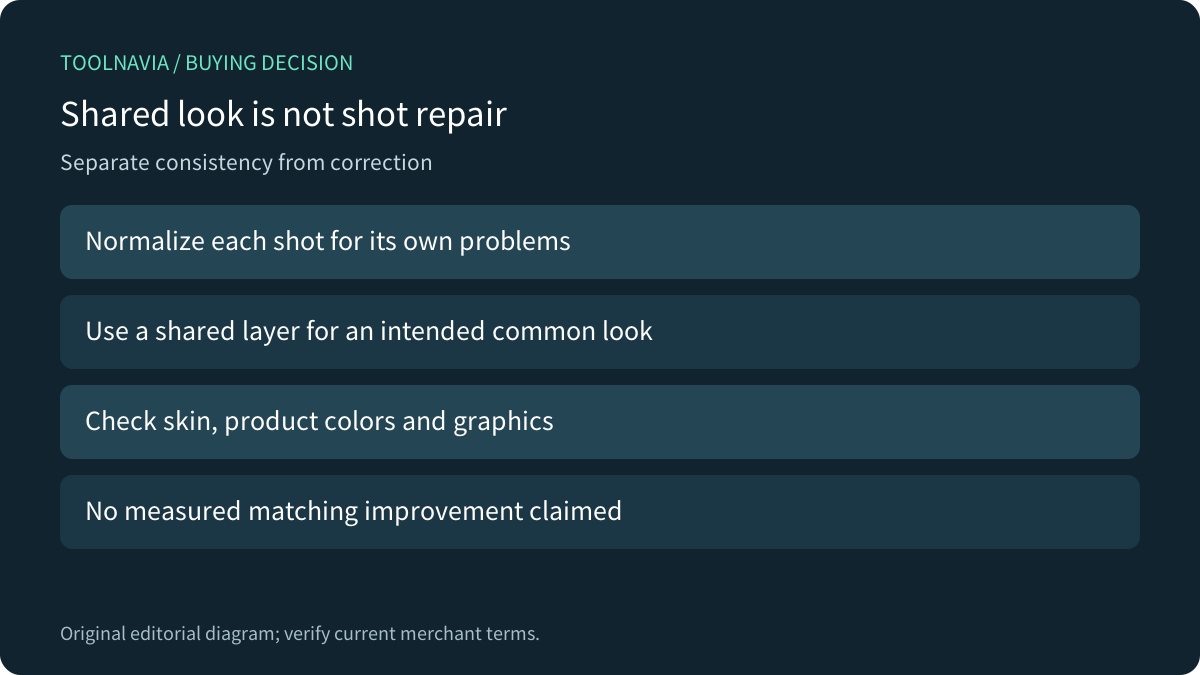
Premiere likewise documents a transparent adjustment layer affecting tracks below it. Kdenlive separately documents effects on a bin clip, timeline instance, track or Master, with limitations on which effects support broader scopes. Shotcut's official documentation distinguishes a selected track's filters from Output filters between the timeline and preview/export. These are their own workflows, not Filmora commands or feature-parity guarantees.
Compare the target you actually need: one instance, repeated instances, one track, a timed lower-track group or the whole output. Keep an existing suitable editor when it already supports that target reliably. A similar button name does not establish equivalent scope or recipient compatibility.
Trial the exceptions before choosing a plan
A proposed authorized trial would use synthetic clips above and below the adjustment layer, with visible markers before, inside and after its duration. Record expected changes and non-changes, inspect a representative export, then reopen the project and review the same points. No trial or output check was performed here.
The current store displays Advanced at US$59.99/year, reference US$69.99, with automatic renewal. Confirm the actual regional cart, tax, renewal, operating system and optional Creative Assets trial, which has its own renewal terms. The adjustment-layer workflow alone does not establish a need for extra AI credits or a particular paid-tier exclusivity.
Choose the editor when shared revisions and deliberate exceptions fit the project. A more expensive plan cannot repair a layer applied to the wrong tracks or interval.