TOOLNAVIA / BUYING GUIDE
Filmora HDR Export: Is Your GPU, Display and YouTube Workflow Ready?
The short answer
# Filmora HDR Export: Is Your GPU, Display and YouTube Workflow Ready?
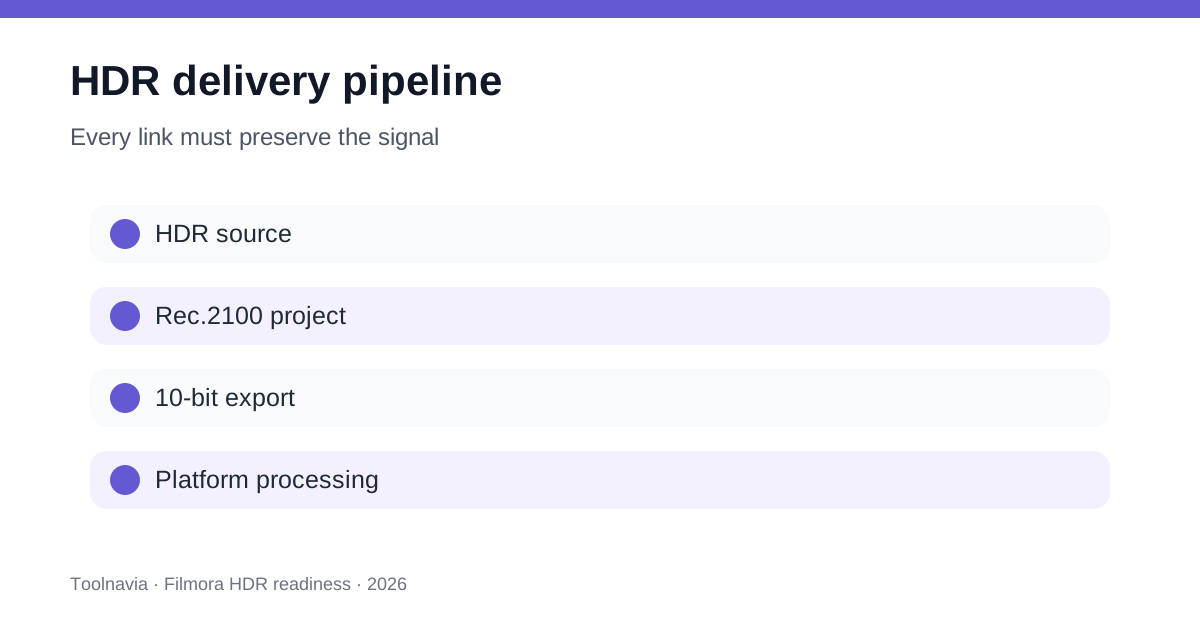
**Verdict:** Filmora can edit and export HDR in Rec.2100 HLG or PQ, but the menu option is only the first gate. Buy for HDR only after one representative clip survives the entire chain: an HDR source, a matching project color space, GPU-accelerated export, valid 10-bit HDR metadata, playback on an HDR-capable display, YouTube processing, and an acceptable SDR fallback. If any link fails, stay in SDR until the workflow—not the marketing label—passes.
*Affiliate disclosure: Toolnavia may earn a commission if you buy Filmora through the verified link in this guide, at no extra cost to you. Adobe Premiere Pro and platform documentation are comparison references only. Sources were checked November 7, 2026. Toolnavia did not install Filmora, measure an export, inspect a real file with MediaInfo, or upload a test video; the test below is the buyer's verification plan.*
At a glance
- Best for
- Creators validating Filmora HDR from source through metadata, display and target platform before buying.
- Price model
- Check the current regional Filmora checkout; plan, tax, renewal and add-ons vary.
- Check first
- HDR export requires compatible GPU, display, codec, metadata and destination; no hands-on result is claimed.
Filmora exposes the right HDR color-space controls
Filmora's current Windows guide says a project defaults to SDR Rec.709 and offers HDR Rec.2100 HLG and HDR Rec.2100 PQ in project and export settings. Its Mac guide describes the same basic choice. That is an important capability: the editor is not merely adding contrast to an SDR file.
However, selecting “HDR” does not prove that the source was captured or graded as HDR, that the export contains the required transfer function and color metadata, or that the target service will recognize it. The project, export, codec, metadata, display, and delivery platform must agree. Treat the color-space setting as a contract you still have to validate.
Filmora's technical specifications list HEVC among supported outputs and recommend an HDR10-capable display for HDR editing. The specification page also separates minimum hardware from stronger HD, 4K, and 8K recommendations. A machine that opens Filmora can still be a poor HDR workstation.
GPU acceleration and display support are hard gates
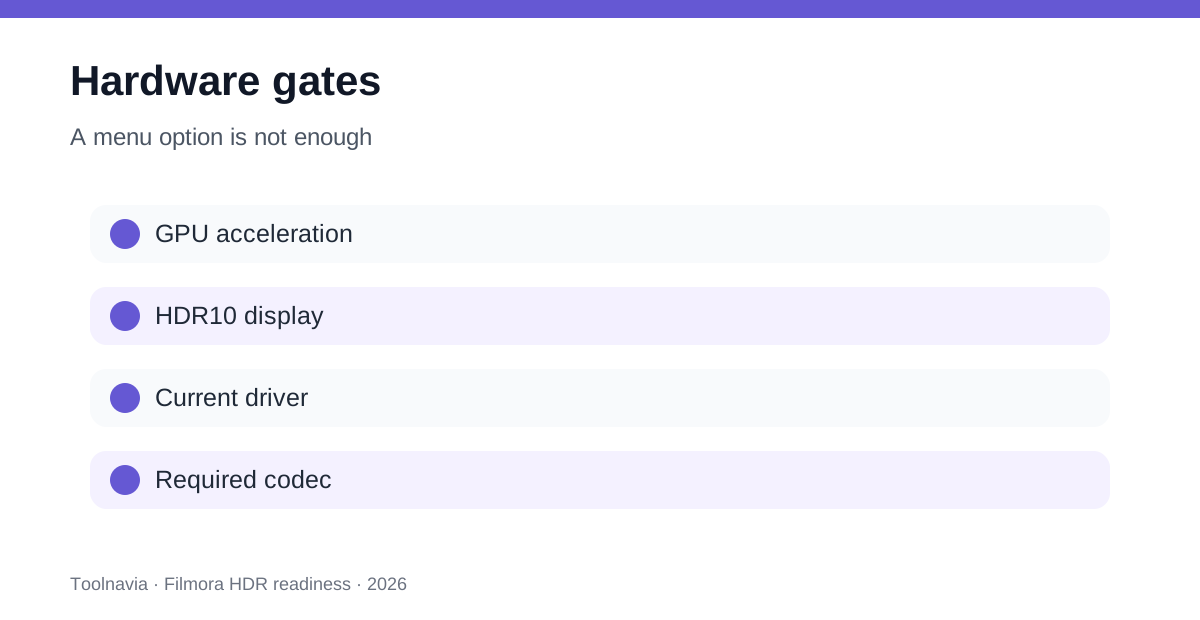
Filmora says HDR export becomes available only when the device meets GPU-acceleration conditions. If the export color-space control is greyed out, GPU acceleration is unavailable and the output remains SDR Rec.709. Its guide also says HDR export can take about four times as long as SDR, and HDR preview depends on an HDR-capable display with HDR enabled.
Before buying, open the current Filmora trial and check the actual machine. Enable hardware acceleration, restart if requested, create an HDR project, and confirm that HLG and PQ are selectable at export. Then export a short highlight-and-shadow stress clip. Record export time, dropped frames, GPU/CPU use, and whether the preview changes when HDR is enabled or disabled.
Windows adds its own requirements. Microsoft's HDR guidance requires an HDR-capable display, HDR enabled in Settings, compatible graphics and drivers, and the codecs needed for 10-bit playback. The Windows HDR Calibration app tests dark detail, bright detail, and maximum brightness; a display merely accepting an HDR signal is not the same as a trustworthy grading monitor.
On Mac, Apple likewise requires a compatible Mac, current macOS, and an HDR10-capable display, TV, or projector. Battery settings and intermediate devices can change playback behavior.
HLG or PQ must match the destination
Filmora offers both Rec.2100 HLG and Rec.2100 PQ, but neither is universally “better.” HLG is common in broadcast and live workflows because it was designed for broad compatibility. PQ is common in mastered HDR delivery and depends more explicitly on display brightness metadata. The safe choice comes from the destination specification, not a brighter preview.
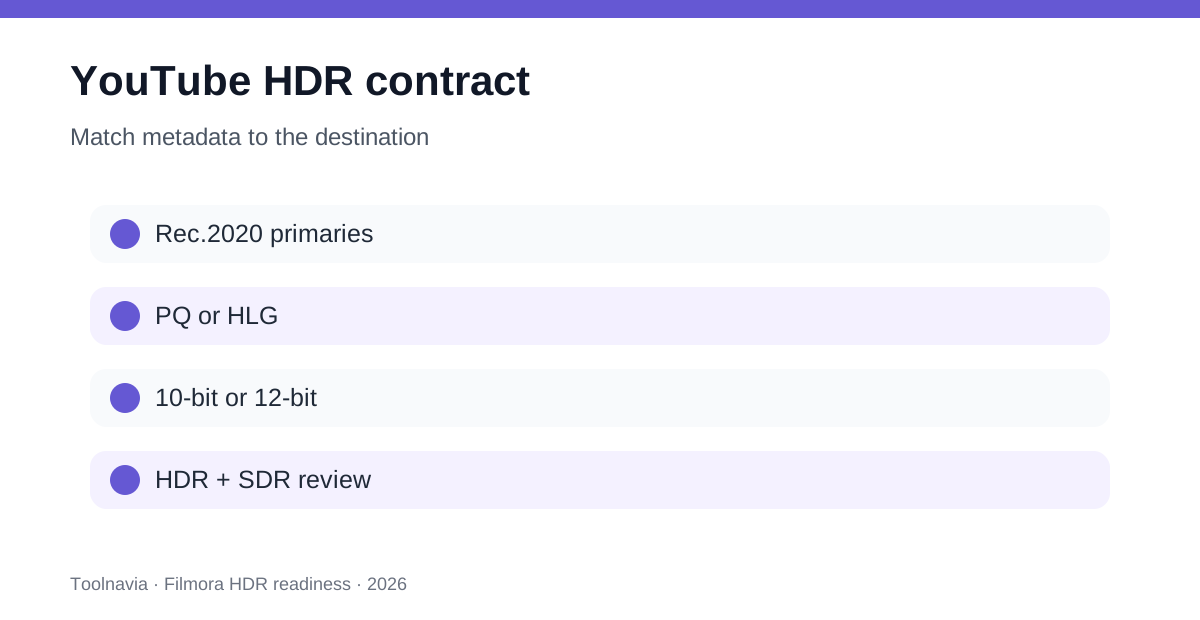
For YouTube, the controlling requirement is clear: HDR uploads should use Rec.2020 color primaries with PQ or HLG, a 10-bit or 12-bit signal, and correct transfer-function, primaries, matrix, and—where applicable—mastering metadata. YouTube lists HEVC/H.265, VP9 Profile 2, and AV1 among recommended HDR codecs. It creates HDR transcodes for capable devices and an SDR conversion for other viewers.
This also resolves an apparent source conflict. A Filmora marketing tutorial demonstrates a P3-D65 export example, while YouTube says a configuration such as DCI-P3 will produce incorrect YouTube HDR results and requires Rec.2020 with PQ or HLG. For a YouTube deliverable, follow YouTube's specification and verify the exported metadata; do not copy a generic tutorial setting.
Adobe's current color-management documentation provides a useful professional baseline because it also treats Rec.2100 PQ and Rec.2100 HLG as explicit output spaces rather than a visual effect.
Run one end-to-end HDR acceptance test
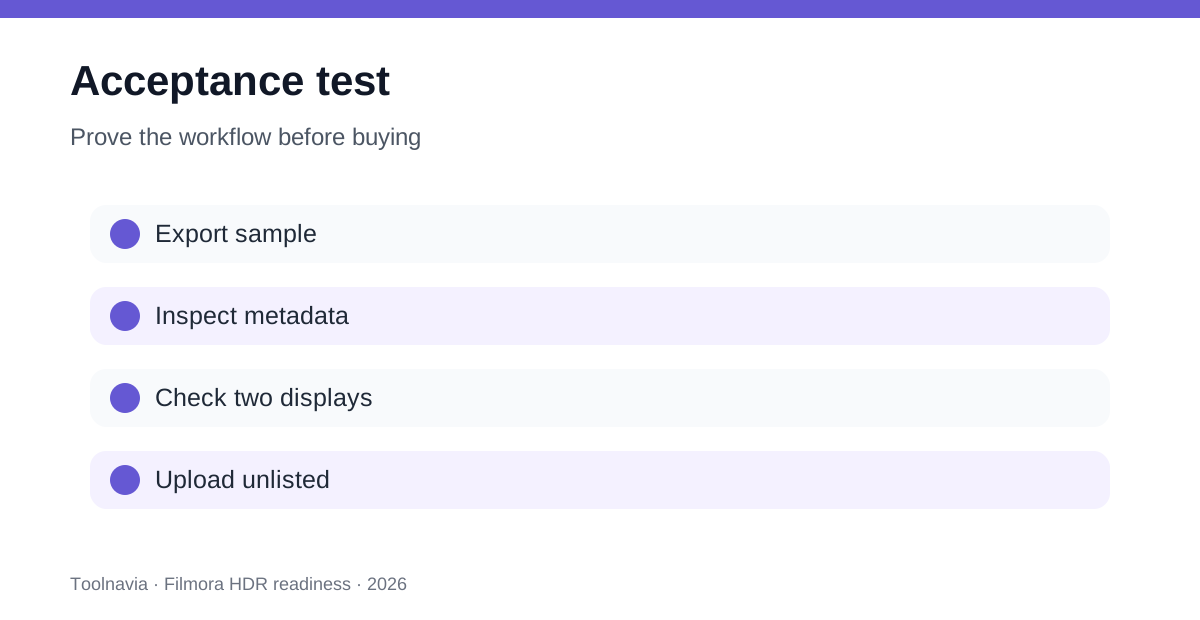
Use a sixty-to-ninety-second sample containing bright highlights, deep shadows, saturated colors, skin tones, text, and gradients. Keep the original untouched. In Filmora, set the project to the source's intended HDR space, make restrained adjustments, and export both the intended HDR master and an SDR comparison.
After export, inspect the file with a metadata tool. Confirm codec, bit depth, color primaries, transfer characteristic, matrix, resolution, and frame rate. “HEVC” alone does not prove HDR; an HEVC file can still be SDR. If PQ is used, check whether mastering metadata is present when the destination expects it.
Play the HDR file on the editing display and a second known HDR device. Watch for clipped highlights, crushed shadows, banding, shifted skin tones, oversaturated graphics, or an unexpectedly dim picture. Then play the SDR copy. A good HDR workflow must not depend on one uncalibrated screen.
Upload the sample as unlisted. Wait until YouTube finishes HDR processing, confirm the HDR badge or playback status on an HDR device, then check the automatic SDR version on an ordinary screen. YouTube processing can reveal metadata or tone-mapping problems that local playback hides.
Decide whether Filmora is enough
Filmora is a credible fit when the buyer wants a guided editor, the actual GPU exposes HDR export, the display is HDR-capable, and the delivery target accepts the tested Rec.2100 workflow. It is especially reasonable for a creator who needs straightforward edits and can standardize on one camera profile and one destination.
Pause the purchase when the only screen is SDR, the HDR option is greyed out, source clips mix unknown color spaces, or the project must be delivered to several services with different specifications. In those cases, an SDR workflow can be more accurate and repeatable.
Test a deeper color-managed editor when the job requires multiple camera gamuts, log/raw transforms, scopes and calibration discipline, controlled HDR-to-SDR trim passes, broadcast deliverables, or mastering metadata that must be inspected and adjusted. Adobe's explicit output-space controls show the level of workflow that professional delivery may require.
Check the plan and live checkout separately
HDR capability is a workflow feature; it does not prove the current price, renewal terms, AI-credit bundle, Creative Assets entitlement, or perpetual-version scope. Toolnavia's approved Filmora offer covers the current Filmora desktop individual plans and purchase route, but the live regional checkout controls the final subtotal, currency, tax, renewal, operating system, add-ons, and future upgrade rights.
Use the trial before choosing annual or perpetual access. Annual access can make sense when future version support matters; a perpetual route can fit a stable, already-tested machine and delivery target. Neither plan repairs an incompatible GPU, an SDR-only display, incorrect metadata, or a target-platform mismatch. Save the checkout screen and receipt, then disable any optional service you did not intend to renew.
Final buying checklist
Buy only when all seven answers are yes:
1. Does the real source identify its HDR color space and transfer function? 2. Can Filmora select the matching Rec.2100 HLG or PQ project and export space? 3. Does GPU acceleration stay enabled and finish the sample reliably? 4. Does the exported file report the expected 10-bit HDR metadata? 5. Does a calibrated or known HDR display show highlights, shadows and skin tones correctly? 6. Does YouTube or the real destination recognize the upload as HDR and produce an acceptable SDR fallback? 7. Does the live checkout match the intended plan, renewal and add-on scope?
Filmora can be enough for HDR, but only an end-to-end acceptance test proves it on your computer and destination. If the test fails, stay in SDR or move to a more controlled color-management workflow before paying.