TOOLNAVIA / BUYING GUIDE
DemoCreator 4K Export: Is Your PC Ready Before You Pay?
The short answer
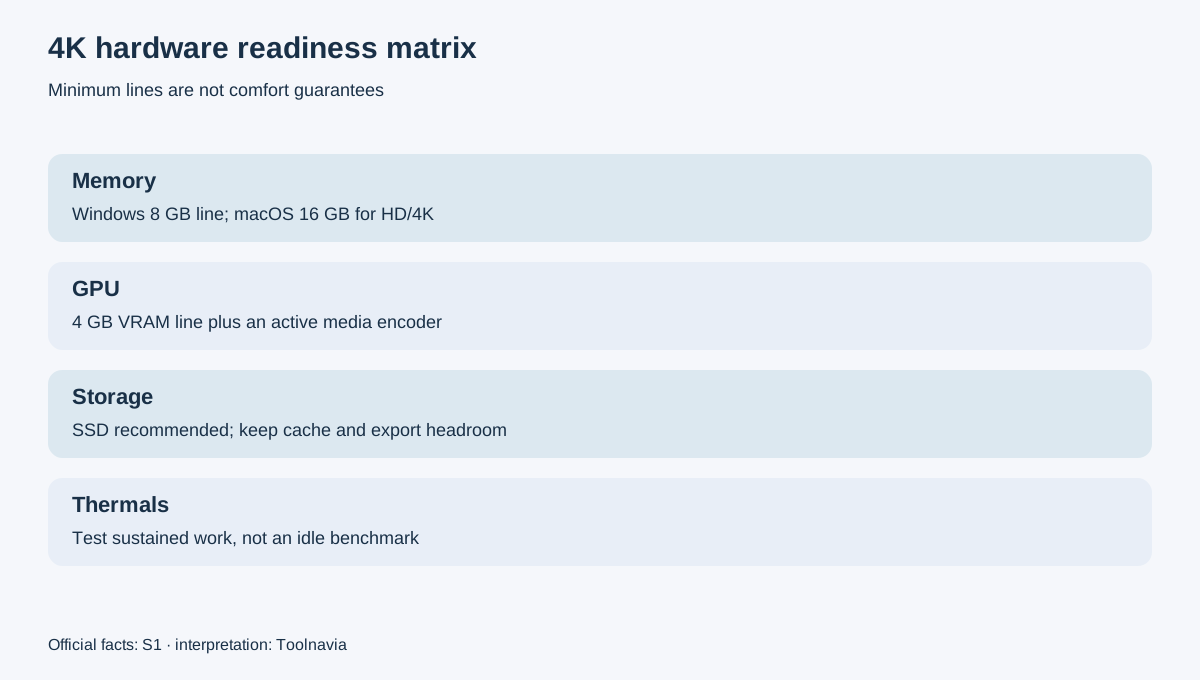
DemoCreator can expose a paid 4K/120 FPS export option, but that entitlement is not a promise that every laptop can capture, edit and encode that workload smoothly. The current official specification asks Windows buyers for at least an Intel 7th-generation Core i3, 8 GB RAM and 4 GB VRAM for HD/4K work, while the macOS table raises the HD/4K memory line to 16 GB; both recommend an SSD. Those are entry conditions, not a comfortable-performance guarantee.
At a glance
- Best for
- Creators whose representative 4K project passes before purchase.
- Price model
- Live checkout; no frozen promotional price
- Check first
- Entitlement does not guarantee performance; checkout and machine conditions vary.
Short verdict
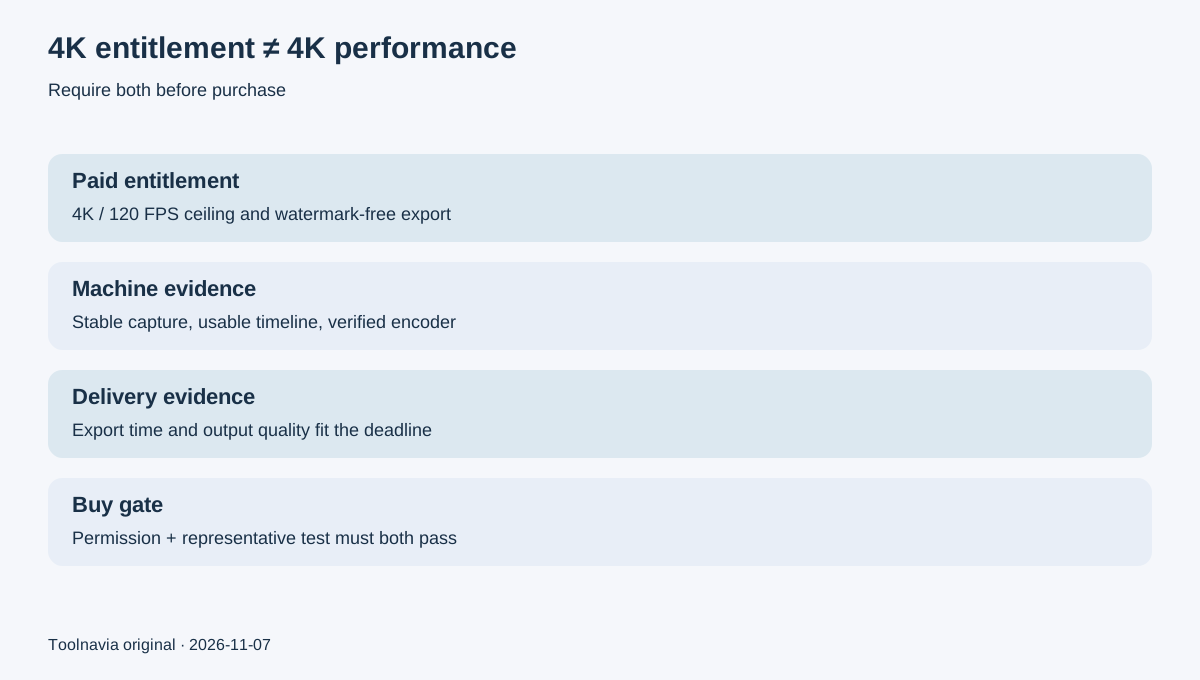
Do not buy because the plan table says “4K UHD / 120 FPS.” Buy only after a 60-second representative project proves five things on the exact computer you will use: capture stability, timeline response, the encoder actually selected, acceptable export time and acceptable output quality. The paid plan removes the entitlement barrier and watermark, but your CPU, GPU media engine, RAM, SSD, source codec, effects and thermal limits decide whether the workflow is practical.
If the test stutters, swaps memory, falls back to software encoding or takes longer than your delivery window permits, first lower the workload or improve the machine. A license cannot repair a hardware bottleneck.
What the paid plan unlocks—and what it does not
The current Windows store presents paid recording/export up to 4K UHD and 120 FPS and watermark-free output. The official upgrade page separately says that saving 4K belongs to Premium. The commercial boundary is clear: free access can validate much of the workflow, while the clean 4K deliverable described by those pages requires paid entitlement.
That boundary does not guarantee real-time 4K/120 capture, a particular render speed or a specific codec path. DemoCreator's export panel lets you choose encoder, resolution, frame rate and bitrate, and supports several video formats. Each choice changes load. A 4K/30 talking-head tutorial with light cuts is not the same job as 4K/60 gameplay, multiple camera layers, denoise, motion tracking and AI effects.
Also separate the editor license from the Visual Assets trial. The store describes that assets trial as a distinct, auto-renewing item. Check the final cart, tax, renewal wording and optional assets before paying; this article does not freeze a promotional price.
Minimum is not comfortable
For Windows, 8 GB RAM and 4 GB VRAM may satisfy the published HD/4K line, but a buyer should not read that as a recommendation for a heavy production timeline. The operating system, browser, recorder, source decoder, preview cache and encoder compete for the same memory. When RAM is exhausted, swapping to disk can make an otherwise capable CPU and GPU feel slow.
On macOS, the official table lists 16 GB RAM for HD/4K work. On either platform, an SSD matters because high-resolution sources, proxies, caches and exports create sustained reads and writes. Keep working media on fast local storage with enough free space; an almost-full system drive can undermine an otherwise valid configuration.
VRAM is only one part of GPU readiness. The media encoder must support the codec and settings, the application must actually use it, and drivers must be stable. TechSmith documents that a hybrid-GPU Windows system can silently fall back to software encoding in Camtasia. That is not proof DemoCreator behaves identically; it is a warning to verify the active path instead of assuming a discrete GPU is working.
Run a representative 60-second test
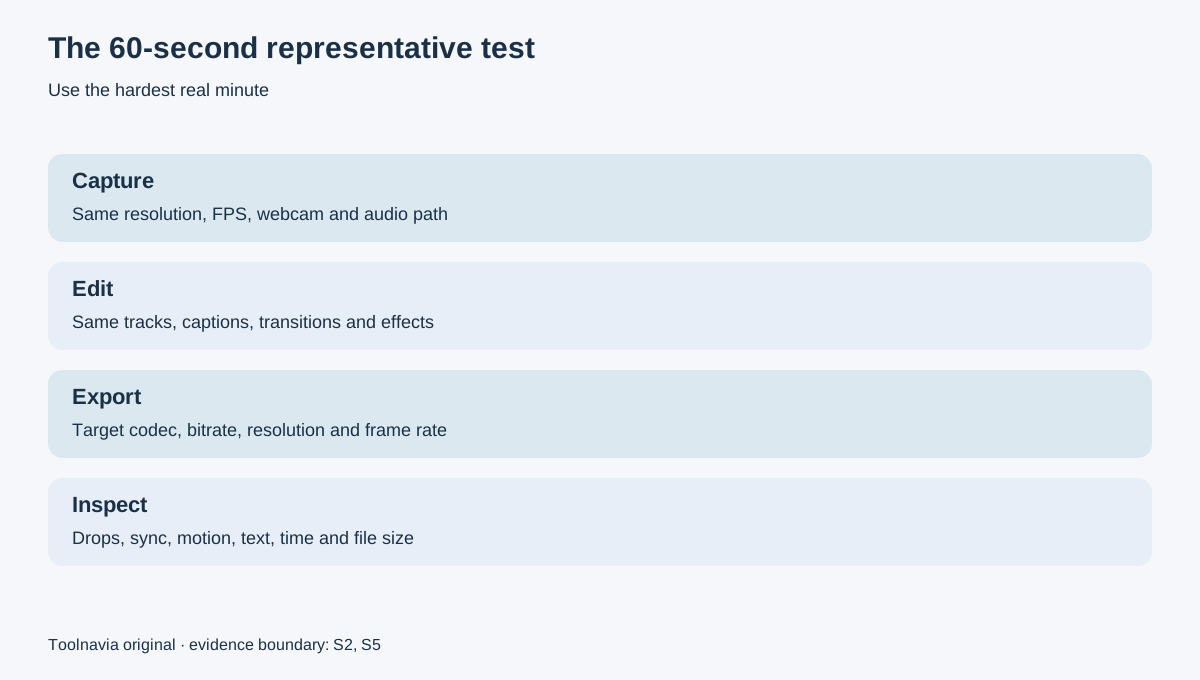
Create one minute that resembles the hardest minute of the real project. Use the same display resolution, capture frame rate, microphone path, webcam overlay, source codec, number of tracks, transitions, captions and effects. Empty timelines produce false confidence.
1. Record for at least 60 seconds while watching dropped frames, audio sync and temperature behavior. 2. Scrub and preview the busiest section at the quality you intend to edit. 3. Export using the target resolution, frame rate, bitrate and codec shown in the export panel. 4. Repeat after a restart so warm caches do not hide a cold-start problem. 5. Inspect motion, fine text, gradients, audio sync and final file size—not only whether export completed.
DemoCreator says export time depends on source size and length, output settings and PC performance; it recommends matching source resolution, frame rate and bitrate and removing unnecessary effects when speed matters. The representative test is therefore more valuable than matching a processor name to a minimum-spec table.
Verify the encoder and hybrid-GPU path
Hardware encoding can reduce CPU load by using dedicated media blocks, but it is not automatically the best quality choice on every generation or at every bitrate. OBS explains both the offload benefit and the possibility that older hardware encoders trade quality for performance.
Compare hardware and software encoding if DemoCreator exposes both for the chosen format. Watch CPU and GPU utilization, but do not rely on one percentage: confirm that the video encode engine is active, not merely the GPU's 3D engine. On a hybrid laptop, test on AC power and in the normal performance mode, and assign DemoCreator to the intended GPU in system graphics settings.
If hardware export is unstable, update the driver, simplify effects and test a mainstream MP4/H.264 path before assuming the subscription is defective. If software encoding is clean but too slow, the decision becomes economic: accept a longer queue, use proxies or lower preview quality, upgrade hardware, or choose a workflow better matched to the machine.
Set an export-time budget
“Exports successfully” is not enough. Decide how many minutes of waiting one delivered minute can tolerate. A weekly ten-minute tutorial can survive a slower render; daily client revisions or long courses may not.
Measure export time for the 60-second sample, then use it only as a planning estimate. Long projects can behave nonlinearly because effects, thermal throttling, source changes and disk pressure vary. Add margin for a second export after a typo or client change. If the queue threatens the deadline, test a lower frame rate, fewer effects, proxy media or another encoder before buying.
The store's 120 FPS ceiling is most relevant to high-motion capture and slow-motion workflows. For ordinary tutorials, 30 FPS may reduce capture, storage and export load without harming the audience. Choose the lowest setting that meets the deliverable rather than paying and rendering for a specification it does not need.
Compare Camtasia and OBS without borrowing their requirements
Camtasia's requirement page recommends 16 GB RAM, a dedicated GPU with 4 GB or more VRAM and an SSD. Its separate 4K/60 guidance discusses display settings, drivers and a discrete GPU, and names stronger example cards. These are competitor benchmarks, not DemoCreator requirements. They show that serious 4K production usually needs more headroom than a minimum line implies.
OBS is a free recording alternative. Its documentation makes the same underlying point: meeting basic requirements does not guarantee recording capability because resolution, FPS, encoder and scene complexity determine load. OBS may fit when capture flexibility matters more than an integrated editor; DemoCreator is more attractive when one application for recording, timeline editing, captions and export reduces friction.
Independent reports add context, not universal speed claims. A version-specific CommonDocs test reported GPU-accelerated encoding but slower 1440p rendering than Camtasia on that author's machine. A 2024 TechRadar review liked the integrated recording/editing concept but raised editing-smoothness and Mac concerns. Hardware, versions and projects differ, so test your own representative workload.
Who should buy, wait or upgrade hardware
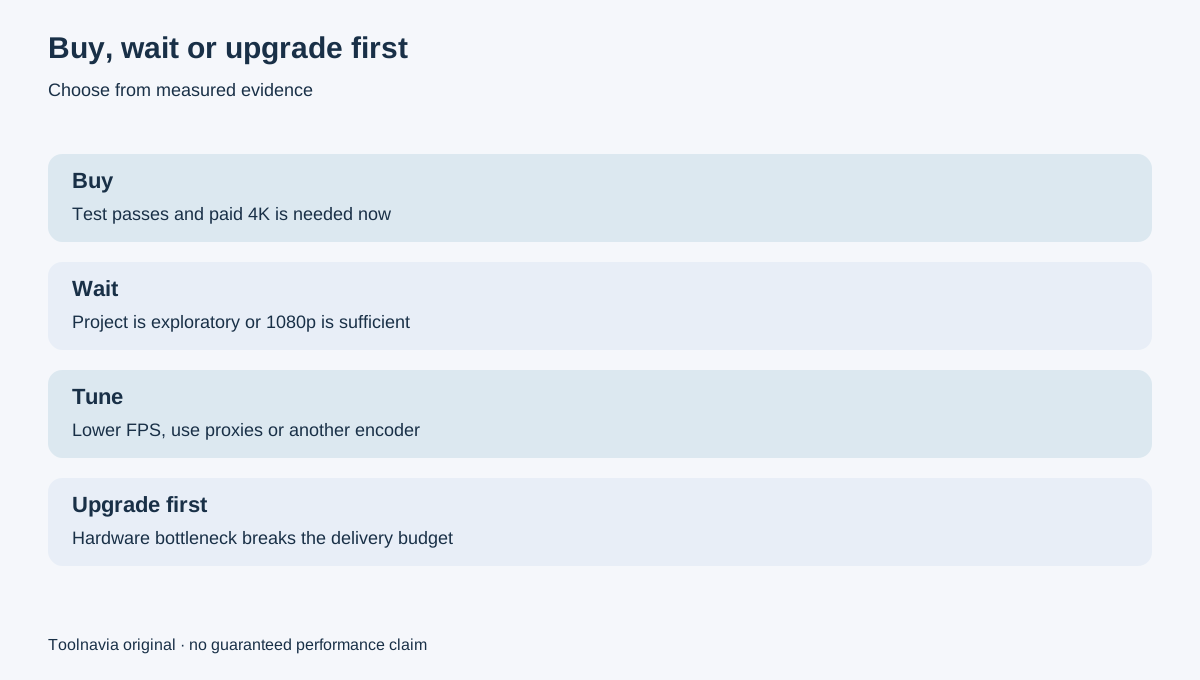
Buy the approved Cross-Platform Yearly plan when the representative project is stable, the export path is verified, the measured queue fits the deadline and you need the paid 4K/watermark-free entitlement now.
Wait when the project is exploratory, the real deliverable is 1080p, or the 4K sample has not passed. Continue testing before turning a software entitlement into a recurring cost.
Upgrade or change workflow first when capture drops frames, RAM pressure causes swapping, the SSD cannot sustain the media workload, hardware encoding is unavailable, or export time breaks the delivery budget. A stronger machine can improve every editor; a license only changes product access.
Checkout and affiliate disclosure
Use the registered DemoCreator offer only after the hardware gate passes. The exact direct tracking URL is approved, enabled and market-confirmed for the current Cross-Platform Yearly offer, but live regional price, tax, promotion, renewal and Visual Assets choices remain controlled by checkout.
Affiliate disclosure: Toolnavia may earn a commission if you buy through the approved DemoCreator link, at no extra cost to you. That relationship does not change the recommendation: test a representative 4K project first, and pay only when both the machine and the entitlement meet a real delivery need.
The rule is simple: 4K on the plan table gives permission; a successful representative test gives evidence. Require both before buying.