TOOLNAVIA / BUYING GUIDE
UniConverter Watermark Remover Credits: Price Every Preview and Export
The short answer
At a glance
- Best for
- Windows users who need a broad media toolbox and occasional, measurable removal.
- Price model
- Official pages conflict; approved storefront shows a yearly route with 600 one-time bonus credits. Cart and in-app rate control.
- Check first
- Not for unlimited AI expectations, fixed-version assumptions or unauthorized rights removal.
Decision first: buy only after you identify the exact remover
UniConverter can be a reasonable purchase for someone who already needs its conversion, compression and subtitle toolbox and has occasional watermark or object-removal work. It is a poor buy if the decision rests on “unlimited AI removal.” The current official pages use several meters: a generic Watermark Remover row at 3 credits per export, an image Auto Remove model at 13 credits per preview with no second charge for export, and video models billed per second or per minute. Those are not interchangeable.
Before paying, open the exact image or video workflow, note the model name and the in-app rate, then test one difficult asset.
This article contains an affiliate link to the approved UniConverter offer. Toolnavia may earn a commission if you buy, at no extra cost to you. The recommendation does not assume a universal version or price: the approved storefront currently controls the supplied build, checkout total, tax and renewal.
Translate credits into a job budget, not a feature checklist
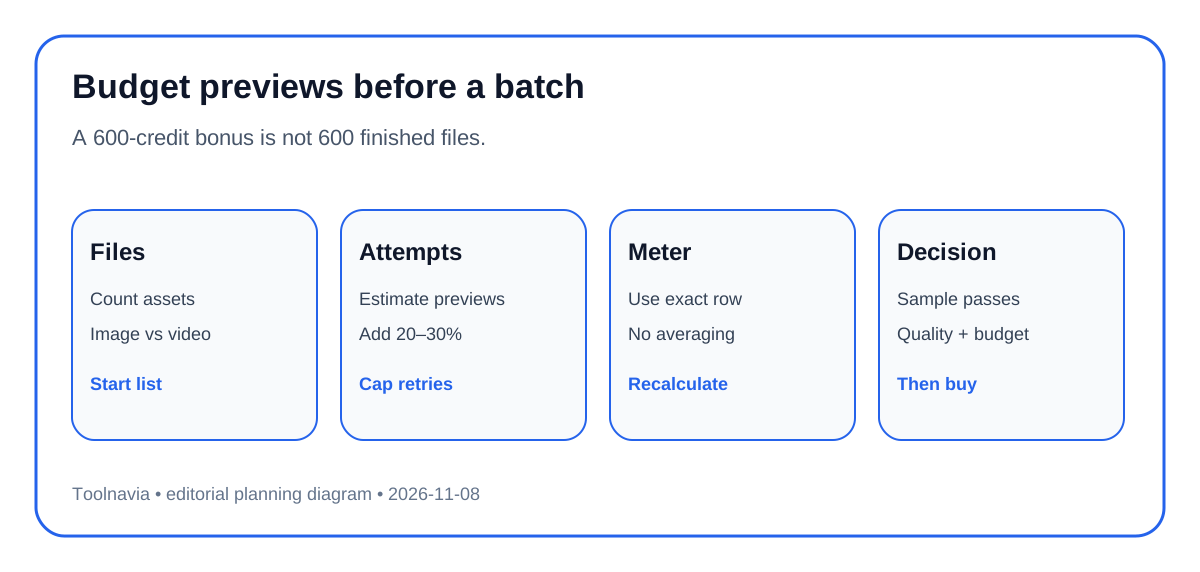
The annual storefront currently advertises 600 one-time bonus AI credits. That number is useful only after it is divided by the correct unit. At 3 credits per generic export, 600 credits would cover 200 exports. At 13 credits per Image Auto Remove preview, it would cover about 46 previews; refining the same image through several previews reduces the number of finished images. A video model billed at 2 credits per second could consume 120 credits for a one-minute clip. A 5-credit-per-minute model would consume 50 credits for ten minutes. These examples are planning arithmetic, not a promise: the current in-app row controls.
Make a small ledger before a batch: number of files, average duration, expected preview attempts, selected model, published unit rate and a 20–30% retry reserve. Do not multiply the generic 3-credit row across image Auto Remove or an Ultra video model. Monthly credit packs reset after 30 days; plan bonuses follow the paid plan term. Unused credits therefore have different expiry economics.
Why the official 3-credit and 13-credit rows are not one price
The current detailed table lists both “Watermark Remover — 3 credits per export” and “Image Watermark Remover – Auto Remove — 13 credits per preview; exporting is free after preview.” An alternate official page still exposes only the older-looking generic row. The guides do not state the credit number. We cannot prove that every build, market and model shows the same rate, so this conflict remains disclosed rather than averaged away.
Treat the rows as scoped labels. Manual selection, AI Brush, generic export, image Auto Remove, video Ultra and advanced video removal can have different meters. If the application label or checkout differs from the article, stop and recalculate. A preview charge also changes behavior: repeated experimentation can cost more than one clean export. Capture the rate screen and balance before the first test so support can investigate an unexpected deduction.
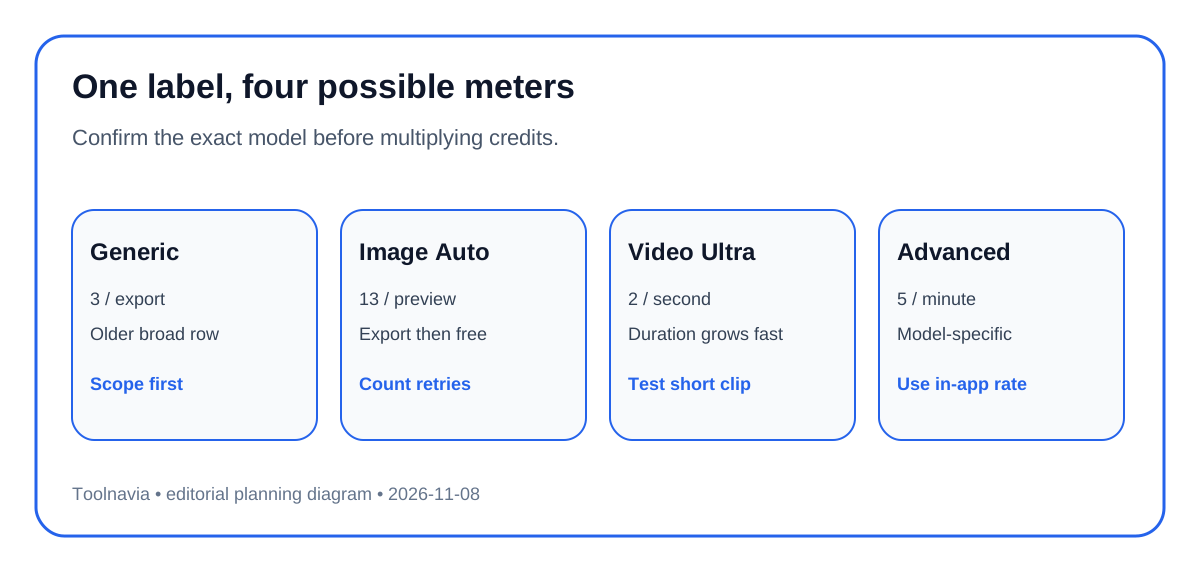
Image removal: preview quality is the real acceptance gate
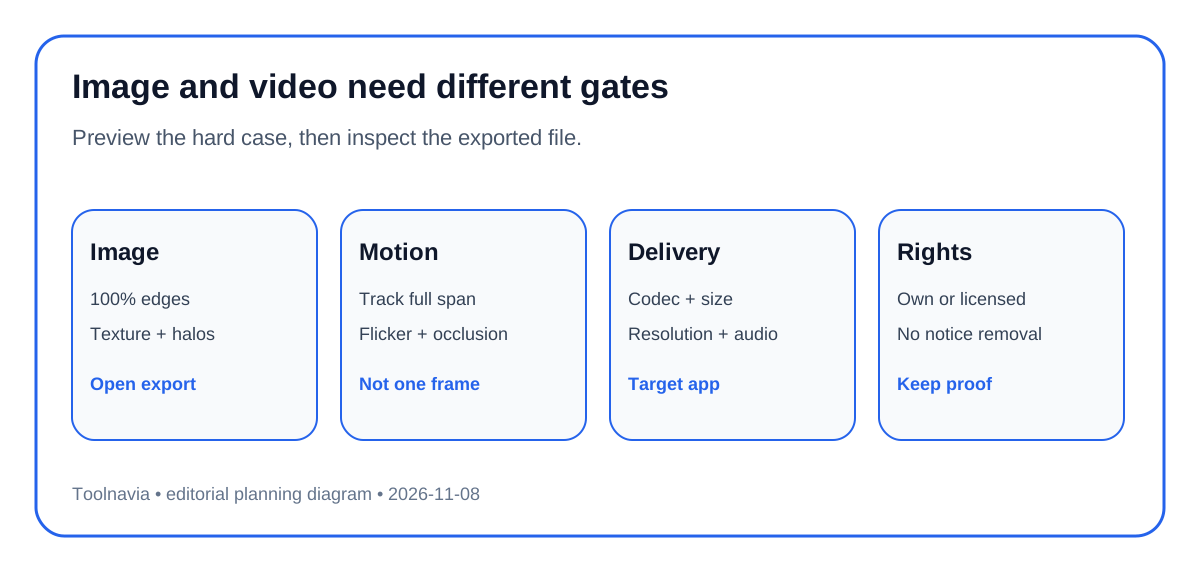
The official image guide separates manual Select, AI Brush and Deselect. Manual selection can be cheaper or more predictable when the watermark sits on a flat background. Auto Remove is more convenient around irregular objects, but a 13-credit preview means that a poor mask is a paid learning step. Start with the hardest representative image, refine the smallest accurate mask, and inspect edges, texture repetition, text fragments and color halos at 100% zoom.
Do not approve the tool from a thumbnail. Export the tested image and reopen it in the target editor or delivery system. Record the original dimensions, output dimensions and whether metadata or transparency matters. If two or three previews still produce obvious cloning or warped detail, stop before the batch. A cheaper manual editor may be more economical than continuing to consume AI credits.
Video removal: seconds, minutes and motion change the cost
The desktop product page emphasizes batch files, moving-watermark control and HD/4K output. Those capabilities matter, but they do not establish one credit unit. The current table shows a per-second Ultra path and separate per-minute video-removal paths. A moving logo that crosses textured footage is also harder than a fixed corner bug on a static background. Use a clip that includes the worst motion, occlusion and lighting change.
Preview the entire removal interval, not one frame. Check mask tracking, flicker, repeated background texture, subtitle damage, audio continuity and output codec. Then estimate the batch from actual duration and the selected model. Batch editing is listed separately from AI removal in the plan table, so a plan that supports batch watermark editing should not be read as unlimited AI erasing.
Compare alternatives by meter and control
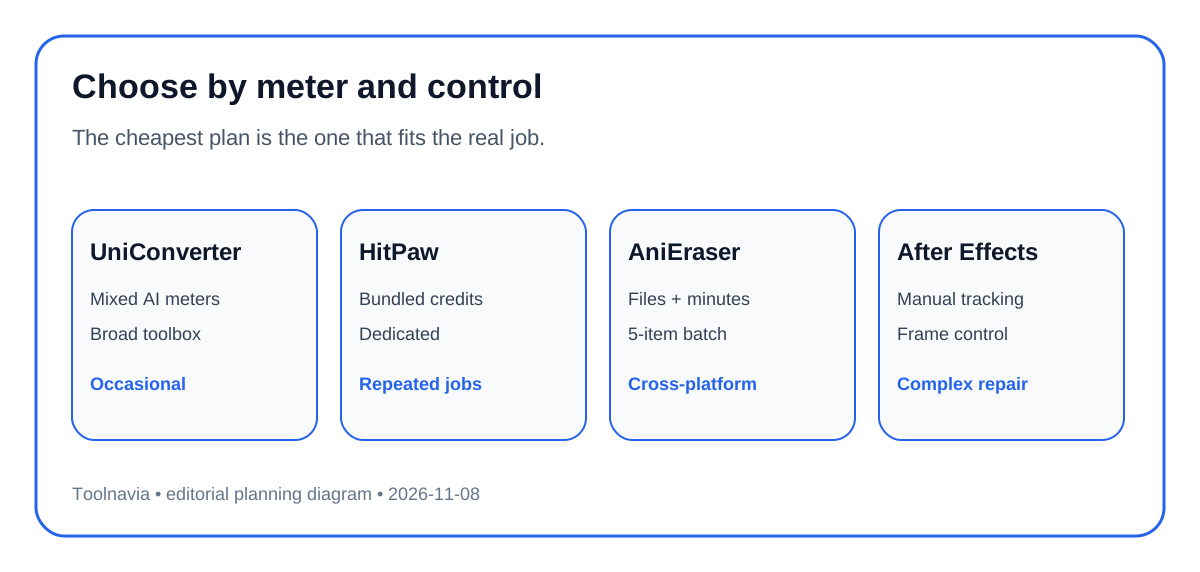
HitPaw's official desktop remover bundles model credits with monthly, yearly and perpetual licenses; its online Ultra page translates credits into seconds. AniEraser publishes file and minute limits plus a five-item desktop batch boundary. Adobe After Effects uses masks, tracking and Content-Aware Fill inside a broader editor rather than a credit-per-export meter. These are different cost systems.
Choose UniConverter when its wider media toolbox replaces other utilities and the specific remover model passes a representative sample within a predictable credit budget. Choose a dedicated remover when repeated watermark work is the primary job and its bundled allowance is easier to plan. Choose an editor such as After Effects when frame-level control and manual repair matter more than one-click speed. Free or manual tools remain rational for a small number of static images.
Seven checks before the approved yearly route
1. Confirm that you own the media or have permission to remove the mark; do not use the tool to defeat attribution or rights notices. 2. Open the exact image or video remover and copy the current in-app unit rate. 3. Verify the supplied UniConverter version, platform, first total, tax and renewal in the final cart. 4. Test one difficult asset and cap paid previews or processing time. 5. Reopen the exported file and check edges, motion, codec, resolution and delivery compatibility. 6. Convert the observed rate into the full batch cost with a retry reserve; compare HitPaw, AniEraser and a manual editor. 7. Buy through the [approved UniConverter offer](https://www.jdoqocy.com/click-101895278-12861056) only if the sample and budget both pass. Save the receipt and cancellation terms; no search-indexing or performance outcome is implied.