TOOLNAVIA / BUYING GUIDE
UniConverter AI Video Enhancer: Credits vs Local Rendering Cost
The short answer
UniConverter's AI Video Enhancer is a practical buy when you need a broad media toolbox and only a measured amount of enhancement. It is a weaker fit when enhancement is the daily workload and you expect unlimited local rendering on a powerful workstation.
*Official and competitor-documentation analysis, verified November 7, 2026. No software was installed and no visual-quality benchmark was run.*
At a glance
- Best for
- Personal Windows users who need a broad media toolbox, can validate one representative clip and expect only occasional or mixed AI enhancement.
- Price model
- Official pages currently show conflicting yearly amounts (US$29.99 and $44.99) with 600 bonus credits; confirm version, first total, tax and renewal at checkout.
- Check first
- Buyers expecting unlimited AI processing from 600 credits, guaranteed offline operation for every model, fixed 4K quality gains, or one public price that applies to every region and renewal.
Start with the clip, not the word “AI”
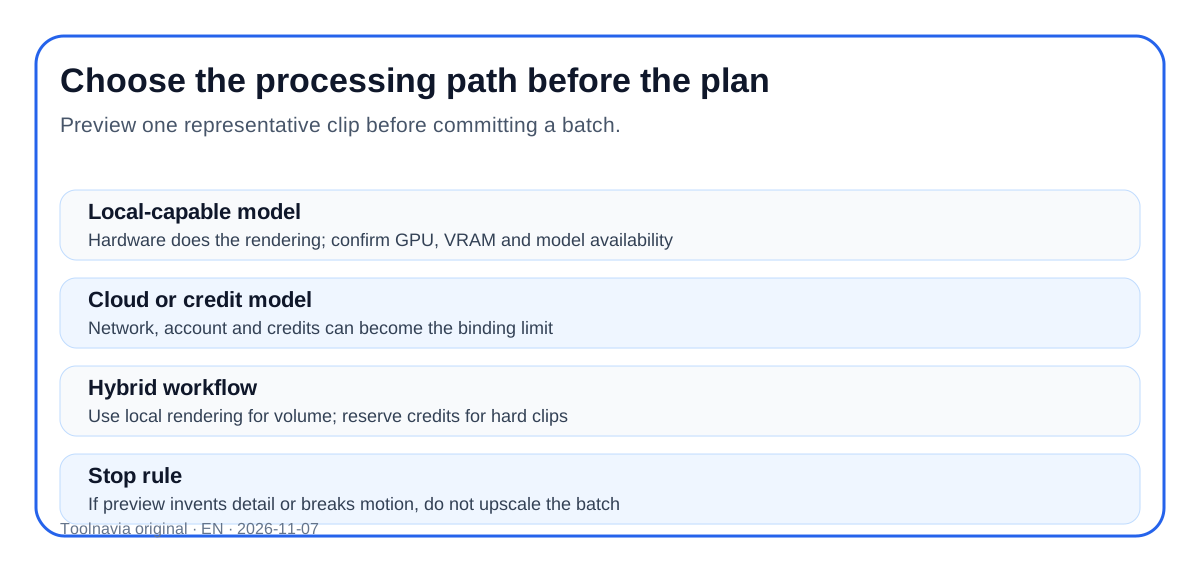
Upscaling changes output dimensions. Enhancement can also denoise, restore faces, reduce flicker, repair motion blur or adjust color. UniConverter exposes several models, and they do not share one processing method, hardware requirement or credit rate. Some supported Windows modes can use local GPU processing; selected generative modes need online resources and credits.
Use the three-second preview on one representative section: fine text, moving hair, hands, low-light gradients and compression blocks. A model that looks convincing on a still frame can flicker or invent texture during motion. The purchase question is therefore not “Can it export 4K?” but “Can this model improve my footage at an acceptable credit and time cost?”
Translate the 600-credit bonus into minutes
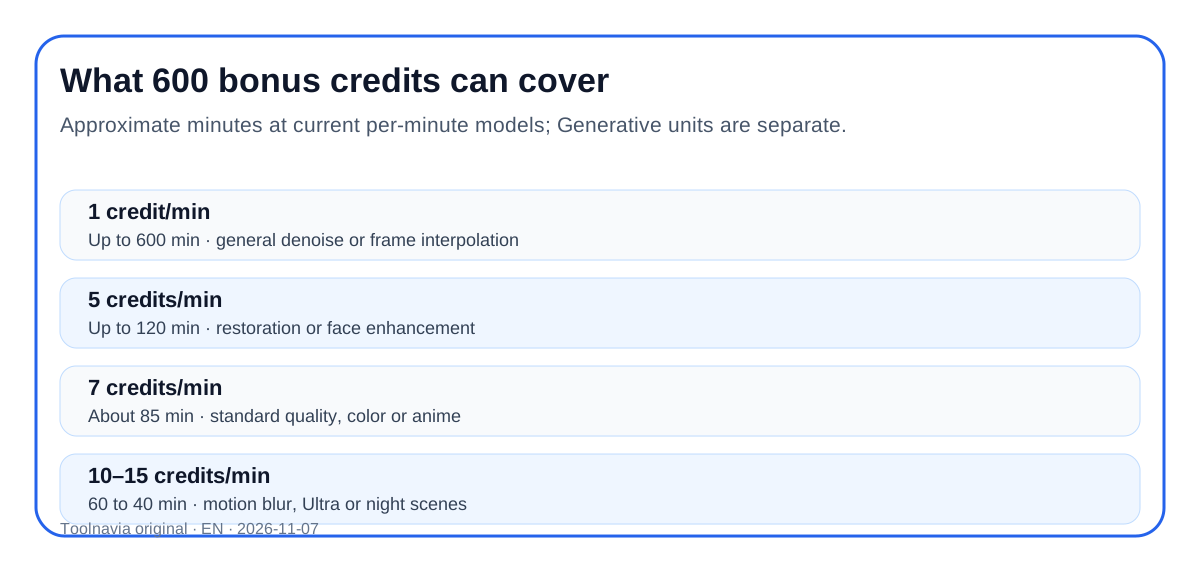
The approved Windows yearly offer includes 600 one-time bonus credits on the current store page. Current official rules list several Video Enhancer rates: general denoise and frame interpolation at 1 credit per minute; restoration and face enhancement at 5; standard quality, color and anime enhancement at 7; motion blur at 10; and Ultra or night-scene enhancement at 15.
| Current model rate | Approximate work from 600 credits | | --- | --- | | 1 credit/min | 600 minutes | | 5 credits/min | 120 minutes | | 7 credits/min | about 85 minutes | | 10 credits/min | 60 minutes | | 15 credits/min | 40 minutes |
These are planning ceilings, not guaranteed finished-video minutes. Failed previews, model changes and reprocessing can consume more. Topaz Generative Enhancement is metered in units and frames, not this per-minute table, so do not convert it with the same arithmetic.
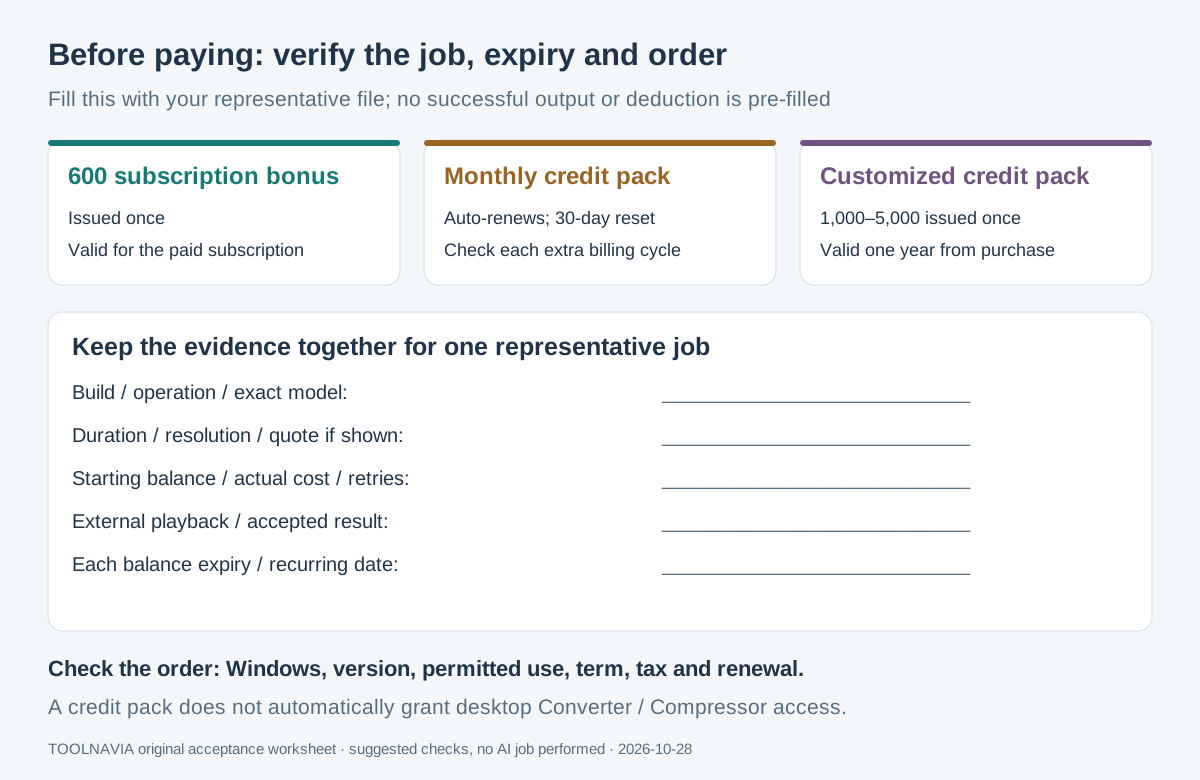
The bonus attached to a subscription follows the paid plan's validity. Purchased packs have separate validity rules; the current official page says monthly packs expire after 30 days and customized credits are valid for one year. Confirm the balance and expiration shown in the account before starting a long archive.
Compare credit metering with local rendering
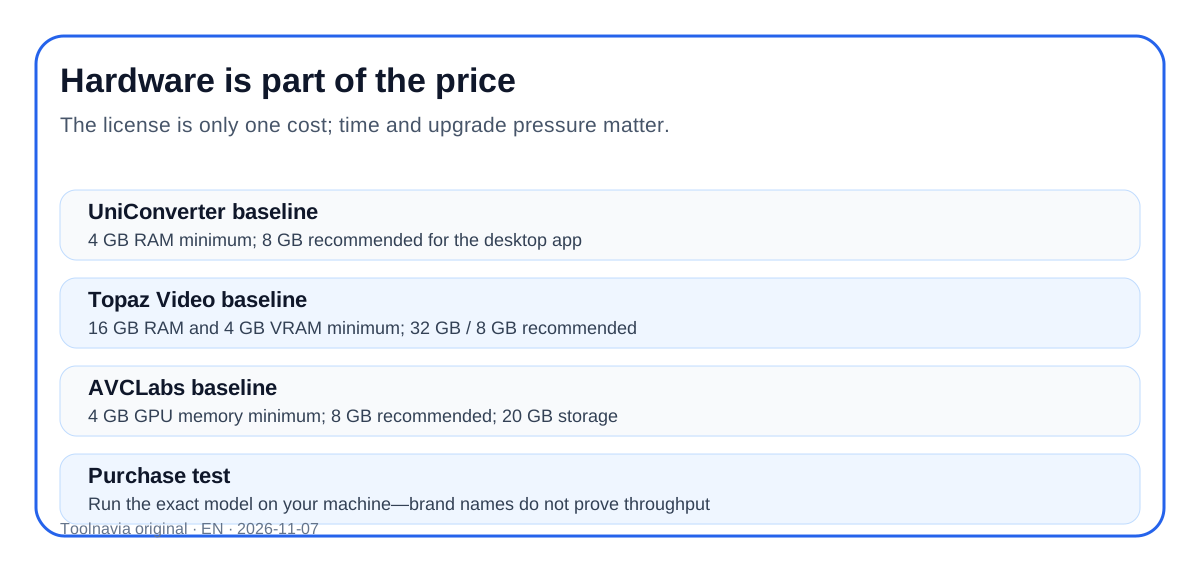
Topaz Video currently advertises unlimited local rendering in its Personal plan, while cloud models use monthly credits. That shifts the economic limit from per-minute credits toward subscription price, GPU capability, electricity and waiting time. Its official minimum is 16 GB RAM and 4 GB VRAM, with 32 GB RAM and 8 GB VRAM recommended.
AVCLabs publishes monthly, yearly and perpetual desktop licenses for one PC. Its Windows guide asks for at least 4 GB GPU memory and 20 GB storage, recommending 8 GB VRAM. Promotional prices and perpetual discounts vary between official purchase pages, so checkout—not a cached headline—controls the payable amount. Independent and merchant comparisons frame control versus simplicity, but neither proves a quality winner for your footage.
UniConverter's general desktop requirement is much lighter: 4 GB RAM minimum and 8 GB recommended. That does not prove every AI model will run locally or quickly. The Windows enhancer page explicitly says model, GPU, network and credit requirements vary.
This creates a useful split:
- **Occasional enhancement plus conversion, compression and subtitles:** UniConverter can be the simpler toolbox purchase. Budget the included credits against the exact models you use. - **Repeated long-form local enhancement on suitable hardware:** an unlimited-local-rendering product may become cheaper than replenishing credits, even if its subscription costs more. - **Mixed footage:** use local-capable models for volume and reserve credit-heavy generative processing for short, difficult clips. - **Weak hardware or slow upload:** test both local and cloud paths before paying; neither a cheap license nor a high-end brand guarantees a practical turnaround.
Resolve the current price conflict before checkout
Wondershare's approved Windows offer page currently exposes a US$29.99 yearly block and 600 bonus credits. A separate current Black Friday page for UniConverter 18 displays US$44.99 yearly and a 600-credit bonus. The stable Toolnavia association is still named for UniConverter 17, while current public product pages describe version 18.
Those pages do not establish one universal first charge or renewal amount. Regional eligibility, campaign route, Windows versus macOS, tax and selected version can change the cart. Follow the approved direct link, then record the product name, platform, term, first total, auto-renewal language and credit quantity before authorizing payment.
The official credit pages also differ on some legacy feature rates and registered-user bonuses. This article uses the newer current KB table for the dated calculations above, discloses the conflict, and avoids promising a permanent rate.
Run a paid-trial acceptance test
1. Pick a 30–60 second clip containing the hardest detail and motion in the real project. 2. Record source resolution, frame rate, codec, duration and the exact enhancer model. 3. Preview at the intended output size. Compare against the original at 100% and during motion, not only a paused zoom. 4. Estimate full-job credits from the rate shown inside the app. Add a retry allowance rather than spending the last credit on the planned runtime. 5. Export one complete sample. Check faces, lettering, edges, flicker, ghosting, audio sync, frame rate and destination playback. 6. Record elapsed time, credit change and file size. Repeat only if a different model addresses a clearly identified defect. 7. Buy more credits or commit to a plan only after the sample passes.
A larger file, 4K label or sharper still image is not sufficient. The accepted output must preserve believable motion and fit the destination workflow.
Who should buy the UniConverter route?
Buy the approved personal Windows yearly route when enhancement is occasional, the included toolbox replaces other utilities, the representative preview passes, and the estimated credit burn fits the project. Hold when the archive is long, the preferred model burns credits quickly, the machine cannot support the required local path, or the current cart is unclear.
*Affiliate disclosure: Toolnavia may earn a commission if you buy through the approved Windows link. The price to you is controlled by the merchant checkout. We did not run an enhancement benchmark or receive a guaranteed discount.*
For ordinary conversion speed rather than AI enhancement, see our [GPU acceleration codec guide](/en/software/uniconverter-gpu-acceleration-codec-quality).