TOOLNAVIA / BUYING GUIDE
UniConverter Compression: Smaller Videos That Still Sell the Message
The short answer
The best compressed video is the one your recipient can open, upload and still understand. If you repeatedly shrink product demos, lessons or review copies, UniConverter can make the job easier to organize with a desktop queue and output controls. Start with the delivery limit and the detail that must survive—not a promised reduction percentage.
At a glance
- Best for
- Windows users needing a broad media-conversion/edit/download toolbox beyond free transcoding and willing to verify live pricing and AI-credit terms.
- Price model
- Standard current baseline USD49.99/year; official variants can be lower; final checkout controls
- Check first
- Official price pages conflict, annual renewal is then-current, perpetual excludes future major versions, and AI usage can consume separate credits.
Set a delivery budget with room to spare
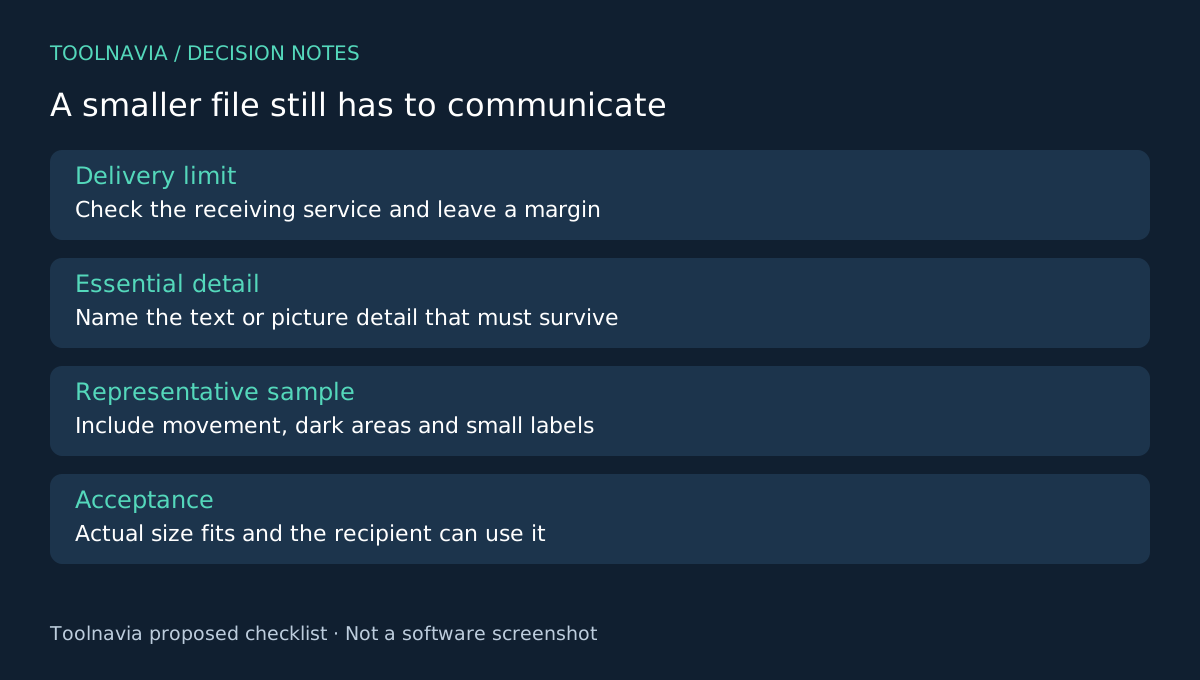
Write down the receiving service's actual file-size limit, accepted formats and intended viewing device. Check those requirements directly when you do the job; this article does not assume a particular platform limit. Keep a margin below the maximum rather than targeting the exact boundary.
Choose what cannot become unreadable: small interface labels in a tutorial, product texture in a demo or a speaker's face. A smaller file that destroys that information has missed the task. Preserve the original master and create a separate delivery copy.
Four controls that matter in UniConverter
The documented compressor supports a multiple-file queue, target-size and output settings, shared or individual settings, and preview before completing the queue. Together, these let you organize a recurring delivery while making exceptions for difficult clips.
The queue reduces repeated setup; output controls target the destination; per-file settings avoid forcing every scene through the same compromise; preview gives you an early inspection point. The vendor's support page explicitly describes predicted output size as an estimate. Measure the actual saved file.
Spend quality where the message needs it
Pick a short sample containing the smallest essential text, the most movement and a dark or detailed scene. Those are your editorial stress cases. Choose an output supported by the destination, then change one relevant setting at a time so you know what caused a visible difference.
View the compressed sample at the size your recipient will use. Pause on the critical label, then watch the moving section at normal speed. Listen to the beginning and the last spoken sentence. File-size success does not compensate for missing audio, unreadable text or an incomplete ending.
Record the chosen settings beside your observation. Keep the least aggressive version that meets the delivery limit and still communicates clearly. If the important text fails first, consider a shorter delivery or a different approved sharing route before repeatedly degrading the whole picture. This is a proposed workflow, not a Toolnavia quality benchmark.
Turn a successful sample into a controlled batch
Group files that share a genuine delivery target. A talking-head lesson and a dense screen recording may need different settings even if they have the same duration. Use individual adjustments where supported and keep the output folder separate from masters.
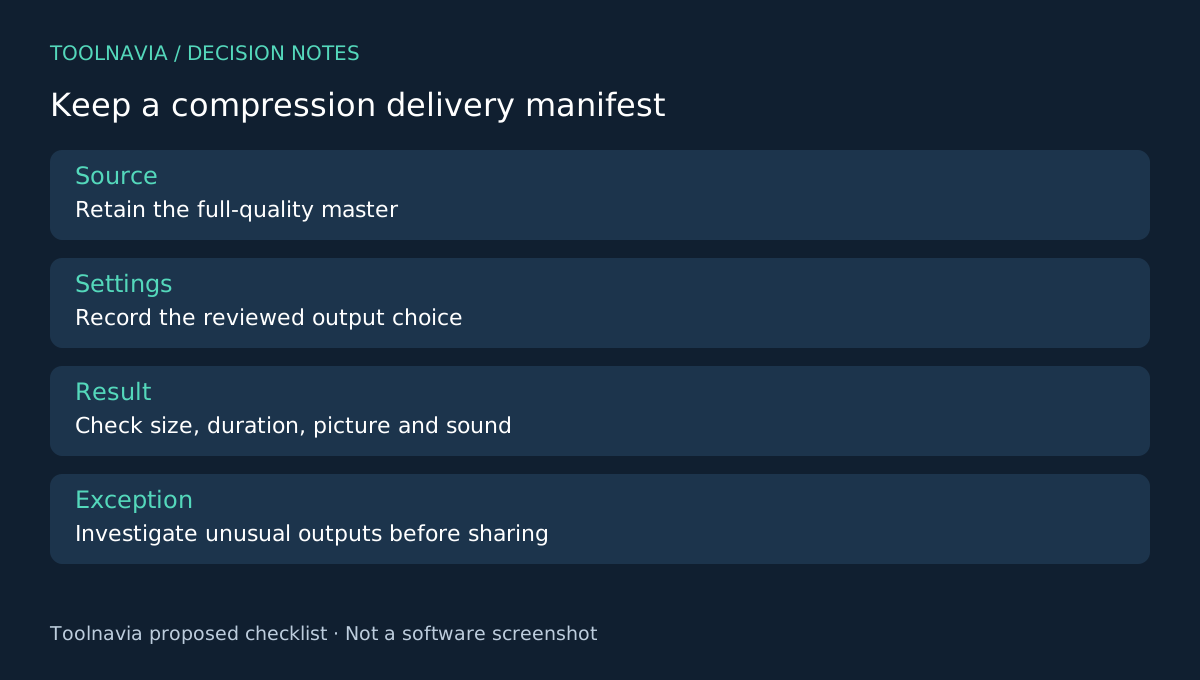
After processing, check the actual sizes and open each finished file. Inspect exceptions more closely, including unusually small outputs or duration changes. Keep a simple manifest of source name, output name and the review result so a failed upload does not send you back to guessing which preset was used.
Do not delete the larger originals merely because a batch completed. A delivery copy serves the current recipient; it may be a poor source for a future re-edit or another compression pass.
When the paid workflow is worthwhile
HandBrake documents quality controls and preview testing; Shutter Encoder exposes bitrate and size settings; VideoProc offers another conversion and compression toolbox. These are useful alternatives, not evidence of equal quality at a given setting.
UniConverter becomes worth buying when recurring queues and per-file control fit your work better than the tools you already use. Its standard Windows annual reference is $49.99 with automatic renewal; confirm your selected checkout and any optional AI usage. See the [UniConverter license guide](/en/software/wondershare-uniconverter) for wider plan context.
Choose after a real delivery copy fits the limit and passes review. Toolnavia may earn a commission through its official affiliate link; no fixed size reduction, speed gain or exclusive discount is promised.