TOOLNAVIA / BUYING GUIDE
UniConverter for Playback Problems: Make the File Work Where It Matters
The short answer
A video that plays on your laptop can still fail on the device used for a presentation or product display. UniConverter is useful to evaluate when you repeatedly need delivery copies for specific playback environments. The goal is simple: the same file must show the right picture and sound on the actual receiving device.
At a glance
- Best for
- Windows users needing a broad media-conversion/edit/download toolbox beyond free transcoding and willing to verify live pricing and AI-credit terms.
- Price model
- Standard current baseline USD49.99/year; official variants can be lower; final checkout controls
- Check first
- Official price pages conflict, annual renewal is then-current, perpetual excludes future major versions, and AI usage can consume separate credits.
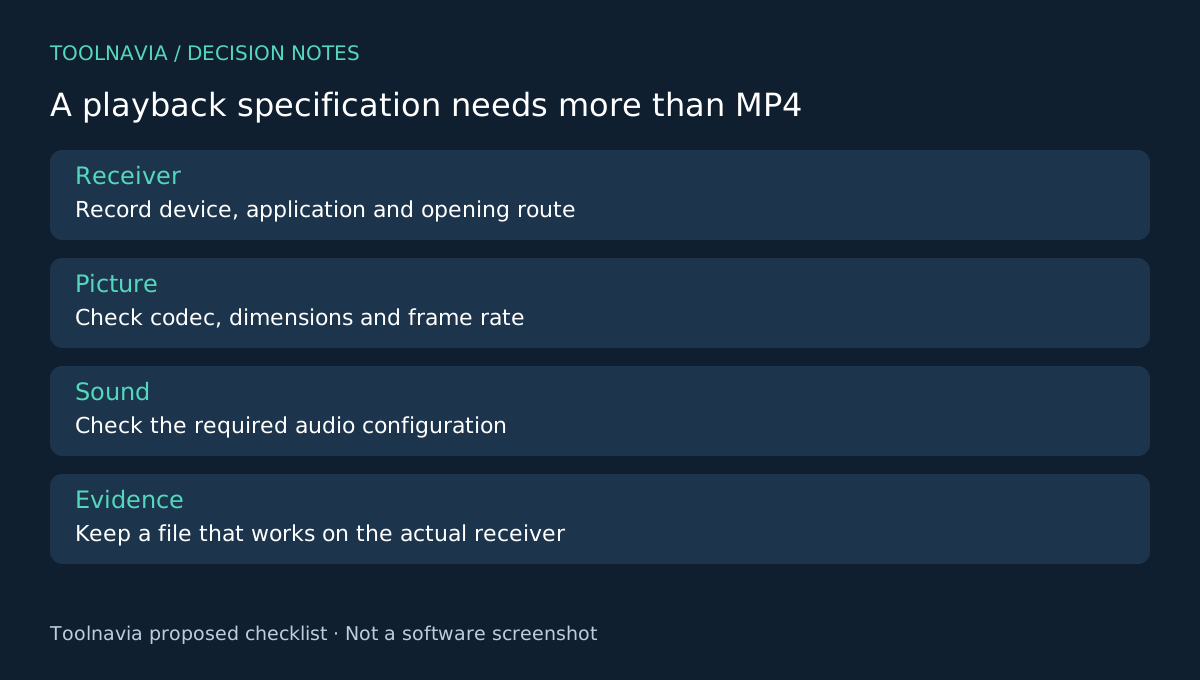
Write a playback specification, not just “MP4”
Record the device model, playback application and the route used to open the file. Playing from local storage, a USB drive and a presentation application are different delivery paths. Check the receiver's current documentation for accepted media properties.
An extension is not the complete specification. UniConverter's own format table lists several codecs under MP4, illustrating why two files with the same suffix can behave differently. Include the required video codec, resolution, frame rate and audio requirements in your handoff notes when the destination specifies them.
Four controls that connect conversion to the destination
UniConverter documents output-profile selection, encoder choice, picture settings such as resolution and frame rate, and audio options. Available choices depend on the selected output, system and software version.
A profile gives you a starting configuration. Encoder selection addresses the format the player must decode. Picture settings fit the display's limits. Audio settings help avoid a picture-only success. None substitutes for a real playback test, and a device name in a preset list is not proof that every application on that device behaves identically.
Use one representative file to isolate the problem
Keep the original and prepare a short sample containing motion, fine text and clear speech. Note the source properties and choose settings that match the receiver's documented requirements. Avoid changing unrelated parameters merely because a control is available.
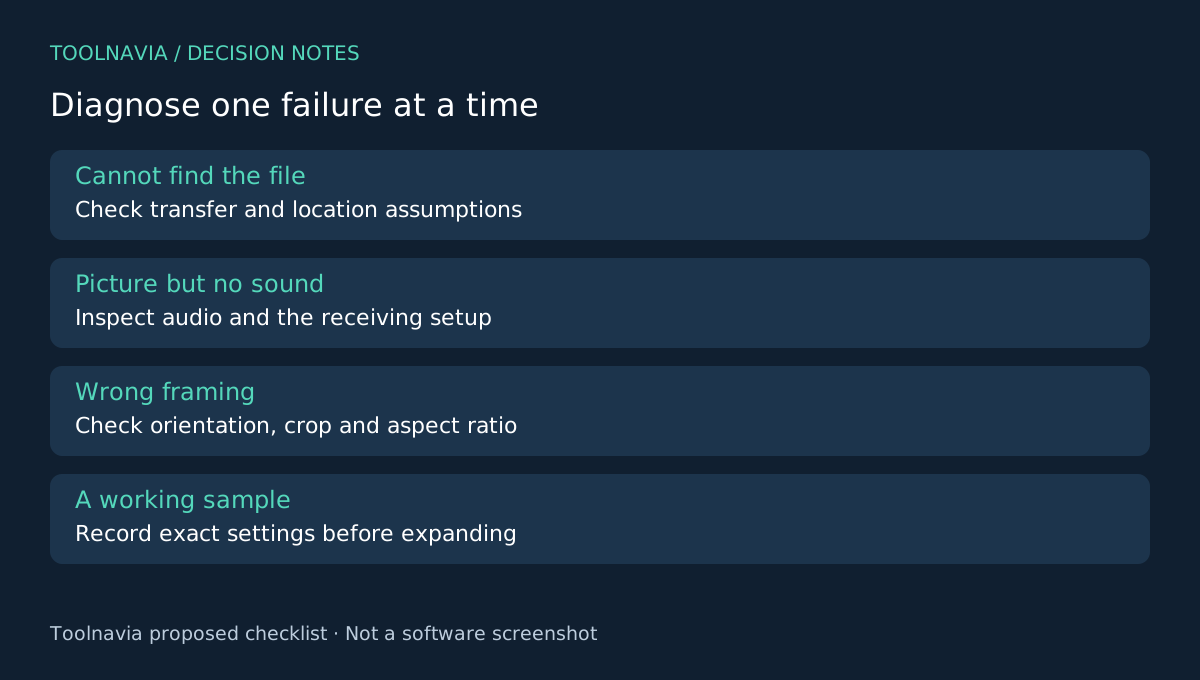
Export to a new folder and open the result through the intended delivery path. Start at the beginning, seek into the middle and play the ending. Check the spoken words against visible mouth movement or a clear event in the picture. Inspect whether the frame is stretched, unexpectedly cropped or rotated.
If video plays without sound, investigate the audio choice and receiving setup instead of repeatedly changing the video resolution. If the file fails to appear at all, check the transfer and file-location assumptions as well as the encoding. This diagnostic sequence is an editorial proposal, not a claim that any particular setting fixes every device.
When the sample works, record the exact configuration and the playback environment. A note that says “converted to MP4” is too vague to reproduce a successful handoff. Keep a known-working sample with the record so later updates can be compared with something concrete.
Expand only to sources with the same requirements
Apply the reviewed output to similar material, but isolate exceptions. A portrait recording, a clip with unusual audio or a different source frame rate deserves its own check. UniConverter's batch workflow supports reviewing individual outputs before running the collection.
Inspect the full delivered files too. A short sample can establish a useful configuration but cannot prove an entire long file is intact. Retain the originals so a future device change does not force you to convert an already compromised delivery copy again.
Buy compatibility work you can reproduce
HandBrake documents quality and container choices, Shutter Encoder exposes conversion controls, and VideoProc is another media toolbox. Their existence gives you alternatives to test against the same receiver; it does not establish identical format coverage.
Choose UniConverter when its controls and repeated-file workflow make the tested handoff manageable. Check the selected Windows annual offer, renewal and optional AI costs in the [UniConverter plan guide](/en/software/wondershare-uniconverter) and current checkout.
Toolnavia may earn a commission on eligible purchases through the official affiliate link. No universal device compatibility or special discount is promised.