TOOLNAVIA / BUYING GUIDE
UniConverter VFR to CFR: Will Audio Stay in Sync?
The short answer
At a glance
- Best for
- Editors with recurring VFR ingest failures who need a visual batch workflow and will test a representative clip first.
- Price model
- Live official checkout; regional price and renewal control
- Check first
- CFR conversion may duplicate/drop frames and is not a universal audio repair; validate duration, cadence, sync and export.
Verdict
UniConverter can be a sensible paid bridge when phone captures, screen recordings or conferencing clips arrive as variable-frame-rate (VFR) media and repeatedly lose sync in an editor. But converting VFR to constant frame rate (CFR) is not a universal audio repair. Apple’s format documentation defines VFR by changing sample display durations, while FFmpeg and HandBrake show that creating CFR may duplicate or drop frames to enforce a fixed cadence. The purchase decision is therefore simple: buy only if one representative conversion remains synchronized, preserves duration and motion cadence, and imports and exports cleanly in the editor you actually use.
First prove that VFR is the problem
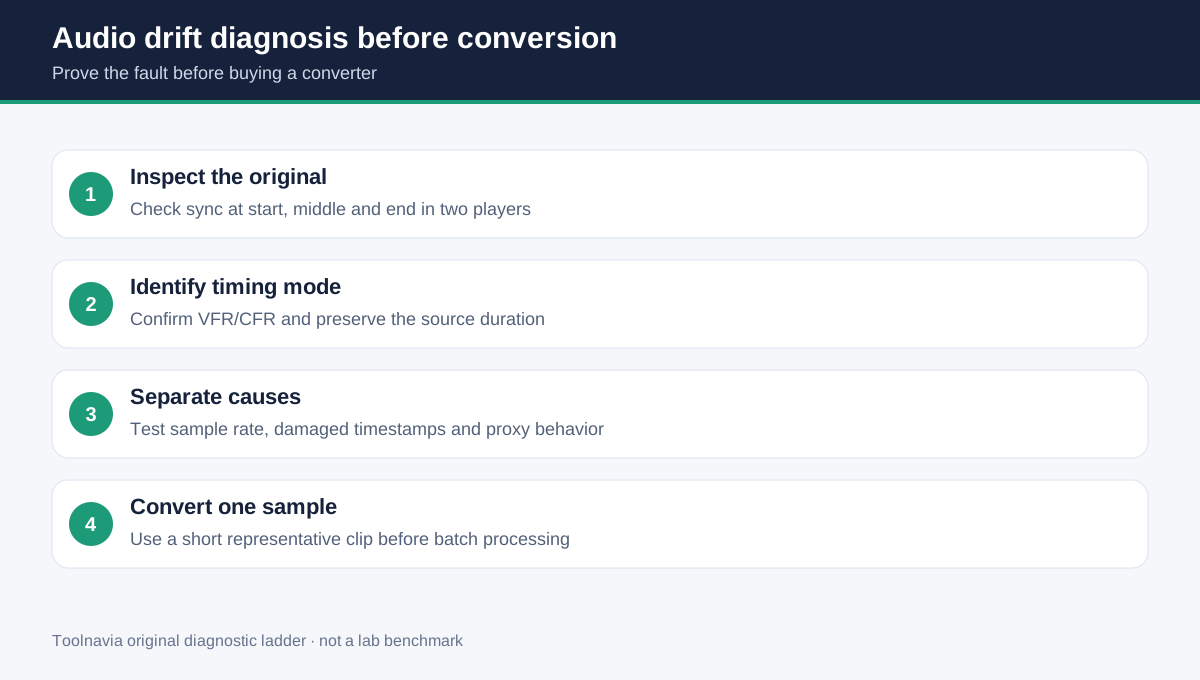
Start with the original file, not the UniConverter preset. Play the beginning, middle and end in two reliable players. Record the exact duration, note where drift begins, and inspect whether the file reports a variable or constant frame-rate mode. If the original is already out of sync everywhere, a damaged recording, unusual audio sample rate, interrupted capture or broken timestamps may be the real cause.
Wondershare’s own support pages do not support a one-cause story. One article calls VFR a main culprit for Premiere sync problems and recommends converting to CFR; a separate support answer says post-compression drift can have several causes and asks users to compare the source, disable Ultra-fast Speed and preserve logs and settings. That conflict matters: CFR is a testable remedy, not a guaranteed diagnosis.
What VFR-to-CFR conversion changes
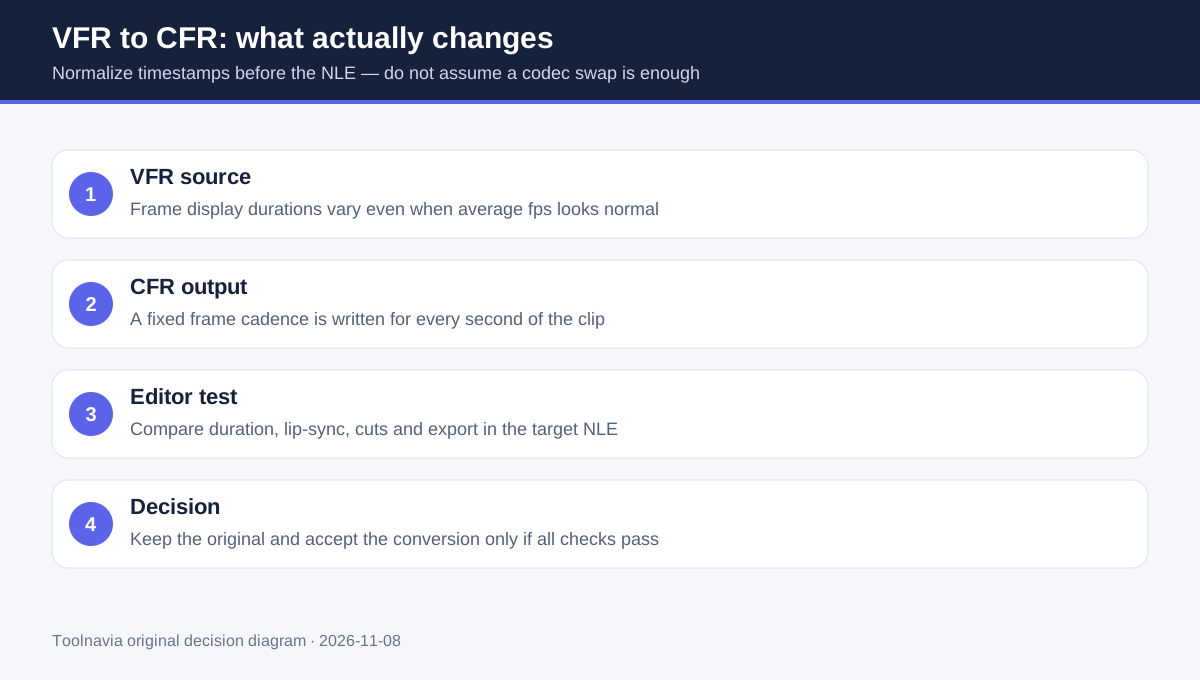
VFR footage can show each sample for a different duration. An editor that reads those timestamps correctly can keep audio aligned without conversion. A less compatible ingest path may instead behave as though the average frame rate were fixed, so the picture timeline slowly diverges from the audio.
CFR output gives the clip one regular frame cadence. The converter must reconcile irregular source timing with that grid. FFmpeg documents that forcing CFR can duplicate or drop frames, and HandBrake recommends fixed-rate conversion mainly for special compatibility cases such as import into a nonlinear editor. That is why “CFR” alone is not proof of quality. Inspect motion, cuts and total duration after conversion.
Do not confuse transcoding with Premiere’s Interpret Footage command. Adobe explains that interpreting a clip at another frame rate changes its duration and changes audio proportionally. That may be useful for speed effects, but it is not the same as preserving real-time duration while normalizing timestamps for compatibility.
A safe UniConverter test workflow
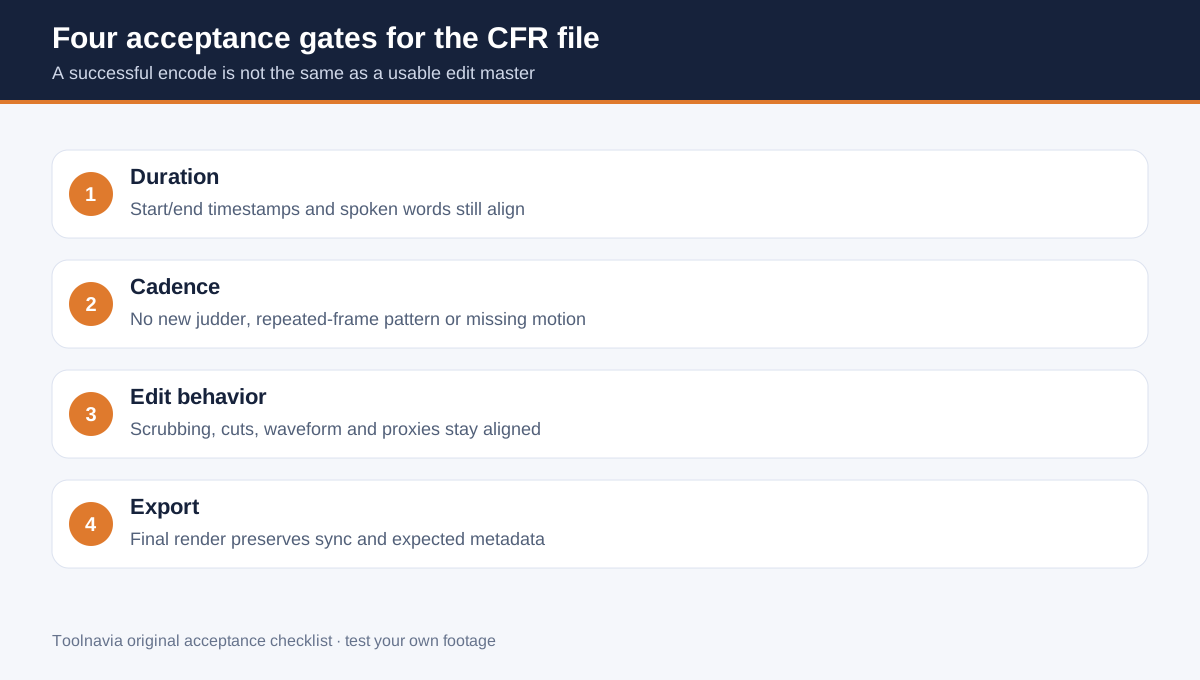
1. Duplicate one representative source clip and keep the untouched original. 2. Record source duration, reported frame-rate mode, audio sample rate and the exact point where drift is visible. 3. In UniConverter, choose a CFR output that matches the intended delivery cadence rather than guessing a dramatic new rate. Preserve resolution and avoid unnecessary quality changes for the diagnostic pass. Wondershare documents frame-rate controls and warns that changing frame rate can affect quality. 4. Convert only the sample. Do not start a large batch. 5. Import original and converted files into the target editor. Compare start, middle and end sync; frame-by-frame motion; waveform alignment; cuts; proxy generation; and a short final export. 6. Accept the workflow only if converted duration, motion cadence, audio sync and export behavior all pass. Keep the originals even after acceptance.
A successful conversion message proves only that the file was written. It does not prove that repeated frames are visually acceptable, that metadata survived, or that every clip from the same phone will behave identically.
Where UniConverter earns the price
The paid value is convenience, not a unique ability to spell “CFR.” UniConverter 17 combines frame-rate controls with batch conversion and a wider media toolbox, which can reduce operator steps when many mixed-source files need the same compatibility pass.
Free alternatives remain credible. HandBrake exposes VFR, CFR and peak-frame-rate behavior and explicitly describes how “Same as Source” differs from fixed-rate output. FFmpeg offers deeper timestamp and frame-rate control for users comfortable with commands. If either free route creates an accepted edit master with a repeatable preset, UniConverter may not add enough value.
UniConverter becomes more defensible when the same incompatibility recurs across many clips, the team needs a visual batch workflow, and the time saved exceeds the license cost. It is weak value when there is only one problematic file, the editor already handles the original, or the real issue is corrupted capture rather than frame-rate mode.
Plan and affiliate boundaries
This article maps to the currently approved UniConverter Windows Yearly offer and its direct CJ tracking link. The registered official store is the current USD baseline, but the final regional checkout, renewal language and taxes remain authoritative. The broader license may include features unrelated to this workflow, and AI-credit entitlements do not make ordinary VFR-to-CFR conversion automatically better.
Use the trial on the exact camera or recorder files before paying. Check whether the selected plan covers the operating system and computer you will use, whether renewal is enabled, and whether a current promotion changes the final price. Do not infer that paying removes the need for acceptance testing.
Buy, pause, or skip
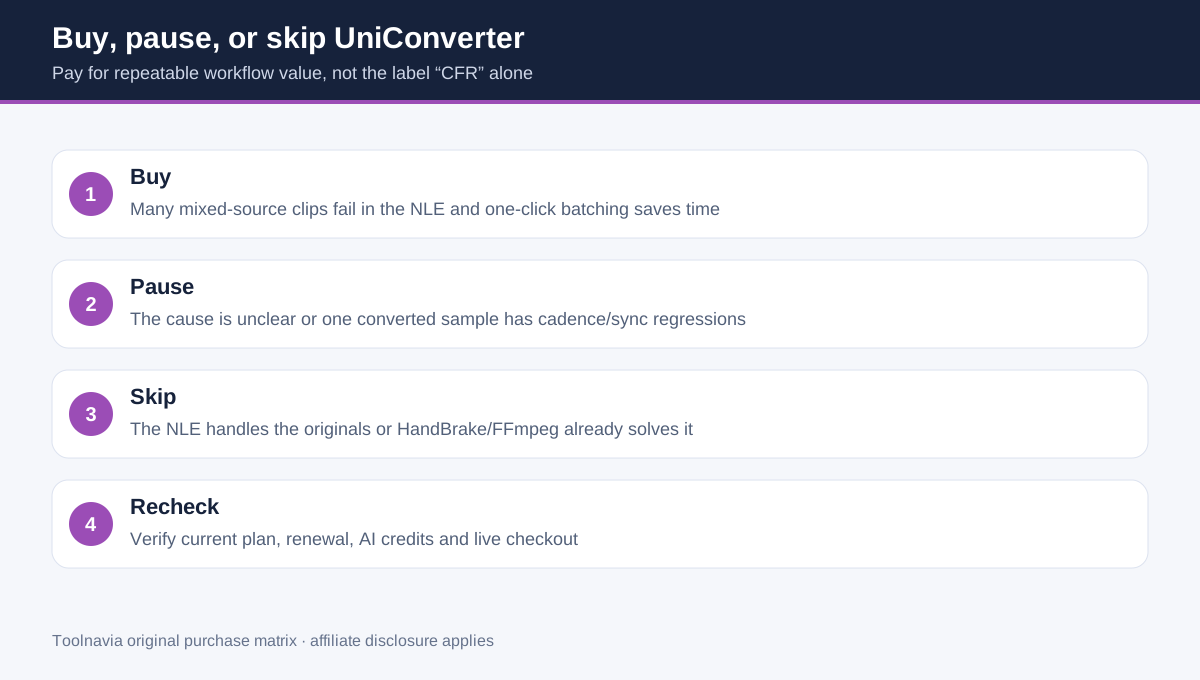
**Buy** if several representative VFR clips repeatedly fail in the target editor, a UniConverter CFR sample passes all four acceptance gates, and batch convenience saves recurring time.
**Pause** if the source is already desynchronized, drift appears only after a specific proxy or export step, or the converted sample shows judder, duration changes or missing metadata. Diagnose that boundary first.
**Skip** if the editor handles the originals correctly, or HandBrake/FFmpeg produces a repeatable accepted master at no software cost.
The practical rule is evidence before scale: one source, one controlled conversion, one editor import and one final export. Only then batch the rest.
**Affiliate disclosure.** Toolnavia is an approved Wondershare affiliate through CJ and may earn a commission from eligible purchases through the product link. This does not change the diagnostic gates, limitations or recommendation to test your own footage first.