TOOLNAVIA / BUYING GUIDE
UniConverter Trimming: Turn One Long Demo into Useful, Complete Clips
The short answer
A long demonstration can contain several useful answers that viewers will never find by scrubbing through the whole recording. UniConverter is worth considering when your main task is simple extraction: remove dead time, keep complete explanations and export clearly named clips. You do not always need to rebuild the project in a complex editing timeline.
At a glance
- Best for
- Windows users needing a broad media-conversion/edit/download toolbox beyond free transcoding and willing to verify live pricing and AI-credit terms.
- Price model
- Standard current baseline USD49.99/year; official variants can be lower; final checkout controls
- Check first
- Official price pages conflict, annual renewal is then-current, perpetual excludes future major versions, and AI usage can consume separate credits.
Choose the answer each clip will deliver
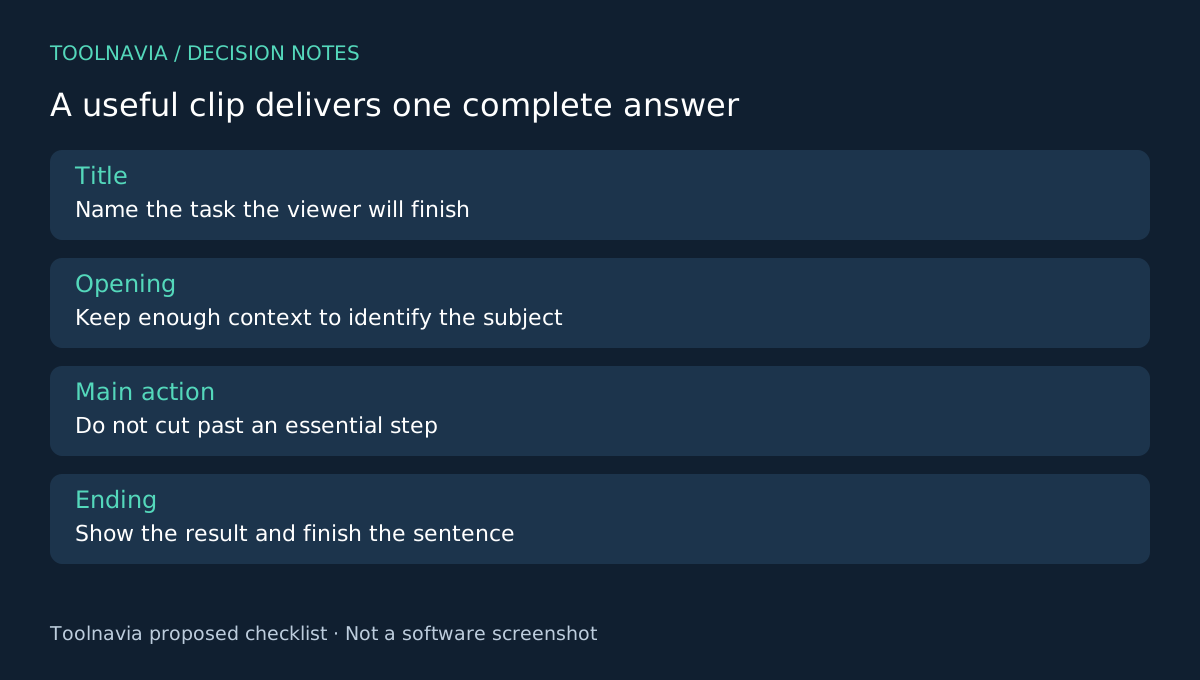
Start with a recording you own or are authorized to edit. Write a short title for each useful segment before cutting. A title such as “Replace the filter” defines a complete task more clearly than “Clip 03.” Note the source time range and the context the viewer needs.
Cutting by equal duration is not necessarily useful. A segment should begin early enough to identify the object and end after the result is visible. Keep an important condition, warning or qualification with the explanation it belongs to. Shorter content should not change the speaker's meaning.
Four practical editing operations
UniConverter's editing guide covers trimming the beginning or end, removing an unwanted middle section and splitting a recording into segments. Its Merger tool combines imported clips into one output.
End trimming removes setup time. A middle cut removes a genuine interruption. Splitting turns separate answers into separate deliverables. Merging can restore a continuous explanation that was recorded in fragments. These are useful finishing operations, not evidence that the tool replaces every multi-track editing workflow.
Make the cut list before the exports
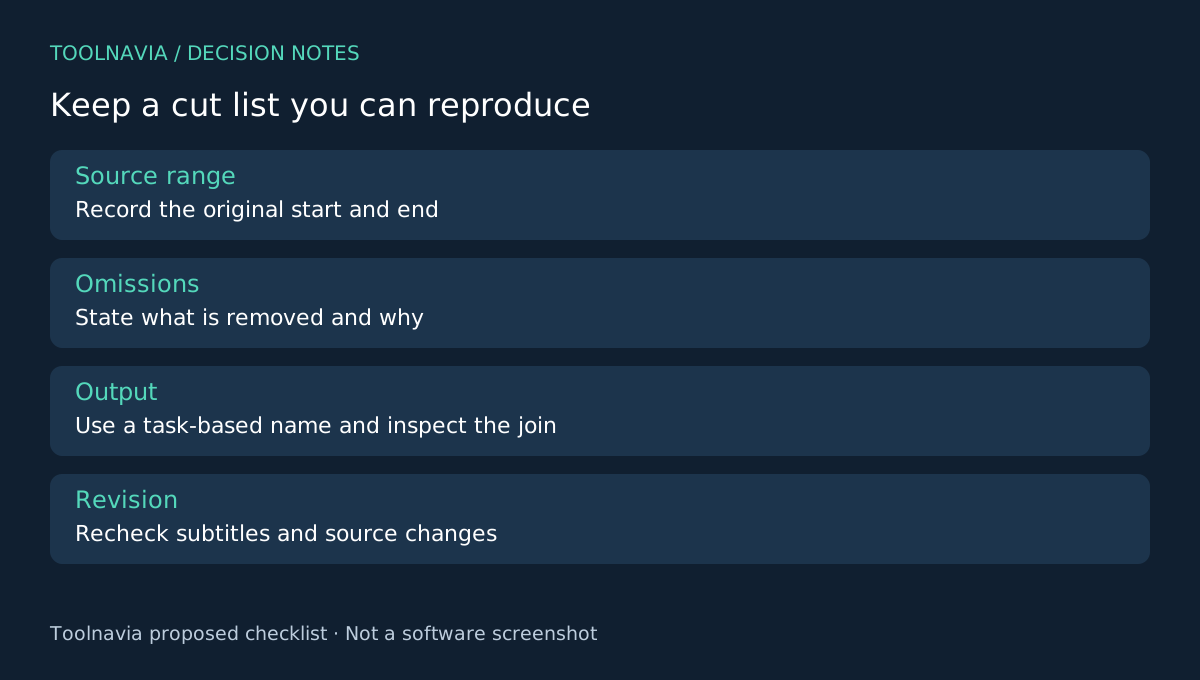
Create a small table for yourself: clip title, source start, source end, material to omit and intended output filename. Keep the full recording untouched. The list gives you a reproducible plan when someone later asks for a slightly longer version.
For each segment, preview the few seconds before and after every cut. Listen for a word clipped at the start or an unfinished sentence at the end. At a middle join, check whether the subject's meaning still follows and whether an on-screen action jumps past an essential step.
If you combine fragments, verify their order and inspect the join in the exported file. A correct total duration does not prove the sequence is correct. Watch for repeated introductory frames, missing demonstrations and sudden audio changes. This is a proposed editorial review, not a Toolnavia hands-on performance test.
Use a more capable creative timeline if the work needs layered explanation, extensive sound design or repeated visual revisions. A simple finishing tool is attractive precisely when the task stays simple enough to review reliably.
Package short clips so they stay useful
Choose the required output format and export to a separate folder. UniConverter's guides document export and merge-output selection. Open every file outside the editor and check the first meaningful action and the final result.
Name the files according to the viewing task, not only the order they were produced. Include a small index linking each clip title to its source range. When the source recording changes, the index helps identify which clips need rebuilding instead of assuming that old segments remain current.
If subtitles were timed for the original long recording, treat the shorter clips as new subtitle deliveries. Recheck timing after every cut. Do not reuse an old full-length subtitle file merely because the words still appear somewhere in the clip.
Buy a repeatable extraction workflow
Shutter Encoder documents media-processing controls and VideoProc offers cutting and merging in a broader toolbox. HandBrake is another conversion option to consider for output preparation. Compare the exact tasks you need rather than assuming all converters provide the same editing experience.
Choose UniConverter when a small set of cuts and exports turns your recordings into usable, traceable clips. If existing editing software already does that comfortably, another license may add little. Confirm the selected Windows offer and ongoing costs in the [UniConverter plan guide](/en/software/wondershare-uniconverter) and official checkout.
Toolnavia may earn a commission from eligible purchases through the official affiliate link. No guaranteed audience growth, lossless export or exclusive discount is claimed.