TOOLNAVIA / BUYING GUIDE
UniConverter HDR to SDR: Test Tone Mapping Before You Pay
The short answer
HDR-to-SDR conversion is not a checkbox test. A file can play on an ordinary SDR display and still have clipped clouds, crushed dark clothing, plastic-looking skin, or color that changes from one player to another. UniConverter now advertises automatic HDR-to-SDR tone mapping, but the buying decision should be based on a short export test made from your own footage. Keep the HDR master, export one SDR derivative, and inspect both the picture and the color tags before paying.
Affiliate disclosure: Toolnavia may earn a commission if you buy through the approved UniConverter link below. The commission does not change our test method or the price you see at checkout.
At a glance
- Best for
- Creators who can test real HDR footage across two SDR targets and preserve the master.
- Price model
- Live checkout controls current major version, bundle, tax, price and renewal.
- Check first
- Automatic tone mapping is version-, codec-, GPU-, scene-, display- and platform-dependent.
Verdict: buy only after the SDR derivative passes
UniConverter is a practical candidate for creators who need a simpler alternative to command-line color conversion. Its current official HDR guide says the converter can detect HDR metadata, tone-map HDR into SDR, and balance highlights and shadows. The product history also records an earlier HDR-to-SDR implementation and a color-problem fix, while the current Version 18 notes promote faster 4K/8K HDR conversion.
Those statements establish availability, not the quality of your output. A conversion passes only when important highlight texture remains visible, shadows are not blocked, skin stays believable, saturated colors do not turn neon, and the result looks consistent on more than one SDR display. If a paid export cannot meet those conditions on your test reel, a faster workflow is not a better workflow.
What the official pages establish
The current official guide describes an HDR-to-SDR path inside UniConverter and presents tone mapping as the step that converts HDR brightness and color information into a form an SDR display can interpret. The version history shows that HDR-to-SDR support is not brand-new: it records an implementation and color fix in an older release, and lists Version 18 as the current 2026 generation. A separate official version page says recent releases expanded 4K/8K/HDR conversion and that Version 18 adds faster GPU-assisted HDR work for supported workloads.
The store page confirms that a Windows yearly route exists, renews automatically, and includes the broad conversion toolbox. However, that same page exposes more than one plan table and more than one yearly price. We therefore do not treat any single promotional number as a guaranteed checkout total. Region, bundle, tax, renewal terms, supplied major version, and the selected buy button all matter.
None of these pages publishes a controlled benchmark covering your camera, HDR format, peak brightness, GPU, codec, player, and target display. Marketing language such as “accurately tone-map” or “consistent viewing across all devices” is a claim to test, not a result to assume.
Why an SDR file can still look wrong
HDR and SDR use different brightness ranges, transfer functions, color primaries, and metadata. Simply retagging an HDR file as SDR does not compress the image into the smaller display range. A tone mapper must decide what to do with highlights above SDR white, how much ordinary midtone brightness to preserve, and how to keep colors inside the destination gamut.
The ITU guidance explains why down-mapping is preferred to hard clipping when preserving highlight detail matters. It also warns that the best mapping depends on the application, that color saturation can change, and that black-level differences may become more visible in the SDR result. FFmpeg's official documentation exposes multiple tone-mapping and gamut-mapping choices because no single curve maximizes every goal. Some methods preserve brightness but mute color; others retain contrast while allowing more clipping.
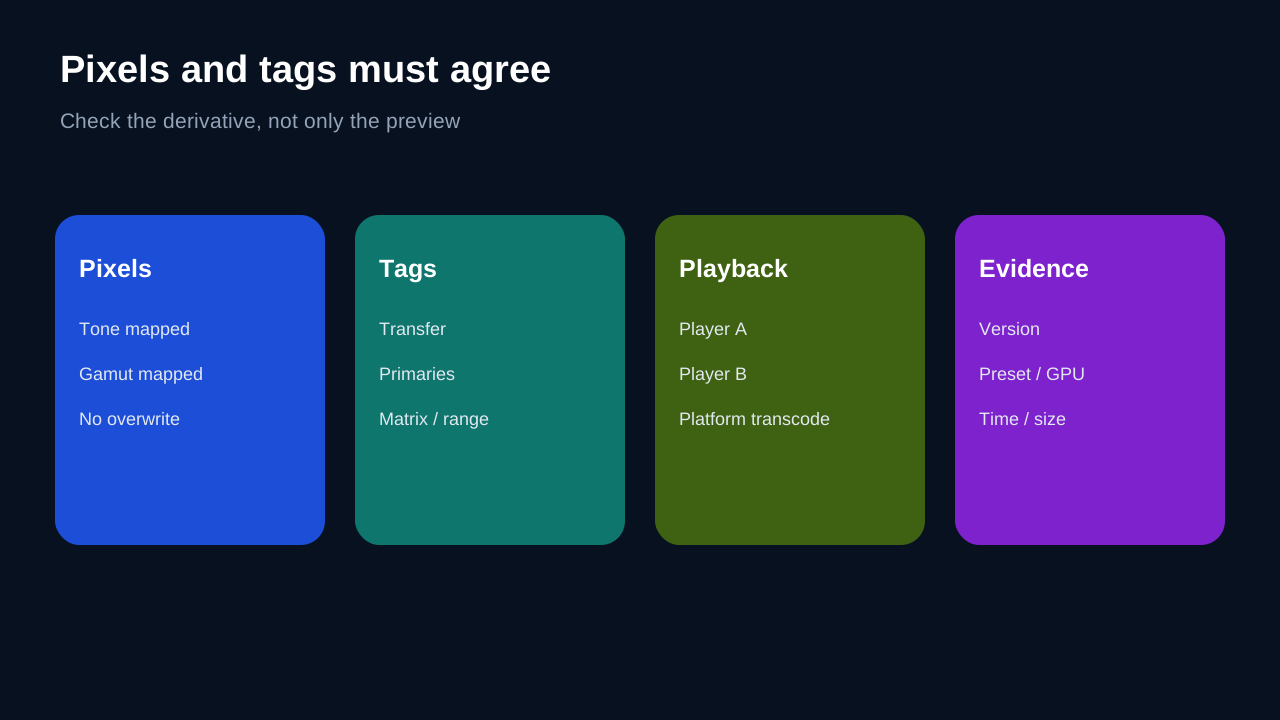
HandBrake's HDR documentation is useful for a different boundary: metadata, encoder, container, bit depth, and output signaling must agree with the actual pixels. A picture can look acceptable in one player because that player compensates for bad tags, then look washed out or over-contrasted somewhere else. That is why this review treats visible appearance and metadata as separate checkpoints.
Run this ten-minute tone-mapping test
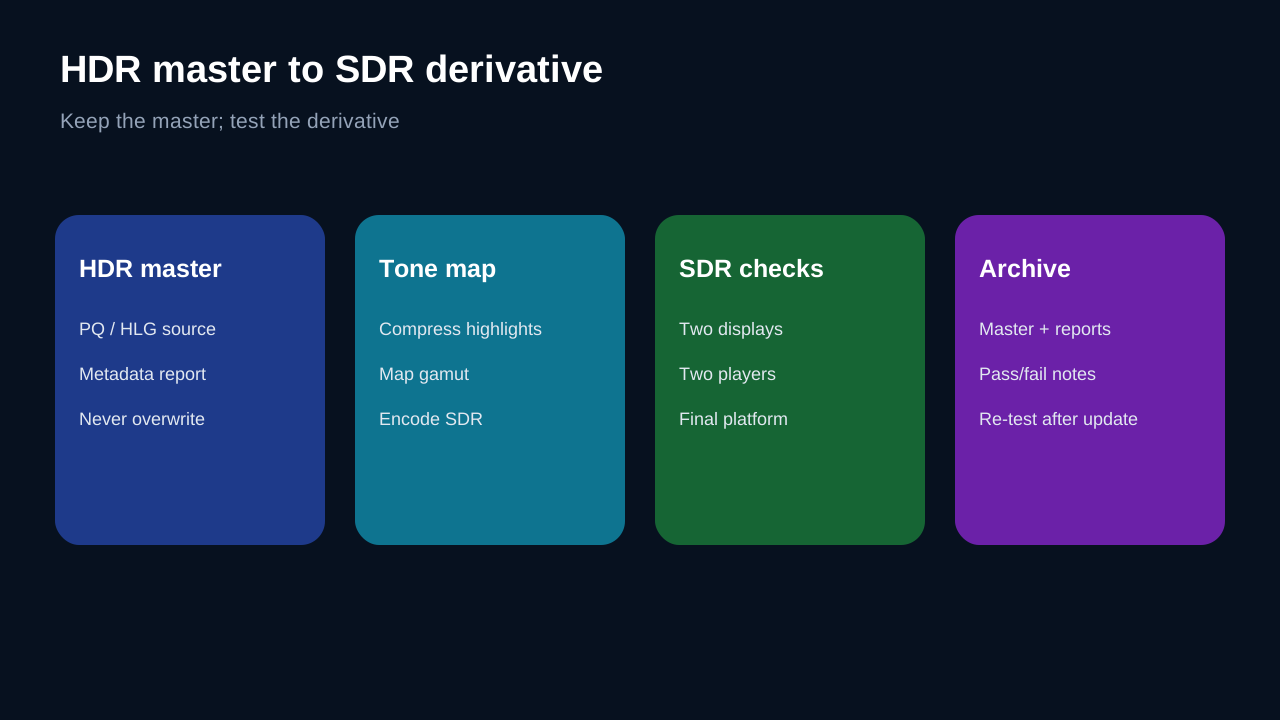
Build a 30- to 60-second reel from footage you are allowed to test. Include a bright window or lamp, clouds or reflections, a dark interior, a face, saturated red and blue objects, and a smooth sky or wall gradient. Use the exact source format you expect in production—PQ or HLG if known—and save its original metadata report.
Import the reel into the current UniConverter build. Choose the intended SDR delivery format, resolution, frame rate, and codec. Do not change five variables at once. Start with one normal-quality output, then make a second output only if the first reveals a specific problem. Record the UniConverter version, conversion preset, GPU acceleration state, export time, and output file size.
Compare the SDR export with the HDR master on a correctly configured HDR display, then inspect the SDR file on at least two SDR targets—for example a calibrated desktop monitor and the television or platform that will receive the file. Also open the SDR result in two players. The purpose is not to make HDR and SDR equally bright. It is to preserve the scene's intent inside the smaller SDR range.
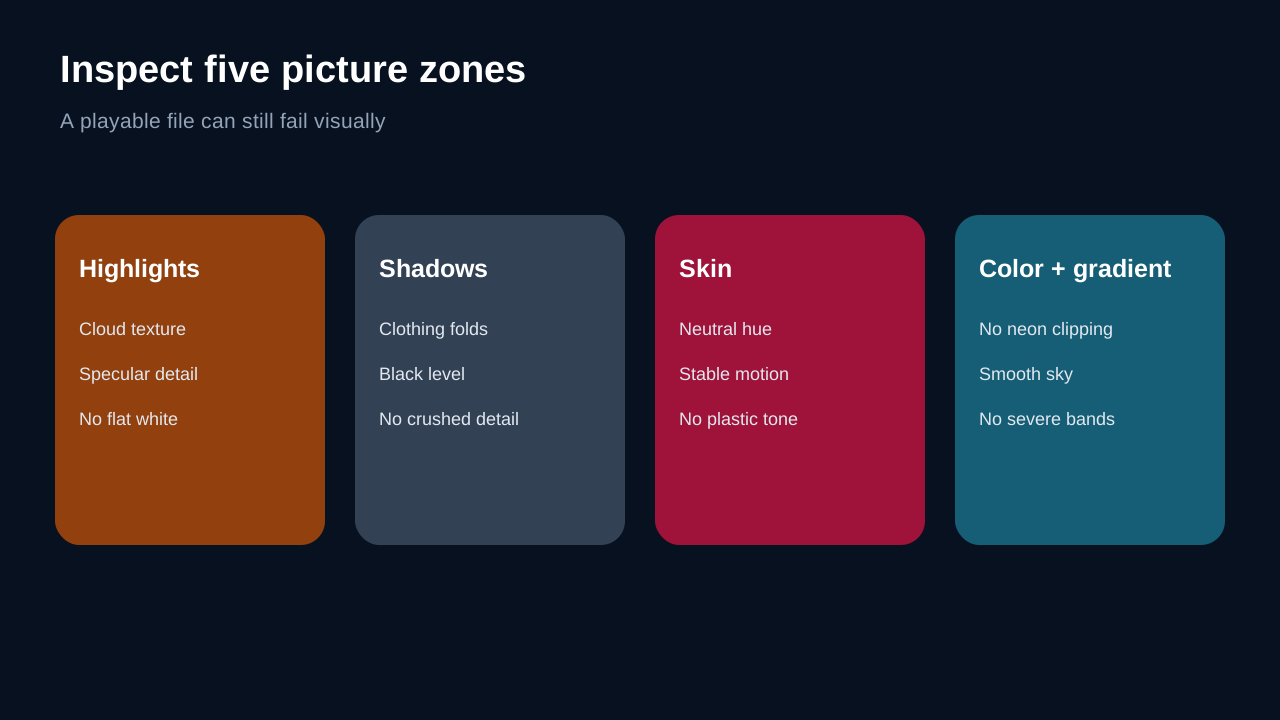
Pause on the brightest texture, darkest useful detail, skin, saturated objects, and gradients. Fail the export if clouds disappear into white, black clothing loses folds, faces shift toward orange or magenta, colored lights clip into flat patches, or gradients show severe bands. Watch moving shots as well; a single still cannot reveal brightness pumping across cuts.
Compare pixels, tags, and delivery behavior
Use a simple scorecard: highlight detail, shadow detail, skin tone, saturation, average brightness, gradient smoothness, playback consistency, and export cost. Give each item a pass, marginal, or fail. Do not average away a critical failure. If skin tone is unacceptable or essential highlight information is gone, the result fails even if export speed is excellent.
Inspect the output with a media-information tool. Confirm that the SDR derivative is labeled with the expected SDR transfer, primaries, matrix, range, and bit depth. The exact values depend on the delivery specification, but the labels must describe the converted pixels. Preserve the untouched HDR master and its metadata; never overwrite it with the SDR derivative.
For a fair reference, create a second SDR result with an established tool or workflow you understand, such as a documented FFmpeg or HandBrake process. The reference is not automatically “correct.” It gives you a second interpretation of the same source. If the two outputs disagree sharply, inspect the scene and metadata instead of choosing the prettier thumbnail.
Upload a short private test to the actual delivery platform when permitted. Platforms can transcode, remap, or misread the file. A local pass does not guarantee a platform pass. Save the uploaded playback result, not just the source export.
Price, version, and performance boundaries
The current storefront shows a Windows yearly plan with automatic renewal, but it also displays multiple product groupings and yearly figures on the same page. Live checkout controls the actual total, tax, renewal amount, supplied major version, device scope, and included tools. The approved offer key still uses a historical “17” label in the internal catalog, while the official version history says Version 18 launched on October 15, 2026. Buyers should verify that checkout supplies the current version they intend to use rather than inferring it from the catalog key.
Version 18 marketing says HDR conversion can be faster on supported GPU workloads, but speed is hardware-, codec-, resolution-, and preset-dependent. Measure your own export. A ten-minute clip that renders quickly but fails the color test has no production value. Conversely, a slower pass can still be economical if it removes manual correction and passes every delivery target.
If the test succeeds, you can inspect the current plan through our [approved UniConverter link](https://www.jdoqocy.com/click-101895278-12861056). Keep screenshots of the selected plan and renewal terms. If the price, version, or bundle differs from the article, trust checkout and reconsider before paying.
Who should buy—and who should wait
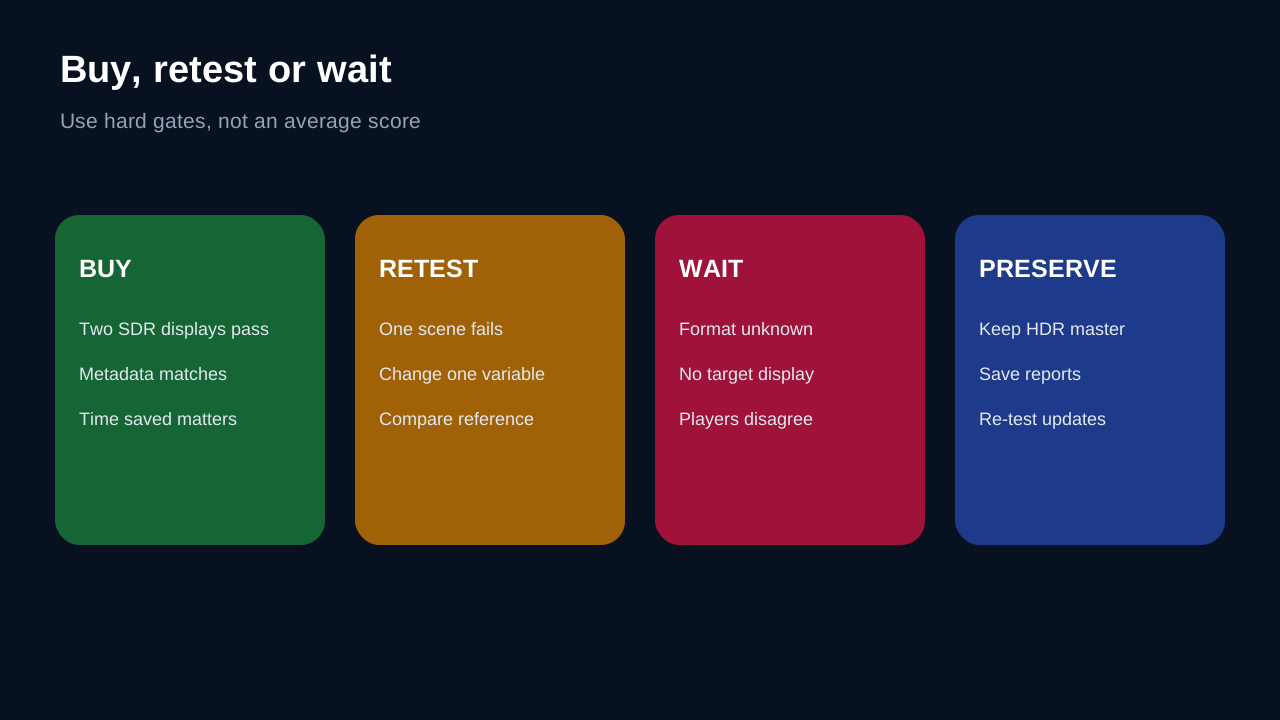
Buy the yearly plan when you already need UniConverter's broader conversion workflow, your real HDR sources produce acceptable SDR derivatives, the metadata matches the destination, two SDR displays and the final platform agree closely enough, and the time saved justifies recurring billing.
Wait when you have only one HDR sample, cannot identify the source HDR format, do not have an SDR target for verification, or see inconsistent color between players. Also wait if you need broadcast-grade repeatability but cannot measure black level, reference white, gamut, and platform output. In that case, a managed color pipeline or specialist tool is a safer purchase than an automatic preset.
The strongest evidence is a saved test package: untouched HDR master, UniConverter SDR export, reference export, metadata reports, display notes, platform playback result, export times, and written pass/fail thresholds. A button labeled HDR-to-SDR starts the evaluation; it does not finish it.