TOOLNAVIA / BUYING GUIDE
UniConverter Subtitles: Turn Approved SRT Files into Audience-Ready Videos
The short answer
You already have the finished video and an approved subtitle file. The remaining job is to make them travel together in a form the audience can actually use. UniConverter is worth evaluating for this final delivery stage, particularly when you also need conversion and repeatable output settings. It is a different purchase question from buying a full creative editor.
At a glance
- Best for
- Windows users needing a broad media-conversion/edit/download toolbox beyond free transcoding and willing to verify live pricing and AI-credit terms.
- Price model
- Standard current baseline USD49.99/year; official variants can be lower; final checkout controls
- Check first
- Official price pages conflict, annual renewal is then-current, perpetual excludes future major versions, and AI usage can consume separate credits.
Agree on the subtitle deliverable first
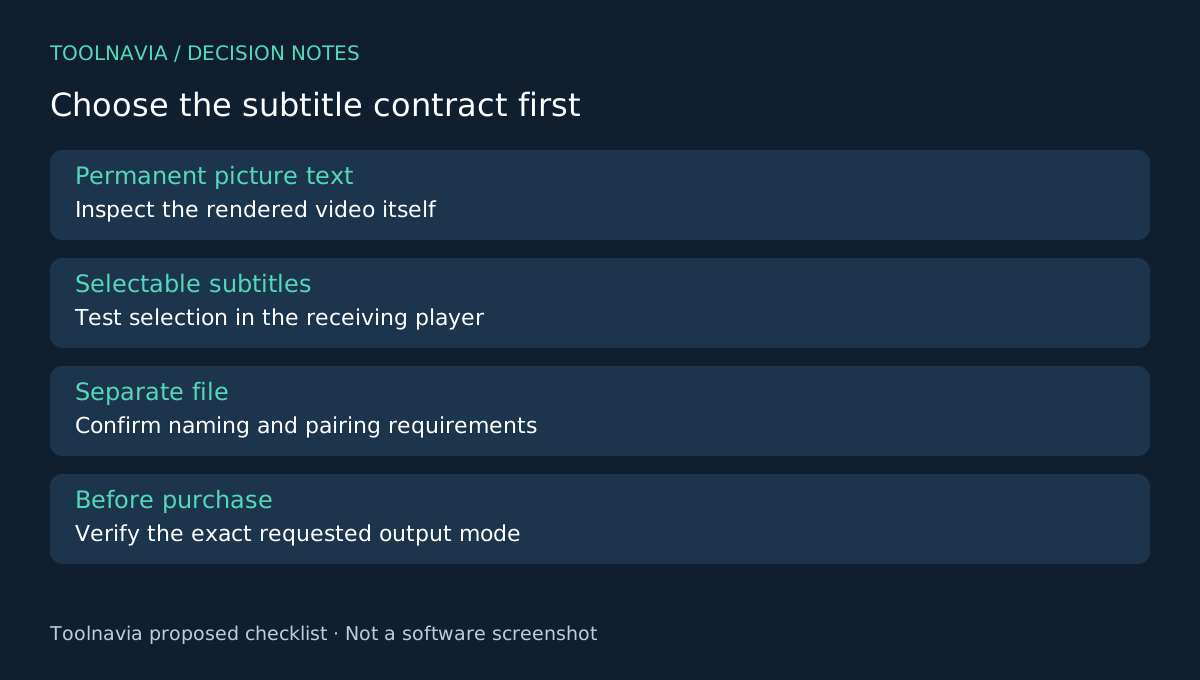
Ask whether the recipient needs text permanently visible in the picture, a selectable subtitle track or a separate file. These are not interchangeable outcomes. Burned text cannot be switched off like a separate track; selectable subtitles also depend on the receiving format and player. HandBrake's technical documentation illustrates those format-dependent distinctions.
Do not infer your installed UniConverter version's exact output behavior from a generic subtitle feature label. Test the required delivery mode with the selected format. If the recipient requires a particular subtitle specification, make it an acceptance condition before paying.
Four controls for an already approved subtitle file
UniConverter's support documentation describes importing a subtitle file and adjusting the subtitle timeline, layout and font size before exporting. SRT is explicitly supported by both relevant help pages.
Import brings approved wording into the media workflow. Timing adjustment aligns it with the final cut. Layout keeps text away from important picture content. Font-size control helps make it readable at the intended viewing size. These benefits concern presentation and handoff; they do not establish translation quality or correct errors in the supplied script.
Match the exact video revision
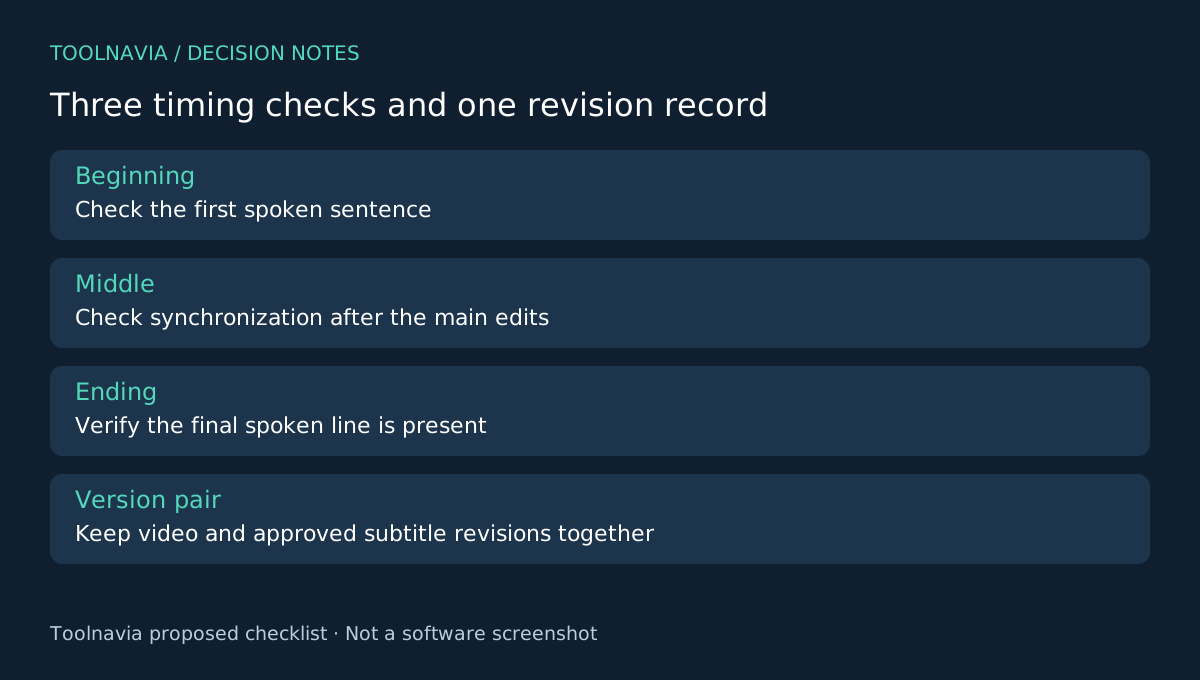
Confirm that the subtitle file belongs to the video being delivered. A revised opening, removed pause or changed ending can invalidate earlier timestamps. Record the video version and subtitle version together before importing anything.
Build a short verification list containing the first spoken sentence, a middle sentence and the final spoken line. Include a line with accented characters or the actual non-Latin script your audience needs. Preview those locations after import and inspect the characters, timing and line breaks.
If the offset grows through the video rather than remaining constant, stop treating it as a simple global shift. Check the source revisions and timing assumptions before nudging every line. The article proposes this diagnostic method; Toolnavia has not measured UniConverter's synchronization performance.
Inspect what the audience receives
Export the intended file and open it outside the editor. If selectable subtitles are required, test selection in the receiving player. If permanent on-picture text is required, check it in the exported picture without relying on the editor's subtitle panel. If a separate file is required, include the agreed filename and pairing instructions.
Watch the difficult line at normal speed on the intended screen size. Check whether it covers a product label, slides outside the visible frame or changes unexpectedly after export. Inspect the final spoken line too: a convincing opening does not prove the whole file stayed synchronized.
Keep a clean master without permanent text if future language changes are likely, alongside the approved subtitle source and delivery copy. This makes a later correction a controlled revision instead of an attempt to remove text from an already rendered picture.
Choose a finishing tool for the actual job
HandBrake provides subtitle handling with documented restrictions. Shutter Encoder and VideoProc are broader alternatives to examine for conversion work. Compare the required output behavior, not just the presence of a subtitle button.
UniConverter earns a purchase when the receiving application passes the subtitle test and its conversion tools fit your recurring finishing work. If you still need extensive story editing or unverified transcription, scope that separately. The [UniConverter license guide](/en/software/wondershare-uniconverter) explains the Windows purchase context; current checkout controls renewal and optional AI costs.
Toolnavia may receive a commission on eligible purchases through its official affiliate link. No universal subtitle portability or exclusive discount is promised.