TOOLNAVIA / BUYING GUIDE
SSD Fresh SMART Alert: Back Up, Verify, or Replace the Drive?
The short answer
At a glance
- Best for
- A buyer who wants one guided dashboard for SMART, temperature and write activity, but will still back up first and confirm a warning with Windows and the drive maker.
- Price model
- The same-product completed payload observed €29.95 on the official English page on 2026-11-07. Do not freeze that price: confirm local eligibility, final cart, tax, SKU, update term and renewal.
- Check first
- Monitoring cannot repair hardware, predict an exact failure date or replace backup; compatibility varies by SSD and connection.
Short verdict
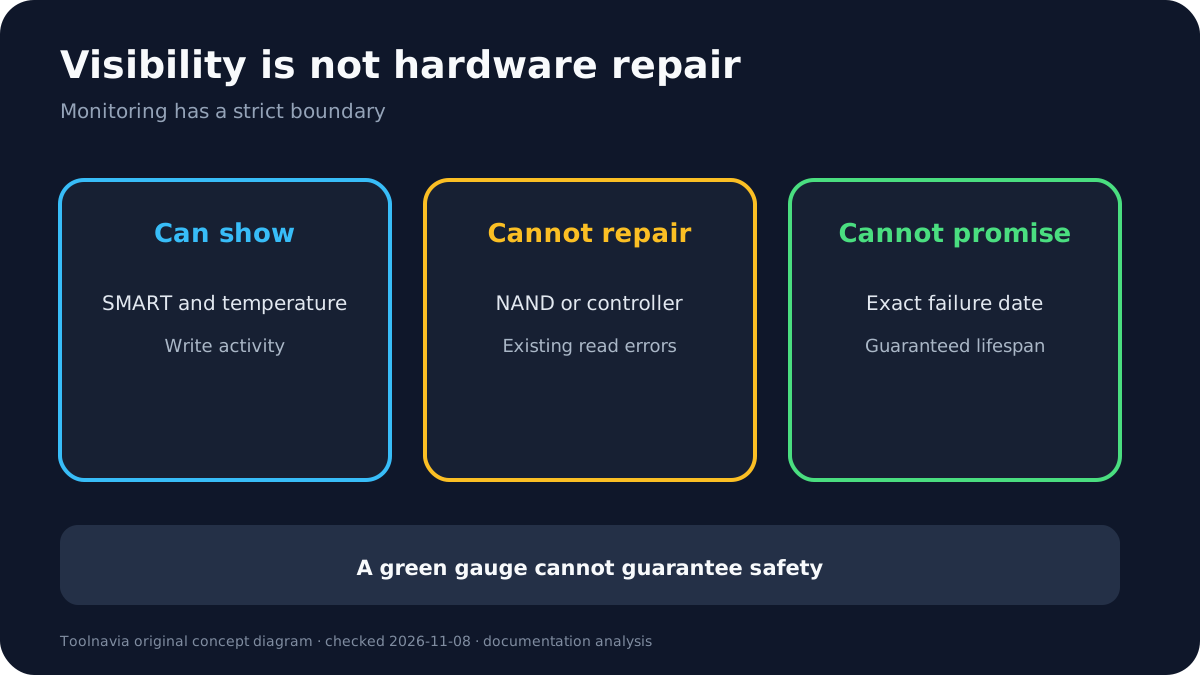
Treat a SMART or critical-drive alert as a **backup trigger**, not a precise failure countdown. Copy irreplaceable data to another physical device or trusted cloud location before running long tests, benchmarks, formatting, firmware work or write-heavy “repairs.” SSD Fresh can make SMART, temperature and write activity easier to read, but it cannot repair failing NAND, guarantee a remaining lifetime or replace a backup.
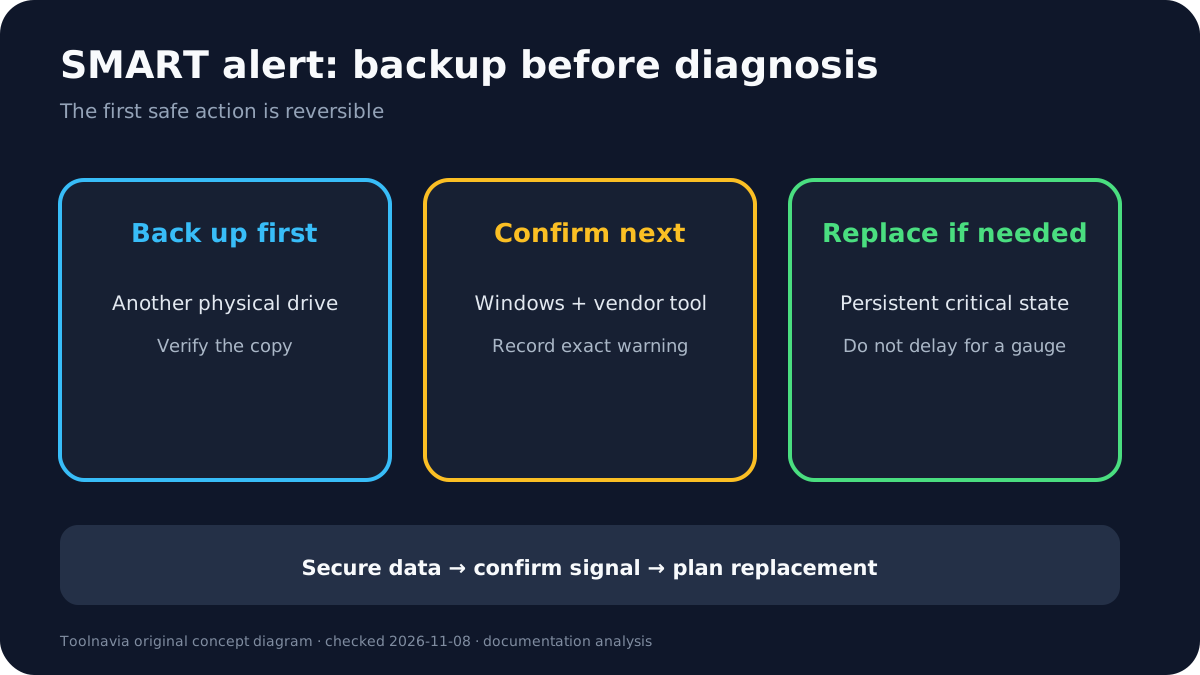
The safest order is: back up first, record the warning, confirm it with Windows and the SSD maker's own utility, then decide whether to monitor briefly or replace. If files are already unreadable, the drive repeatedly disconnects, or important data exists only on the affected device, stop ordinary use and consider professional recovery rather than experimenting.
Affiliate disclosure: Toolnavia may earn a commission from the approved SSD Fresh link at no extra cost to you. The official English storefront previously displayed €29.95, but the final cart, tax, SKU, update term and renewal must be checked at purchase.
What the alert actually means
Windows distinguishes low spare capacity, degraded reliability and read-only state, and exposes estimated remaining life, available spare and temperature for supported NVMe devices. Windows also notes that its built-in health view does not cover every SATA SSD or HDD, so “no warning” can mean “not monitored,” not “proven healthy.”
CrystalDiskInfo's official guidance makes the uncertainty explicit: “Caution” or “Bad” should trigger a backup, but it cannot predict an exact failure date. Model-specific attributes and controller reporting can produce different interpretations. A green result also cannot prove that sudden failure is impossible.
This is the first boundary for SSD Fresh. Its **Cross-vendor health dashboard** and **Permanent real-time monitoring** can reduce a visibility gap, but the dashboard remains an interpretation of device-reported data. Compatibility, USB bridges and vendor-specific thresholds matter.
Back up before diagnosing
A copy on another partition of the same physical drive is not a backup. Use another internal drive, an external device, a NAS or a trusted cloud destination. Prioritize documents, photos, projects, email data, encryption keys and anything difficult to recreate. If copying produces errors, move the most valuable small files first.
Do not begin with a full benchmark, extended write test, format, initialization or repeated repair attempt while the only copy still sits on the suspect drive. CrystalDiskInfo warns that intensive testing before backup can worsen the recovery situation; Intel's “SMART Status BAD” guidance is even simpler: back up and replace as soon as possible.
Samsung, Micron and Kingston all connect health warnings to backup and replacement planning. Micron recommends alternate storage and replacement when a drive nears TBW, approaches write protection, exceeds a SMART threshold or enters a fault state. Kingston's guide recommends backup and discontinuing use at its lowest wear indicator.
Confirm with Windows and the drive maker
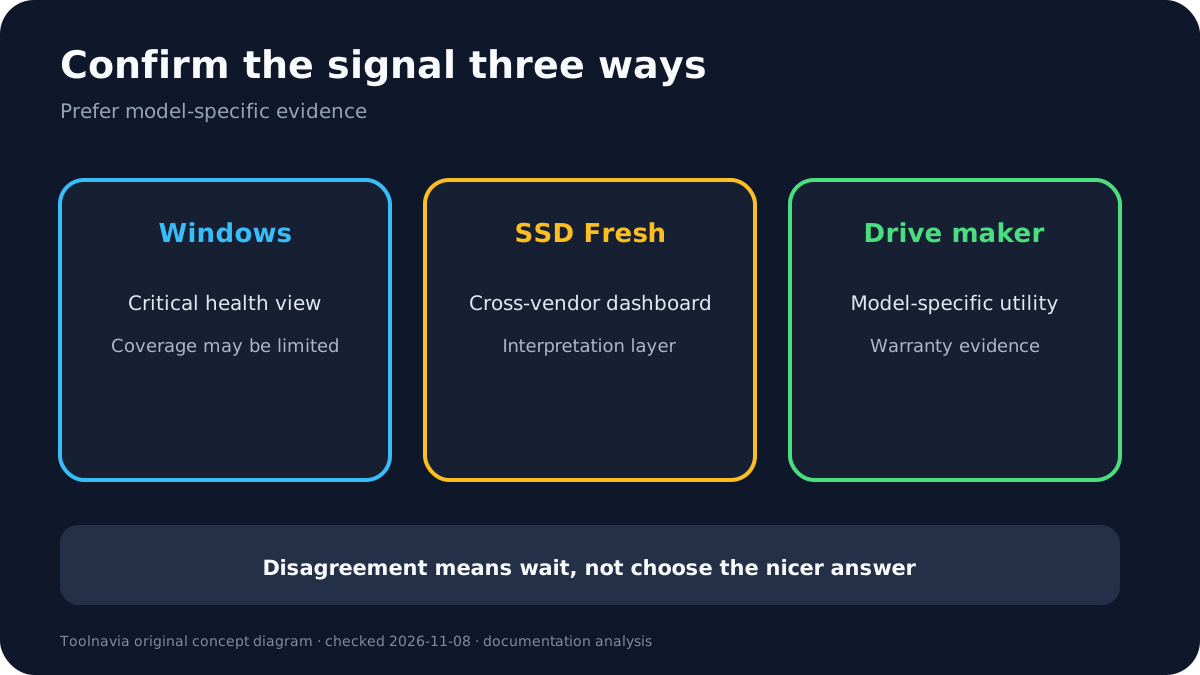
After the backup is verified, capture the exact SSD model, firmware, connection type and raw warning. Check Windows storage health, then use the maker's utility when available—Samsung Magician for supported Samsung drives, Micron Storage Executive for supported Crucial/Micron devices, or Kingston SSD Manager for supported Kingston drives.
A vendor utility can add firmware, diagnostic and model-specific context. It may also expose a limitation: Kingston says USB enclosures are not supported by its manager, and SanDisk notes that external USB connections may not pass SMART data. A failed or missing SMART test over USB is therefore not automatically proof of drive failure.
If SSD Fresh disagrees with the vendor tool, do not choose the reassuring result by preference. Keep the backup, record both results, update supported firmware only after reviewing the vendor procedure, and ask the SSD or system maker which reading controls warranty or replacement. The **Guided escalation** value is the workflow, not a magical verdict.
Monitor briefly or replace?
Replace promptly when a manufacturer tool or BIOS reports a persistent SMART failure, Windows shows degraded reliability or read-only state, available spare is below threshold, endurance is exhausted, errors are increasing, or the drive drops offline. Intel, Micron and Samsung all treat such conditions as replacement-level evidence.
A temperature-only warning may justify checking airflow and cooling after backup. Seagate notes that some temperature alerts can clear when ventilation is corrected, but other SMART faults are not repaired by software. A stable value may support a short observation window; it does not restore the drive to guaranteed-safe status.
SSD Fresh's **Write-activity analysis** can help identify applications producing writes, but lowering write volume cannot reverse controller faults, bad NAND, depleted spare blocks or existing read errors. Keep replacement planning separate from optimization claims.
Offer and product boundary
The approved association is **Abelssoft SSD Fresh / English storefront / current checkout options**. The exact CJ product link is approved, enabled and market-confirmed in the fresh native index. It leads to the product page, while the final cart controls local availability, currency, tax, SKU, update term and renewal.
Buy for visibility and guidance—not because a utility can promise a longer life or repair a failing drive. The same vendor's CheckDrive page says analysis is an interpretation and recommends a backup program in every case. That is the right boundary for SSD Fresh too.
Evidence map: SSD Fresh features; Windows warnings and coverage; CrystalDiskInfo response workflow; Samsung health guidance; Micron states; Kingston compatibility and wear; Intel backup/replace; Seagate threshold nuance; SanDisk SMART/USB limits; Abelssoft backup disclaimer; checkout boundary.
Buy, wait, or skip
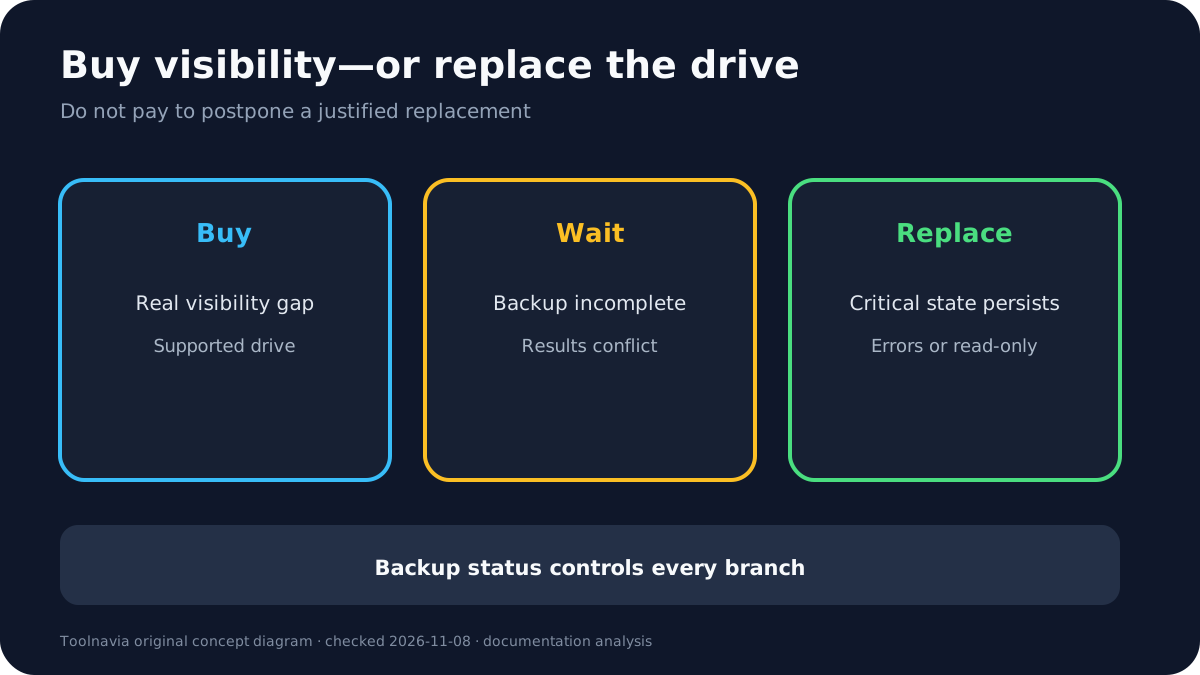
**Buy** when Windows and the drive maker leave a real visibility gap, the exact SSD/connection is supported, and one guided dashboard for SMART, temperature and write activity is worth the current checkout price.
**Wait** when data is not yet backed up, the warning is unresolved, the SSD is behind an unsupported USB bridge, or SSD Fresh and the vendor utility disagree. Secure the data and reconcile the signal first.
**Skip and replace** when the drive already has persistent critical warnings, read-only state, rising errors, exhausted endurance, disconnects or unreadable files. Spend the next dollar on backup, replacement or professional recovery—not on delaying an already justified hardware decision.