TOOLNAVIA / BUYING GUIDE
Unallocated Drive? Test Recoverit Before Creating a New Volume
The short answer
# Unallocated Drive? Test Recoverit Before Creating a New Volume
When Windows shows a disk as **Unallocated**, creating a new volume is not a harmless test. It writes partition metadata. If the old boundary, file-system records, or file content are still recoverable, that write can reduce the remaining evidence.
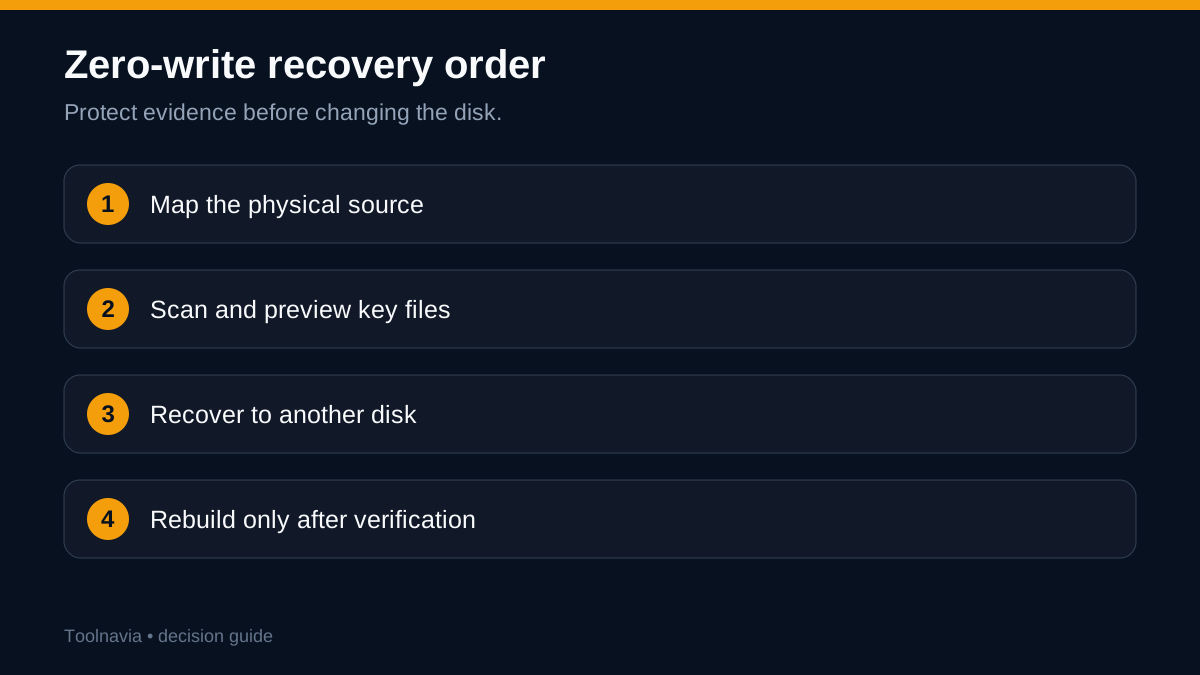
The safer sequence is diagnostic first: identify the physical source, stop all changes, scan with Wondershare Recoverit, preview representative files, and recover to a different healthy disk. Repartition only after the valuable data has been opened and backed up. Recoverit is a file-recovery tool; a successful scan does not mean it repaired the original partition table.
> **Affiliate disclosure:** This guide contains an approved Recoverit affiliate link. Toolnavia may earn a commission at no extra cost to you. The risks, tests, and stop conditions are editorially independent.
At a glance
- Best for
- Stable, detectable unallocated drives where critical files preview correctly and can be recovered to another physical disk.
- Price model
- Direct offer: $59.99 month, $69.99 year, $129.99 perpetual; separate Microsoft Store offer higher; checkout controls.
- Check first
- Not for unstable hardware, missing encryption keys, overwritten data or files that do not preview; channel prices and refund eligibility vary.
Identify the actual Windows state
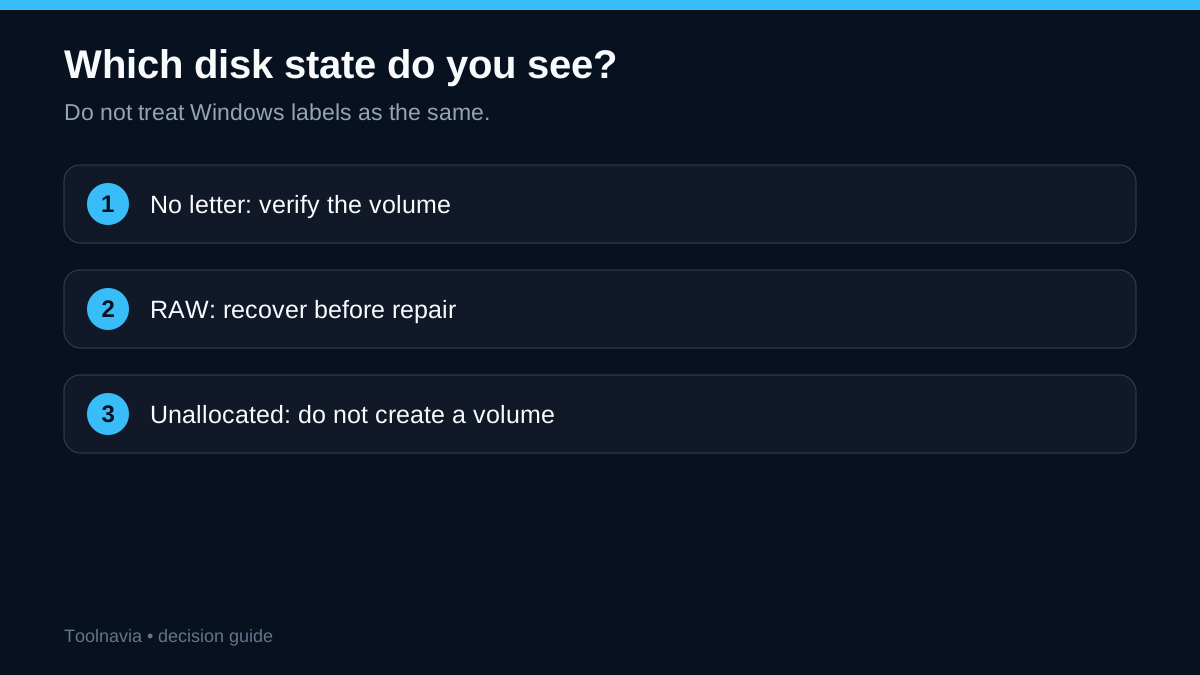
| State | Likely meaning | Safe first move | |---|---|---| | Healthy partition, no letter | The volume exists but is not mounted with a letter | Verify size and file system before assigning a letter | | RAW | Windows sees a partition but cannot mount its file system | Do not format or run repair commands before recovery | | Unallocated | Windows has no usable partition entry for the region | Do not create or extend a volume into it |
A missing letter may be a mount issue. RAW often indicates damaged file-system metadata. Unallocated space may result from a deleted partition entry, a changed layout, enclosure trouble, or hardware failure.
If the disk clicks, disconnects, reports a wrong capacity, overheats, or becomes extremely slow, stop. Repeated consumer scans can use up the readable life of a mechanically failing drive.
Apply the zero-write rule
Before scanning, do not initialize the disk, create a simple volume, format it, extend another partition into it, run CHKDSK on a damaged or RAW volume, install software to it, or save recovered files back to it. Cancel Windows prompts to initialize or format.
If the data is irreplaceable, legally sensitive, or business-critical, consider a sector image or professional lab before a long scan.
Map the physical source
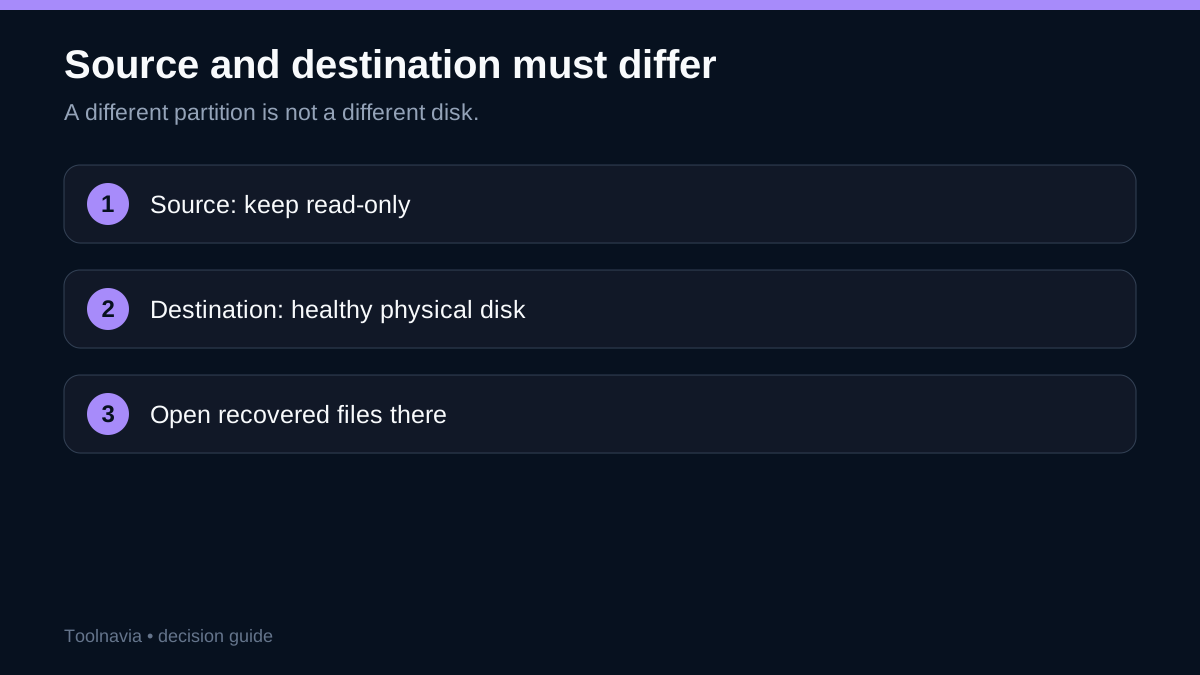
Drive letters are not identities. Record the disk number, model, capacity, connection, partition map, unallocated region, and whether it is internal or external. Then prepare a destination with enough free space on a **different physical disk**. Another partition on the damaged source is not a safe destination.
For external storage, remove unnecessary hubs and stabilize power and cabling. A failing bridge or cable can imitate media damage.
What Recoverit can prove
Recoverit can scan an addressable disk for file-system traces, folders, and file signatures. The useful question is not whether it sees the disk, but whether it finds and previews the exact files that justify recovery.
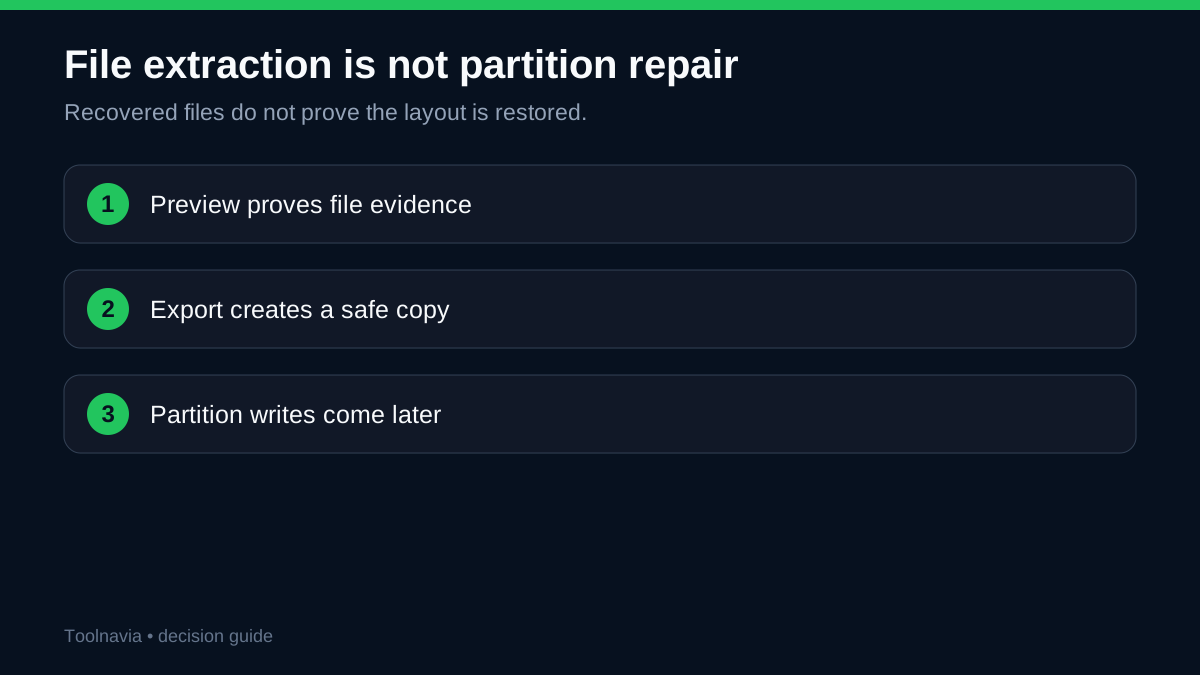
A file scan does not prove the old partition table has been restored. The tool may reconstruct folders or identify files by signature while the original volume remains unmountable. File extraction and partition repair are separate jobs.
Safe test sequence
1. **Install elsewhere.** Install Recoverit on the system disk or another healthy disk. 2. **Select by model and capacity.** Do not rely on a drive letter. 3. **Watch stability.** Stop on disconnects, clicks, overheating, severe I/O errors, or extreme slowdown. 4. **Find decision-critical files.** Search known folders, dates, names, and file types instead of trusting a large result count. 5. **Preview representative samples.** Check a recent document, an older document, a large photo or video, a deeply nested file, and a file whose content you know. 6. **Recover a small validation set elsewhere.** Open documents, extract archives, and seek through media on the healthy destination. 7. **Decide before paying.** If the files that matter are absent, corrupt, or not previewable, buying a license will not improve the scan.
A thumbnail or filename is weak evidence. Content should open coherently. For a large archive or database, preview alone may be insufficient; recover a sample and test it with its normal application.
Does the license make economic sense?
During this research, the Windows Individual store showed approximately **US$59.99 monthly, US$69.99 annually, and US$129.99 for a perpetual license**, commonly for two PCs. Monthly and annual plans were marked as auto-renewing. The Windows free allowance appeared as 100 MB, and a seven-day refund period was advertised. Prices, taxes, bundles, device limits, renewal rules, and refunds can change; verify the checkout page on the day of purchase. A separate official Microsoft Store offer showed US$79.99 monthly, US$99.99 annually, and US$159.99 perpetual at the same final check, so this guide binds its lower figures only to the approved direct offer destination and requires checkout confirmation. Official version history listed Recoverit 15.0.0 on September 22, 2026; features and installers should still be checked for the buyer’s operating system.
A one-month plan can make sense for one already-validated job if renewal is cancelled afterward. Annual or perpetual access is easier to justify only when repeated incidents are likely and you accept that software cannot solve every disk failure.
Before checkout, confirm the OS edition, PC limit, subscription versus perpetual status, renewal date, cancellation path, refund eligibility, and that the previewed files can actually be exported to the separate destination.
[Check the current Recoverit plan and terms](https://www.dpbolvw.net/click-101895278-14465154)
Stop conditions
Stop and escalate if the disk clicks or powers down, capacity changes, hardware errors rise, reads trigger disconnects, the data has legal or unique value, BitLocker protects the lost volume without an available key, or SSD TRIM may already have cleared deleted blocks.
Recovery software cannot invent an encryption key. It cannot reverse physical damage. It cannot guarantee that trimmed SSD blocks still contain data. For unstable hardware, a controlled image may be safer than repeated scans.
After recovery
Only after recovered files open correctly and at least two verified copies exist should you modify the original disk. Then decide whether to recreate partitions, format, or replace the drive. If the failure was unexplained, replacement is often safer than continued trust.
Related guides
- [RAW drive: Recoverit before CHKDSK](/software/recoverit-premium-raw-drive-chkdsk-before-recovery) - [Create a disk-image recovery record](/software/recoverit-disk-image-recovery-record) - [SSD TRIM and deleted-file recovery](/software/recoverit-ssd-trim-deleted-file-recovery) - [BitLocker key check before purchase](/software/recoverit-bitlocker-key-before-purchase)
Bottom line
When a drive appears unallocated, creating a new volume is a write, not a diagnosis. Use Recoverit only to test whether the exact files you need are findable and previewable while the source remains stable. Recover to another physical disk, verify the files, and leave repartitioning until the end. If the hardware is unstable, the key is missing, or critical files do not preview correctly, stop rather than buying false confidence.
Evidence map
- **Physical-disk scan and file preview**: scan the stable source and verify representative content before paying. - **Separate-destination file extraction**: save recovered files to another physical disk. - **Lost-partition and signature scanning**: search the unallocated region, but do not treat a scan as proof that the original partition table is restored. - **Current Premium plan choice**: compare the approved direct offer with the separate official Microsoft Store channel and confirm checkout. - Platform and version boundaries: New Simple Volume and formatting are later actions; official version history listed 15.0.0. - Additional official state guidance and all same-intent comparison evidence are registered here.