TOOLNAVIA / BUYING GUIDE
PDFelement Redaction vs Black Boxes: Is the Text Really Gone?
The short answer
At a glance
- Best for
- Windows users who need a broader PDF editor and can enforce apply, sanitize and recipient-side verification.
- Price model
- Live Windows Individual checkout controls version, first total, tax and renewal; no durable sticker price asserted.
- Check first
- Not a legal-compliance guarantee; cosmetic overlays, unreviewed batch release and browser-only confidential handling remain unsafe.
Decision first: a black rectangle is not redaction
If a PDF contains personal, legal, payroll, medical or client information, drawing an opaque rectangle over the text is not a safe release workflow. The underlying text can remain selectable, searchable, copyable or extractable, and hidden comments, metadata, layers, attachments or scripts can survive. PDFelement is worth considering only when you need its real Mark for Redaction and Apply Redaction workflow, can sanitize hidden data separately, and will test the exported copy from the recipient side.
This article contains an approved PDFelement affiliate link. Toolnavia may earn a commission if you buy, at no extra cost to you. The recommendation is conditional: the current Windows Individual cart controls version, price, tax and renewal, and a paid editor does not replace a disclosure policy or final human review.
Why visual masking fails
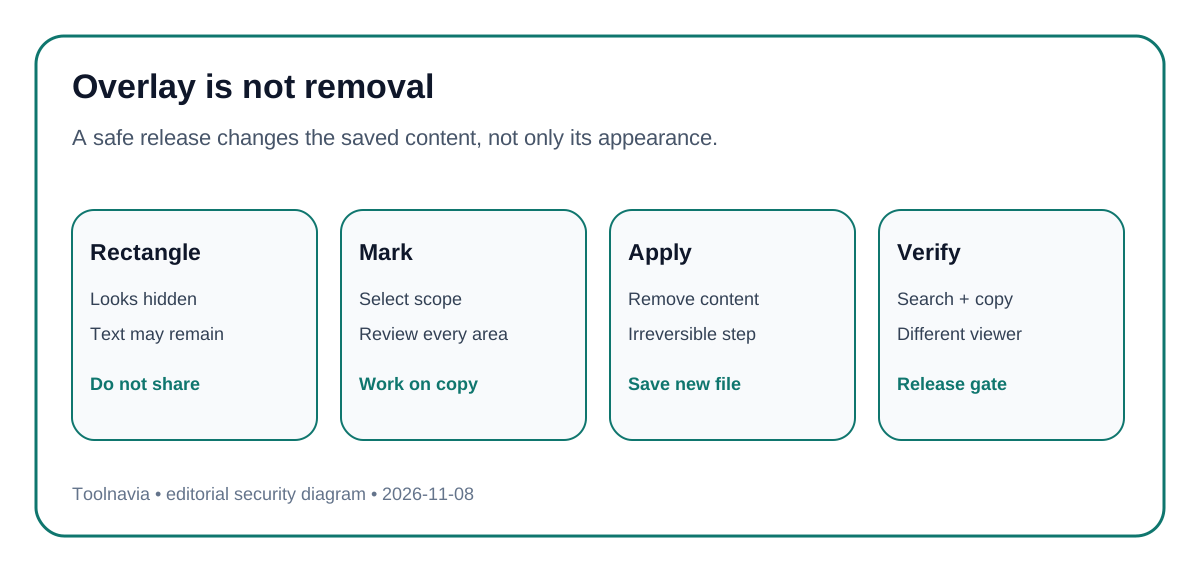
A rectangle, highlight or white text changes appearance, not necessarily document content. A recipient may select the covered area, copy text, search for a name, remove an annotation, inspect the content stream or open the file in another viewer. Court guidance explicitly warns that black highlighting and opaque boxes can leave data recoverable.
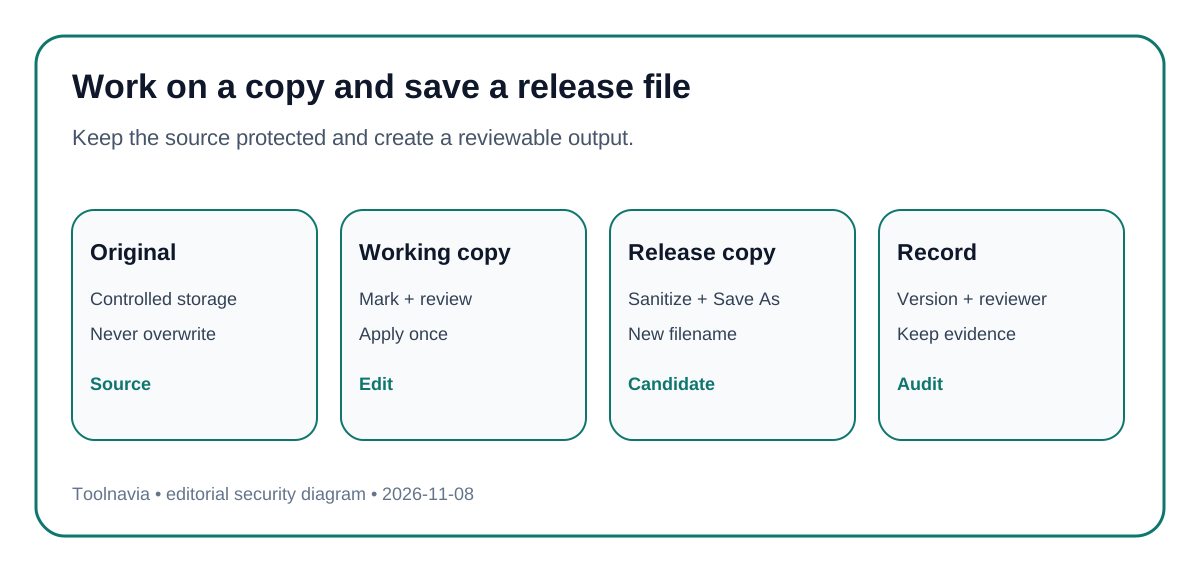
True redaction has two stages. First, mark the exact text, image or area. Second, apply the redaction so the selected content is removed in the saved output. PDFelement describes this as an irreversible operation, so work on a copy and keep the protected original separately.
Use PDFelement's apply-and-save workflow
Create a working copy, open Protect, choose Mark for Redaction, and mark the smallest necessary region. Search for repeated names, account numbers or phrases when the document permits text search; manually inspect scanned pages and images. Preview every mark before applying because an applied redaction cannot be restored.
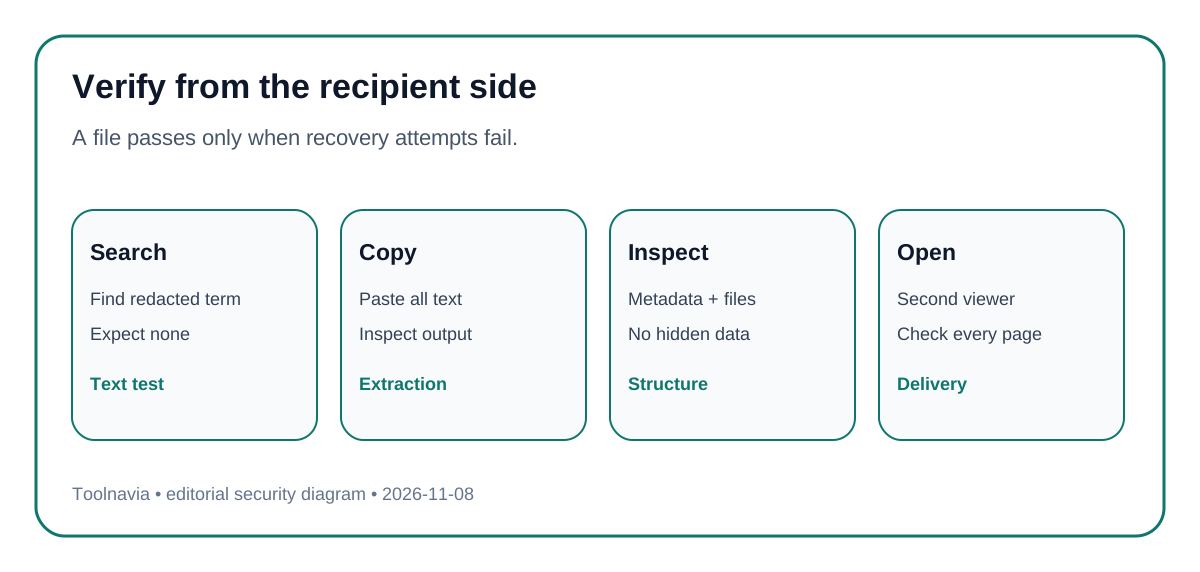
Apply all approved marks, then save to a new filename such as client-release-redacted.pdf. Do not overwrite the source. Close the editor and reopen the saved file in a different viewer. Try to select, copy and search the removed phrase. If the text can be recovered, the file is not ready to share.
Visible content and hidden data are separate
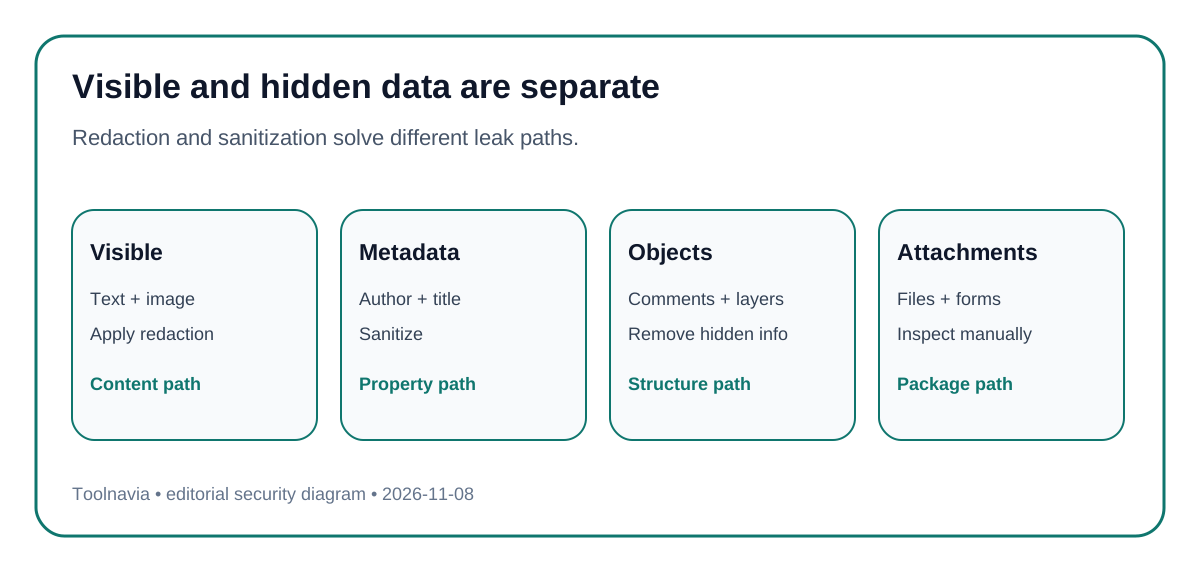
Removing visible text or graphics does not automatically prove that metadata, comments, hidden layers, embedded files, form values, scripts or revision traces are gone. Adobe and Foxit both treat sanitization or hidden-information removal as a separate control that can run with or after visible redaction.
Before release, inspect document properties, comments, attachments, forms and layers. Remove anything that is not required for the recipient. If the PDF came from a collaboration workflow, assume that author names, tracked notes or embedded source files may exist until checked. Saving a new copy creates a clean review boundary but is not itself proof of sanitization.
Run a recipient-side verification drill
Use a test copy containing harmless placeholder data. Mark and apply redaction, sanitize hidden information, and save a new file. Then open the result in at least one viewer that was not used to edit it. Search for the placeholder, select around the redacted area, copy all text to a plain-text editor, inspect properties and attachments, and zoom in on images.
For scanned PDFs, verify the image itself and any OCR text layer. For forms, export or inspect field values. For repeated records, test at least one page from the beginning, middle and end. Record the editor version, settings, output name and reviewer. This is a release test, not a claim that one tool guarantees regulatory compliance.
Compare paid alternatives by control, not by the black box
PDFelement, Acrobat Pro and Foxit PDF Editor all publish dedicated redaction workflows. Acrobat and Foxit make the visible-versus-hidden distinction especially explicit; PDFelement offers the marked/apply workflow inside its broader PDF editing package. The decision is not which product draws the darkest box. It is which workflow your team can repeat, review and verify.
Choose PDFelement when its Windows editing, conversion and document tools replace other utilities and the redaction test passes on your real document types. Choose Acrobat or Foxit when an existing organization policy, reviewer training or automation is already built around those products. For one-off low-risk documents, a trusted existing tool may be cheaper than a new subscription. Do not publish sensitive files through unverified browser tools.
Seven checks before buying or sharing
1. Confirm the release purpose, data categories and authorized reviewer. 2. Work on a copy and preserve the unredacted original in controlled storage. 3. Mark the smallest necessary text, image or page region. 4. Apply redaction; do not substitute rectangles, highlights or white text. 5. Sanitize metadata, comments, layers, attachments, scripts and form data. 6. Reopen the saved copy in another viewer and test search, copy, extraction and attachments. 7. Buy through the [approved PDFelement direct link](https://www.jdoqocy.com/click-101895278-11245626) only if the Windows cart and tested workflow fit. Save the cart terms and review record; publication does not imply search indexing or legal compliance.