TOOLNAVIA / BUYING GUIDE
PDFelement Batch Sign vs Request eSign: Who Should Use Which?
The short answer
PDFelement Batch Sign vs Request eSign: Who Signs—and What Evidence Do You Need?
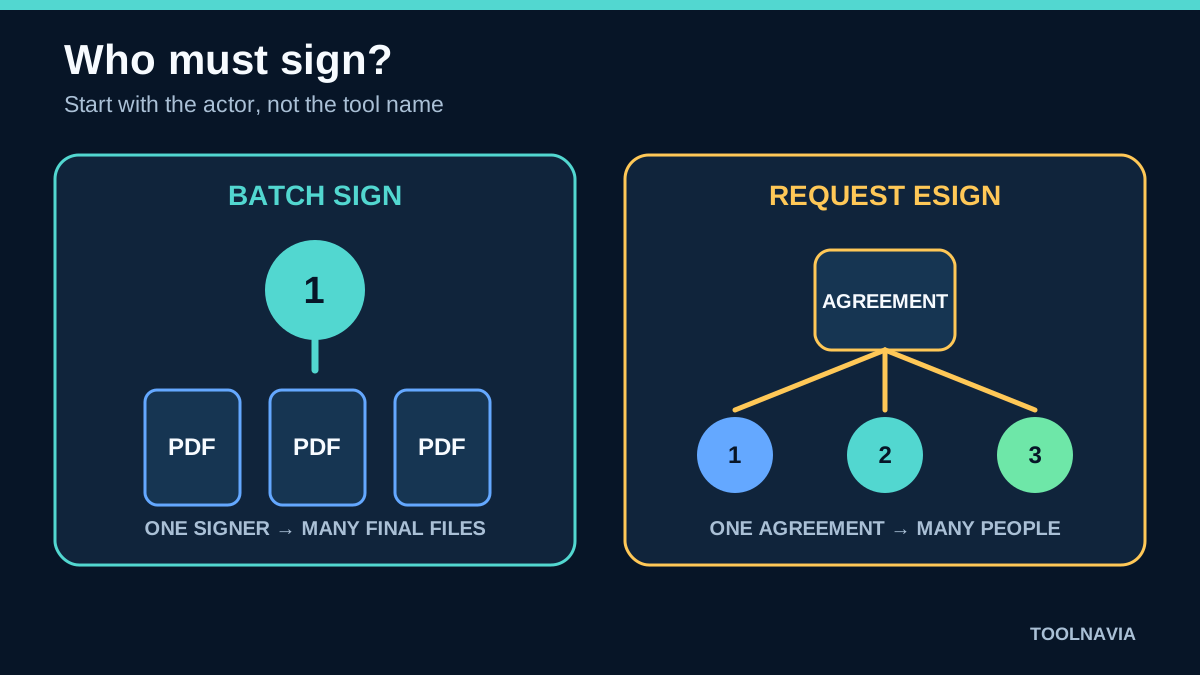
If you need to process a pile of PDFs, PDFelement offers two tools whose names sound similar but solve different jobs. Batch Sign is for one person—the buyer or operator—applying a signature or certificate across multiple local files. Request eSign is for sending an agreement to other people, assigning their fields, controlling signing order, sending reminders, and retaining status plus an audit report. Buy for the actor and evidence you need, not for the word “sign.”
Affiliate disclosure: Toolnavia may earn a commission if you buy through the approved PDFelement link. That does not change the price you pay or the decision tests below.
At a glance
- Best for
- One signer batch-signing final PDFs or teams collecting recipient eSign with separate pilot validation.
- Price model
- Live Windows Individual checkout controls current price, promotion, renewal and eSign/cloud entitlement; verify the cart before purchase.
- Check first
- Batch Sign does not create recipient routing or an eSign audit trail; visible/self-signed marks may not satisfy identity requirements; live plan controls.
Quick answer: choose by who must sign
Choose Batch Sign when you are the signer, the PDFs are already final, and the same signature placement or field logic works across the set. The Windows and Mac guides show a workflow built around importing several files, creating or selecting a digital ID, choosing signature information, setting placement, and applying the result to selected pages.
Choose Request eSign when other people must complete or approve an agreement. PDFelement sends email invitations, lets the sender arrange recipient order and assign fields, tracks progress, sends reminders, and provides a completed file with an audit report. This is a cloud recipient workflow, not simply a faster way to stamp files.
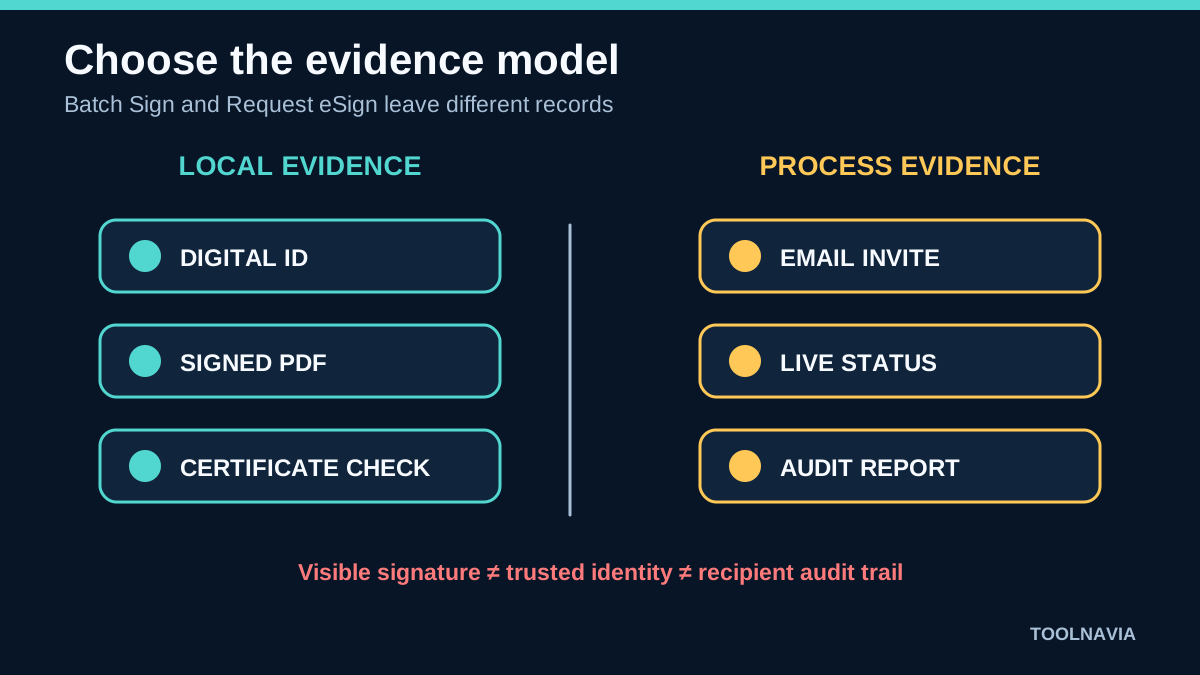
The practical dividing line is evidence. Batch Sign produces signed local PDFs. Request eSign produces a participant workflow with notifications, signing events, and an audit package. If your process needs both, prepare and locally certify the final template only when appropriate, then send a separate recipient copy through eSign. Test that order with your legal or compliance owner before using it at scale.
What Batch Sign actually does
PDFelement’s Batch Sign tool can load multiple PDFs and apply a digital or handwritten signature in one operation. For certificate-based signing, you create or select a digital ID, enter the reason for signing, choose an appearance, and place the signature field. On Windows, the guide exposes page and position controls; on Mac, the workflow likewise supports creating or reusing an ID and adjusting the signature area.
This is useful for a principal who signs many finalized letters, reports, approvals, certificates, or release copies. It reduces repetitive opening and saving. It does not ask recipients to complete their own fields, confirm consent by email, or create a per-recipient signing trail.
Do not treat every visible signature as equivalent. A typed name, drawn mark, or uploaded signature image can communicate intent, but it is not the same as a certificate-backed digital signature that protects document integrity and exposes certificate details. A self-signed ID may show that a file changed after signing, yet it does not independently prove identity like a certificate issued by a trusted authority. Decide which evidence your recipient will accept before processing the batch.
What Request eSign adds
Request eSign starts with recipients rather than files. You add email addresses, arrange a signing order, optionally include yourself first or last, set reminders, and place signature, initial, date, title, or company fields for each participant. Signers receive an email link and can complete the agreement from a browser or supported device.
The Agreement panel shows activity and status. When the process finishes, the sender can download the signed PDF and an audit report. That makes Request eSign a better fit for contracts, acknowledgements, approvals, onboarding forms, and other workflows where another person must act and the sender needs to prove what happened.
Vendor pages describe alignment with several security and regulatory frameworks. Treat those as vendor claims, not as a guarantee that your specific contract, identity method, retention policy, or jurisdiction is compliant. Your organization still decides whether the authentication, audit data, certificate provider, retention, and consent language are sufficient.
The actor-and-evidence matrix
Use four questions before paying.
First, who signs? If one internal signer applies the same approval to many completed PDFs, Batch Sign fits. If customers, employees, vendors, or multiple approvers sign, Request eSign fits.
Second, what evidence is required? If recipients only need a certificate-signed final file, local digital signing may be enough. If you need email delivery, field assignment, reminders, status, timestamps, and an audit report, use eSign.
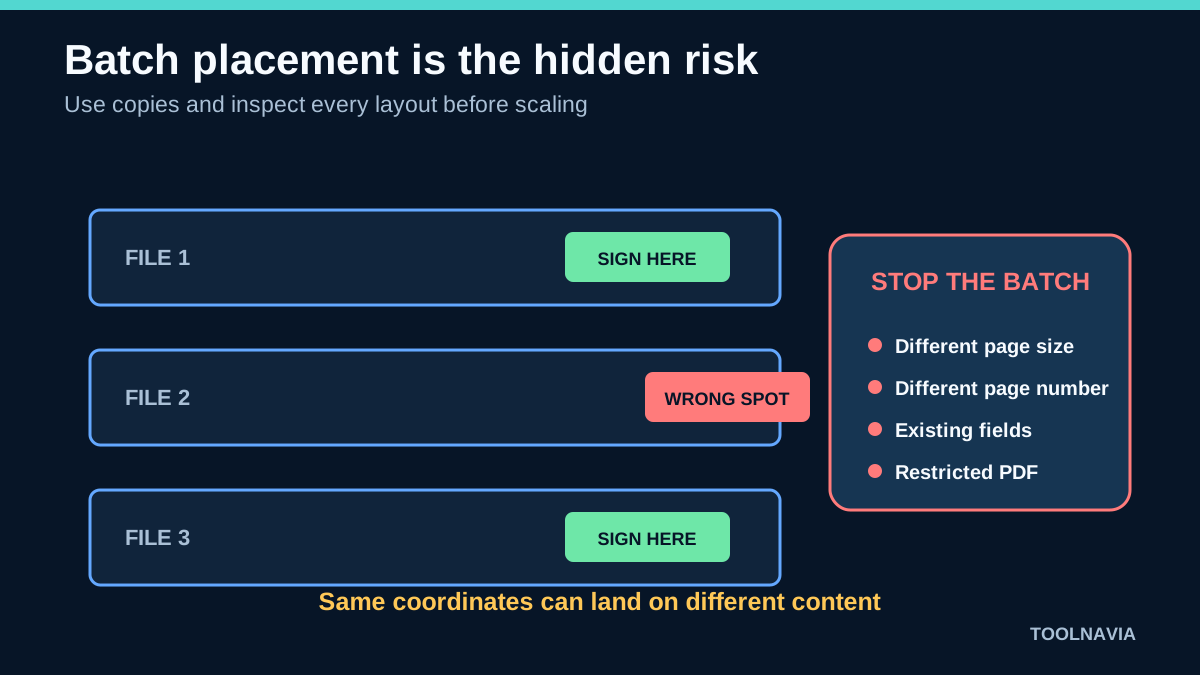
Third, does every file share the same layout? Batch placement is efficient only when the signature field belongs on the same page and coordinates or when matching fields already exist. A mixed batch can put a signature over text, on a blank page, or in the wrong approval block.
Fourth, is a signing sequence required? Batch Sign does not create a recipient route. Request eSign can order recipients and assign fields. A procurement package that needs manager, supplier, and finance approval is therefore an eSign job even if the sender also signs.
Five-file pilot before scaling
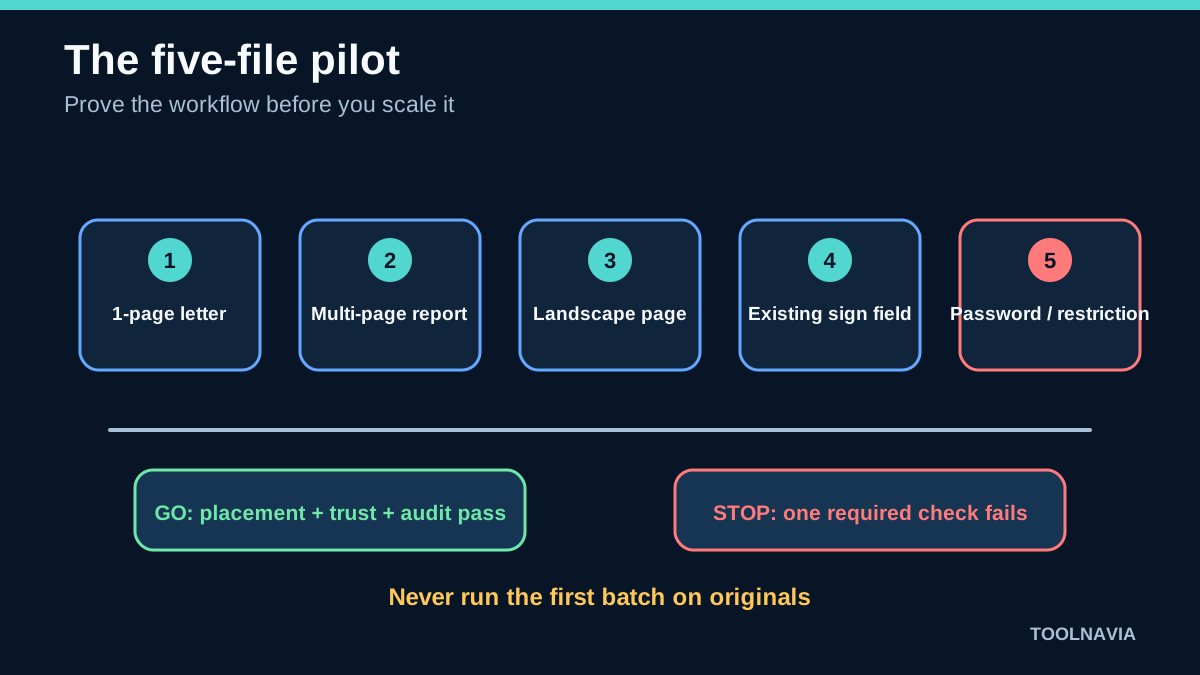
Create five sacrificial copies: a one-page letter, a multi-page report, a landscape page, a PDF with an existing signature field, and a password-protected or restricted file. Never run the first test on originals.
For Batch Sign, confirm that the correct digital ID is selected, the certificate name is expected, the page rule is correct, the signature rectangle does not cover content, and each output opens with a valid signature status. Test one file with a different page size because fixed coordinates may shift. Reopen every output outside PDFelement and inspect the certificate and changed-document warning.
For Request eSign, use test inboxes representing each role. Confirm the signing order, field ownership, reminder behavior, mobile usability, decline path, completed email, and audit-report download. Verify that a signer cannot edit someone else’s field and that the sender can distinguish viewed, waiting, declined, and completed states.
Stop the rollout if even one file lands on the wrong page, a certificate is untrusted, an audit report is missing, or a participant can bypass a required field. Fix the template or choose the other workflow before scaling.
Plans, trial limits, and hidden costs
The workflow claims above are tied to the registered research: PDFelement's Windows and Mac Batch Sign guides, its signature-method page, Request eSign guide and overview, and the live Windows Individual matrix. The buying comparison uses Adobe recipient bulk send and bulk digital signing, Foxit certificate signing, Bluebeam Batch Sign & Seal, PDF-XChange batch certificate signing, and Nitro recipient bulk send.
Four evidence-backed advantages have explicit boundaries. **PDFelement Batch Sign workflow** reduces repetitive opening, signing, and saving when one person signs many finalized letters, reports, or approvals; it does not create recipient consent, routing, or a per-recipient audit trail. **Request eSign collection workflow** collects signatures from other people with assigned fields and status tracking for contracts, acknowledgements, and onboarding; cloud allowances, recipient authentication, and legal sufficiency still depend on the current plan and policy. **Digital ID and certificate signing** can protect document integrity and expose signature details when recipients verify files; a handwritten image or self-signed ID is not automatically trusted identity proof. **Desktop plus cloud signing workflow** lets a small team use one product for local editing and cloud signature collection; the two tools remain separate evidence models and may require different entitlements.
The current PDFelement feature matrix lists Batch Sign or Sign Document and Request eSign among paid capabilities, while trial labels and cloud entitlements can differ. Prices, promotions, eSign quotas, cloud storage, and AI allowances can change independently. Check the live Windows Individual checkout and the eSign/cloud limits on the day you buy.
Also budget for the certificate, not just the PDF editor. Creating a local self-signed ID may cost nothing, but a trusted certificate from a recognized provider can add cost and identity-verification steps. Cloud eSign may add usage limits or plan requirements. Team administration, shared templates, analytics, and recipient authentication may require a business tier even when a desktop license covers local editing.
Compare alternatives by the same job. Adobe distinguishes recipient bulk send from bulk digital signing and gates some advanced bulk signing behind Acrobat Sign solutions. Bluebeam limits Batch Sign & Seal to higher plans. Nitro bulk send is recipient-oriented and plan-gated. Foxit and PDF-XChange support certificate workflows, but identity trust still depends on the digital ID and recipient validation.
Who should buy—and who should not
Buy PDFelement for Batch Sign if you already prepare finalized PDFs, personally sign many of them, can standardize fields or placement, and will validate the outputs. The value comes from repeatability, not from turning a signature image into stronger evidence.
Buy for Request eSign if the real work is collecting signatures from other people and you need routing, reminders, status, and an audit package. Confirm the current allowance and test the recipient experience before committing a large workflow.
Do not buy solely because the product says “batch.” If files have different layouts, signers need individual review, or your policy requires a managed certificate provider, the shortcut can create more cleanup than it saves. Do not use Request eSign merely to stamp your own archive files, and do not use Batch Sign when recipient consent and audit events are required.
Verdict: one product, two separate signing jobs
PDFelement can cover both local batch signing and remote signature collection, but the tools are not interchangeable. Batch Sign answers “How can I apply my signature to many final PDFs?” Request eSign answers “How can I collect and track other people’s signatures?”
Start with a five-file and two-recipient pilot. Verify signature placement, certificate trust, required fields, notifications, and the audit report. If those tests pass and the current plan includes the workflow you need, PDFelement is a reasonable all-in-one purchase. If they fail, select a specialist that matches the evidence model instead of forcing the cheaper-looking workflow.