TOOLNAVIA / BUYING GUIDE
pCloud Conflicted Copies: Is Premium Safe for Team Editing?
The short answer
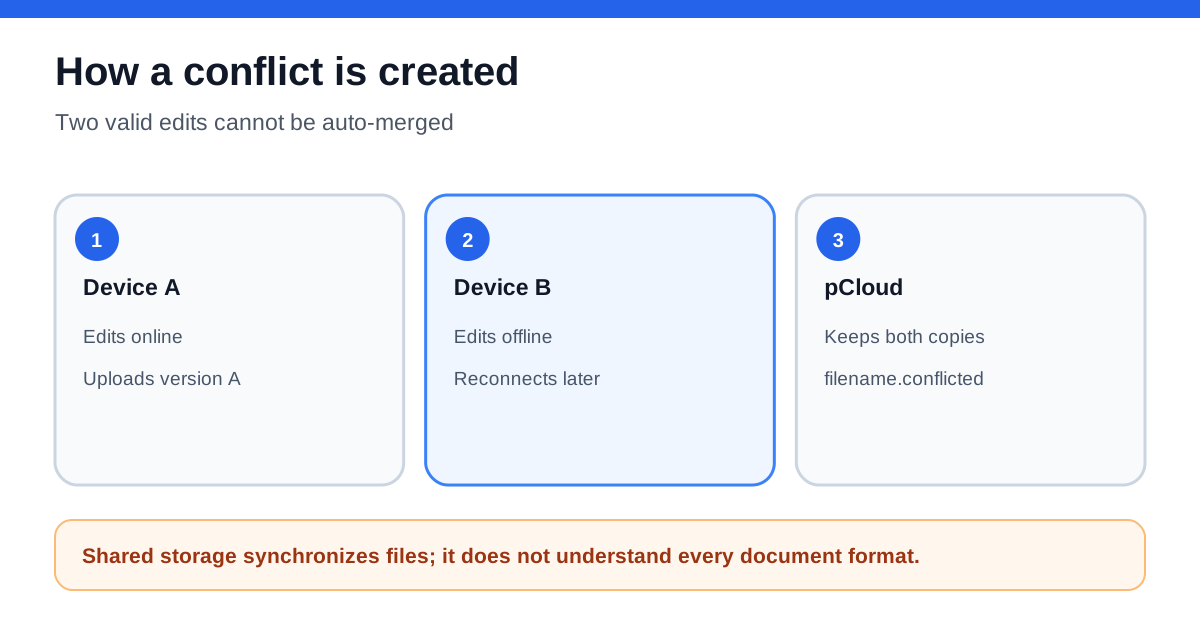
pCloud Premium can share folders and synchronize edits, but it is not a real-time coauthoring system for ordinary files opened through pCloud Drive. If two people save the same file at once—or one edits offline while another changes the cloud copy—pCloud can create a separate `filename.conflicted` file instead of merging the work. Premium 500 GB is a reasonable personal plan for turn-based collaboration, not a license to edit the same desktop document simultaneously. Buy only after a two-device conflict drill proves that your team can prevent, detect and recover competing edits.
At a glance
- Best for
- Small teams that can coordinate turn-taking and manually merge occasional conflicted copies.
- Price model
- Premium 500 GB via monthly, annual or Lifetime routes; verify localized checkout.
- Check first
- Premium does not provide real-time coauthoring for ordinary desktop files; actively used databases and mail stores should be excluded.
Storage and permissions do not eliminate edit conflicts
The current pCloud Premium plan provides 500 GB of storage and 1,000 GB of monthly shared-link traffic. The official pricing page offers monthly, annual and Lifetime routes; the localized page we checked displayed a promotional Lifetime price, but campaigns, currency and checkout terms can change. Use the live checkout rather than treating a search result as a guaranteed price.
An invited folder can grant View, Edit or Manage access, and recipients need pCloud accounts to accept the invitation. Those permissions decide who may change files; they do not lock a file while someone else edits it. pCloud’s Business collaboration documentation explicitly warns that ordinary documents do not support real-time simultaneous editing and that competing edits can produce a conflicted file.
That limitation is different from pCloud Docs, a web editor with its own collaboration behavior. This guide concerns files synchronized through pCloud Drive or shared folders—Word documents, design files, spreadsheets and other desktop formats. Do not assume that a “shared” folder provides the same coauthoring engine as a browser-native editor.
Why a conflicted copy appears
pCloud documents `filename.conflicted` as an additional copy created when multiple changes occur at the same time. Frequently updated or application-managed files are especially risky. pCloud specifically discourages syncing PST/OST mail stores, `.git` directories, browser data, hidden or system files, and other files that remain open or change continuously. Exclusions must be configured before starting Sync, Back up or Upload; adding them after a job starts may require stopping the job and removing the affected cloud copy first.
The behavior is not unique to pCloud. Dropbox creates a conflicted copy when two users edit simultaneously, when one works offline, or when an open file autosaves on another computer. Microsoft likewise warns that simultaneous or offline edits can cause OneDrive conflicts and recommends distinct filenames when resolving them. These comparisons show that file synchronization and real-time document merging are different product capabilities.
Run a two-device conflict drill
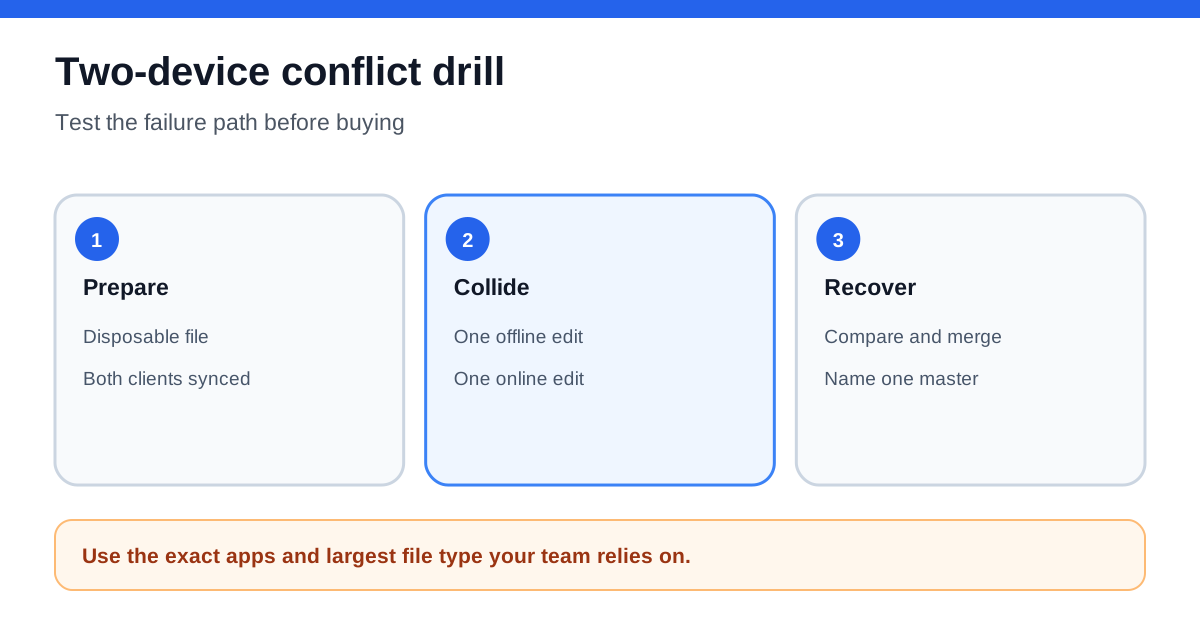
Do not test with a live contract, accounting workbook or production design. Create a disposable document in the exact shared folder and use the actual desktop applications your team relies on.
1. Open the file on two devices and confirm both clients report fully synchronized. 2. Disconnect device B from the network. 3. Add a clearly labeled paragraph on device A and let it upload. 4. Add a different paragraph on offline device B, save, reconnect and wait for synchronization. 5. Look for the original, a `.conflicted` copy, activity history and earlier revisions. 6. Compare both files manually, merge the wanted changes into one canonical copy, and archive or delete the duplicate only after review.
Repeat the drill with both devices online and saves separated by a few seconds. Then repeat it with the largest and most complex file type used by the team. A workflow is ready only when everyone knows which copy is authoritative, who merges differences and how long recovery takes.
Recovery helps after a conflict; it does not prevent one
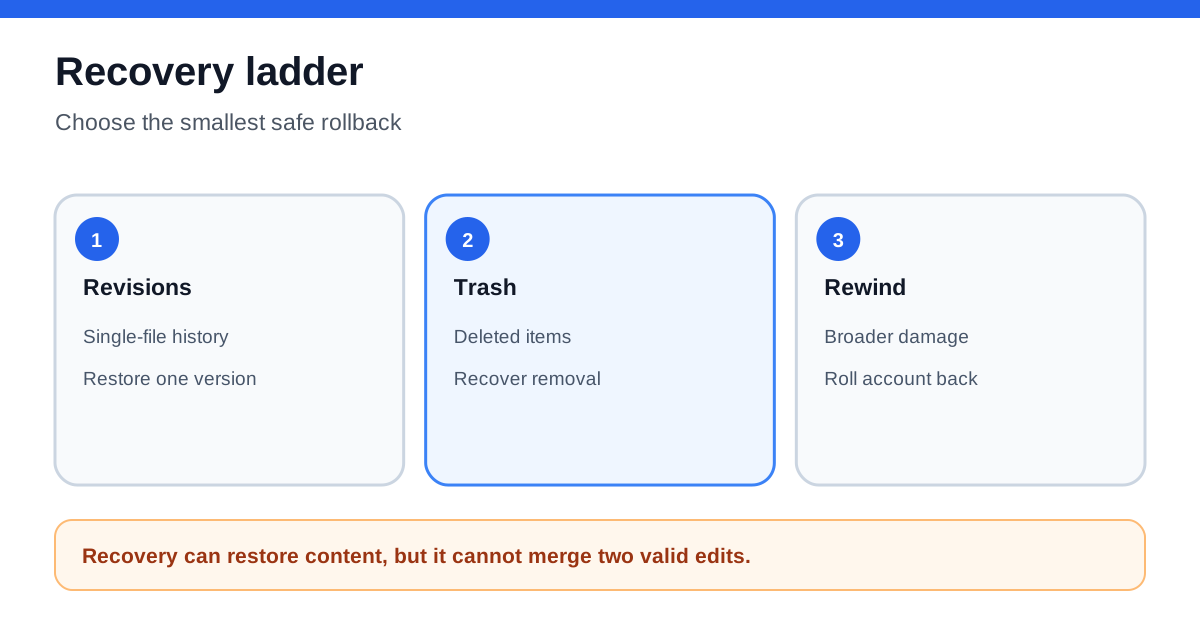
pCloud Revisions stores earlier file versions and is accessed from the website. pCloud’s current documentation says paid plans retain standard history for a limited period, while Extended File History can extend Revisions, Trash and Rewind to 365 days after activation. Revisions works file by file; Trash restores deleted items; Rewind targets broader account-level damage.
Those tools can recover overwritten work, but they do not merge two valid edits. Record the editor, timestamp and reason before restoring an older revision. If the conflict affects many files, pause synchronization and investigate instead of repeatedly restoring while clients continue uploading.
For transfer errors, pCloud offers Retry, Cancel and Ignore actions. Ignore is not a repair: it stops reporting an item until the sync configuration changes. Correct the underlying filename, permission, connection or exclusion issue first.
Premium, Business, or another workflow
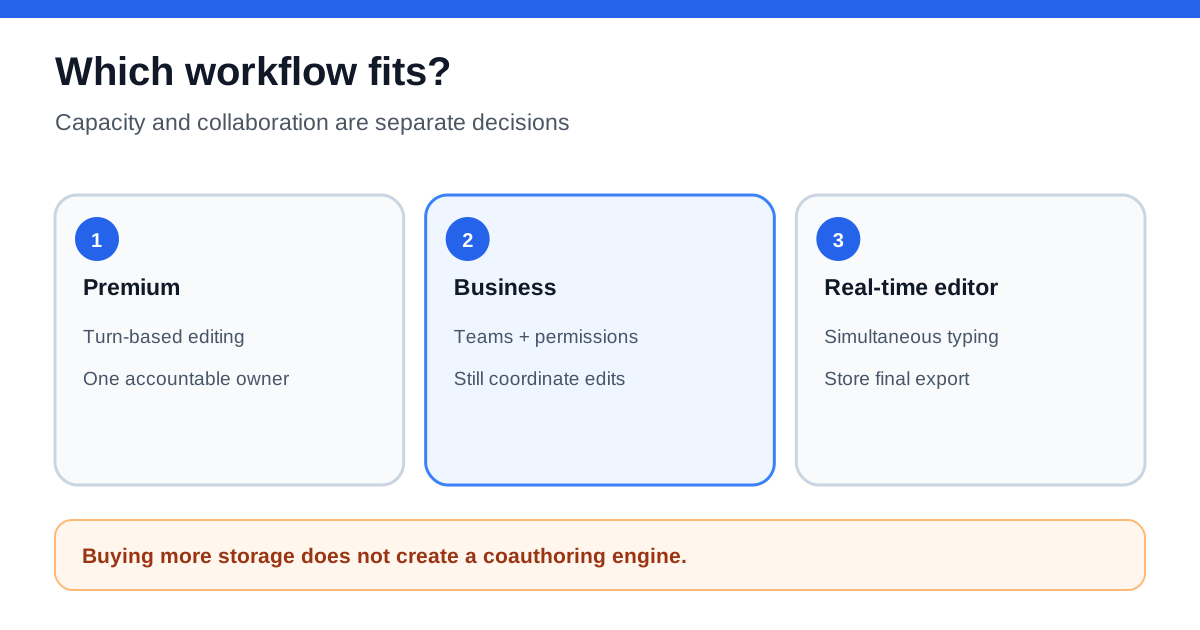
Choose **Premium 500 GB** when one accountable owner can coordinate turn-taking, the storage and traffic limits fit, and conflict recovery is occasional. It can be enough for a freelancer and client or a small team that uses “In Use” folders, status messages or a simple check-out convention.
Choose **pCloud Business** when you need team administration, controlled access levels, team folders, activity oversight and a business account structure. Business improves governance, but pCloud’s own help still says it does not turn ordinary synced files into simultaneous real-time documents.
Choose **a real-time editor or document platform** when multiple people must type in the same file concurrently. Google Docs, Microsoft 365 coauthoring or another format-aware service may be a better fit; storing the final export in pCloud can remain part of the archive workflow. Google Drive’s official troubleshooting also separates synchronization health from document editing, reinforcing that a healthy sync client is not itself a merge engine.
The buying decision is therefore operational: if your team can take turns and pass the conflict drill, Premium may be sufficient. If simultaneous editing is non-negotiable, buying more pCloud storage does not solve the core problem.
*Affiliate disclosure: Toolnavia may earn a commission if you purchase through its approved pCloud referral link. This does not change the recommendation to test conflicted copies, confirm current checkout terms and choose a real-time editor when the work requires simultaneous changes.*