TOOLNAVIA / BUYING GUIDE
PC Fresh Undo Changes: What Rolls Back—and What Does Not?
The short answer
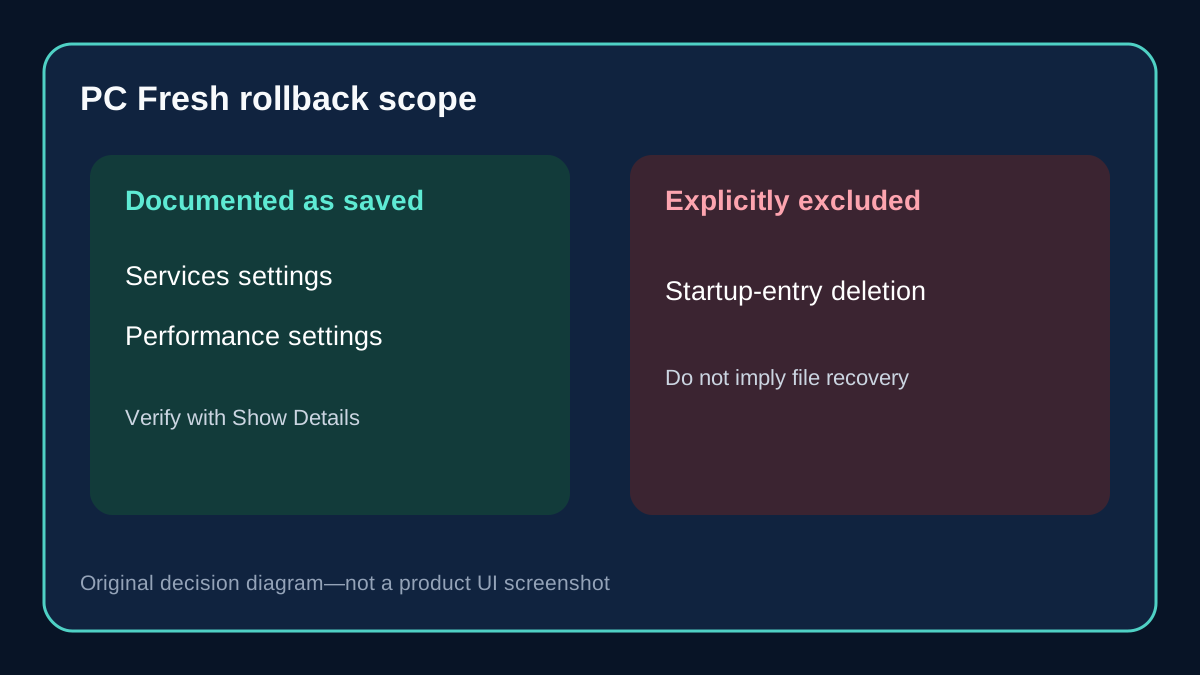
PC Fresh is easier to judge as a change-management purchase than as a promise to make every Windows PC faster. The decisive question is not how many optimization switches it exposes. It is whether you can see what changed, know which changes the product can reverse, and keep a separate recovery path for everything outside that boundary. Abelssoft documents a useful but limited answer: PC Fresh saves adjusted settings made through optimizations in its Services and Performance sections, while startup entries are excluded from that rollback record.
That distinction changes the buying decision. A buyer who expects a universal undo button could be disappointed. A buyer who wants a guided interface, a visible change history and a bounded way to reverse supported settings may find recurring value—provided the trial proves that the workflow is clearer than Windows' own controls.
Start with the rollback contract
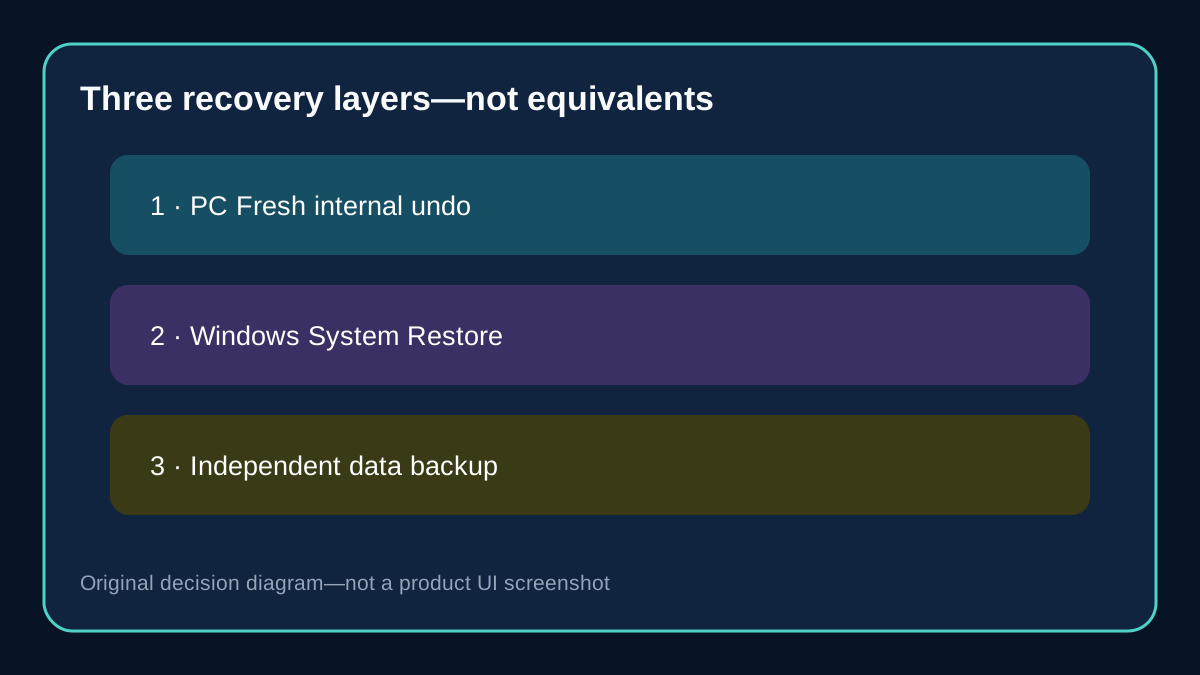
Treat every proposed optimization as belonging to one of three recovery layers.
Layer one is PC Fresh's own saved settings. The official support page says optimization changes in Services and Performance can be reverted, and that Show Details reveals which settings were changed or restored. This is the most direct path when the affected setting is actually inside that supported record.
Layer two is Windows System Restore. Microsoft describes restore points as snapshots used to return system files, registry settings and installed programs to an earlier state without affecting personal files. This is a broader Windows recovery mechanism, not evidence that PC Fresh recorded an individual change. Applying a restore point can also affect programs and settings beyond the one optimization you meant to test.
Layer three is an independent backup of data you cannot recreate. Neither an optimizer's undo list nor System Restore should be presented as a substitute for a verified backup of important documents. PC Fresh's page does not claim that its optimization rollback is personal-file backup or deleted-file recovery.
The practical contract is narrow: use the product's own undo function for a supported recorded setting; preserve Windows recovery options for wider system problems; keep valuable data protected independently.
At a glance
- Best for
- Users who repeat careful Windows maintenance and value a visible record for supported Services and Performance changes.
- Price model
- Official page displayed EUR29.95 on 2026-10-31; verify final checkout, tax, entitlement and renewal wording.
- Check first
- Buyers expecting universal undo, deleted-file recovery, hardware repair or guaranteed speed gains.
What PC Fresh actually records
PC Fresh's official support documentation identifies Services and Performance as the sections whose adjusted settings are saved. It also says Show Details can display information about settings that were changed or restored.
Before changing anything, write down the exact setting or service, its current state, why the recommendation appears relevant, and the rollback route you expect to use. This small ledger matters because “optimization” is too broad for diagnosis. Disabling one background service, changing a performance setting and removing a startup entry are different operations with different consequences.
The official product page offers one-click recommendations, Power-Now, manual controls, startup management and service controls. These features describe what the interface can attempt; they do not prove that every change improves your workload or that every action shares the same undo coverage.
If a recommendation cannot be tied to a named setting and a visible return path, do not treat the presence of an Optimize button as enough evidence to proceed.
Why startup entries are the exception
Abelssoft explicitly excludes startup entries from the saved rollback described in its undo article, explaining that deleted files cannot be stored. Do not translate that into “PC Fresh can restore any startup change,” and do not imply file recovery.
For a startup item, first determine whether the action is a reversible enable/disable choice or a deletion. Record the item name and publisher, and avoid deleting an unfamiliar component merely because it starts with Windows. Security tools, backup agents, accessibility utilities, device helpers and synchronization software can all have legitimate reasons to run.
If the interface proposes deletion and you cannot document how the entry would be recreated, leave it unchanged during the purchase trial. A product can still be useful for reviewing startup pressure without making deletion the test of value. The safer buying question is whether PC Fresh explains the item and helps you make a deliberate decision, not whether it can remove the largest number of entries.
Keep Windows System Restore as a separate layer
Microsoft says System Restore can reverse recent software installations, driver updates or system-setting changes by returning system files, registry settings and installed programs to a selected restore point. Personal files are not affected, but recently installed programs and settings can be.
That scope is different from PC Fresh's item-level saved settings. PC Fresh undo is the first choice for a supported change that appears in its own record. Windows System Restore is a wider recovery action and may reverse unrelated recent changes. An independent data backup protects information that neither mechanism is designed to replace.
Before testing a consequential optimization, confirm that Windows System Protection is available and that you understand what a restore would affect. A restore point is a fallback, not permission to apply several unknown changes at once. If the machine is managed by an employer or school, follow the organization's support policy instead of changing services independently.
Compare undo design, not speed promises
Competing utilities make the value of rollback design easier to see.
AVG TuneUp documents an Undo Center that reverses certain changes from stored backups. AVG also states that not every action can be reversed and lets users choose backup categories and retention.
IObit's Advanced SystemCare separates rescue paths for registry and system optimization, Internet Boost, Registry Defrag, Startup Optimization and Security Reinforce. Its manual lists Windows restore points separately, reinforcing that a tool's internal rescue records and operating-system recovery are different layers.
Ashampoo WinOptimizer documents a Backups module for selected changes and a distinct System Restore Manager. Its backup list can be viewed, restored or deleted, so retention is part of the recovery design rather than an invisible guarantee.
Glary Utilities distinguishes Undo Changes from System Restore and warns that the operation record must still exist. It lets users choose protected modules and manage backup retention.
These examples do not prove that another utility is better. They establish the questions a careful buyer should ask PC Fresh during the trial: Which categories are recorded? Can I inspect the exact change? Does the record survive a restart? Can I restore one item without rolling back unrelated work? What actions are excluded? How long does the evidence remain available?
Run one controlled reversibility test
Use the 30-day trial for one change you understand, not a batch of recommendations. The official product page states that the trial is limited to 30 days and shows a purchase dialog at each start.
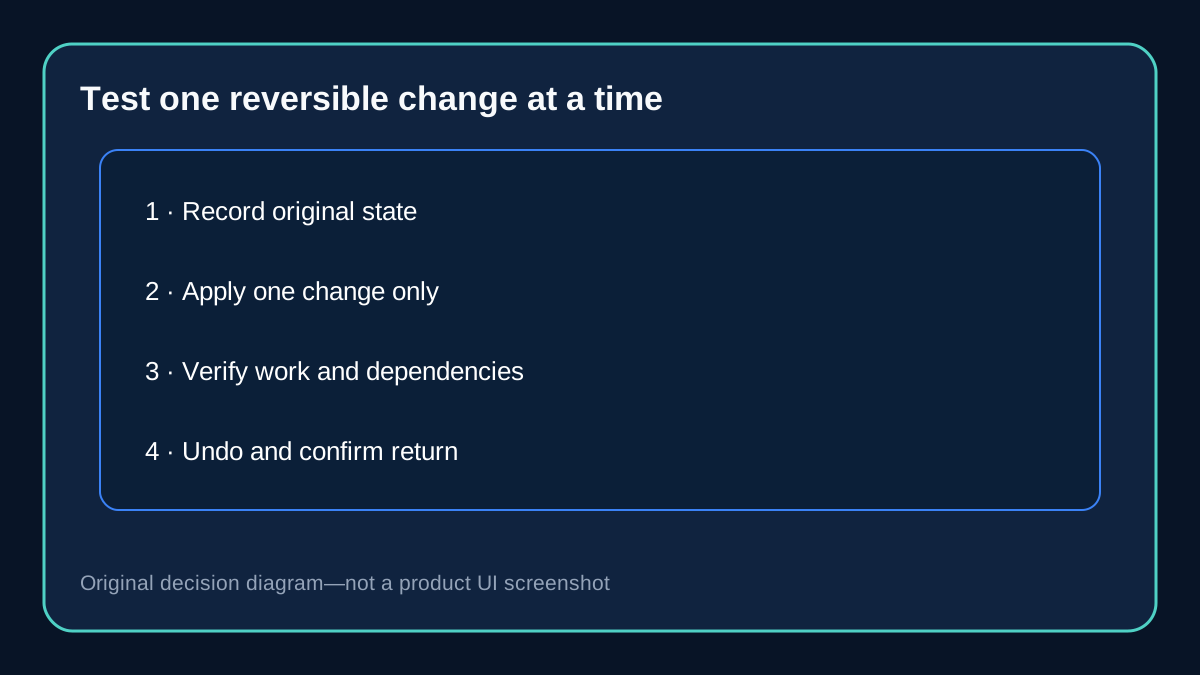
1. Choose one noncritical Services or Performance setting that PC Fresh identifies. 2. Record the original state, the recommendation and the expected effect. 3. Confirm that the item appears in Show Details or the relevant saved-change view. 4. Apply only that change. 5. Restart if the interface or Windows requires it. 6. Verify the normal task you meant to improve and check networking, printing, backup, security and accessibility functions you rely on. 7. Use PC Fresh's documented restore path for that item. 8. Restart again if appropriate and confirm that the original state returned.
A successful test requires two results: the change is observable, and the rollback is verifiable. A lower memory number or a vendor message saying the PC is optimized is not enough. If you cannot establish the original state, do not claim that the rollback worked.
Do not use this test on a business-critical machine, and do not disable security, backup, encryption, VPN, remote-access or accessibility services merely to produce a performance difference. The purpose is to evaluate control and evidence, not to manufacture a dramatic benchmark.
When rollback visibility is worth paying for
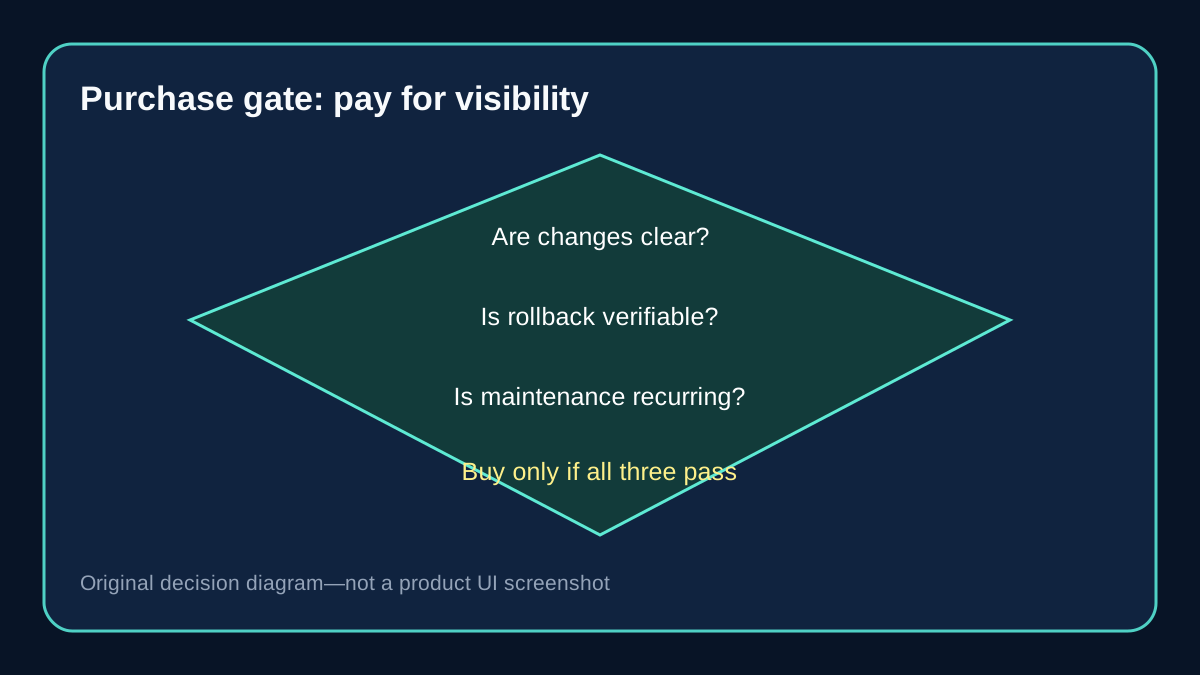
PC Fresh can be worth buying when you repeatedly review Windows services or performance settings; the interface explains changes more clearly than your current process; supported changes appear in a usable detail record; and you can reverse a tested change without disturbing unrelated work.
Skip the purchase when you only need to change one known setting, when Windows' own controls are already clear enough, or when you expect the tool to repair failing hardware, recover deleted files or guarantee a speed increase. A slow workload caused by insufficient memory, storage failure, thermal limits or an unsupported application is not solved merely by having more optimization switches.
The value is operational: a guided record can reduce uncertainty in maintenance you genuinely repeat. If that record does not make decisions easier during the trial, the paid interface has not demonstrated its advantage.
Price, trial and evidence limits
On October 31, 2026, the official English page displayed €29.95 for PC Fresh Version 2026 (v2026.12.03), listed Windows 11, 10, 8.1 and 7, and described at least six months of free updates and new versions for the full version. It also listed a 30-day trial. Verify the live checkout, tax, currency, device entitlement and renewal wording before paying; the product page alone does not establish every final order term.
Toolnavia has not performed an independent speed benchmark for this guide. Product performance statements remain vendor claims. This article instead evaluates documented rollback scope, recovery separation and a controlled trial method.
The purchase link opens the approved official PC Fresh destination. Toolnavia may receive a commission from qualifying purchases. That relationship does not change the central limit: Services and Performance adjustments are documented as saved, while startup entries are excluded from the described rollback record.
Sources
Abelssoft PC Fresh official product page, checked October 31, 2026. Abelssoft Support, “How can I undo changes?”, checked October 31, 2026. Microsoft Support, “System Restore”, checked October 31, 2026. AVG Support, “AVG TuneUp - FAQs”, checked October 31, 2026. IObit, “Advanced SystemCare User Manual”, checked October 31, 2026. Ashampoo Support, “WinOptimizer 2024: Manual”, checked October 31, 2026. Glarysoft Knowledge Base, “Restore Center”, checked October 31, 2026.