TOOLNAVIA / BUYING GUIDE
PC Fresh Service Optimization: Faster Windows Without Breaking Updates?
The short answer
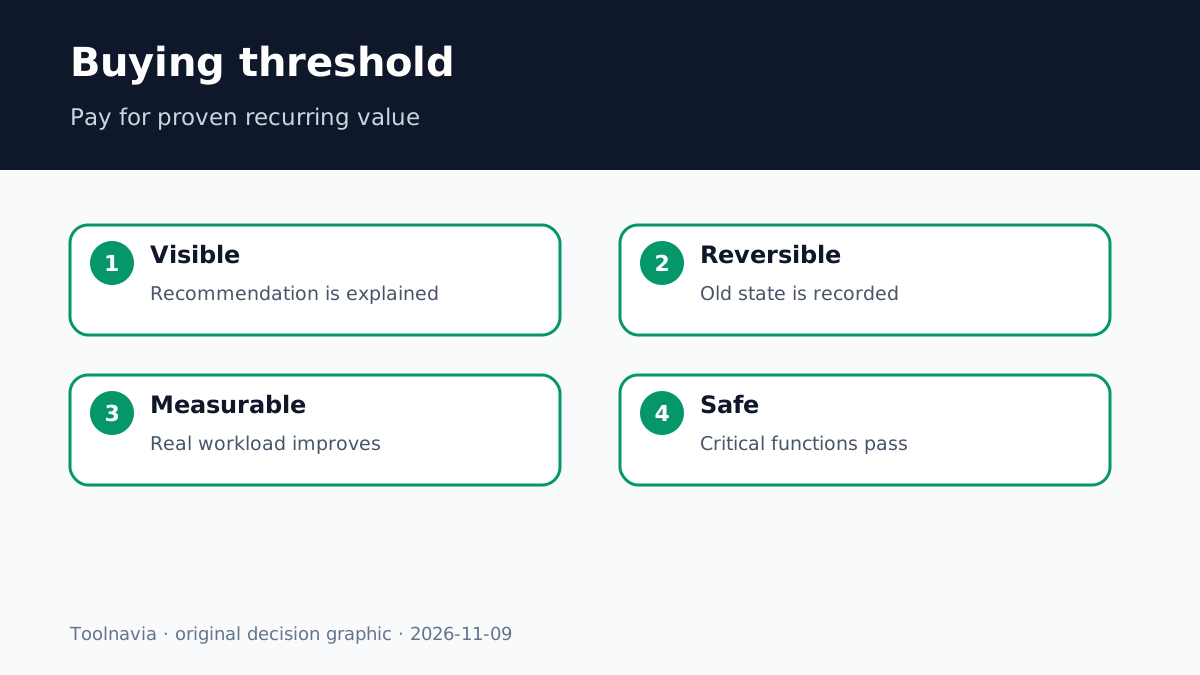
PC Fresh can switch off background services and promises more performance, but the buying question is not “How many services can I disable?” It is whether the tool helps you find a repeatable gain without breaking Windows Update, security, sign-in, printing, audio, Bluetooth, VPN or other work you use. Abelssoft currently lists PC Fresh 2026 at €29.95 with a limited 30-day trial. Treat the trial as a controlled test, not permission to accept every recommendation.
This article contains affiliate links. Toolnavia may earn a commission at no extra cost to you. That does not change the safety rule: measure one category at a time and keep essential Windows services intact.
At a glance
- Best for
- Careful Windows users who will review each recommendation, record the old state and verify a real workload after reboot.
- Price model
- Official page displayed EUR29.95 on 2026-11-09; verify checkout, tax, entitlement and updates.
- Check first
- Buyers expecting guaranteed speed, unattended aggressive service disabling, universal rollback or business-critical changes without IT policy.
The speed claim is not the decision
Abelssoft says Power-Now can switch off “unnecessary services” with one click and that individual optimization settings can be changed manually. Those are product claims, not proof that a particular PC will become faster. The bottleneck may be storage, heat, memory pressure, an application, a driver or a network problem rather than a service.
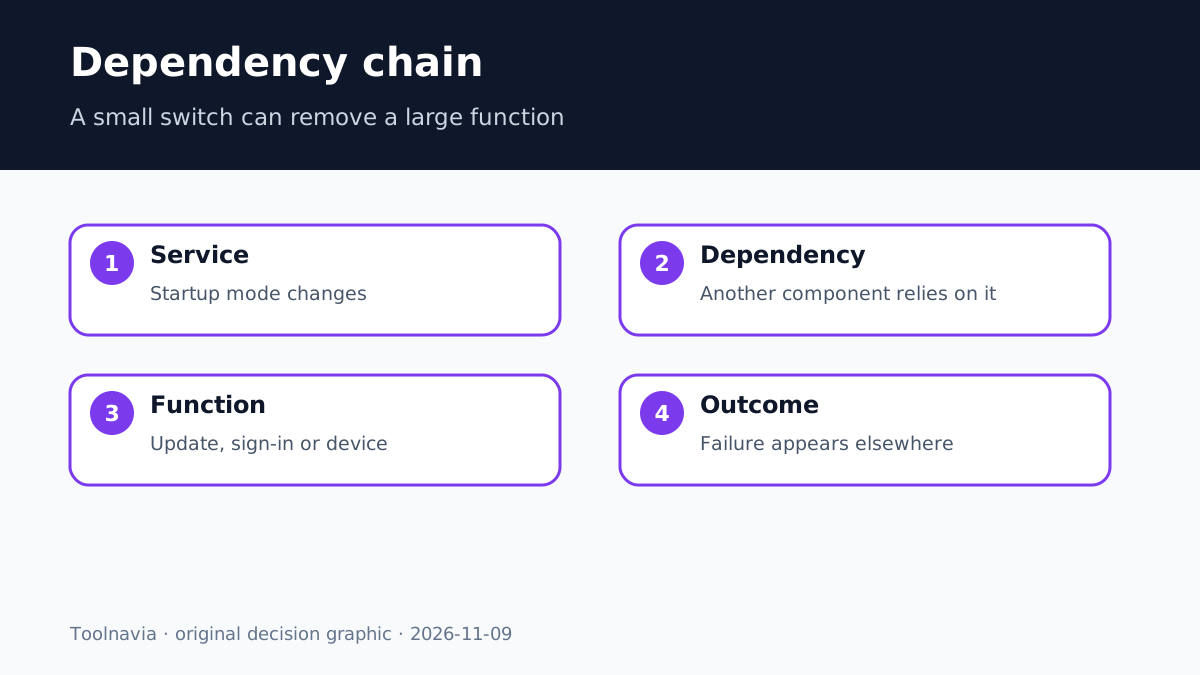
Microsoft describes Windows Update as essential for keeping Windows secure, current and working as expected. Its security guidance also notes that Automatic Updates depends on Background Intelligent Transfer Service (BITS). Disabling a dependency can remove a function even when the service name looks unrelated.
The useful question is narrower: does PC Fresh give you enough visibility and control to identify low-value background work, preserve dependencies and prove a benefit?
Separate startup apps, processes and services
These controls are not interchangeable:
- A startup entry decides whether an app launches when you sign in. - A background process belongs to an application and may return when you open it. - A Windows service can support updating, authentication, networking, devices or another system component.
Competitors illustrate the boundary. AVG TuneUp describes putting applications to sleep and warns that daily-used or background-dependent apps can lose functionality; its Undo Center says not every action can be reversed. Avira asks users to review suggested startup apps and uncheck anything they want left unchanged. Avira also lists service management as a separate tool, reinforcing that startup review and service control are different actions. These approaches support a preview-first workflow, not blind one-click acceptance.
A current PC Fresh comparison describes the product as a narrower startup/service/RAM tool, while a hands-on-oriented review reports that its service screen recommends disabling or setting some items to Manual. A same-intent service optimizer asks device-use questions before suggesting changes, which is the safer decision pattern to borrow—not a proof that its choices fit your PC.
Start with obvious third-party startup apps. Move to a service only when you can name its publisher, dependency, old startup mode, expected benefit and rollback step.
Protect update, security and device dependencies
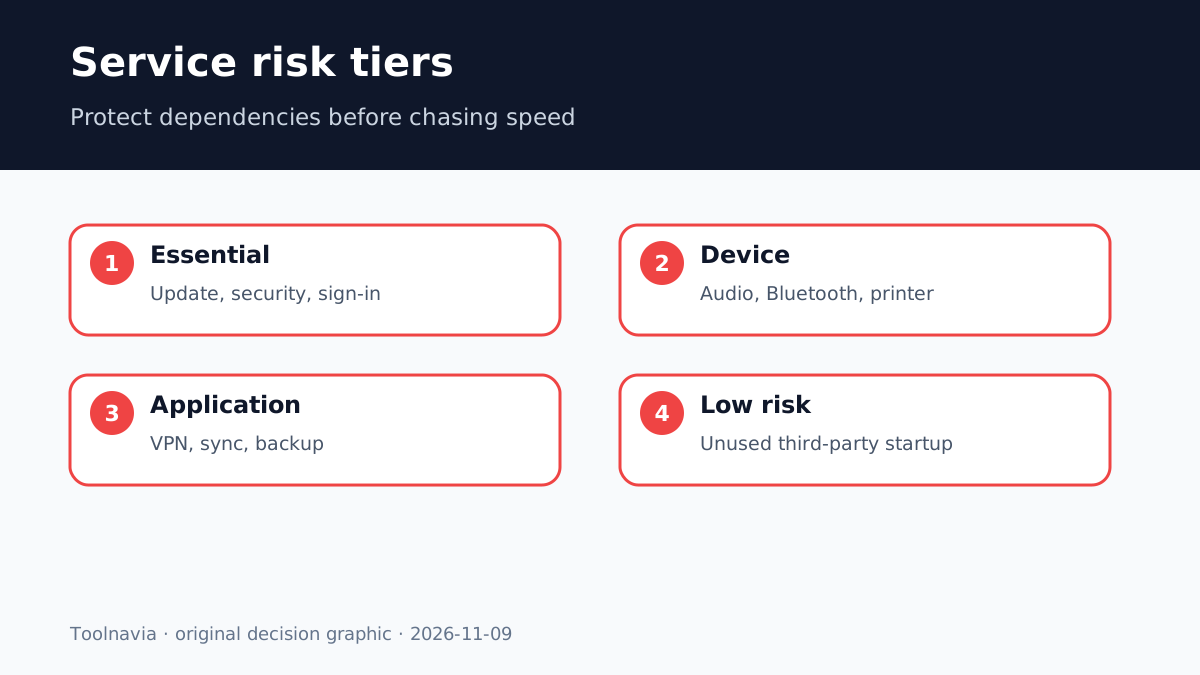
Create a “do not disable generically” group before changing anything:
- Windows Update, BITS and update-orchestration dependencies; - Microsoft Defender or another active security stack; - authentication, domain and credential services; - networking, VPN and remote-access components you rely on; - audio, Bluetooth, printer, scanner, backup and storage services; - accessibility or synchronization services used daily.
This is not a universal service-name list. Windows builds, hardware and installed applications differ. Microsoft’s Delivery Optimization documentation shows the distinction: changing peer-sharing behavior is not the same as disabling updates. A safe guide cannot infer exactly which services PC Fresh will recommend on every machine. If the recommendation cannot explain what stops when the service is unavailable, leave it unchanged.
Run a controlled before-and-after test
Use the trial to test a real workload:
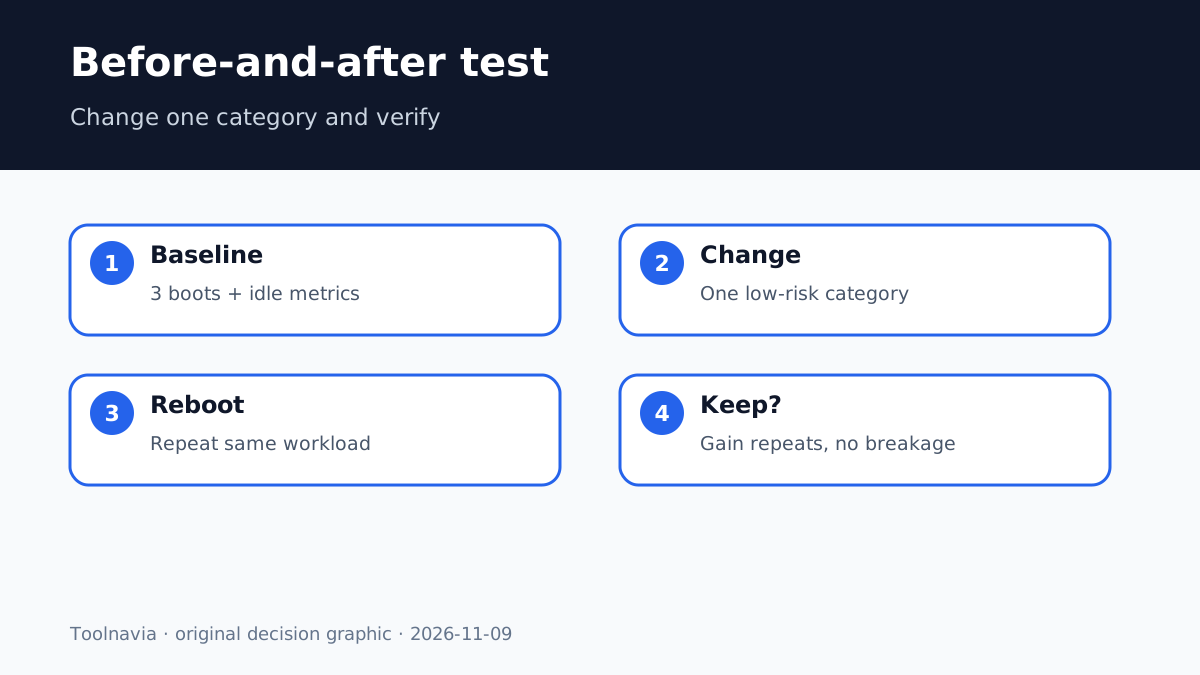
1. Install pending Windows and app updates, then reboot. 2. Record boot-to-usable time three times, plus idle CPU and memory after five minutes. 3. Confirm Windows Update, security, printer, Bluetooth/audio, VPN, cloud sync and backup. 4. In PC Fresh, review recommendations and select one low-risk category. 5. Record the service or startup item, publisher, previous mode and reason. 6. Apply the change, reboot and repeat the same measurements. 7. Keep it only if the improvement is repeatable and no required function regresses.
A single faster boot is not proof. Update activity, antivirus scans and caching can distort one run. Compare the median of repeated measurements and a task you actually perform.
Verify the functions that matter
After reboot, run a Windows Update scan, open Windows Security, verify Microsoft or domain sign-in, print or scan a page, pair Bluetooth, play audio, connect VPN, access a network share, sync a cloud folder and confirm the next backup.
If something fails, revert the last category before another change. PC Fresh change visibility can help, but its separate rollback documentation has boundaries; do not assume every startup deletion, file removal or system problem is universally reversible.
An independent AVG TuneUp test found a healthy machine was advised to turn off OneDrive without a demonstrated fault or heavy resource use. That does not prove PC Fresh behaves the same way. It shows why a recommendation is a hypothesis to test, not a diagnosis.
When PC Fresh is worth paying for
PC Fresh fits a buyer who wants a guided Windows-tuning dashboard, will inspect each recommendation and values a repeatable record more than a dramatic one-click promise. The €29.95 display can be reasonable if the trial proves a measurable gain on the buyer’s workload and the workflow will be reused. Verify checkout, tax, entitlement and update terms before paying.
It is a poor fit when you expect guaranteed speed, plan to disable services without dependency checks, manage domain-joined or business-critical machines without IT policy, or only need Windows’ built-in Startup Apps and service tools once.
Verdict
Use PC Fresh as a measurement and change-management assistant, not as an authority that every background component is expendable. Protect update, security, authentication and device dependencies; change one category; reboot; verify; and pay only when the gain survives that test.