TOOLNAVIA / BUYING GUIDE
Parallels Shared Printers: Who Chooses the Default Destination?
The short answer
At a glance
- Best for
- Windows-on-Mac users defining a stable printer-selection policy.
- Price model
- Confirm current Standard subscription or one-time cart; Windows and applications may add costs.
- Check first
- Mac default synchronization and Windows last-used policy are separate; no physical printing test performed.
Verdict: buy for a predictable printer route
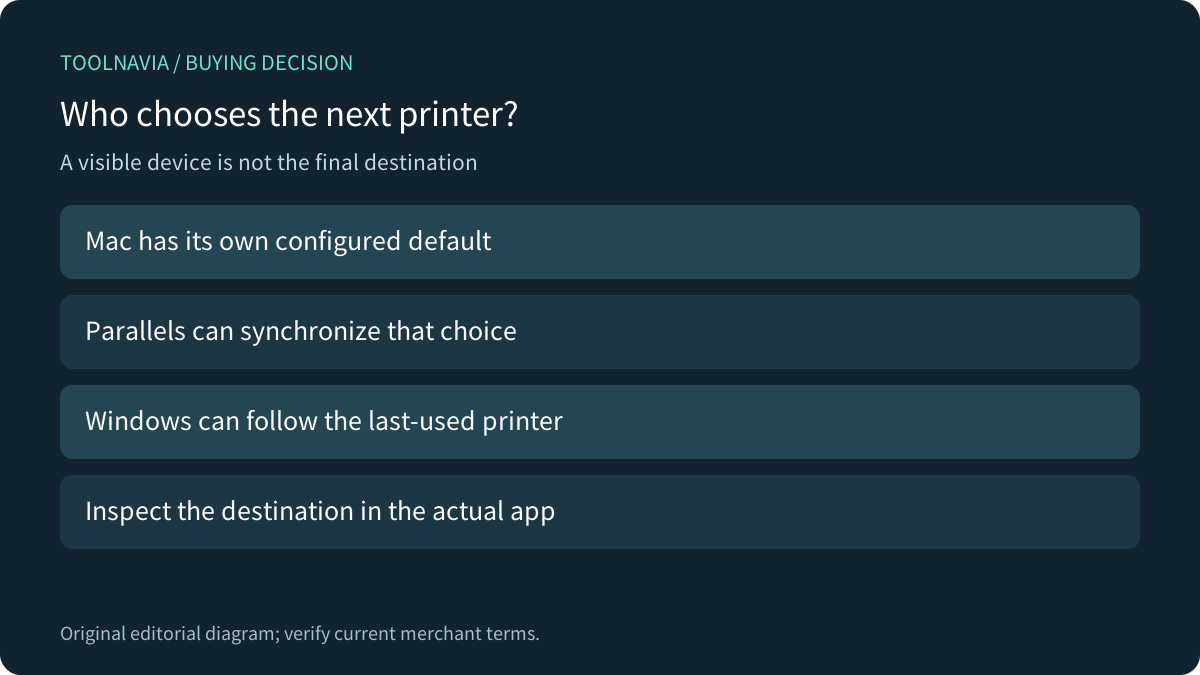
Parallels Desktop Standard can suit someone who needs a Windows application while using printers already configured on a Mac. Before paying for that convenience, decide which system should choose the default destination. Mac synchronization and Windows last-used selection are separate controls; a printer appearing in the guest does not establish where the next job will go.
This guide analyzes documentation. No virtual machine, printer, print job or operating-system setting was operated.
Review the approved Parallels Desktop offer. Toolnavia may earn a commission on an eligible purchase; the referral does not preselect an edition or discount.
Choose whether Windows should follow the Mac
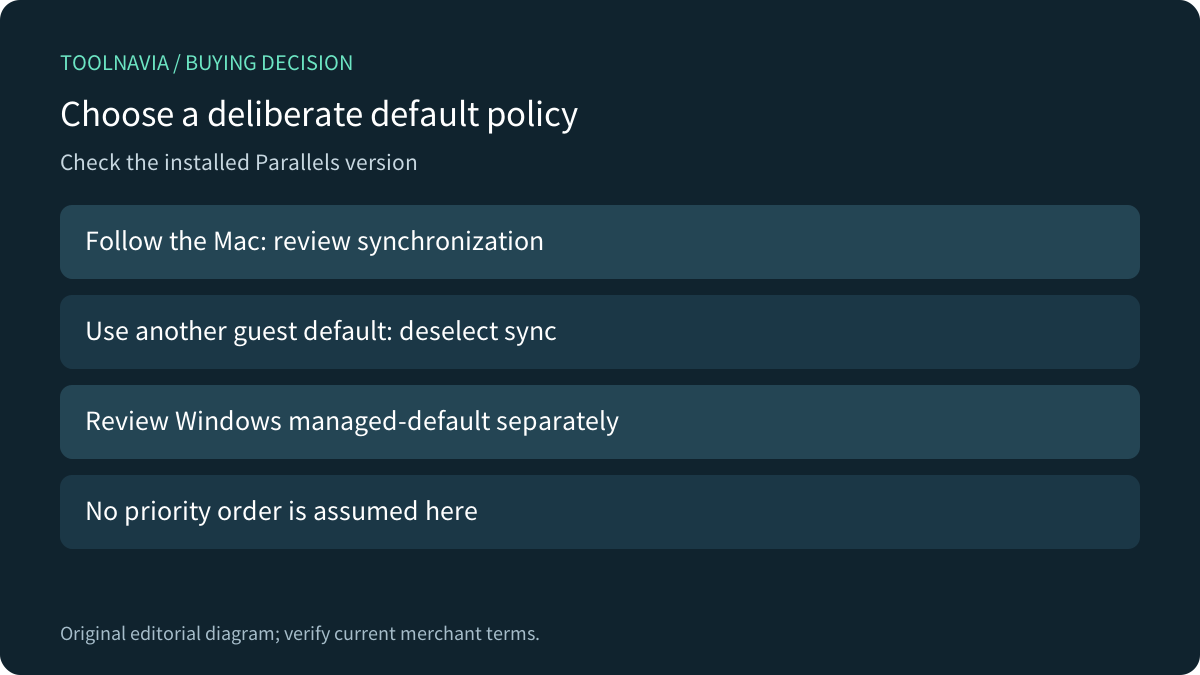
The version-20 Shared Printers guide separates sharing Mac printers from synchronizing the default. It says virtual machines normally use the Mac's default, and documents deselecting Synchronize default printer when the guest should use a different one. Confirm the corresponding controls in the installed release.
Following the Mac can fit one consistent home printer. An independent guest choice can fit a Windows application assigned to another output device. Neither policy is inherently correct for every user. Write down the intended destination instead of repeatedly changing whichever menu was opened most recently.
Review Windows last-used selection independently
Microsoft's current instructions say Let Windows manage my default printer selects the last-used printer. To set a fixed choice manually, turn that option off, select the desired installed printer and set it as default. The missing Set as default button can itself be explained by the automatic option remaining on.
Parallels' Desktop knowledge base documents the same last-used behavior, although its illustrated menu is dated 2022. Use current Windows navigation rather than copying that old layout exactly. Microsoft's mobile-location note describes Windows behavior; it does not prove how a particular virtual machine detects location changes.
Do not assume a universal priority order between Windows selection and Parallels synchronization. Observe the actual combination and keep one intended policy explicit.
Keep the destination separate from available print features
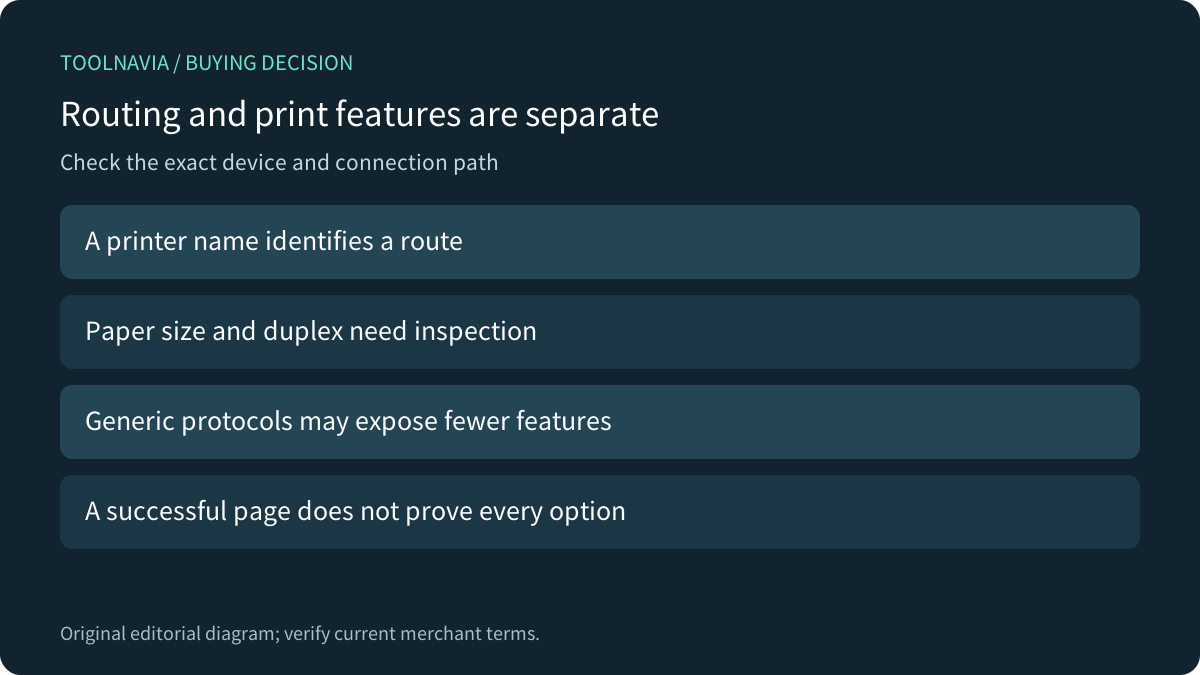
Apple's Mac guide distinguishes AirPrint from other printer-software and generic network-protocol routes. It warns that generic protocols can expose fewer features. That is a reason to check the installed path, not to assume every discovered instance of the same model is interchangeable.
Mopria describes certified Windows printing with options such as paper size, duplex and tray selection. Verify the exact model and route; certification does not establish every proprietary finishing feature through Parallels. A correct printer name is not a substitute for inspecting the required paper, scaling and output settings.
Test persistence as well as one successful page
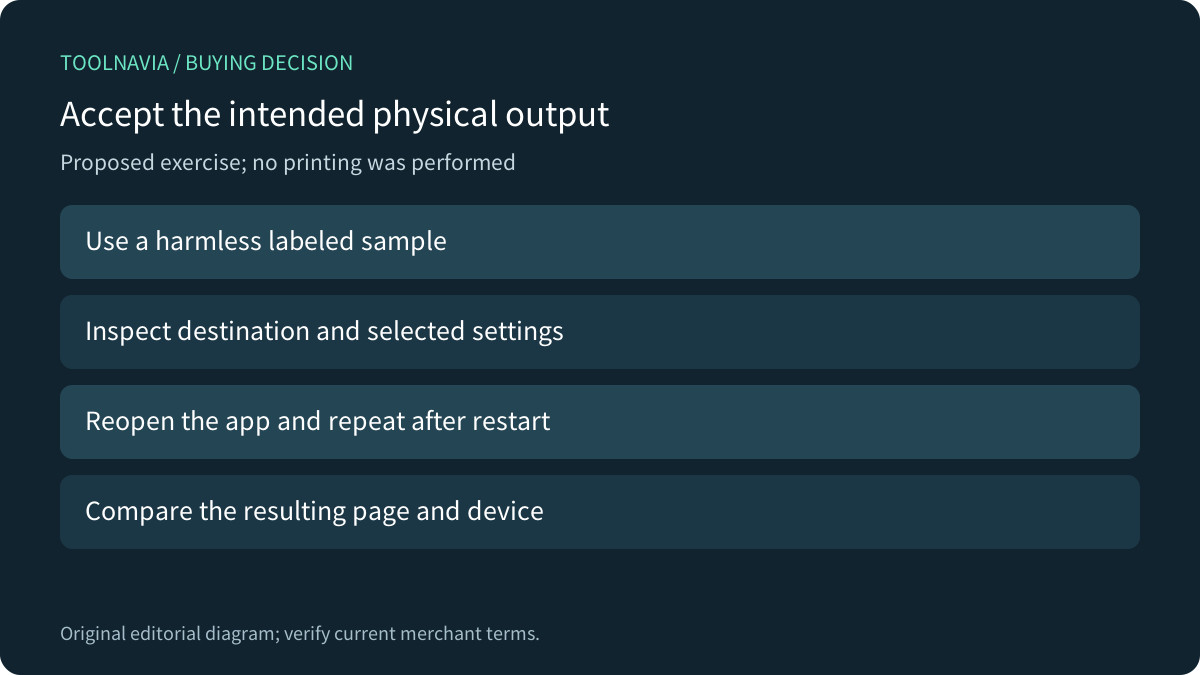
Four useful controls are sharing the Mac printer, following its default, choosing an independent guest default and receiving updated Mac printer choices. The older shared-print KB requires current Parallels Tools and says Mac printer changes propagate on Windows restart. Treat that dated guidance as a version-specific acceptance question.
For a proposed authorized exercise, use a harmless labeled sample. Inspect the destination in the actual Windows application's print dialog, select the required paper and duplex settings, then match the physical page to the intended device. Reopen the application and repeat after a normal Windows restart. No exercise was performed here.
Avoid using a confidential document to discover routing mistakes. A saved output file and a physical print are different results; accept the one your workflow actually requires.
Choose the license after the route is accepted
The current purchase page offers Standard subscription and one-time choices, but dependable localized numeric prices were not visible in this reading. Confirm the selected cart, renewal or version entitlement, plus any Windows and application licenses. Higher virtual CPU or RAM limits do not decide a printer destination.
Keep an existing suitable print arrangement when it already works. Choose the Mac/Windows integration when its accepted route and maintenance effort justify the complete cost.