TOOLNAVIA / BUYING GUIDE
Parallels Multiple Monitors: Test the Screen Layout Before You Buy
The short answer
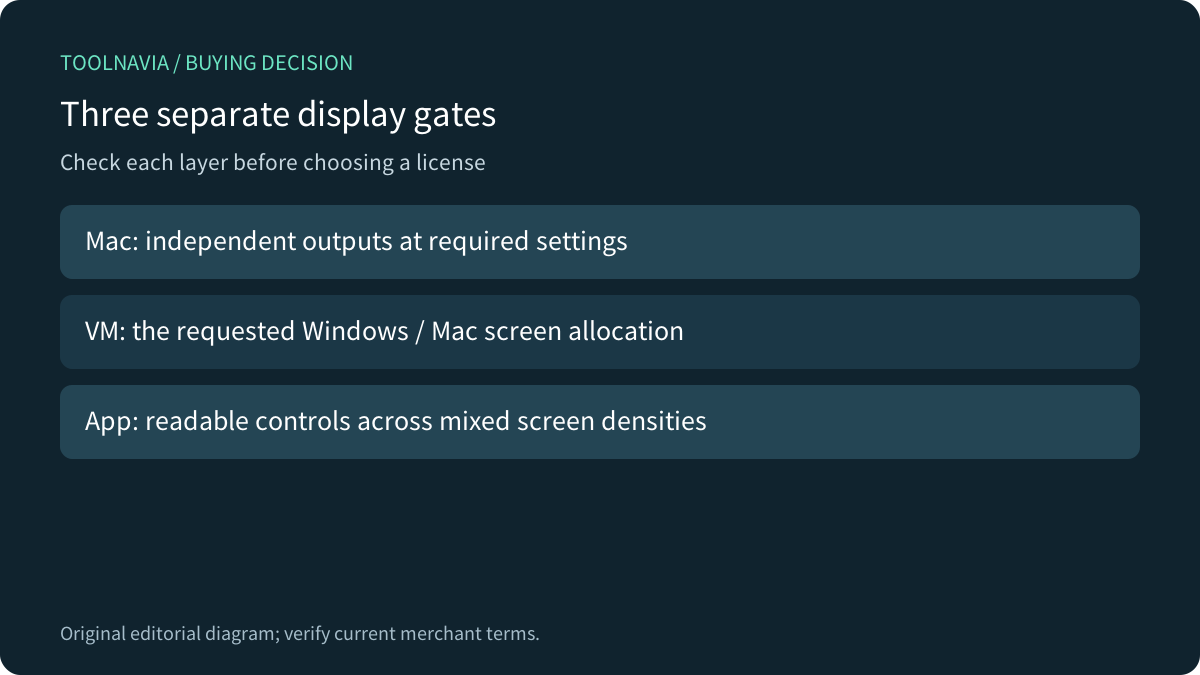
A second Windows screen is not automatically a reason to buy Parallels Pro. First prove three separate things: your Mac can drive the monitors, Parallels can assign the layout you want, and your Windows application remains readable. A more expensive VM license does not create missing native display outputs.
At a glance
- Best for
- A verified Windows display layout on an already capable Mac.
- Price model
- Select subscription or one-time purchase; verify live USD cart, renewal, Windows and accessory costs.
- Check first
- Host outputs, one-or-all allocation and app scaling need separate checks.
Start with the Mac, not the edition
Apple ties simultaneous external-display support to the exact Mac model, resolution and refresh rate. Identify your machine and read its own specifications before counting ports on a dock. Plugable's hardware guide likewise separates processor capabilities, connection types and docking arrangements.
Connect the intended displays to macOS first. Confirm that each extends the desktop at the required settings. If that fails, investigate the host, cable and dock before paying for VM software. A monitor that mirrors another screen is not a verified independent workspace.
Macworld describes USB-graphics workarounds for some native limits, with extra software and performance or protected-content tradeoffs. Treat such a workaround as a separate purchase and compatibility test. This guide does not certify a dock or promise gaming, color-critical or high-refresh performance.

Check who gets which screen
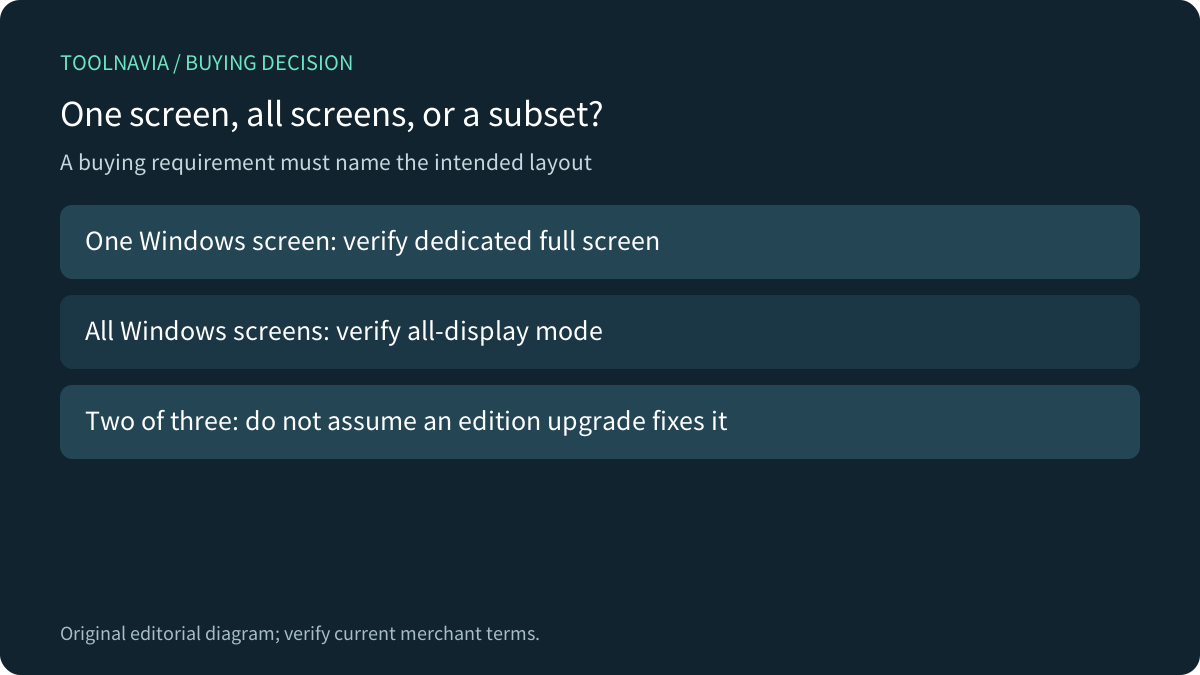
Parallels' Standard KB describes Windows and Linux multi-monitor full screen using displays already connected to the Mac. It directs users to separate Spaces and the “Use All Displays in Full Screen” option; its arrangement follows macOS. The same document excludes macOS guests from that workflow.
A dedicated Windows screen beside macOS work is different from assigning two chosen screens out of three. The selected-display KB says full screen uses one display or all displays rather than an arbitrary subset. It applies to Standard, Pro and Business. Do not interpret a Pro upgrade as proof that the two-of-three requirement is solved.
These KBs were last reviewed in 2022 and 2019. They establish documented boundaries, not a test of today's release on your equipment. If a particular split is essential, verify it in the current trial or obtain a specific support answer before purchase.

Separate screen count from readable text
A successful extended desktop can still be uncomfortable. Parallels' scaling guidance distinguishes Retina, Scaled and external-display modes. Sharper output and readable legacy application controls can pull in different directions. That KB was reviewed in 2022, so check the labels and available choices in the current build.
Test the actual application, not only the Windows desktop. Move its main window and dialogs between the notebook and external panel. Read small table headings, open a dropdown and drag a selection. Check whether text becomes tiny, blurred or clipped after changing displays.
The official product page describes integrated Windows/Mac operation and view choices. Those are useful conveniences, but they do not guarantee that every older Windows app handles mixed pixel densities correctly. More virtual RAM is not evidence of corrected DPI behavior.
Use a layout acceptance sheet
Write down the Mac model, macOS and Parallels versions, Windows build, dock, cables, monitor resolutions and refresh rates. Sketch which operating system should occupy each screen. This turns “supports multiple monitors” into a requirement you can verify.
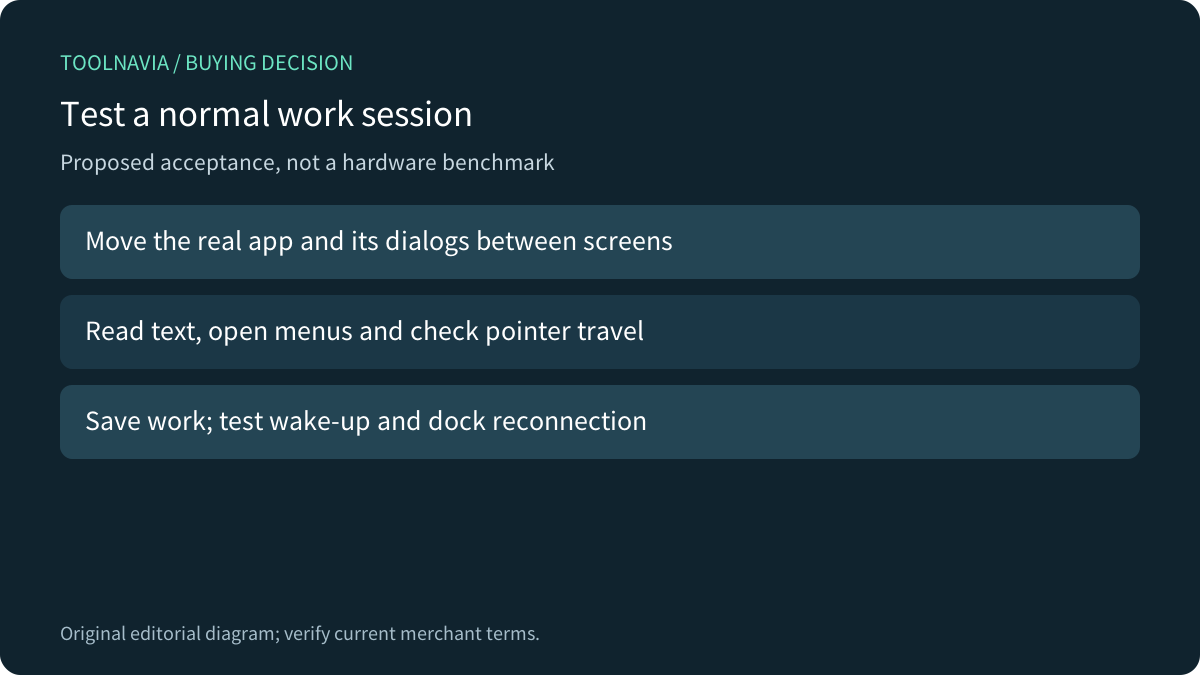
Test single-screen full screen first, then all-display full screen. Confirm pointer travel and whether returning to a Mac app behaves as expected. Change one display setting at a time and record the result.
Repeat your normal work: a spreadsheet with several dialogs, a presentation with the intended audience screen, or a business application beside reference material. Save work, sleep and wake the Mac, then disconnect and reconnect the dock. These are proposed acceptance steps; Toolnavia has not performed this hardware test.

Price the whole working setup
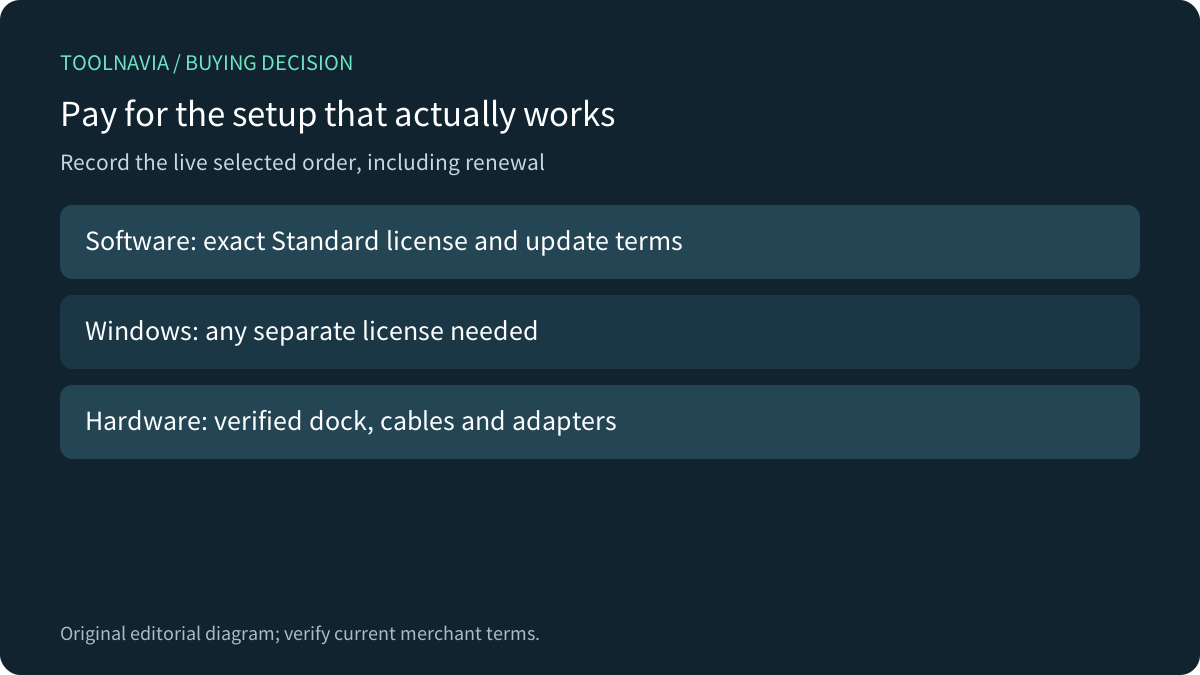
The official buy page offers Standard as a subscription or one-time purchase and lists an 8 GB virtual-RAM and 4-vCPU ceiling. Workload requirements can justify a different edition, but monitor count alone is not that calculation.
Dynamic dollar fields were absent in the opened official pages while cached search results displayed sale amounts. We do not certify those cached discounts as a current invoice. Record the live selected license price, renewal terms, tax and update entitlement before paying.
Include any Windows license you need, plus the verified dock, adapters and cables. A cheap software offer is poor value if the physical layout fails. Conversely, paying more for an edition that does not solve the actual allocation requirement adds cost without proving a benefit.

Buy after the intended layout passes
Choose Standard when its current trial supports your real Windows application, required display split and readable text within the available resources. Pause when the requirement is an unverified screen subset or a host output that macOS itself cannot provide.
After those checks, inspect the [approved Parallels Standard offer](https://www.kqzyfj.com/click-101895278-15311543) and save the selected order terms. For a separate compatibility question, see our [Windows ARM application guide](/software/parallels-windows-arm-app-compatibility).
*Affiliate disclosure: Toolnavia may earn a commission on eligible purchases. This is a documentation-based buying guide; no current Mac/dock/display benchmark or paid checkout was performed.*