TOOLNAVIA / BUYING GUIDE
ON1 Photo RAW 2027 on Two Computers: License Seats and Moving to a New PC
The short answer
ON1 Photo RAW 2027 standard currently installs on two computers—enough for one photographer’s workstation and laptop. It is a computer limit, not a promise of two independent users or automatic photo-and-catalog synchronization. Choose standard only when two active machines are enough and you can manage files and backups separately.
This is a documentation-based license guide. Toolnavia did not activate the current 2027 build on two machines, test concurrent editing, or transfer a production catalog.
At a glance
- Best for
- One buyer using a main computer and a laptop, with a separate plan for files, catalogs and backups.
- Price model
- Verify live checkout; this article focuses on the two-computer entitlement, not a fixed price.
- Check first
- Two installations are not team seats and do not automatically synchronize photos or catalogs.
What the two-computer license actually solves
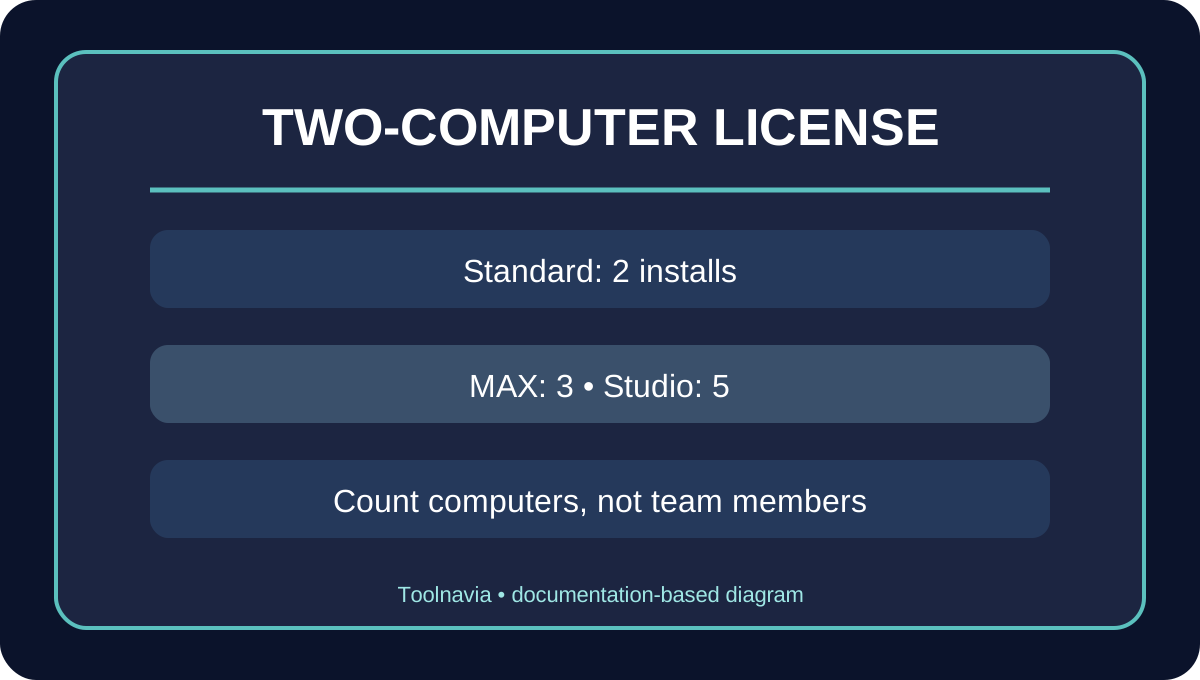
The most useful setup is a desktop for heavy editing and a laptop for travel, client review or location work. The current ON1 product and feature pages state that standard Photo RAW installs on two computers. MAX raises that count to three, while Photo Studio lists five. Independent plan pages and reviews broadly repeat the same distinction.
Count computers, not people. The published pages describe installation limits; they do not turn the second activation into a separately managed team seat. A household or studio should not assume that two installations authorize credential sharing or two independent owners. Confirm the current license terms if more than one person will operate the software.
The standard license also remains a versioned purchase. ON1 says a one-time Photo RAW license includes updates to the purchased version but not future major-year upgrades. That economic question is covered by Toolnavia’s existing ON1 perpetual-license article; this page stays focused on devices and replacement workflow.
Moving to a new computer without wasting a seat
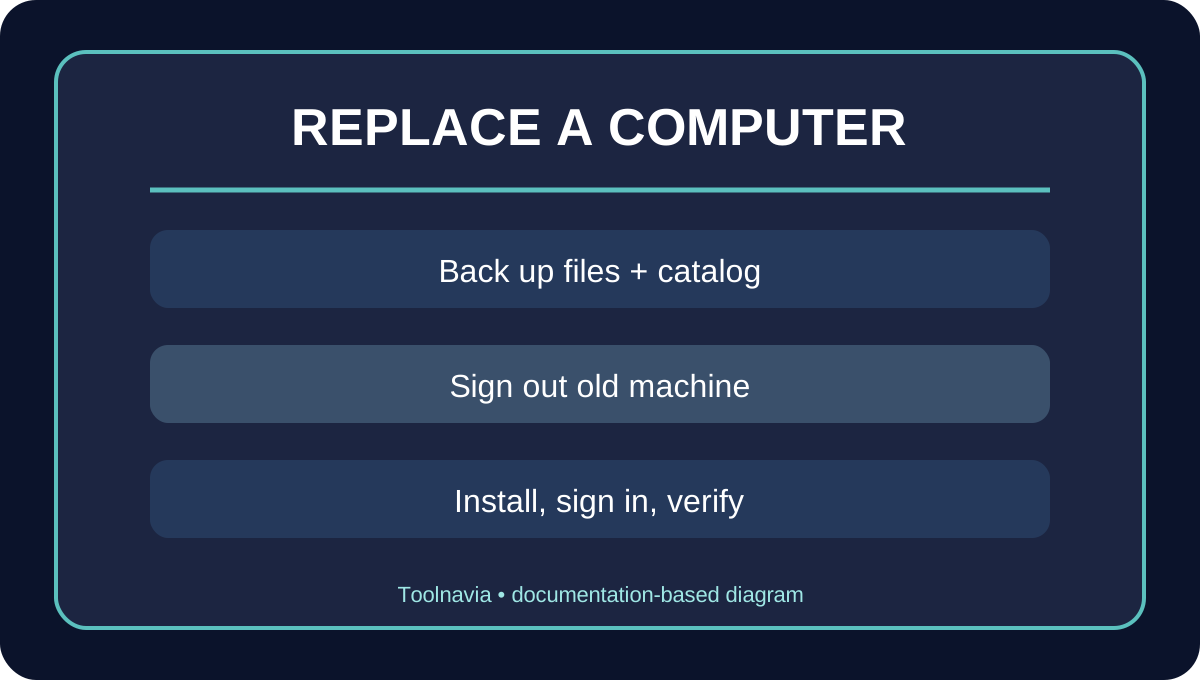
ON1’s official user-guide workflow says to sign out of Photo RAW on the old computer before moving the application to a replacement. Signing out deactivates that installation, after which you install through ON1’s application manager and sign in on the new computer.
Use this sequence:
1. Confirm that the old computer still opens Photo RAW and that you know the ON1 account used for activation. 2. Back up original photos, the working catalog and any custom presets or extras. 3. Sign out on the retiring computer to free the activation. 4. Install the supported build on the replacement computer through the current ON1 download or application manager. 5. Sign in, confirm activation, reconnect photo folders and verify several edited images before erasing the old drive.
The cited transfer steps come from ON1’s 2024 guide, while ON1 currently publishes a 2026 guide and is marketing the 2027 release. Menu names can change. Use the guide matching the installed version and contact ON1 support if a dead or stolen computer cannot be signed out normally.
Two activations do not synchronize your work
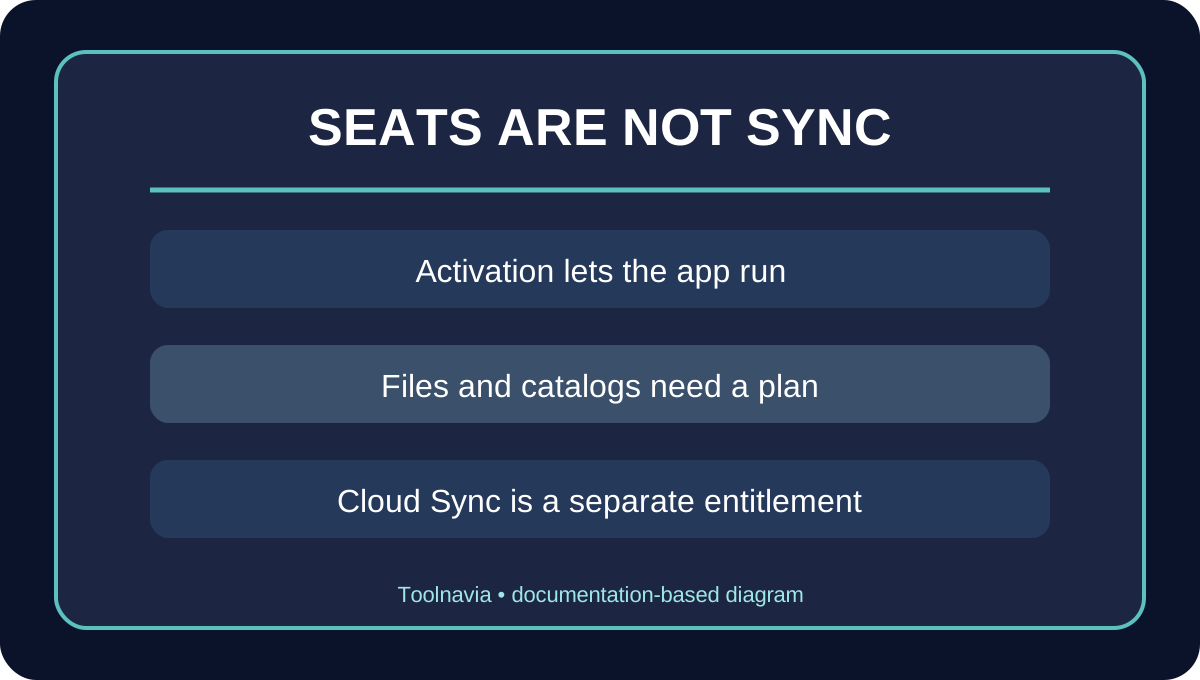
A license seat controls whether the application can run. It does not, by itself, copy RAW files, catalogs, edits or presets between machines. If the desktop and laptop both point to independent local storage, changes made on one machine will not magically appear on the other.
ON1’s current plan page describes Cloud Sync as a subscription entitlement and lists a larger allowance with Studio. That is separate from the standard edition’s two-computer installation right. Do not buy the standard license expecting the seat count alone to create a Lightroom-style cross-device library.
A safer two-computer workflow is to nominate one primary catalog, keep originals on a backed-up external drive or NAS if supported by your workflow, and transfer only after both the photos and catalog data are protected. Avoid opening the same writable catalog from two computers at once unless ON1 explicitly documents that workflow for your exact version.
When two computers are enough
Choose the standard edition when one person has a stable desktop-plus-laptop workflow, both computers meet the current requirements, and cloud synchronization is not essential. It is also reasonable for replacing a machine: the second activation gives breathing room while you validate the new installation before retiring the old one.
The standard license is less suitable when three or more computers must remain active, multiple people need independent access, or the purchase depends on bundled plugins, cloud storage or future versions. MAX and Studio may address some of those needs, but their exact offers are not approved or enabled in Toolnavia’s current registry. They are mentioned only to explain the seat boundary, not as commercial recommendations.
Independent reviews describe Photo RAW as a broad all-in-one editor and confirm the perpetual-license positioning, but they do not override ON1’s live seat terms or account controls.
Pre-purchase checklist
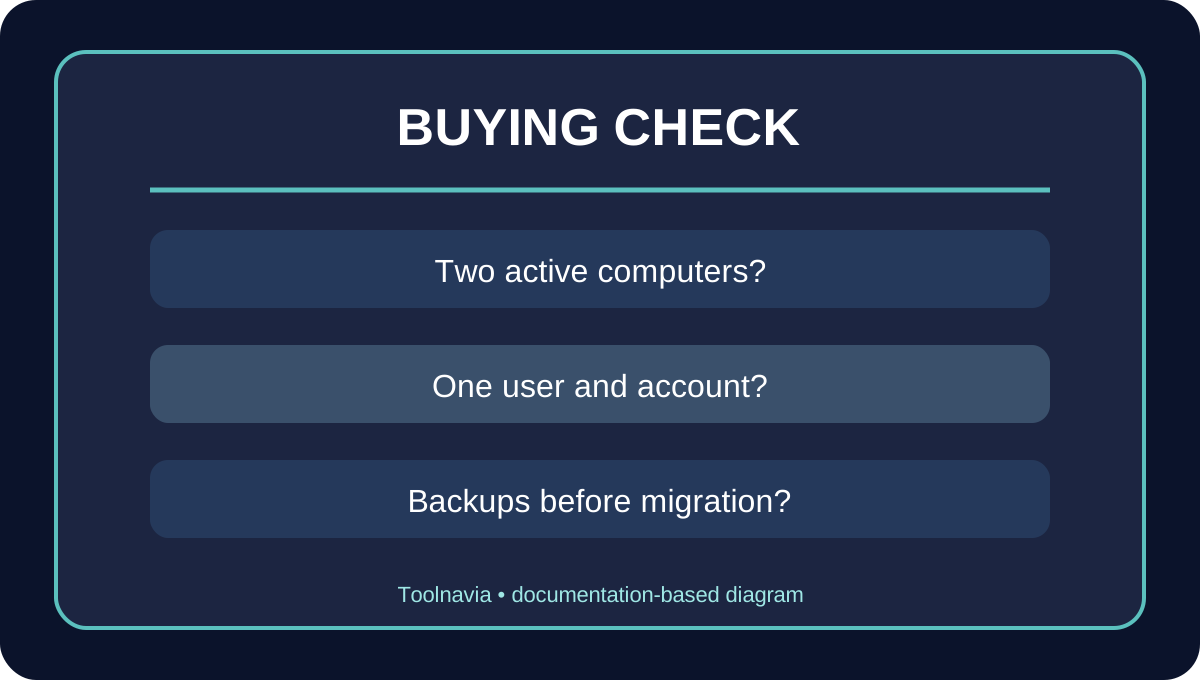
Before paying, capture the exact edition name, whether the order is perpetual or subscription, the number of permitted computers, operating-system support, Cloud Sync allowance, refund start date and future-upgrade policy. If the checkout shows a personalized upgrade price, save that order summary too.
Then answer three questions:
- Will no more than two computers need to stay activated? - Can you move or back up the photos and catalog without relying on the license activation? - If one computer dies, do you have enough account access and evidence to request an activation reset?
If all three answers are yes, the standard two-computer license is likely sufficient. If not, price the real alternative only after its exact plan and market are verified.
Bottom line
ON1 Photo RAW 2027 standard currently gives one buyer a practical two-computer ceiling. It can cover a workstation and laptop and supports replacement through sign-out and reactivation, but the activation process does not move the photo library for you. Treat seats, files and cloud synchronization as three separate decisions.
ON1’s affiliate program is open, but Toolnavia has not applied and the exact standard offer is disabled. No purchase CTA or tracking link is shown.