TOOLNAVIA / BUYING GUIDE
Luminar Neo’s 2-Computer License: Can You Move It to a New PC or Mac?
The short answer
Luminar for Desktop’s current perpetual license allows activation on two computers at the same time. Those two seats can be two Windows PCs, two Macs, or one of each. If you replace a computer, Skylum says you can reset an old activation at no cost and use that seat on the new machine. The license therefore follows your Skylum account rather than being permanently locked to the first hardware.
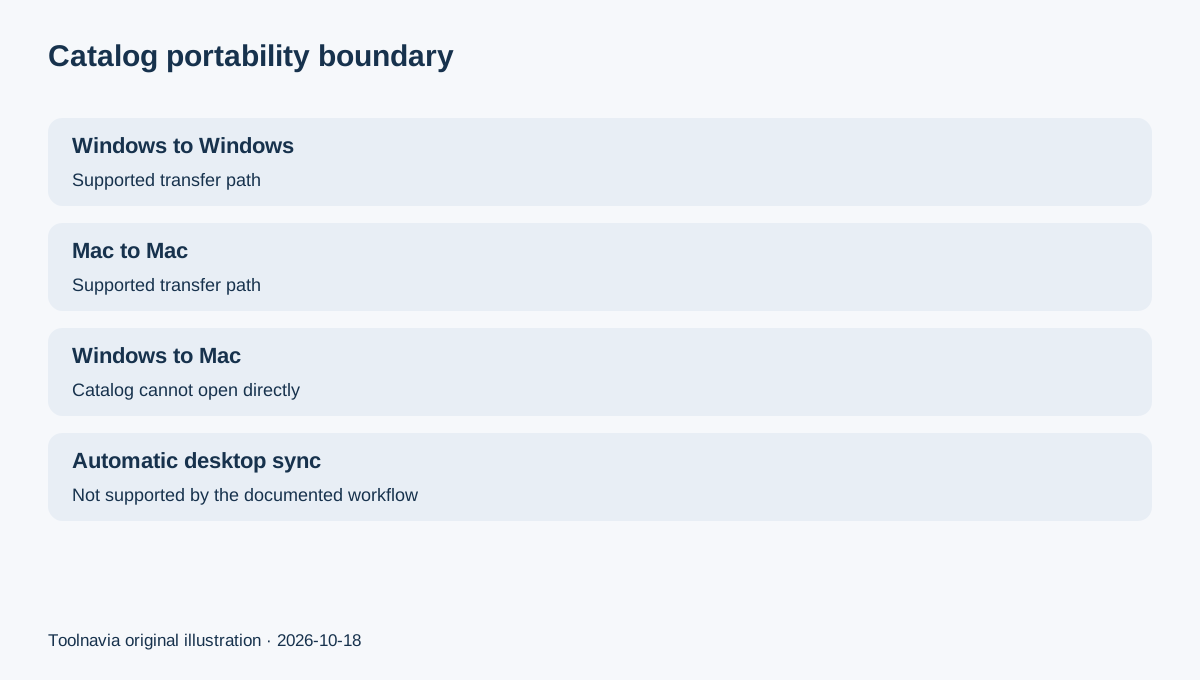
The important catch is workflow, not activation. Luminar Neo does not automatically synchronize a desktop Catalog, original photos and edit history between two computers. Skylum’s documented catalog-transfer method requires copying both the Catalog folder and originals, preserving the folder structure, and it works only between machines running the same operating system. A Mac Catalog cannot be opened on Windows, or vice versa.
This is a documentation-based license and migration decision. Toolnavia did not test performance, cloud synchronization or data recovery.
At a glance
- Best for
- One buyer who needs Luminar active on two computers and can manage a local Catalog and original photos.
- Price model
- Verify live checkout; article focuses on seats and migration, not a fixed price.
- Check first
- Two seats do not provide automatic desktop Catalog sync; Catalog transfer is same-OS only.
What the two-computer license actually buys
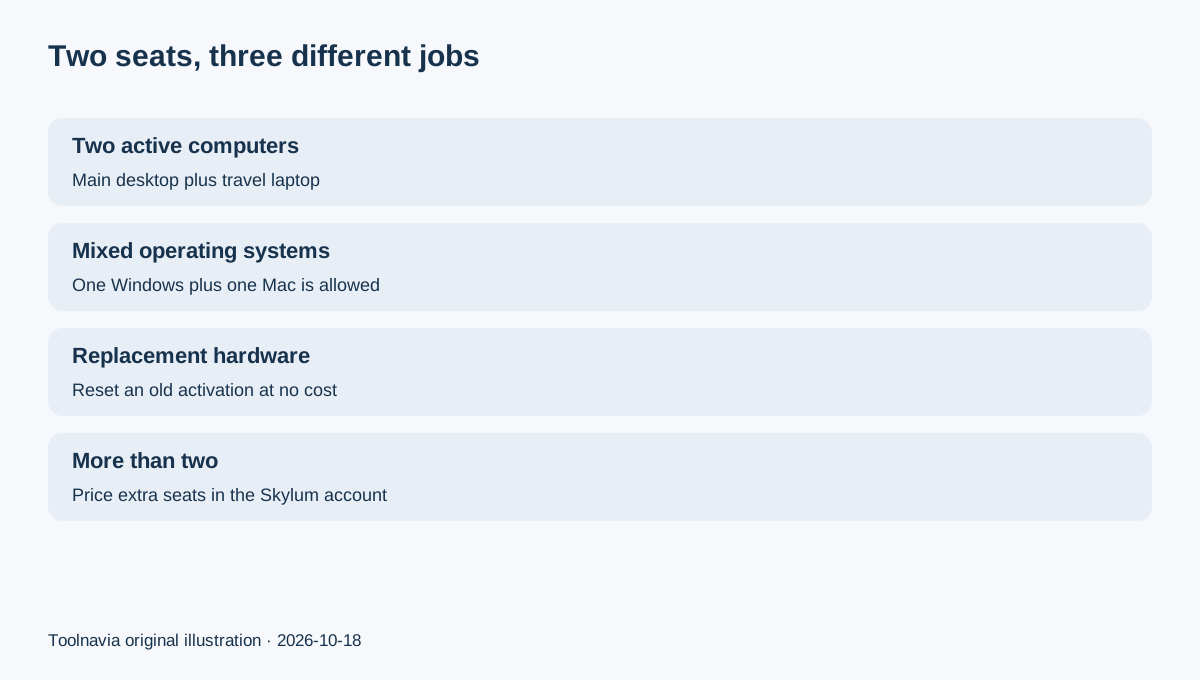
Current Skylum plan language says both the lifetime and subscription desktop plans can be used on two devices. The seats are simultaneous activations, not a limit of two installations forever. You can mix operating systems for activation: one Mac plus one Windows computer is explicitly allowed. You may also buy extra seats through the Skylum account if two active machines are not enough.
That makes the license practical for one photographer with a desktop and a travel laptop. It can also cover a Mac and a Windows workstation. But two active installations do not create a shared editing database. Think of the purchase as two app activations; treat your Catalog and photo library as a separate portability problem.
Independent reviews broadly support the current two-seat reading. Amateur Photographer describes one Mac and one Windows seat as a valid combination and notes that more seats can be purchased. Shotkit’s current review also describes the desktop perpetual option as covering two computers. B&H’s product Q&A lists two devices for the current Max license.
Moving the license to a replacement computer
If you are retiring an old machine, install Luminar on the new one and sign in to the same Skylum account. When every seat is already occupied, Skylum’s account controls let you remove an old activation or reset activations, then activate the replacement computer. The official migration article points to My Software → Activations and provides per-device or reset-all controls.
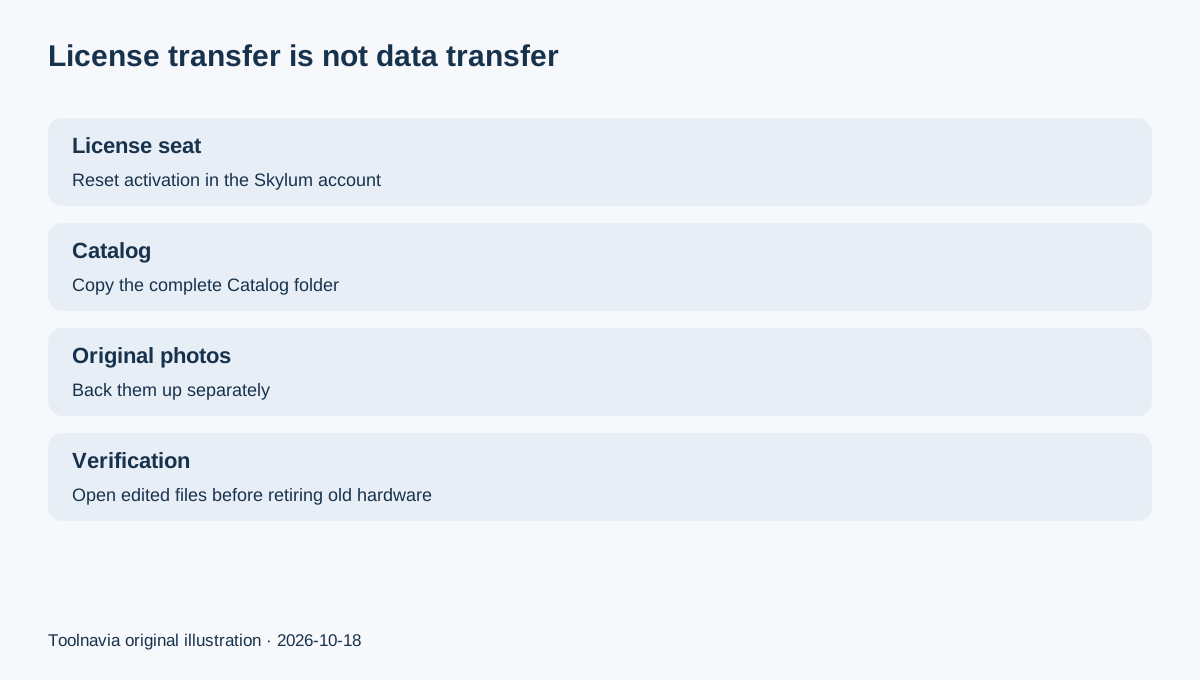
Resetting an activation does not, by itself, move your photos, Catalog or edit history. It only frees the license seat. Before deactivating or discarding the old computer, back up the Catalog and original image files. Skylum’s backup guide says the Catalog backup preserves editing data, not the original photos, so both sets of files matter.
A safe replacement sequence is:
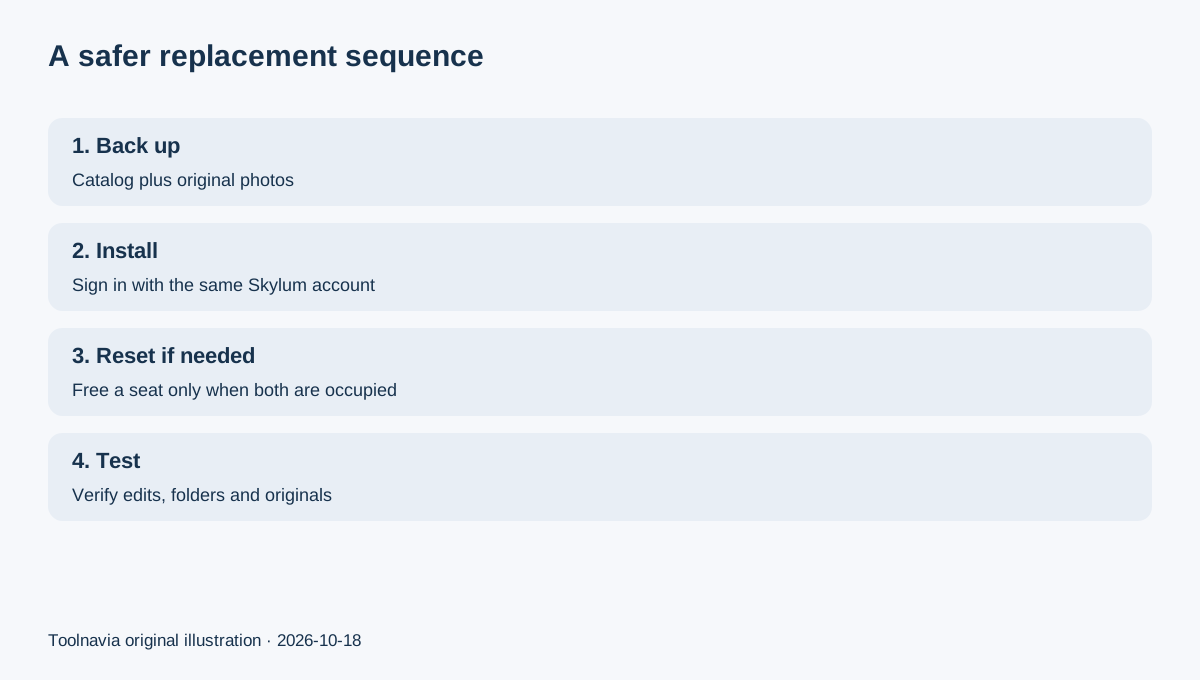
1. Confirm the new computer meets the current system requirements. 2. Back up the Luminar Catalog and separately copy the original photo files. 3. Preserve folder names and relative structure. 4. Install Luminar and sign in on the new computer. 5. Reset the old activation only if both seats are occupied. 6. Open or restore the Catalog, then verify several edited images before retiring the old machine.
Two active computers are not automatic sync
Skylum’s support documentation explicitly says Luminar Neo has no automatic real-time desktop Catalog synchronization. Edits are stored in the local Catalog, including per-image state files. If you edit the same library independently on two computers, the two local states can diverge.
For a same-OS workflow, Skylum documents using an external drive: copy the complete Catalog folder and originals, open the .luminarneo Catalog on the second computer, and copy the updated material back before returning to the first machine. This is a handoff workflow, not concurrent multi-master sync.
The cleanest operating rule is one writable Catalog at a time. Keep one authoritative copy, close Luminar before moving it, and maintain a separate backup. Do not treat a cloud-synced folder as proof that the Catalog is conflict-safe unless Skylum explicitly documents that exact workflow.
Windows-to-Mac is the hard boundary
Activation is cross-platform, but desktop Catalog portability is not. Skylum says a Catalog can be transferred only Windows-to-Windows or Mac-to-Mac. A Windows Catalog cannot be opened on macOS, and a Mac Catalog cannot be opened on Windows.
That distinction prevents an expensive assumption. A buyer can use one license seat on each operating system, but cannot expect the same existing desktop Catalog and complete edit history to move freely between them. If cross-platform continuation is essential, verify the current Luminar Ecosystem direction and exactly which mobile, web and desktop flows are supported; the current plan page describes cross-device features separately from desktop Catalog transfer.
For a platform switch, keep exported finished images, originals and a readable archive of the old Catalog. Test a small set on the new system before committing the whole library. The two-seat entitlement solves access to the application; it does not eliminate migration work.
What changed since older reviews
Some older reviews described a different device entitlement. DPReview’s 2023 review said subscription licensing allowed two devices while the then-current perpetual option implied one. Current official Skylum pages now state two desktop devices for both lifetime and subscription plans, and recent independent coverage aligns with that. The current official plan and support pages therefore control this article; older pricing descriptions are retained only as historical context.
Plan names and included AI access also change. This page deliberately avoids a fixed headline price and does not reuse the existing Toolnavia Luminar article’s “perpetual plus AI renewal” decision. Confirm the live plan card, included AI term, tax and any upgrade payment before checkout.
Who should buy—and who should pause
The desktop perpetual license fits a buyer who wants Luminar active on a main computer and a laptop, or on one Mac and one Windows machine, and is comfortable managing local files. It also fits a replacement cycle because activations can be reset instead of repurchasing the application.
Pause before buying if you expect Lightroom-style automatic Catalog synchronization between two desktop computers, or if you need an existing Windows Catalog to open directly on a Mac. Two seats do not provide those capabilities.
If you need more than two simultaneous desktops, price extra seats in the Skylum account before checkout. If you only need to replace one machine, do not buy another full license before trying the documented activation reset.
Five-minute pre-purchase checklist
Count the computers that need Luminar active at the same time. Confirm whether they run the same operating system. Locate the current Catalog and original photo folders. Decide which machine will own the authoritative Catalog. Test your backup. Then verify the live Desktop Only plan and its AI-access term.
Skylum’s affiliate program is publicly open and pays cash commission, but Toolnavia has no verified approved tracking link for this exact offer. The CTA therefore remains hidden.
For the separate question of perpetual ownership and the AI-tools renewal, read Toolnavia’s existing [Luminar perpetual and AI renewal guide](/en/software/luminar). This page is only about device seats, activation transfer and Catalog portability.