TOOLNAVIA / BUYING GUIDE
Movavi Stabilization Buying Guide: Test Crop, Edges and Export
The short answer
At a glance
- Best for
- Buyers testing whether Movavi stabilization preserves framing and exports reliably.
- Price model
- Verify current official checkout, platform, term, renewal and tax; no fixed price claimed.
- Check first
- Strong correction may crop or warp edges; installed build, footage and hardware control.
Short verdict
Movavi Video Editor is worth considering for shaky clips only if its correction preserves the composition you actually shot. The current official stabilization guide exposes Accuracy, Shaking, Radius, Smoothing and three edge-cropping modes—None, Fixed and Adaptive. Those controls are useful, but they do not remove the core tradeoff: a steadier frame may require cropping, scaling or edge treatment, and aggressive correction can make movement look unnaturally stiff.
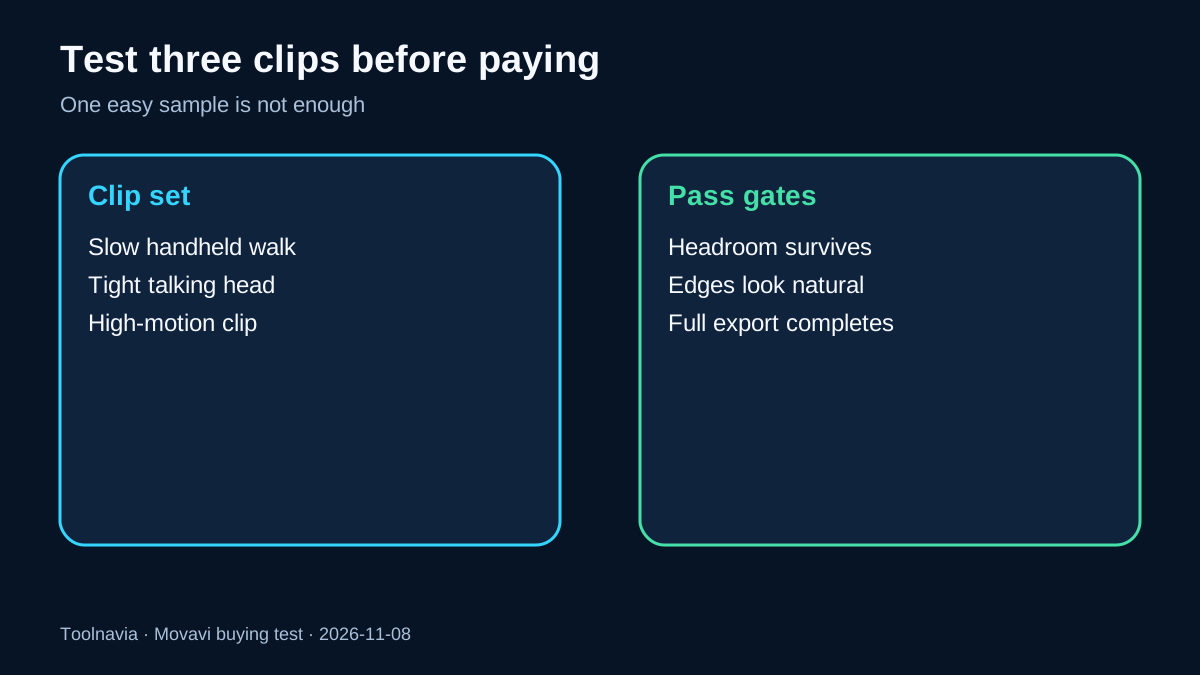
Do not buy from a feature checklist. Install the current trial and test three representative clips: a slow handheld walk with headroom, a tightly framed talking head, and a high-motion or rolling-shutter shot. Pass the purchase only if critical framing survives, edges remain natural, motion still feels believable and a full-resolution export completes on your hardware.
Affiliate disclosure: Toolnavia may earn a commission if you buy the approved one-year Movavi Video Editor offer through our direct link, at no extra cost to you. The current checkout, installed build and your own test footage control the decision; this guide does not promise a discount or a successful rescue.
What Movavi's controls actually change
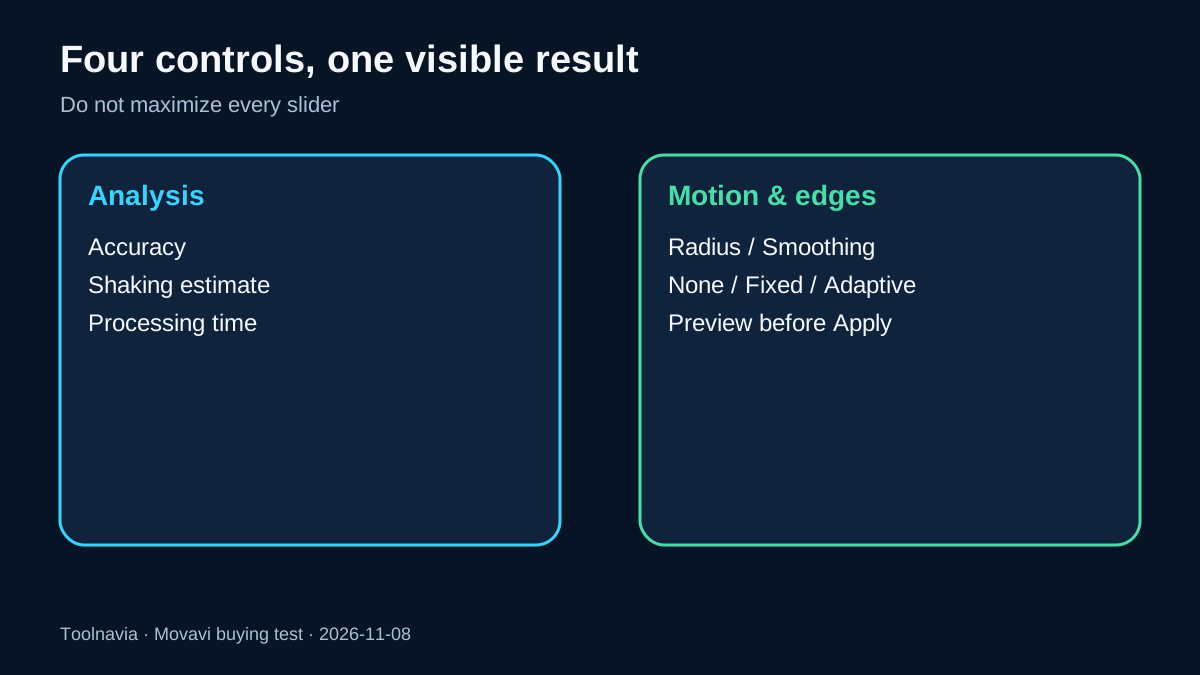
The official October 2026 guide says Accuracy raises analysis precision but also processing time. Shaking represents visible movement. Radius and Smoothing influence how broadly and strongly frames are corrected, and Movavi suggests smaller values for more dynamic material. Edge cropping can be disabled, fixed or adaptive. Previewing before application is part of the documented workflow.
That means “stabilization” is not one result. A high setting can remove obvious shake yet cost more border area or create rigid-looking motion. A lower setting may preserve composition while leaving some movement. Neither outcome is universally correct. The right setting is the smallest correction that makes the clip watchable without destroying the intended framing.
Movavi's broader stabilizer page describes frame-by-frame analysis and explains why edge cropping hides blurred or black borders created when the corrected frame moves. This is a useful mechanism, not free quality: hidden borders are paid for with visible image area or scale.
Treat headroom and edge detail as a crop budget
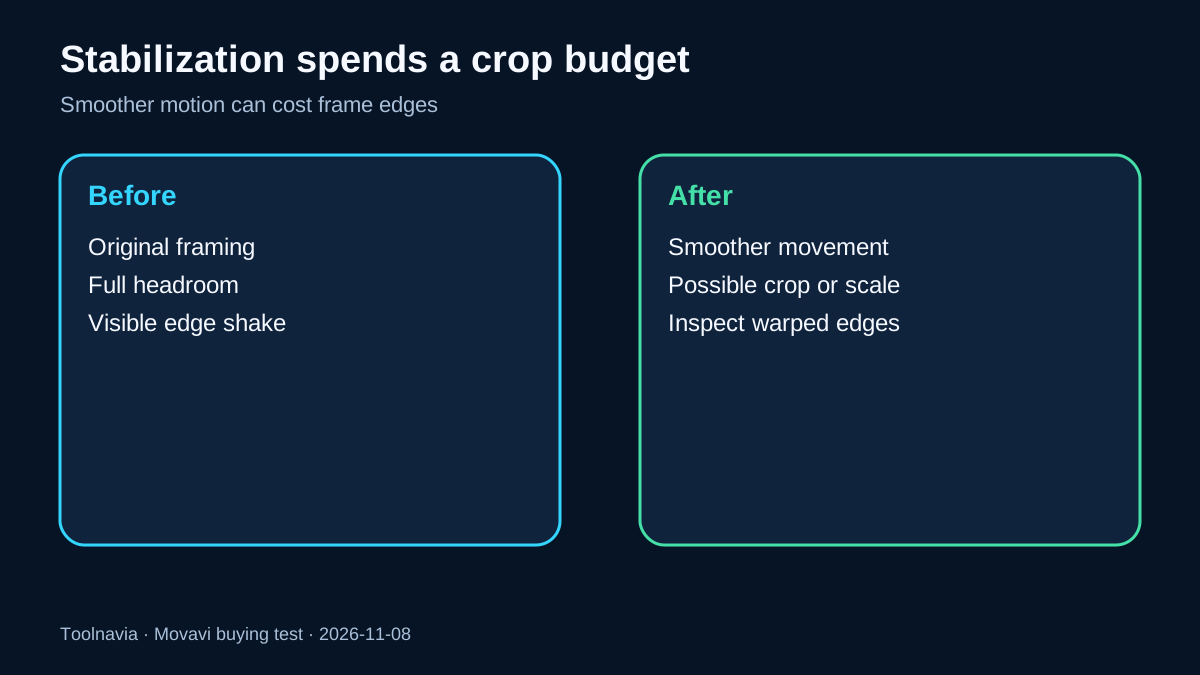
Before stabilization, freeze the clip at its tightest moment. Note the distance between a person's head and the top edge, hands and side edges, captions and safe zones, and any straight architectural lines near the border. Those details form the crop budget.
Run a first pass with moderate settings. Compare the same frames before and after. Fail the pass if hair, hands, subtitles or product details are cut off; if straight edges ripple; if faces stretch near borders; or if scale changes are distracting. A result can be smoother and still be worse.
Adobe's Warp Stabilizer documentation makes the same category of tradeoff explicit: more smoothness can demand more cropping, and border handling ranges from stabilize-only through crop, auto-scale and synthesized edges. Filmora likewise exposes smoothness and edge-processing choices. These competitors do not prove Movavi will behave identically; they confirm that crop and border treatment are normal buying criteria for stabilization tools.
Run the three-clip trial before paying
Use original camera files, not social-media recompressions. Keep clip duration long enough to include a direction change or walking step, because a five-second calm excerpt can hide the failure.
1. **Slow handheld walk with headroom.** Look for a natural glide, retained headroom and stable edges. Some residual movement is acceptable if the composition survives. 2. **Tight talking head.** This is the crop test. Watch hair, shoulders, hands, captions and background lines. If adaptive crop constantly changes scale, try Fixed or lower smoothing; if the subject still feels cramped, fail the tool for this use case. 3. **High-motion or rolling-shutter clip.** This is the artifact test. Watch for wobbling buildings, bending shelves, rubbery faces and sudden reframing. Stabilization cannot replace a usable source.
For every clip, preview at the same output aspect ratio you will deliver. Then export the full test at the intended resolution and frame rate. Movavi support notes that stabilization can add render-resource demand and may contribute to export trouble on some projects. That is a reason to test the entire pipeline, not evidence that every export will fail.
Record four gates: acceptable crop and headroom; no distracting warped edges; movement still looks natural; and full-resolution export completes. Critical clips must pass all four.
Compare the tool you already own
Filmora's official guide describes automatic analysis, a smoothness control and edge processing. Adobe provides deeper border and rolling-shutter controls. DaVinci Resolve documents image stabilization inside its editing workflow. These are capability benchmarks, not a universal ranking.
If you already own another editor, run the same three source clips and the same four gates there. Do not compare marketing demos. Compare exported files at the same resolution, crop and bitrate. The best value is the tool with the highest pass rate and the least corrective work—not the tool with the longest feature list.
Current independent reviews position Movavi as approachable and confirm stabilization is part of the toolset, but reviews cannot know your framing, camera motion or hardware. Use them for interface expectations only; the current official guide and your trial results control.
Buy, use an alternative, reshoot—or wait
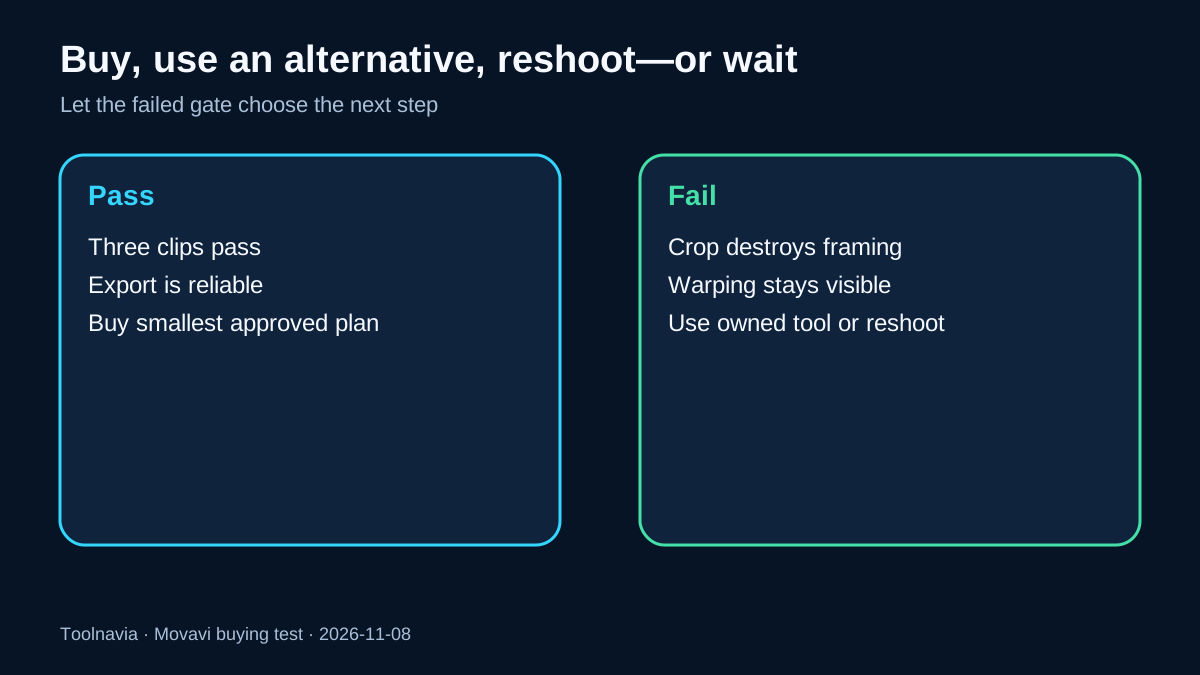
**Buy the approved one-year offer** when every critical clip passes, the export is reliable and Movavi's simpler workflow saves enough time to justify another subscription. Verify the current checkout, platform, license term and renewal details before payment; this guide intentionally does not reuse an old price.
**Use an owned or free alternative** when it achieves the same pass rate. Switching editors only for a stabilization button is poor economics if your existing tool already preserves the composition.
**Reshoot or use physical stabilization** when crop destroys the framing, rolling-shutter wobble remains visible or the subject is too close to the borders. Software cannot recreate missing image area.
**Wait** when the trial build, export restriction or hardware prevents a representative full-resolution test. Paying before the pipeline is proven converts uncertainty into sunk cost.
Verdict
Movavi's stabilization controls are credible and more configurable than a one-click label suggests. The buying question is not whether the feature exists; it is whether the steadier result survives a crop, edge, motion and export audit on your footage. Pass three representative clips through four gates. Buy only when the full pipeline passes, and keep the composition—not maximum smoothness—as the decision standard.