TOOLNAVIA / BUYING GUIDE
Movavi Face Blur: Test Every Frame Before You Pay
The short answer
At a glance
- Best for
- Buyers testing whether Movavi face blur covers every sensitive frame in final export.
- Price model
- Verify current checkout, platform, computer limit, term, renewal and tax; no fixed price claimed.
- Check first
- Tracking can drift; blur does not guarantee anonymity; final export controls.
Short verdict
Movavi Video Editor is worth paying for face blurring only if the blur stays over every sensitive face in the exported file—not merely in a clean preview. Movavi's current pages describe Quick, Precise and AI-powered motion tracking, plus blur, pixel and solid masks. Those are credible workflow options, but privacy is pass/fail: one exposed frame can defeat the purpose.
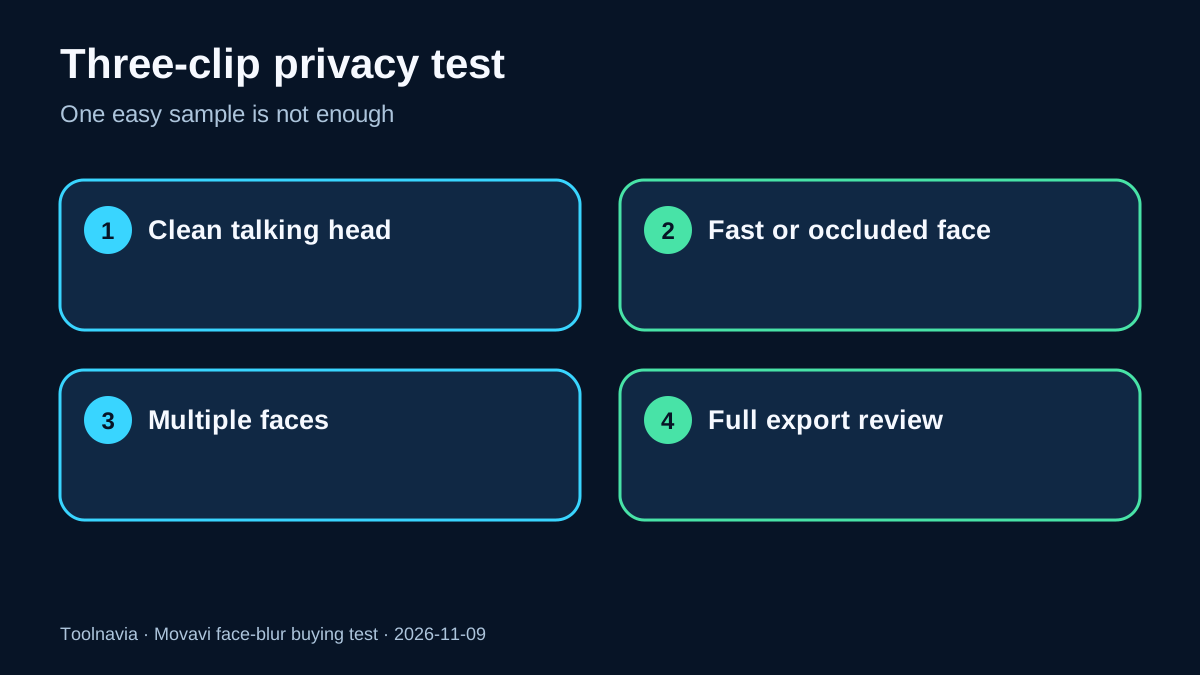
Run a three-clip trial before buying: a clear talking head, a fast turn with partial occlusion, and a scene with multiple faces entering or leaving frame. Review the finished export at full resolution. Buy only when all visible frames remain covered, manual repairs are manageable, and the exact approved one-year offer is still the right license.
Affiliate disclosure: Toolnavia may earn a commission if you buy the approved Movavi Video Editor one-year offer through our direct link, at no extra cost to you. We do not promise a discount, perfect tracking, legal compliance or anonymity. The current checkout, installed build, source footage and final export control.
What Movavi currently claims
Movavi's current face-blur page says its masks can follow a moving face and offers three tracking methods: Quick for simpler shots, Precise for more control, and AI-powered tracking for complex movement. It describes blurred ellipses, pixel shapes and solid covers inside Highlight and Conceal, and says the 7-day trial includes the tracking modes while trial exports carry a watermark.
The broader motion-tracking page describes attaching blurs, text, graphics or stickers to a tracked object and keeping the workflow inside the editor. It also tells users to check how the mask follows the object and adjust it when needed before export. That qualification matters more than marketing superlatives: automatic analysis reduces work; it does not transfer responsibility for the delivered file to software.
There is a licensing inconsistency inside the vendor material. The motion-tracking page describes a one-time purchase, while the approved catalog offer used here is a personal one-year subscription. Treat the live checkout and exact offer record as authoritative for term, platform, tax and renewal—not a feature-page sentence.
Why privacy blur needs a coverage audit
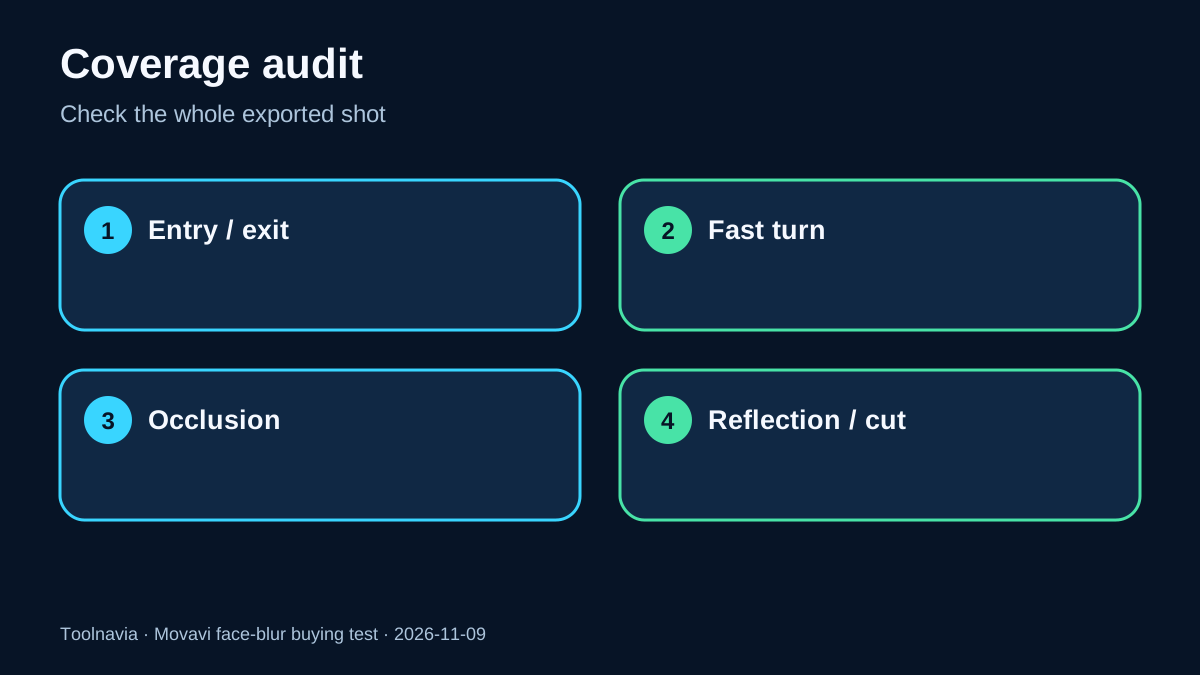
A tracker can look accurate on a centered, well-lit face and still drift when the subject turns, leaves frame, crosses another person, passes behind an object, appears in a mirror or returns after a cut. Adobe's official guides provide forward/backward tracking, frame-level correction and manual mask adjustment. Adobe is a different product, but the workflow principle applies: inspect and correct the result rather than assuming automation is final.
CapCut's current privacy workflow gives a useful cross-check: inspect every visible frame, including entrances, exits, reflections, occlusions and cuts, then review the exported file. Its separate face-blur guide also treats export review as part of the task. These pages do not prove Movavi will fail; they define a reasonable privacy acceptance test across editors.
Do not describe blur as guaranteed anonymity. Hair, clothing, voice, tattoos, location, metadata and context can still identify a person. If the project has legal, safety or source-protection consequences, use appropriate professional review rather than relying on a consumer editor alone.
Run the three-clip trial
Use original footage and keep clips long enough to expose failure. A five-second centered sample is too easy.
1. **Clear talking head.** Apply the smallest mask that fully covers identifying facial detail. Test Quick, Precise and AI modes. Pass only if the mask remains centered without revealing eyes, profile or distinctive details. 2. **Fast turn plus occlusion.** Include a head turn, hand crossing the face, momentary obstruction and reappearance. Pass only if the track reacquires correctly or manual repair is acceptable. 3. **Multiple faces entering and leaving.** Include two or more people, a frame-edge entrance and a reflection if relevant. Confirm every required face is covered and the mask never jumps to the wrong subject.
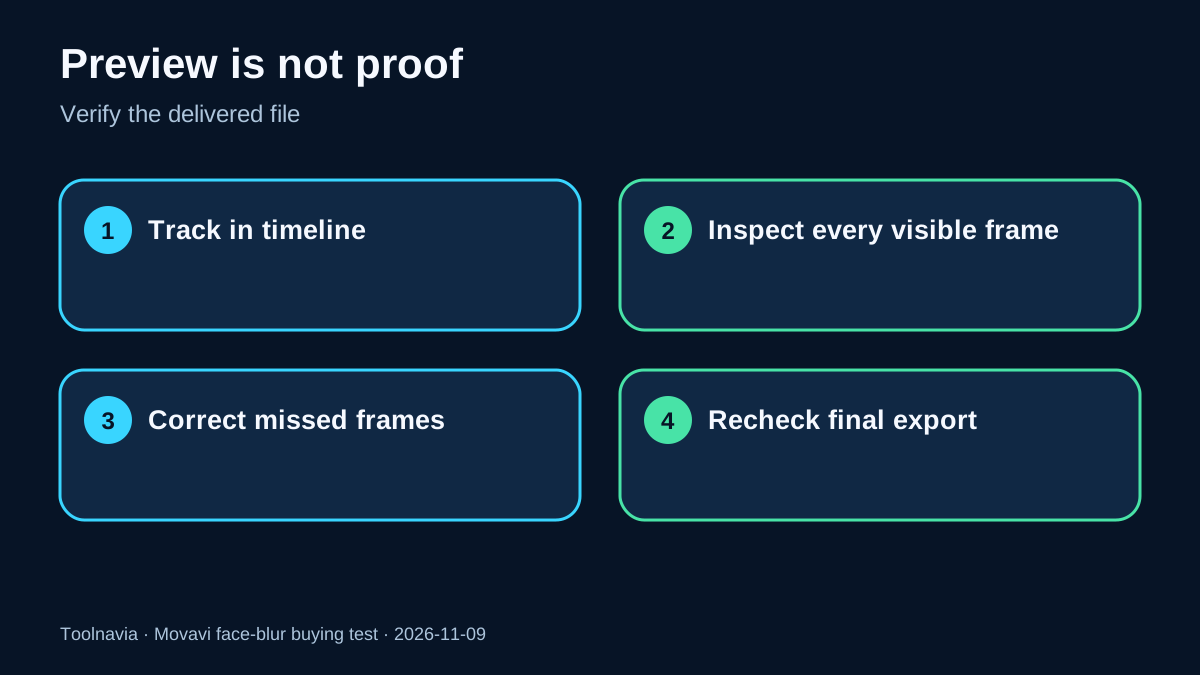
Inspect each clip at normal speed and again around every difficult event. Then export at the intended resolution and frame rate. Review the exported file from start to finish; do not assume preview and encoded result are identical. Record exposed-frame count, manual corrections, repair minutes and whether the final file passes.
Account for the main-layer limitation
A July 2026 Digital Camera World review says AI motion tracking was limited to clips on the main video layer in its tested build. That is an independent observation, not an official guarantee about every current installation, but it creates a concrete test: reproduce your real layer layout during the trial. Do not test a simplified single-layer clip if production uses picture-in-picture, overlays or nested composites.
Shotkit's current review describes Movavi as easy to use but notes more limited advanced manual controls than professional editors. It also discloses a paid partnership, so use it only for interface context—not proof of tracking accuracy.
DaVinci Resolve provides a deeper tracking and masking alternative benchmark. A more capable tool can still be wrong if learning cost is excessive; a simpler tool is not a bargain if it cannot repair the hardest privacy shot.
Compare the tool you already own
Use the same source clips, mask size, output resolution and acceptance rules in Movavi and any editor you already own. Compare exported files, not demos. Measure four things: exposed frames, manual repair time, wrong-subject jumps and successful full export.
Movavi wins when it produces zero exposure with substantially less repair time. An owned tool wins when it meets the same gate without another subscription. A professional workflow wins for frequent occlusions, reflections, complex composites or high-consequence anonymity. Waiting wins when trial watermark or layer limits prevent a representative final-file test.
Buy, use an alternative—or wait
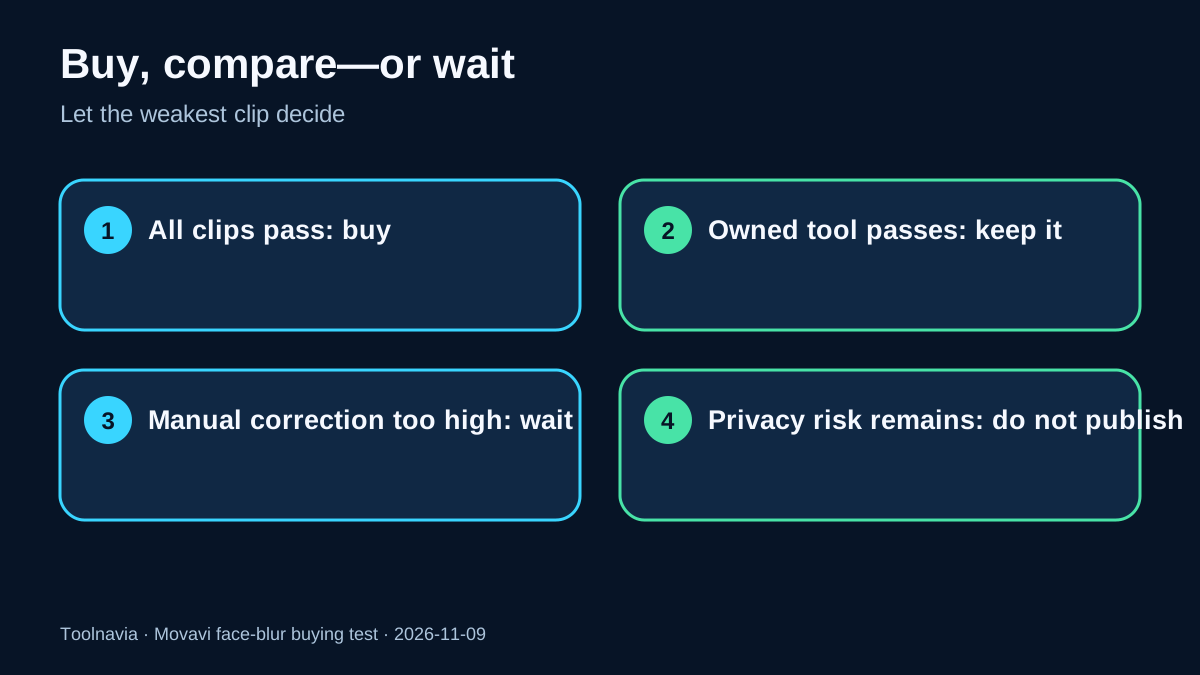
**Buy the approved one-year offer** when all three clips pass, the real layer layout works, the final export has zero visible exposure and time saved justifies the subscription. Verify checkout, platform, computer limit, term, renewal and tax before paying.
**Keep an owned or free alternative** when it meets the same zero-exposure gate. Feature presence is not a reason to duplicate a working tool.
**Use a professional editor or service** when correction is frequent or privacy consequences are high.
**Wait and do not publish** when any required face remains visible, tracking jumps to another person, a reflection is missed, or you cannot inspect a representative export. Privacy failure is not an acceptable trade for editing speed.
**Final verdict.**
Movavi's face-blur workflow is plausible for routine creator and business footage, and three tracking modes make it more flexible than a static blur. The decision should still come from the weakest clip and final exported file. Test entry, exit, fast turns, occlusion, multiple faces, reflections and cuts; measure repairs; buy only after every required frame is covered.