TOOLNAVIA / BUYING GUIDE
Movavi Subtitles: Generate New Captions or Reuse an Approved SRT?
The short answer
Movavi Video Editor can fit a Windows creator who generates captions from their own media and approves the wording inside the project. If an already approved SRT must enter the editor, verify that input path before buying. Exporting subtitles does not prove import support. This is documentation analysis, not a subtitle test.
At a glance
- Best for
- Windows Personal creators who generate captions from their own speech and can approve the text inside the project. A delivery brief asking for a captioned video and/or a separately checked SRT, with no unverified import dependency.
- Price model
- Windows Personal, one year/one PC: AUD 63.95 dated public reference. If selected, the separate Effects trial shown on another storefront becomes AUD 51.95/month after seven days. Verify the actual order and renewal.
- Check first
- An incoming approved SRT workflow whose import path is unverified in the actual current build; undocumented broadcast or rich-caption formats; assumptions that plain SRT preserves fonts and animation everywhere. Personal does not cover arbitrary business/client work or every asset; the EULA monetized-video exception has explicit attribution and link conditions.
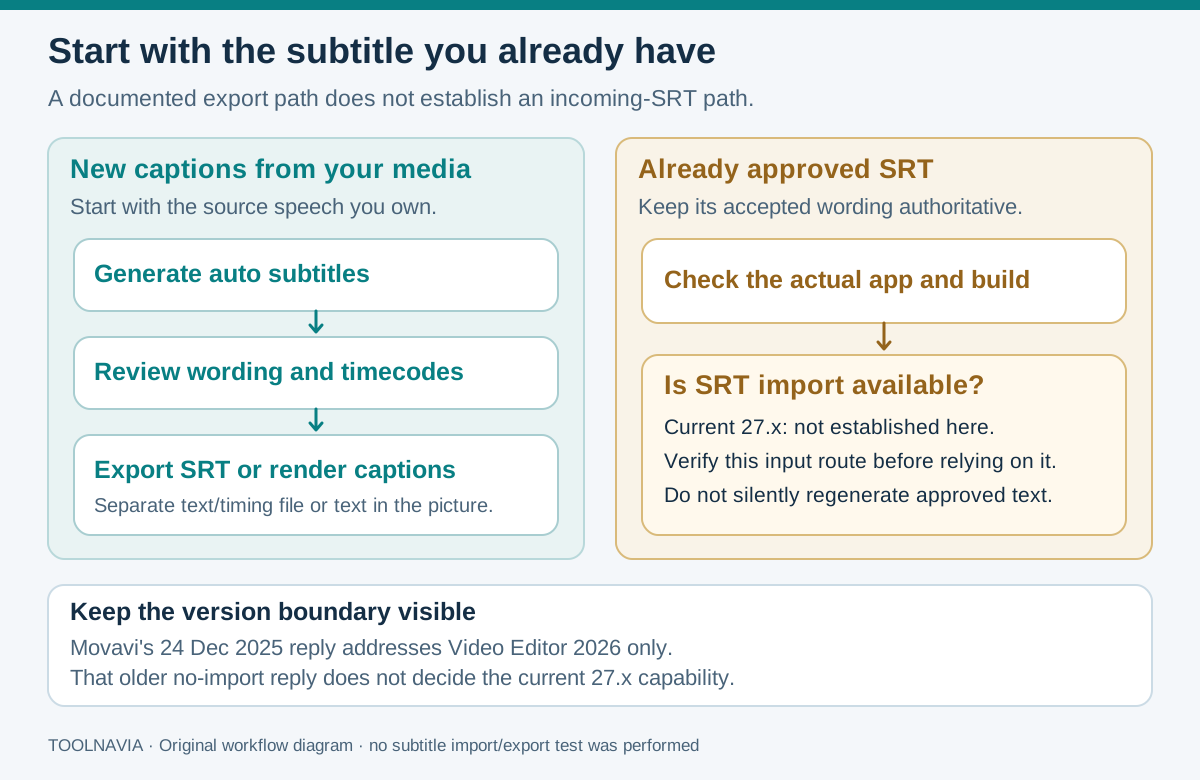
Start with the subtitle you already have
**Quick choice:** the Windows Personal one-year, one-PC offer is a candidate for generating, correcting and exporting captions. The October 28, 2026 localized annual reference is AUD 63.95.
An SRT stores subtitle text and start/end times separately. Burned-in captions are rendered into the picture and cannot be switched off. Agree whether delivery needs a clean video plus SRT, a burned-in video, or both.
Regenerating speech creates a new draft; it does not prove an approved SRT was imported or preserved.
Keep the older import answer within its version
On December 24, 2025, a Movavi developer reply explicitly said **Video Editor 2026 did not import SRT**, while supporting generated-caption export. The current Windows changelog instead lists **27.2.0, released October 26, 2026**, and the storefront now says Video Editor 2027.
The checked current tutorials document generation and SRT export; they do not establish incoming SRT support for 27.x. That remains unconfirmed here, rather than a current “unsupported” verdict. If import is essential, use the exact installed build with your supplied sample or obtain current vendor confirmation before paying.
Four capabilities for captions you create
- **Generate timed text from media.** Auto subtitles supplies a starting track inside the edit, providing initial timings. Names, numbers and difficult speech still need review; no accuracy percentage is established here.
- **Correct phrases beside the project.** The Phrases panel lets you revise wording before delivery. It helps when you control the approval pass, but does not establish automatic reuse of someone else’s revised SRT.
- **Export an independent SRT.** Text and timings can accompany the video or go to a translator. The receiving platform must accept the actual file; export does not guarantee identical typography everywhere.
- **Render a fixed caption appearance.** Video export can burn in the chosen captions when that presentation is required. Keep a clean master because later wording or language changes cannot be made by simply replacing a sidecar file.
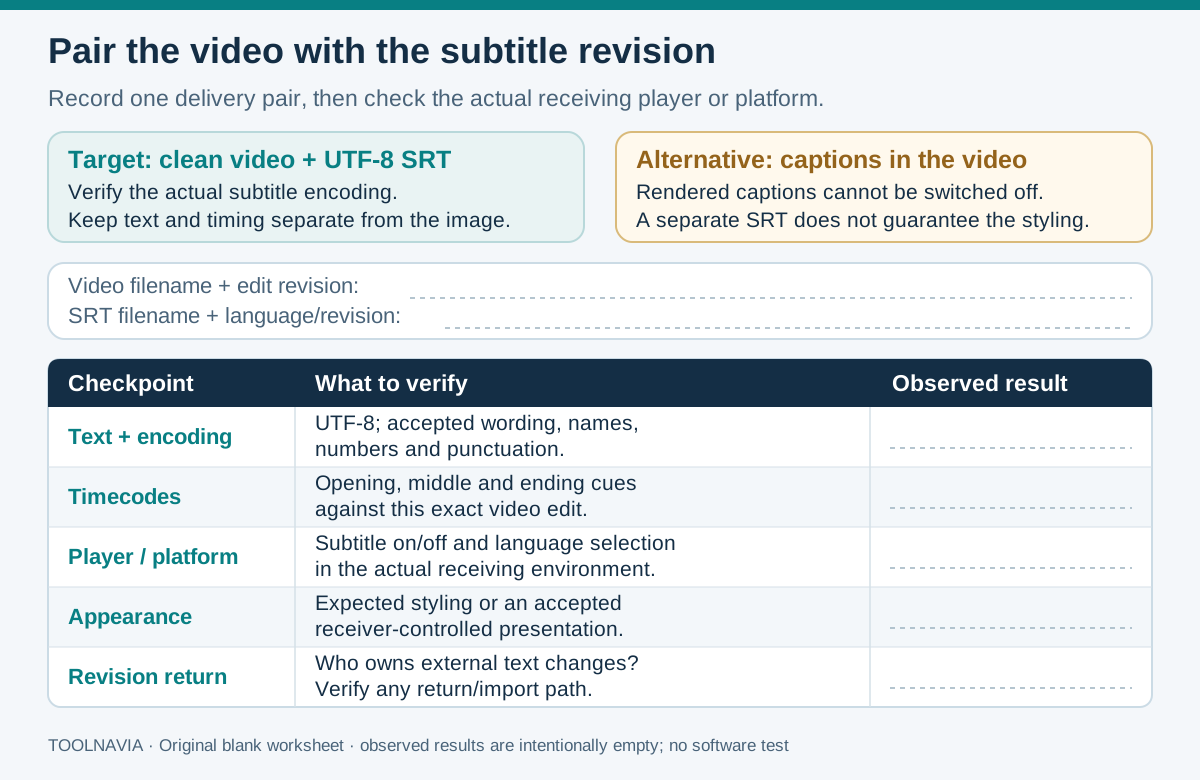
Check the video and subtitle as one delivery
This is a proposed acceptance workflow, not an executed result.
1. **Define the pair.** Record the final video revision, caption language and required delivery mode. Keep the project and source media. Use a sample containing the characters, names and timing changes relevant to your work.
2. **Generate and correct.** Add the media, open **Tools → Audio → Auto subtitles**, select the language and generate. Review the Phrases panel against the audio before approving the text.
3. **Export the intended outputs.** The current tutorial describes selecting the subtitle track and **Export.SRT**. Save a video without permanent captions if separate captions are required, and create a distinct burned-in version only when requested. Record which video revision each file belongs to.
4. **Inspect outside the editor.** Check the actual receiving platform, wording, characters, first and final cues, and a point after an edited section. For a separate caption file, verify how the recipient loads and selects it. Record any revised text separately from the accepted original.
YouTube specifically requires basic SRT in plain UTF-8 and ignores style markup. Movavi font choices, animation and word highlighting therefore are not a portable SRT promise. A successful preview inside the editor cannot verify the recipient’s presentation.
Price the Windows license and selected extras
The AUD 63.95 annual reference appears on both the Windows one-PC destination and the base 2027 card; the Windows page dates its offer through November 1. This is a regional display, not a verified USD checkout. Final tax, currency, platform and selections remain unconfirmed because the checkout was unavailable.
If your order includes a separate Effects trial, inspect it independently: another official storefront shows seven days free, then **AUD 51.95/month**. That is not assumed included or selected in the base annual order. Plus is a different bundle. Subscriptions renew at the then-current rate plus applicable tax.
The EULA permits monetized YouTube or similar-service videos if the description states they were made with Movavi and links to its website. Other commercial work requires appropriate Business rights.
Decide where later revisions will happen
Choose Movavi when you create and approve captions in the project and the delivered files meet the brief. If external SRT revisions must return, make verified import a purchase condition.
Premiere documents separate burn-in, embedded and sidecar export modes; HandBrake explicitly accepts supplied SRT for finishing. These alternatives do not establish Movavi’s controls.
Keep the accepted video/SRT versions together, and consult the [Effects boundary guide](/en/software/movavi-video-editor-watermark-after-purchase-effects-trial) before adding separately licensed assets. Toolnavia may earn a commission from purchases through its links.