TOOLNAVIA / BUYING GUIDE
Movavi Video Editor License: One PC, Transfer, or Shared Access?
The short answer
Movavi Video Editor’s current one-year product card says **1 year / 1 PC**. That is the clean baseline: one active computer is included, while replacing that computer, keeping a laptop and desktop active together, and moving an unfinished edit are three different jobs. A replacement normally uses a support-assisted license transfer; simultaneous personal use needs an eligible Shared Access add-on or another license; the project and source media must be moved separately.
At a glance
- Best for
- Personal buyers replacing one editing PC or verifying simultaneous laptop-and-desktop use.
- Price model
- One-year / one-PC offer; localized checkout controls final price.
- Check first
- Exact order controls; Shared Access device count and price vary by product and offer; Business work needs the correct license.
One license starts with one active computer
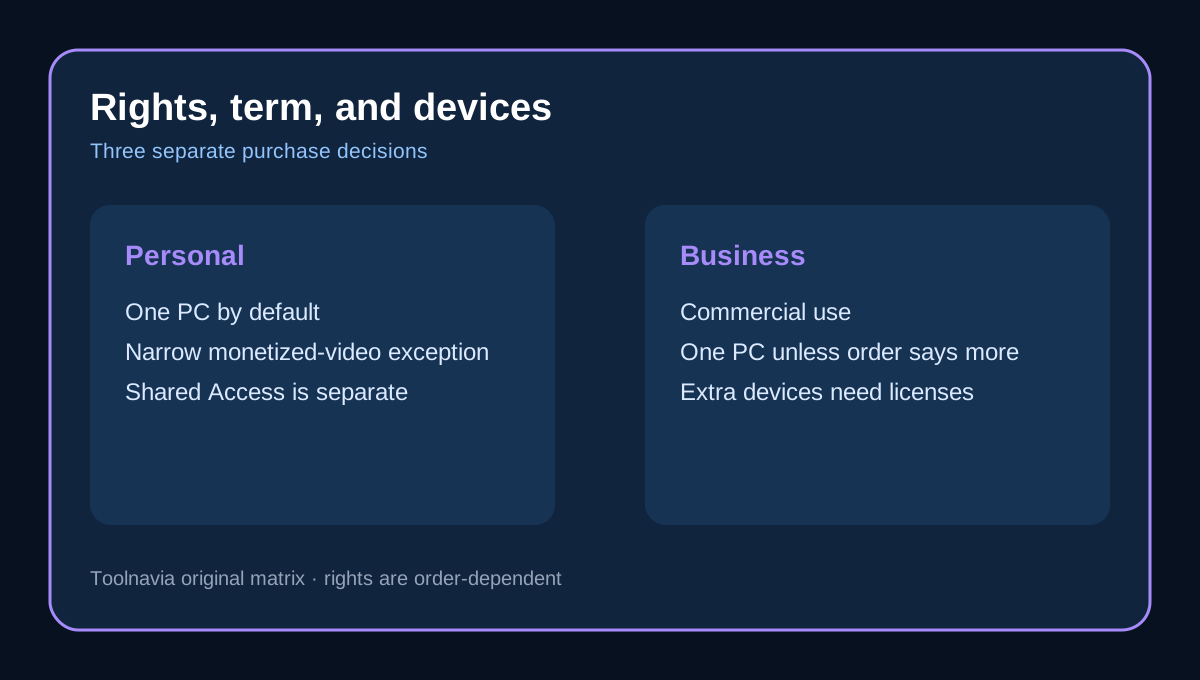
Movavi’s licensing rules state that a Personal license is for one computer by default. The current Video Editor offer repeats “1 PC,” so an annual term does not turn the license into a multi-device entitlement. The EULA also describes licensing per computer rather than per person, site, or company.
This matters if you edit on a desktop but travel with a laptop. Installing the same key on both for simultaneous use is not the same as reinstalling on one repaired machine. Decide whether the second device replaces the first or remains active beside it.
Moving a license is not moving a project
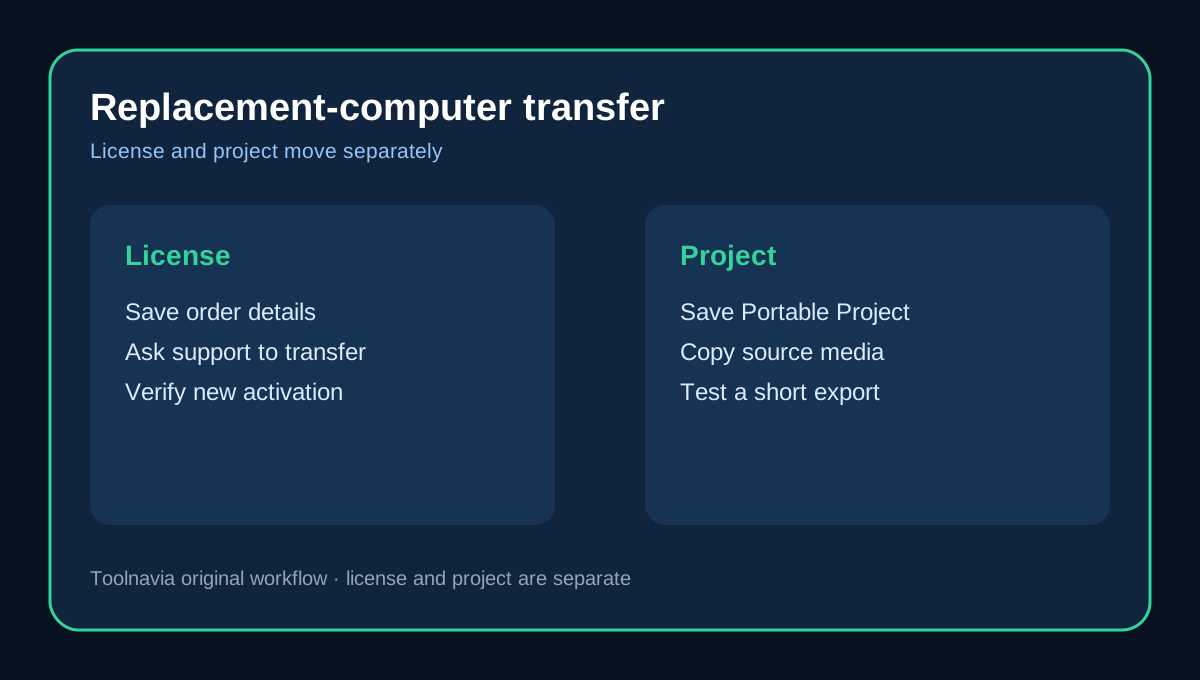
For a true replacement, Movavi says Customer Service handles the transfer: install the product on the new computer, request the transfer, let the old activation be deactivated, then activate with the newly issued key. Do not promise that uninstalling alone will free the seat.
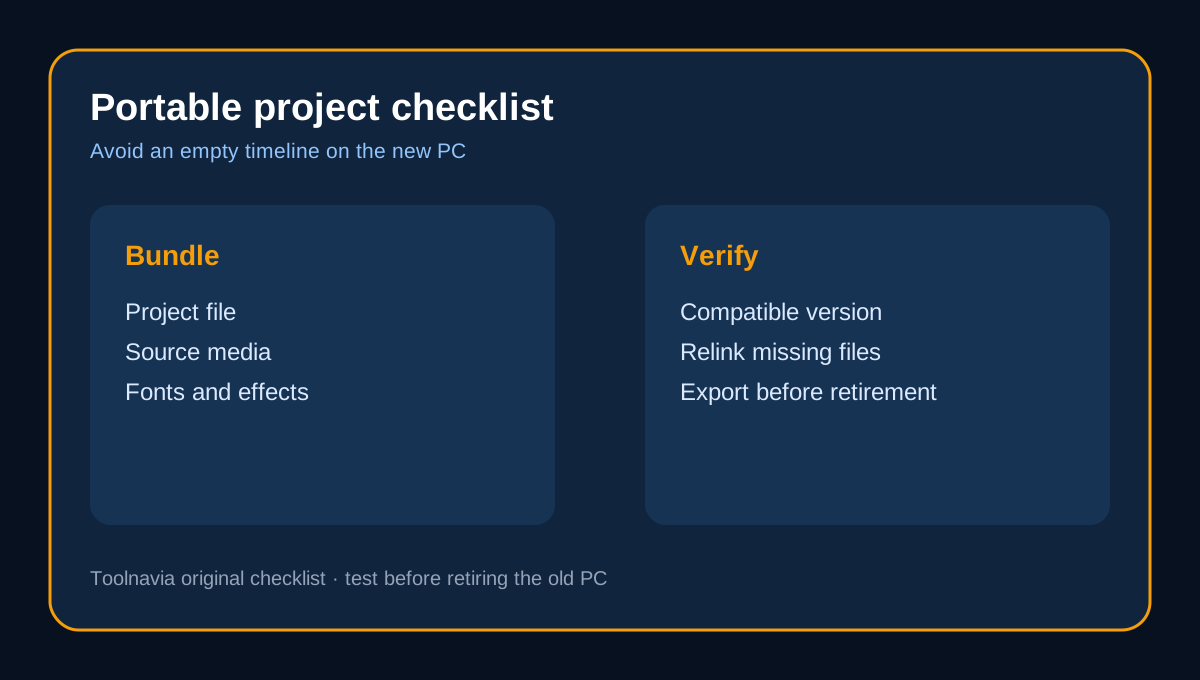
Your edit still needs its project file and source media. Movavi’s portable-project guidance bundles the project with referenced assets so another computer can continue the work. Keep the target computer on the same or a newer compatible editor version, and verify fonts, effects, plug-ins, audio, proxies, export presets, and free disk space before retiring the old machine.
Choose transfer, Shared Access, or another license
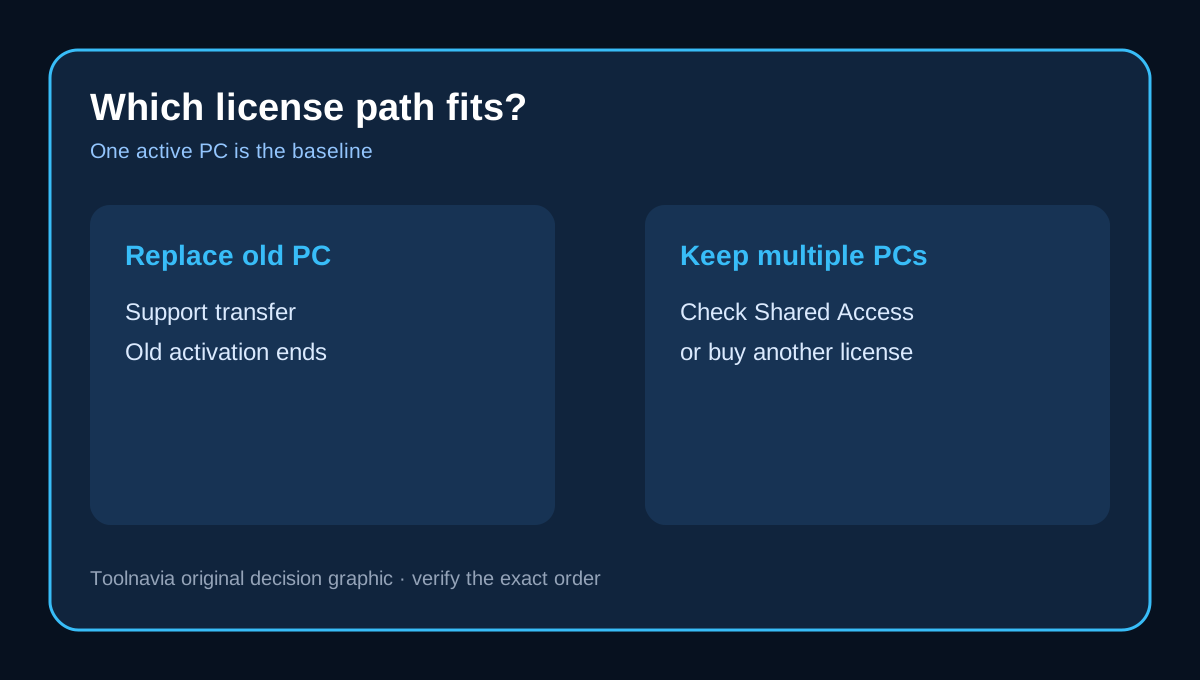
**Replace one computer:** request a transfer; Shared Access is not required.
**Keep several personal computers active:** Movavi describes Shared Access as an optional Personal-license subscription. Its general page currently says up to three computers, but explicitly warns that the exact device count varies by product and offer. The Video Editor product card itself promises only one PC, so treat Shared Access as a separate, checkout-controlled entitlement—not something included automatically.
**Deploy for work:** Shared Access is unavailable for Business licenses; Movavi says additional business devices require additional licenses.
Term length and device count are separate decisions
A one-year subscription controls how long access and included updates continue; it does not expand the one-computer default. Independent Video Editor reviews also describe annual and lifetime choices as one-computer products. A 2026 hands-on review adds useful workflow context but notes that some effects require a separate subscription. Buying a longer term, lifetime tab, or effects pack should never be assumed to add another device.
Personal and business rights are not interchangeable
Movavi’s EULA limits Personal licenses to personal use, with a narrow exception for monetized YouTube-style videos when its attribution conditions are followed. Client work, company marketing, and internal commercial production should use the appropriate Business license rather than stretching a Personal order. The exact purchase order controls if it grants broader rights.
Customer reviews mention both helpful support and activation or billing frustration. Treat those reports as risk signals, not policy. Preserve the invoice, account email, license key, seller, product edition, operating system, and screenshots of the current activation before contacting support.
Transfer checklist
1. Confirm the order says Movavi Video Editor, the correct OS, Personal or Business, and the intended term. 2. Save the invoice, key, account email, seller details, and version number. 3. Use **Save Portable Project** and copy every source-media folder. 4. Install the same or a newer compatible version on the new computer. 5. Ask Movavi Customer Service to transfer the activation; reseller purchases may follow the seller’s recovery path. 6. Open the portable project, relink any missing media, test effects and fonts, and complete a short export. 7. Retire the old installation only after the new activation and project both work.
Verdict
Buy the current one-year Video Editor offer if one active computer is enough and you accept support-assisted transfer when replacing it. If a laptop and desktop must remain active together, verify the exact Video Editor Shared Access option and final device count at checkout; this article does not assert a fixed add-on price. For business deployment, price the proper Business licenses instead. Toolnavia’s exact approved commercial route is [Movavi Video Editor 1-Year](/go/movavi-video-editor-one-year-official-usd); the localized checkout controls the final license, platform, price, tax, and renewal terms.