TOOLNAVIA / BUYING GUIDE
Movavi HEVC Import on Windows: Test the Codec Before You Buy
The short answer
Movavi Video Editor can be a practical personal editor, but “MP4 supported” does not answer whether your actual HEVC footage will open. Movavi's current Windows troubleshooting says H.265/HEVC decoding depends on system-level support and compatible hardware, not the application alone. A Microsoft extension may be required, yet Movavi also warns that installing it cannot make unsupported hardware decode HEVC.
That makes HEVC a purchase gate, not a checkbox. Test the files you already own on the exact PC you will edit with. If video appears as audio only, fails to import, or needs conversion, decide whether that extra step fits the workflow before paying.
Toolnavia may earn a commission if you purchase through the approved Movavi link in this guide, at no extra cost to you. The link does not preselect a license, location, tax or optional Effects subscription.
At a glance
- Best for
- Windows buyers who can test their own HEVC clips.
- Price model
- $54.95 one year/one PC; $119.95 lifetime; local checkout varies.
- Check first
- No universal codec guarantee.
A MOV or MP4 filename does not identify the codec
MOV and MP4 are containers. The video stream inside can be H.264, HEVC/H.265 or another codec. Two files with the same extension can therefore behave differently on the same editor. Movavi's troubleshooting flow recommends comparing the failing clip with an H.264 MP4: if H.264 imports and only HEVC fails, investigate the Windows codec path rather than assuming the project is damaged.
Start with a representative file from each device and recording mode you use. Do not rename the extension and call that a conversion. Open the original in a Windows system player, then import it into Movavi. Record whether you get video and audio, audio only, an error, or a normal editable clip.
Separate four links in the decoding chain
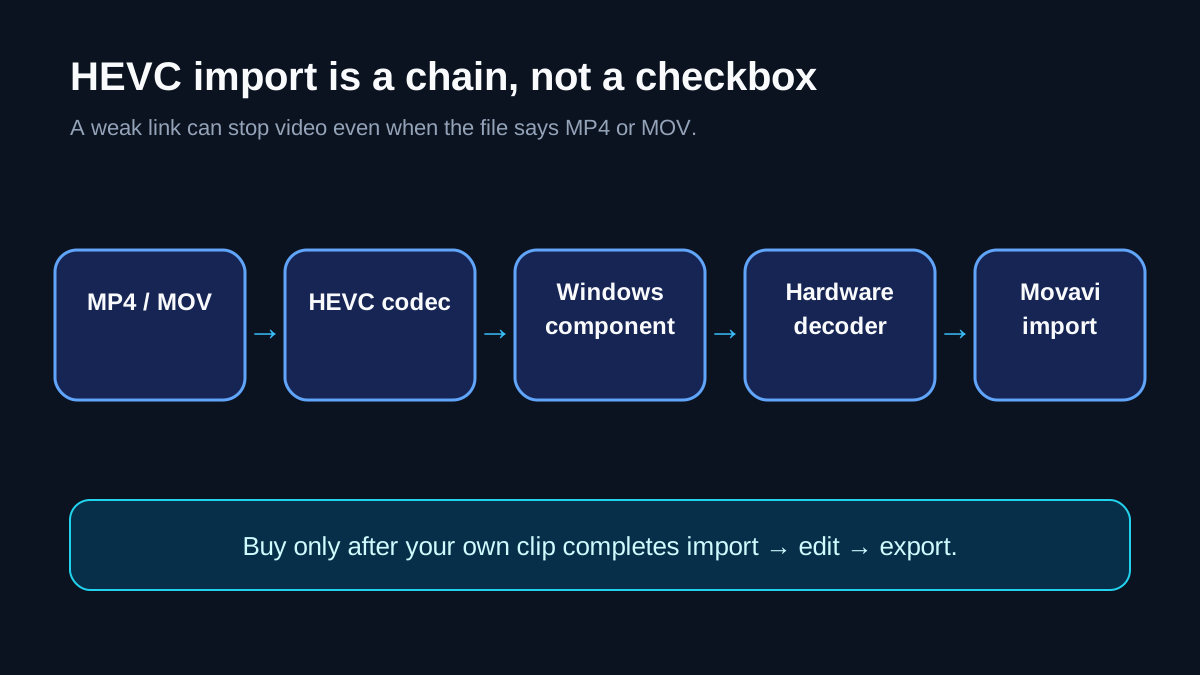
The useful model is: source codec → Windows component → hardware capability → Movavi import. A failure at any link can look like “Movavi does not support my file.”
Movavi's newer KB says some Windows systems need the HEVC component and that hardware support is still required. Microsoft likewise documents the HEVC Video Extension for systems that lack the codec. The older Movavi issue page uses broader wording that HEVC is not supported natively and recommends H.264 conversion. These pages are not perfectly aligned, so the defensible promise is narrower: direct import is conditional, and conversion remains the fallback.
Installing an extension is therefore a diagnostic step, not a compatibility guarantee. Avoid paying merely because one sample opens in a third-party player; the purchase test is whether the same file imports, edits and exports correctly in Movavi on the target PC.
Use three representative clips, not one convenient sample
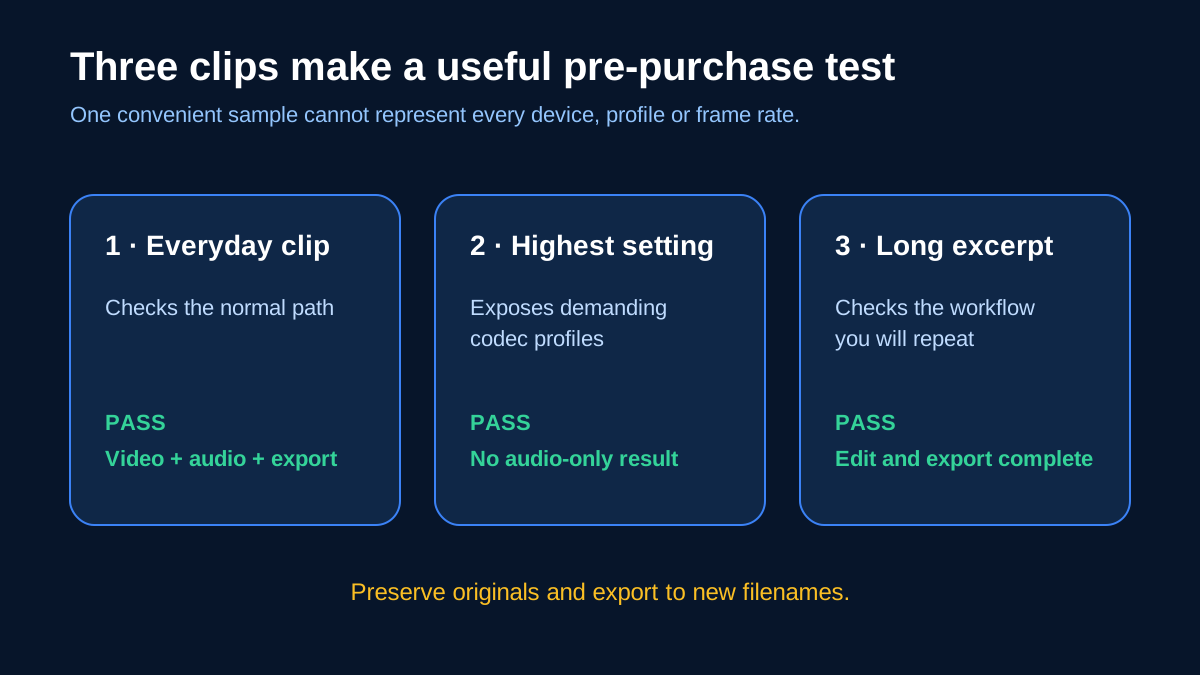
Build a small matrix before the trial or purchase decision:
| Sample | Why include it | Pass condition | |---|---|---| | Normal everyday clip | Establishes the common path | Video and audio import, preview and export | | Highest setting you regularly record | Exposes a demanding codec/profile combination | No audio-only import or unsupported-file error | | Long real project excerpt | Checks the workflow you will repeat | Edit and export complete without forced source replacement |
Keep the originals unchanged and export to a new filename. This is a buyer test proposed by Toolnavia, not a benchmark we performed. It does not prove every future device, profile, bit depth or frame rate will work.
Apple documents that iPhone and iPad can capture HEVC and offers “Most Compatible” capture or H.264 export as broader-compatibility alternatives. If your library comes from Apple devices, include the exact capture modes you use instead of downloading a generic HEVC sample.
Decide whether H.264 conversion is an acceptable fallback
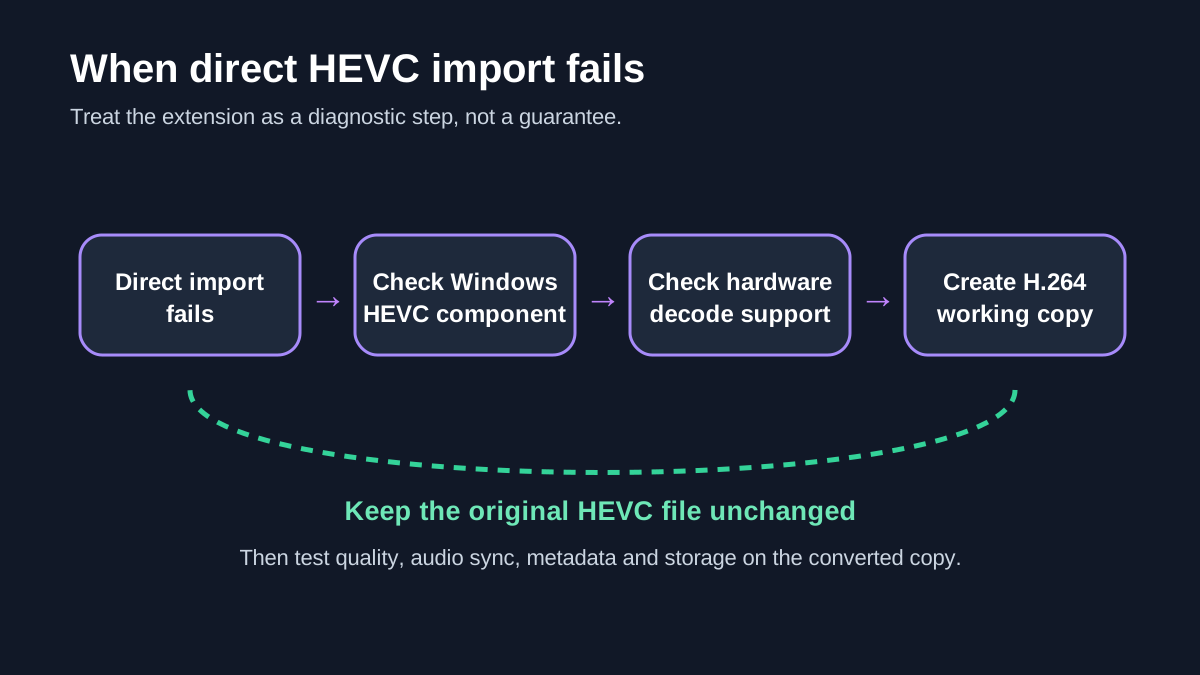
Movavi's current HEVC KB says to convert to H.264 if the file still does not open. That can restore an editing path, but it adds a preparation step and creates another media copy. Do not promise that conversion is lossless or faster; test output quality, audio synchronization, metadata and storage on your own clips.
A reasonable fallback workflow is: preserve the original, create an H.264 working copy, edit the copy, and export a short round trip for review. If your work arrives continuously in HEVC and every batch needs conversion, the recurring labor may matter more than the editor's sticker price. If conversion is rare and predictable, Movavi may still fit.
Compare documented codec scope, not brand claims
Filmora's current technical specifications list HEVC among common formats while still noting that some Windows formats need system support. Adobe Premiere lists HEVC/H.265 and separately documents hardware-accelerated decoding and encoding. Those official pages illustrate the right comparison method: exact codec/profile, operating system, hardware and workflow—not a generic “supports MP4” badge.
This article does not rank decode quality or speed because Toolnavia did not run identical clips across the editors. A buyer who needs a guaranteed professional HEVC pipeline should test competing trials with the same source matrix and confirm any plan or hardware requirements directly.
Price the editor only after the round trip passes
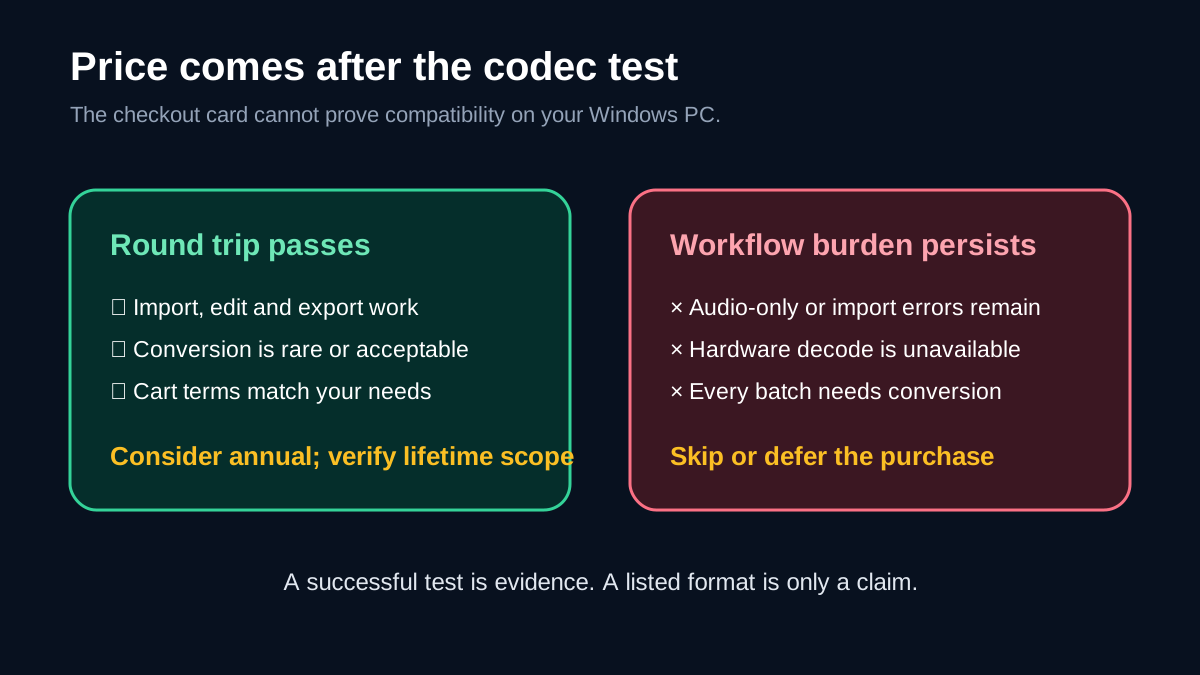
The official Movavi page currently displays US$54.95 for one year on one PC and US$119.95 for a lifetime license, with location-based variation. Movavi also says paid Effects are licensed separately from the editor. Refresh the live cart, tax, platform and renewal terms before paying.
Choose the annual offer when representative HEVC files import after an acceptable setup, H.264 fallback is manageable, and the rest of the editor fits your personal workflow. Choose lifetime only after the same compatibility test and after confirming what future-version access the cart actually grants. Skip or defer when audio-only imports persist, the PC lacks compatible decode support, or conversion would become a constant production tax.
Use the approved link to inspect the current offer: [View Movavi Video Editor](https://www.jdoqocy.com/click-101895278-13233645). The decisive evidence is not the checkout card; it is a successful import-edit-export round trip with your own HEVC files.