TOOLNAVIA / BUYING GUIDE
Movavi Video Editor for 4K: Test Proxies Before You Pay
The short answer
# Movavi Video Editor for 4K: Test Proxies Before You Pay
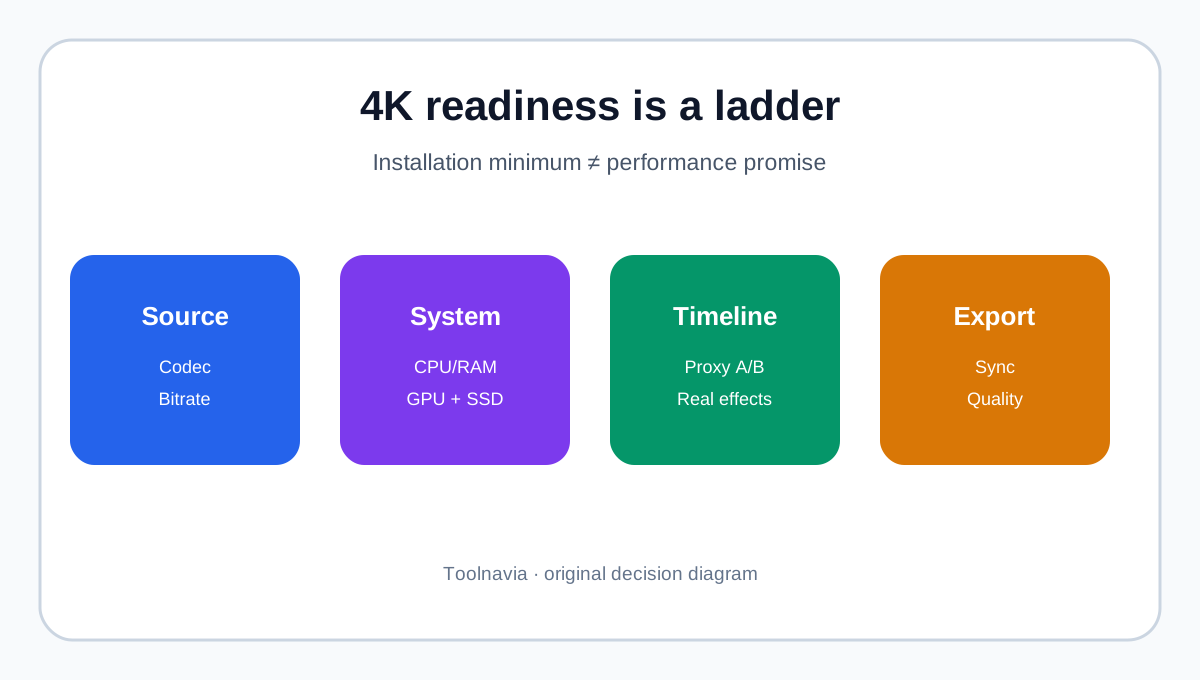
**Quick verdict:** buy Movavi Video Editor only after the trial can complete *your* representative 4K project. Movavi's public system-requirements page currently lists modest installation minimums, but its own troubleshooting guidance recommends a stronger 4K starting point: at least four CPU cores, 16 GB RAM, a 4 GB GPU, an internal SSD, current drivers, and mains power for a laptop. Those are guidelines, not a promise that every HEVC, high-bitrate or effects-heavy timeline will be smooth.
This article contains affiliate links. If you buy through them, Toolnavia may earn a commission at no extra cost to you. The commercial link maps only to the approved Movavi Video Editor one-year offer; the live cart controls version, platform, price, tax and renewal.

At a glance
- Best for
- Creators who will qualify their own 4K source, hardware, proxy and export workflow.
- Price model
- Check exact one-year cart; no universal price claimed.
- Check first
- Performance is machine/source/codec/build specific; cart controls version, price, tax and renewal.
The decision is not “Can Movavi open 4K?”
Opening a clip is the easy part. The useful buying question is whether your machine can sustain the whole workflow:
1. import media from a local internal drive; 2. scrub and play a representative timeline; 3. add the effects you actually use; 4. keep audio synchronized; 5. export the intended resolution and codec; 6. inspect the full rendered file for artifacts, drift and unacceptable wait time.
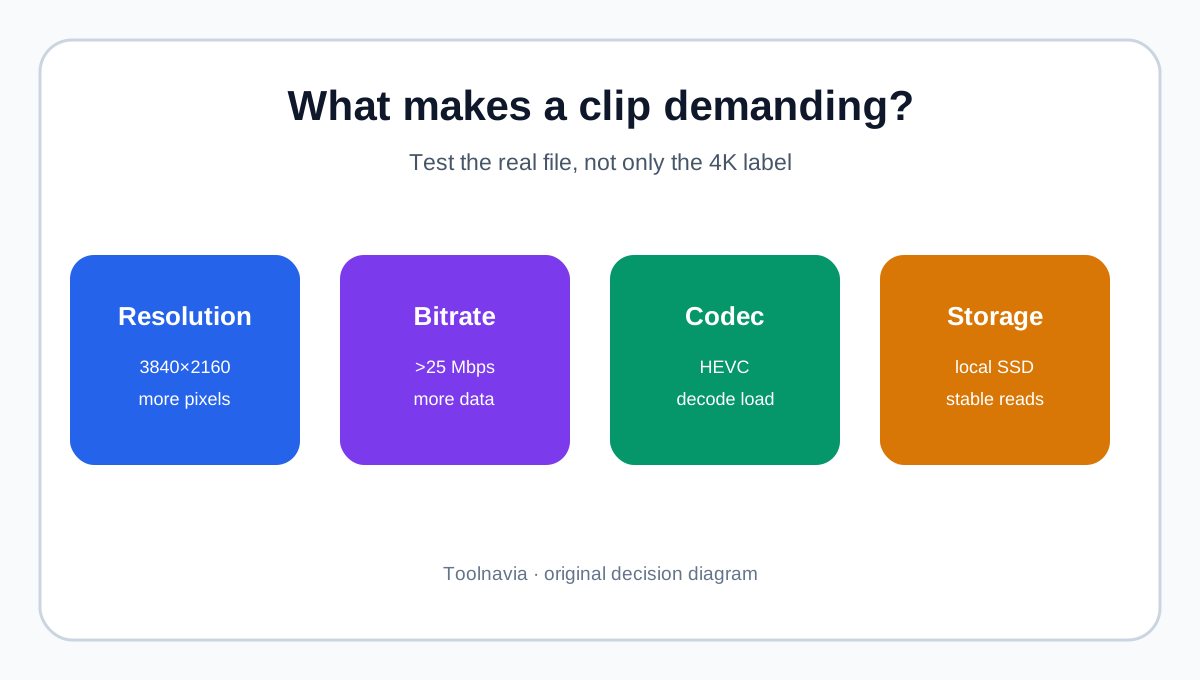
Movavi's current support page flags 4K, files above 25,000 kbps and HEVC as demanding. It recommends checking source properties and, when useful, testing a converted H.264 or AV1 copy. That does not mean every HEVC file must be converted. Codec, bitrate and device decode support are part of the hardware-fit test.
Minimum requirements and 4K guidance are different
The official requirements page now labels the desktop release **Movavi Video Editor 2027, version 27.1.0**, updated October 26, 2026. It lists Windows 10/11 64-bit or macOS 12+, 4 GB RAM and broadly compatible graphics as installation-level requirements. The approved Toolnavia offer record still names “Movavi Video Editor 2026.” Because the destination can localize and update, verify product name, OS and one-year term in the cart.
For 4K, Movavi's support guidance is more conservative:
| Check | Practical 4K starting point | Why it matters | |---|---:|---| | CPU | 4+ recent cores | decoding, effects and export | | RAM | 16 GB minimum guidance | preview cache and concurrent tasks | | GPU | 4 GB, supported current drivers | acceleration and stability | | Storage | free internal SSD space | source reads, proxy files and exports | | Laptop | plugged in, high-performance GPU | avoids throttling and iGPU selection |
Treat these as a test baseline, not a guarantee. A short H.264 phone clip and a long 10-bit HEVC camera file can place very different loads on the same computer.

HD Clip Optimization is an A/B test, not a magic switch
Movavi describes HD Clip Optimization as proxy-like editing: the editor works with smaller temporary representations and returns to originals for final export. That can reduce timeline load.
But Movavi's preview-lag article says optimization can sometimes *cause* lag and tells users to disable **Optimize HD clips** and test again. Both statements can be true because performance depends on source codec, storage speed, proxy-generation load and machine.
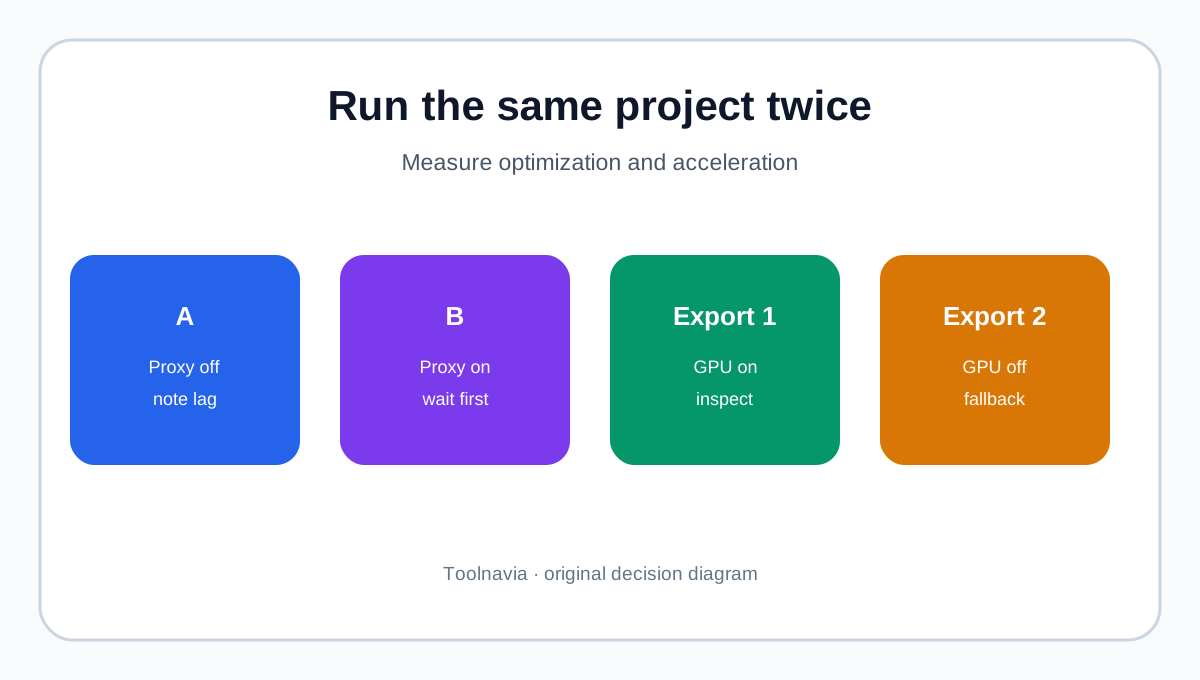
Use the same project twice:
- **Run A:** optimization off; note launch, scrub and playback behavior. - **Run B:** optimization on; wait for processing, then repeat the same actions. - Keep sources on the internal SSD. - Record free disk space before and after. - Choose the mode measurably better on your machine.
A smooth proxy preview does not prove export speed. Final rendering still uses original media.
Hardware acceleration needs a fallback test
Movavi says NVIDIA NVENC availability depends on GPU model, driver and program version. On dual-GPU Windows laptops, the OS may choose integrated graphics, especially on battery. Plug in and verify the intended high-performance GPU.
Acceleration is not automatically the right setting. Movavi says it can contribute to audio/video sync problems on some systems. Test:
1. one export with supported acceleration enabled; 2. a fallback with acceleration disabled if the first fails, drifts or artifacts; 3. playback of the complete result, not only the first minute; 4. export time, codec, resolution, file size and sync.

A 30-minute purchase test
Pick a representative source clip, not a vendor sample. Record resolution, frame rate, codec, bitrate and duration. Build a short project with the operations most likely to stress your workflow: cuts, captions, a transition, your normal color adjustment, and stabilization or another heavy effect if you use it.
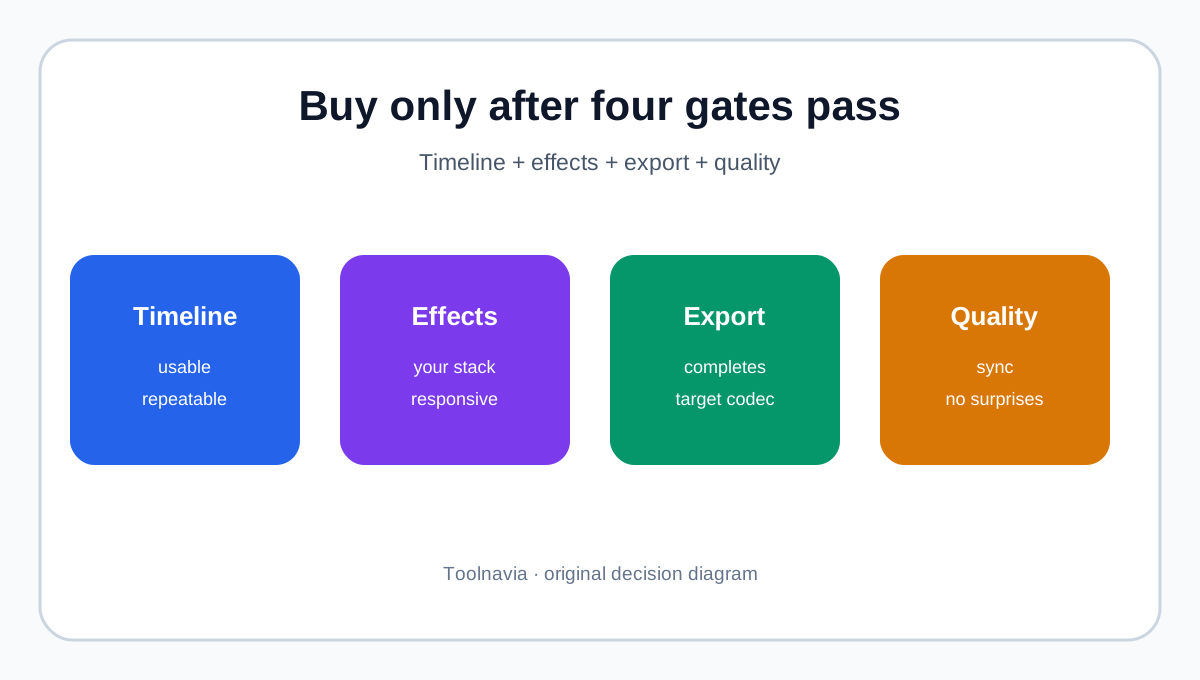
Score four gates:
| Gate | Pass condition | |---|---| | Timeline | usable scrub/playback in at least one optimization mode | | Effects | normal effects remain responsive enough | | Export | intended resolution/codec completes | | Quality | full render has acceptable sync, detail and artifacts |
A failed gate is not always a rejection. If an internal SSD, current driver, GPU switch or acceleration change fixes it reproducibly, document that configuration. If success requires converting every clip, include conversion time and storage in ownership cost.
Independent reviews provide context, not proof. Shotkit's 4K test used 32 GB RAM, a Radeon RX 570 and Samsung 970 EVO SSD. A recent TechRadar review used a newer labeled release on an Apple Silicon MacBook Pro. Those environments show what worked there, not what will work on your computer.
Who should buy—and who should wait
**Buy after a passing trial** if you want a beginner-friendly editor, your project is responsive in a documented configuration, and one full export passes.
**Wait or compare alternatives** if:
- you only meet installation minimums and the 4K timeline remains unusable; - your camera format needs recurring conversion you do not accept; - accelerated export fails and software fallback is too slow; - you require guaranteed performance, a professional codec pipeline or multi-machine licensing; - the cart does not show the version, platform and term you expect.
**Checkout checklist.**
Confirm product name and version, Windows or Mac, one-year term and renewal, local tax, one-computer entitlement, actual trial watermark/duration/export restrictions, optional Effects billing, and cancellation/refund terms.
The exact approved offer is [Movavi Video Editor one-year access](https://www.jdoqocy.com/click-101895278-13233645). Buy from a repeatable result on your own footage, not from the headline specification alone.

Bottom line
Movavi can be sensible for 4K when the buyer's codec, hardware and project fit. Test originals, compare optimization on/off, verify the GPU, complete an end-to-end export and read the cart. A proxy can improve editing, but it cannot turn installation minimums into a performance guarantee.
**Evidence map.** The installation-versus-current-version statement comes from the official requirements page. The 4K baseline and HD Clip Optimization guidance come from Movavi support, while the same vendor's slow-preview article supplies the opposite-case warning and source-file diagnostics. The proxy marketing page is treated only as a claim boundary. Acceleration fallback export and sync risk are based on official export troubleshooting; NVENC dependencies come from the acceleration article; GPU selection comes from the Windows dual-GPU article. The live product/trial surface controls the cart and build. TechRadar, Digital Camera World, Shotkit and the secondary proxy-storage explainer are context only.