TOOLNAVIA / BUYING GUIDE
Movavi Webcam Overlay: Test Size, Shape and Permissions Before Paying
The short answer
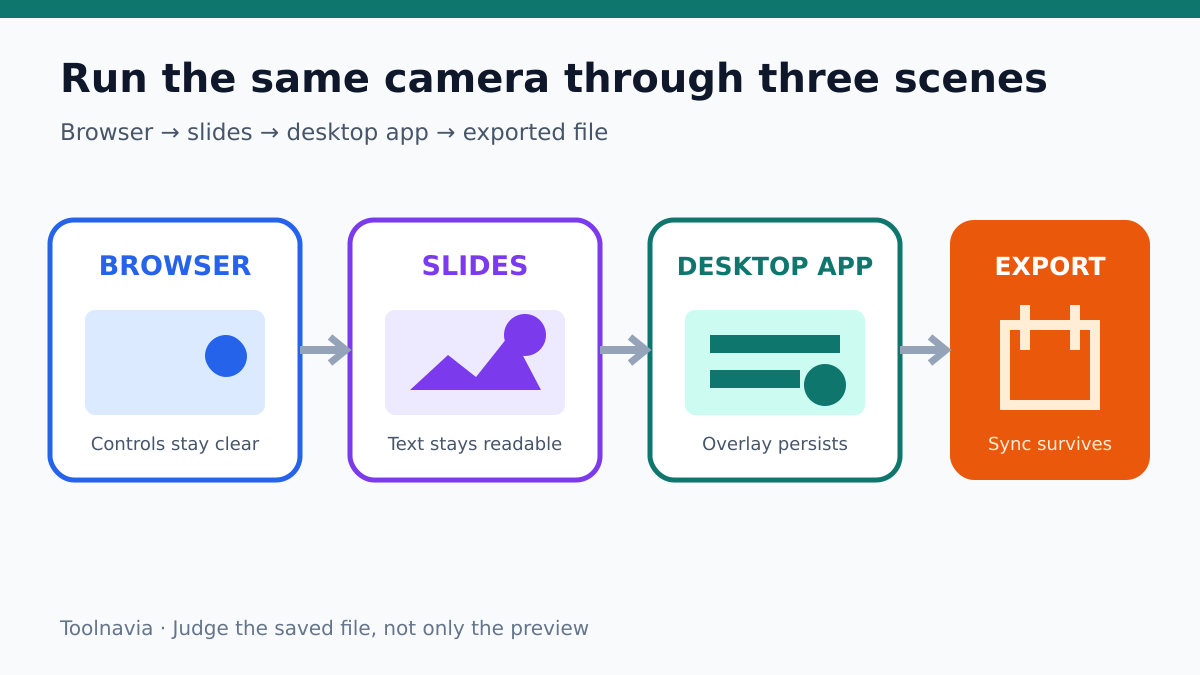
**Short answer:** Movavi Screen Recorder can be a practical paid choice for a simple screen-plus-webcam tutorial, but the webcam checkbox is not the buying decision. The decision is whether the camera overlay stays visible, readable and out of the way throughout your real workflow. Before paying, run one controlled 60-second test that moves from a browser to slides and then to a desktop app. Confirm permissions, overlay placement, shape, frame rate, audio sync and the exported file—not only the live preview.
> Affiliate disclosure: Toolnavia may earn a commission if you buy through the approved Movavi link. This does not change your price or the test standards below.
At a glance
- Best for
- Buyers who can run a controlled three-scene trial and judge the saved file plus live checkout.
- Price model
- Verify live annual checkout, currency, tax, renewal and refund eligibility
- Check first
- Camera behavior varies by OS, driver and app; past promotion deadline means live checkout governs.
The decision in one minute
Put Movavi Screen Recorder on your shortlist when you want a relatively direct recording workflow and your own trial proves all of the following:
1. the correct webcam appears after operating-system permission checks; 2. you can move and resize the overlay without covering buttons, subtitles or small text; 3. round or rectangular framing fits your face and background; 4. the overlay remains predictable while you switch between the applications you actually teach or demonstrate; 5. the microphone, camera and screen remain acceptably synchronized; 6. the saved file preserves the overlay position and remains readable; and 7. the live checkout confirms the license term, renewal, currency, tax, device rights and refund eligibility you expect.
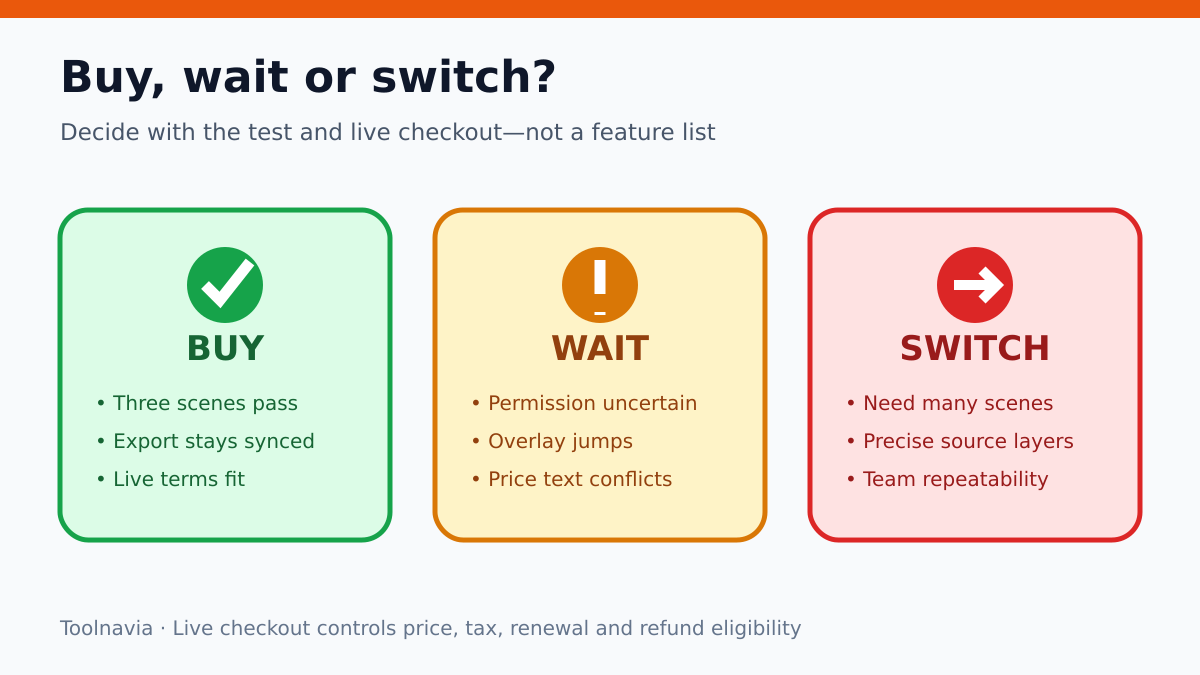
Wait before paying if the webcam works only in the preview, if app switching hides or repositions it, or if the trial export prevents you from judging the delivered result. Choose a more configurable recorder when you need multiple scenes, several cameras, precise source stacking or a fixed production layout that must be repeated by a team.
What Movavi officially claims
Movavi's webcam-capture page describes a camera overlay that can be dragged, resized and shown as a round or rectangular preview. It also describes webcam resolution and frame-rate choices and the option to include system sound or microphone audio. The main Screen Recorder page adds screen or custom-area capture, webcam capture, drawing and cursor or keystroke highlighting. These are useful official claims, but they do not prove that your camera driver, operating system, monitor scaling and target application will behave identically.
Movavi's historical changelog says webcam settings became easier to access and that the preview could be resized and repositioned. Treat a changelog as historical evidence, not a guarantee that every current regional build exposes controls in exactly the same place. The current build on your device is the authority for the interface you will use.
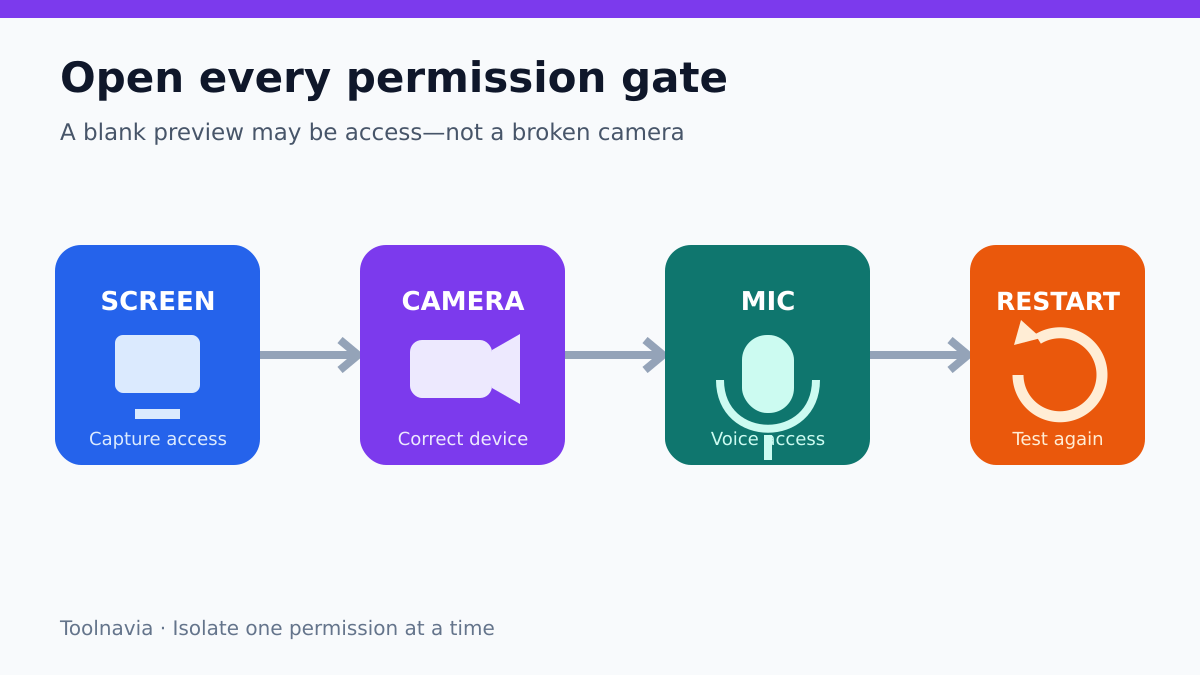
On macOS, Movavi's support material lists Screen Recording, Microphone, Camera, Input Monitoring and Accessibility permissions where applicable. A missing Camera permission can make a perfectly functional webcam appear broken inside the recorder. Windows uses a different permission and driver path, so do not copy macOS steps into Windows and assume the result is equivalent.
Run a 60-second three-scene test
Use the exact webcam, microphone, monitor arrangement and display scaling that you will use after purchase. Close confidential material and record only content you own or have permission to capture.
Scene A: browser demonstration
Open a browser page with important controls in each corner. Put the camera overlay in the lower-right corner, speak one sentence and move the pointer through the nearby controls. Check whether the overlay hides a cookie banner, chat widget, submit button, caption or browser notification.
Then move the overlay to the upper-left corner. If the shape control is available, test both round and rectangular framing. A round bubble may look cleaner but crop shoulders or a physical demonstration. A rectangle may preserve context but cover more screen area.
Scene B: slide deck
Switch to a slide containing a title, footer, chart legend and small annotation. Move the overlay through all four corners. Record which position preserves the slide's information rather than simply looking balanced in the preview.
Speak while advancing two slides. Watch for camera stutter, delayed lip movement or microphone drift. If the software offers webcam resolution and frame-rate controls, test the lowest setting that still looks acceptable. Higher settings are not automatically better if they make the screen recording uneven.
Scene C: desktop application
Switch to the desktop application you actually plan to explain: a spreadsheet, editor, settings panel or design tool. Open a dialog near the current overlay position. Confirm whether the camera remains visible, stays above the captured content and can be moved without interrupting the recording.
Stop, save and open the resulting file in the ordinary player or editor you will use. The exported file is the evidence. A smooth preview does not prove that the saved camera layer, audio and screen stay synchronized.
Record the result, not an impression
Use a small pass/fail table:
| Check | Pass condition | Failure that matters | |---|---|---| | Camera access | Correct device appears after permission review | Blank, frozen or wrong camera | | Safe placement | One corner remains clear in all three scenes | Overlay repeatedly covers required UI | | Shape and crop | Face and relevant background remain visible | Round crop removes needed context | | Motion | Camera and screen remain smooth enough | Stutter makes instructions hard to follow | | App switching | Overlay behavior is predictable | Bubble disappears or jumps unexpectedly | | Audio sync | Speech matches camera movement | Noticeable drift in the saved file | | Export | Saved file preserves readable composition | Preview works but delivery file fails |
A single failed row does not always mean the product is unusable. It tells you which variable to isolate. Recheck camera permission and the selected device before lowering video quality. Recheck display scaling and capture area before blaming the overlay. Change one setting at a time, then repeat the same 60-second route.
Permissions and device diagnosis
If the camera does not appear, first verify that another application is not holding it exclusively. Confirm the operating system allows camera and microphone access for Movavi, select the intended camera in the recorder and restart the application after changing permissions. On macOS, follow Movavi's current privacy guide rather than an older screenshot. On Windows, verify the camera privacy settings and current device driver through Windows; the OBS documentation is useful evidence that camera software depends on the capture device and driver path, but it is not a Movavi troubleshooting guide.
If the preview is present but frozen, lower the camera resolution or frame rate and repeat the same scene. If the camera is smooth but the screen recording stutters, test a smaller capture area or lower screen demand. Movavi's published system requirements are minimum entry conditions, not a promise for every webcam, monitor and application combination.
If only protected video is black, do not use that as the baseline. Movavi states that copy-protected video and audio streams are not supported. Test with your own local file, slides or a normal application interface.
Where to place the overlay
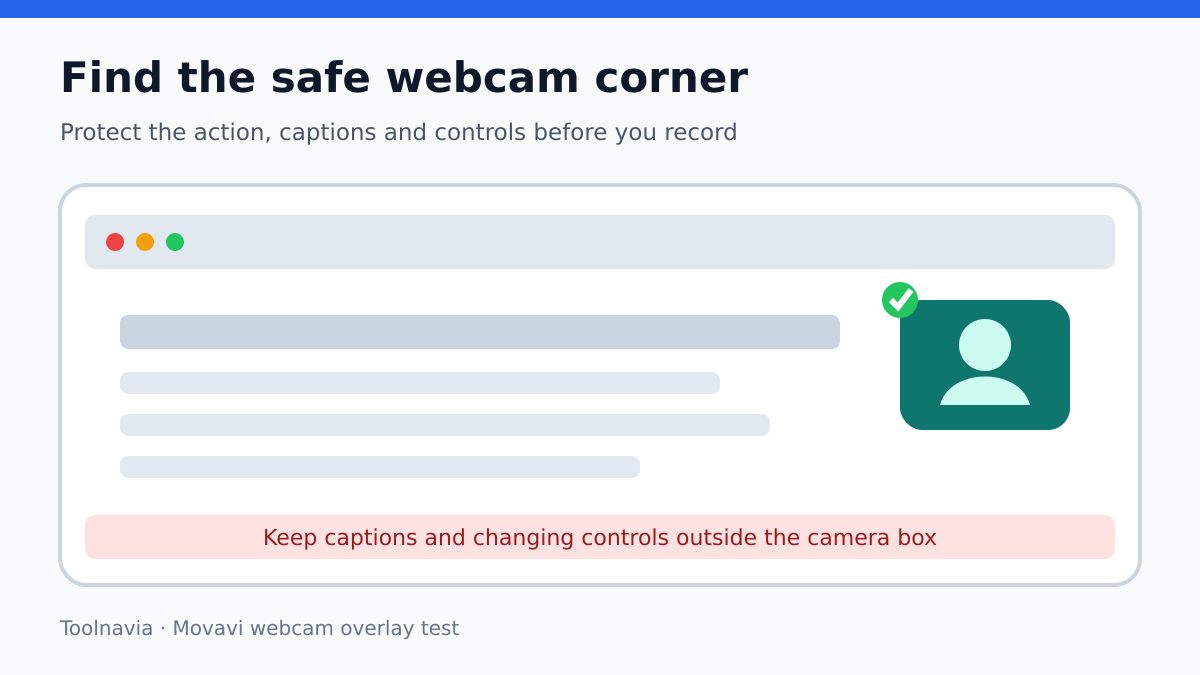
The best position is content-dependent. A lower corner may work for a slide deck but cover spreadsheet sheet tabs, a video player's controls or a website chat widget. An upper corner may cover browser navigation, a meeting participant or an application toolbar.
Build a simple safe-area rule for your own content:
- reserve a margin around captions and subtitles; - keep the camera away from the pointer's main working area; - avoid placing it over changing totals, chart legends or form errors; - move it before opening a dialog, not after it covers the dialog; - keep the face large enough to add expression, but not so large that the demonstration becomes secondary.
The goal is not a perfectly decorative bubble. The goal is a recording in which viewers can see both the instructor and the action that answers their question.
Movavi versus OBS, Loom, Camtasia and ScreenPal
OBS is the stronger comparison when you need deliberate scene and source control. Its official guide explains source ordering and placing a webcam above a display or game source. It also documents a broad video-capture-device model and Windows DirectShow dependency. OBS can suit repeatable multi-source layouts, but setup is more involved and the workflow is not identical to Movavi's simpler recorder.
Loom is the relevant comparison for hosted asynchronous sharing. Atlassian's Loom documentation says the desktop camera bubble remains visible across a wider range of applications, while its browser extension has window and platform limitations. Loom also documents screen-plus-camera, screen-only and camera-only modes and a movable snapping bubble. Choose it for rapid sharing only after checking the exact capture mode and workspace plan you need.
Camtasia is the editing-first comparison. TechSmith's plan material lists screen and webcam recording and distinguishes plan access and watermark treatment. Its screen-recording page describes simultaneous screen, webcam and audio capture. It may justify a higher-complexity workflow when editing, callouts and production polish matter more than a lightweight recorder.
ScreenPal is a fourth same-intent comparison for a guided recorder with hosted workflow. Its official support page describes screen, webcam and voice capture plus camera-overlay settings. Use that evidence only to compare test criteria; it does not prove Movavi parity.
None of these competitor pages proves Movavi has the same controls, limits or output. Use them to identify the workflow you need, then test each current product on the actual machine.
Trial, checkout and price conflict
Movavi's current public material describes a seven-day trial, while the retrieved checkout also included conditional 14-day money-back language. A trial is for verification, not proof that every delivery right or export condition will remain the same after purchase.
The retrieved checkout snapshot showed a US$44.95 annual price beside an “offer valid until September 13, 2026” statement. That date was already past when this research was observed on November 6, 2026. Therefore this article must not advertise US$44.95 as a guaranteed current deal. The page may be cached, regional or internally stale. At the final checkout, verify:
- product name is Movavi Screen Recorder rather than a bundle; - subscription length and automatic-renewal behavior; - current total, currency and tax; - device count and transfer rules; - trial and watermark state; - refund eligibility and deadline; - whether any editor or effects access is a separate trial or renewal.
The approved Toolnavia link is a direct affiliate-tracking link to the Movavi purchase path. It is not a coupon and does not justify a universal discount claim.
Who should buy, wait or switch
**Buy** when the three-scene test passes, the delivered file preserves the camera composition and synchronization, and the live checkout terms fit your budget.
**Wait** when the camera is visible but permissions, app switching or export behavior remain uncertain. Fix the first failed test and repeat it before spending.
**Choose OBS** when multiple scenes, several sources and precise layering are central to the workflow.
**Choose Loom** when fast hosted sharing and comments matter more than owning a locally edited master, after checking the desktop-versus-extension limitations.
**Choose Camtasia** when recording and substantial editing need to live in one production workflow and its current plan is justified.
Bottom line
Movavi Screen Recorder's webcam overlay is worth paying for only when it survives your complete route: permission, device selection, layout, application switching, audio synchronization and export. A 60-second controlled test is more useful than a long feature checklist. If one safe overlay position works across your browser, slides and desktop application, the saved file remains synchronized, and the live checkout is acceptable, Movavi can be a sensible simple recorder. If the layout must be rebuilt repeatedly or the overlay cannot stay clear of essential content, choose a workflow with more deliberate scene control.