TOOLNAVIA / BUYING GUIDE
Movavi Black Screen Test: Hardware Acceleration or DRM Before You Pay
The short answer
Movavi Screen Recorder is worth paying for only if it records the exact browser, app or meeting workflow you need. A black screen or audio-only file can come from the capture path, GPU routing, save codec, permissions, or protected content. Test the target twice—once in Movavi's preview and once after saving—before checkout. If the source uses DRM or copy protection, stop: Movavi says it does not bypass those controls.
*Documentation analysis checked November 7, 2026 UTC. Toolnavia did not install Movavi, record protected content, run a GPU benchmark, or complete checkout.*
At a glance
- Best for
- A buyer who can test the exact legal recording target in preview and saved playback before paying.
- Price model
- No stable price quoted; verify product, personal one-year term, currency, tax and renewal.
- Check first
- No protected-content bypass or universal fix; exact target, GPU path, codec and permissions can change results.
Short verdict: diagnose first, buy second
Do not begin by disabling every acceleration option. First identify where the picture disappears.
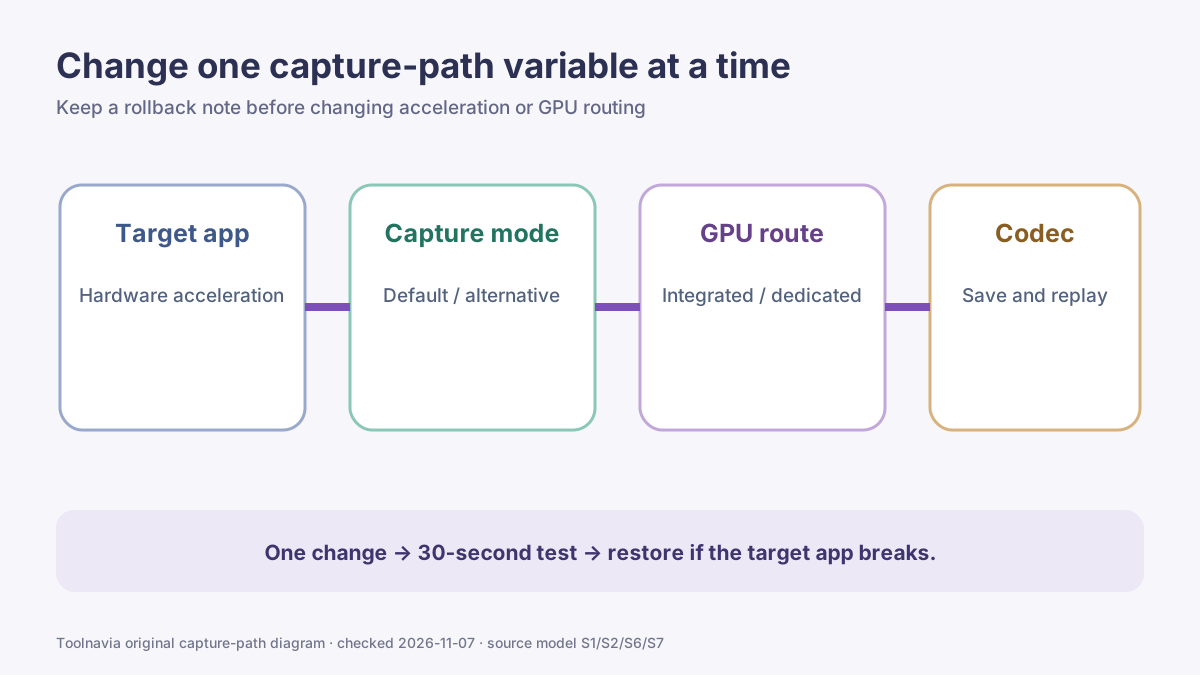
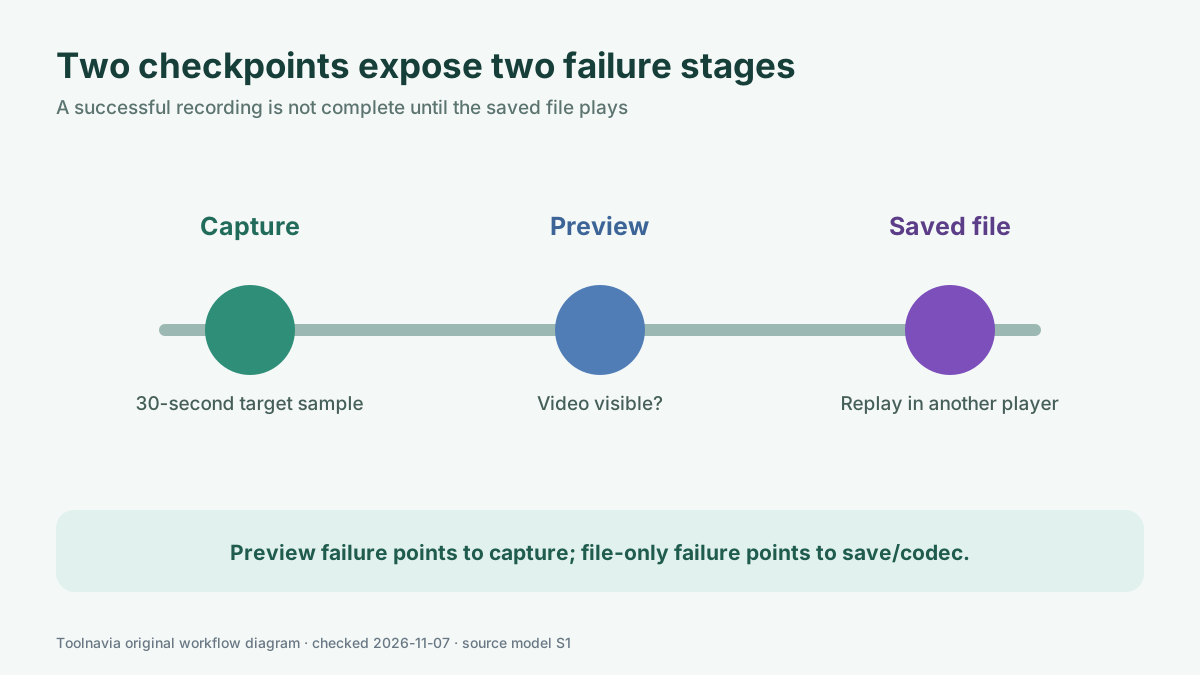
1. Record the desktop or another ordinary app for 30 seconds. 2. Record the real target for 30 seconds. 3. Check whether video is visible in the preview. 4. Save the clip and replay it in a second player. 5. Change one capture-path variable at a time and keep a rollback note.
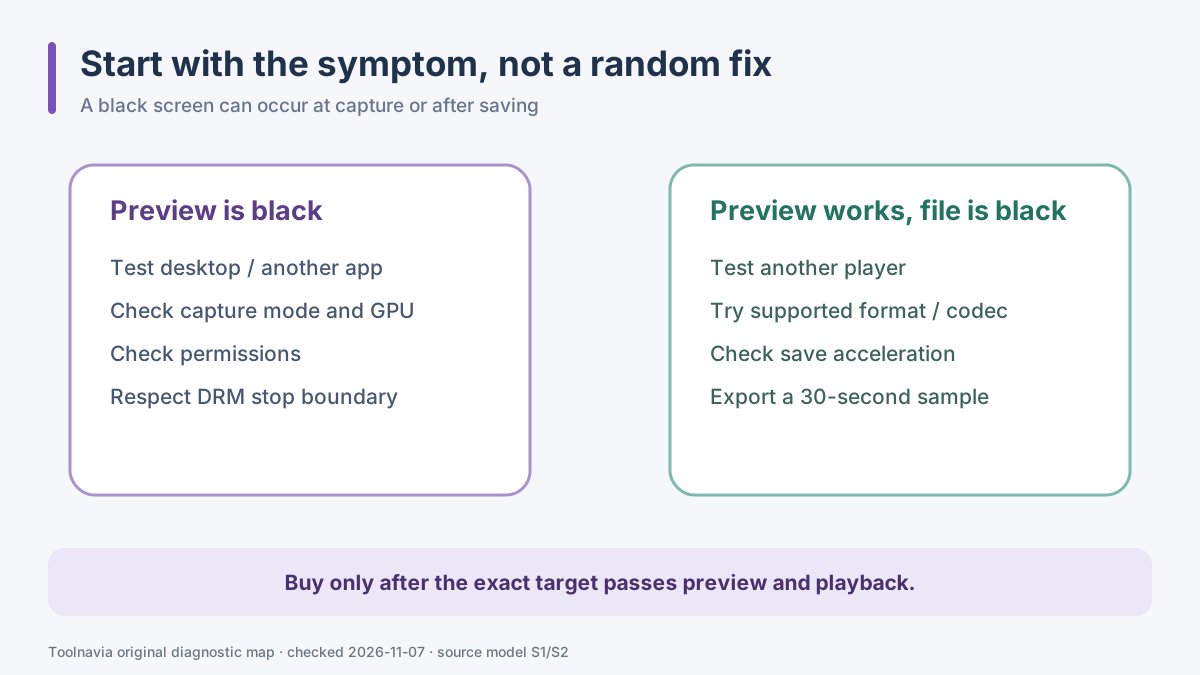
If ordinary desktop capture works but only one streaming or browser target remains black, the issue may be hardware acceleration or content protection. If every source is black, focus first on capture mode, graphics drivers, GPU selection or system permissions. If the preview looks correct but the saved file is black, focus on output format, codec and playback.
Preview black versus saved-file black
Movavi's knowledge base separates two stages. When video is already missing in the preview, the failure happened during capture. On Windows, the documented checks include alternative capture mode, graphics drivers and multi-GPU routing; on macOS, Screen Recording, Accessibility and Camera permissions can matter.
When the preview shows video but the saved file does not, Movavi points to output codec or acceleration. The safe test is a short sample saved to a widely supported format, followed by playback in another player. Do this before a long recording. A two-hour session is not the place to discover that the preview and the deliverable use different paths.
Hardware acceleration is a test variable, not a promise
Browsers and communication apps often render video through the GPU. Movavi says that this can keep a screen recorder from capturing the rendered surface. Turning off hardware acceleration in the target app, restarting it, and recording another short sample may help.
But the setting is not universally better. It can increase CPU load, reduce playback smoothness or affect the target app. Record the original state before changing it, test only the exact target, and restore the setting if the app becomes unstable.
The same-intent competitor evidence supports this narrow diagnosis. TechSmith associates black screens with browser security or hardware acceleration. Bandicam also separates acceleration, codec, recording-mode and copyright-protection causes instead of presenting one universal fix.
On Windows, capture mode and GPU routing can change the result
Movavi documents DirectX or an alternative capture mode for start/stop errors and black screens. It also notes that a laptop with integrated and dedicated graphics may use the wrong adapter, and suggests testing software OpenGL when other steps fail.
Change one item at a time:
- default versus alternative capture mode; - the GPU assigned to Movavi; - the GPU or acceleration setting used by the target app; - graphics-driver state; - output format and codec.
After each change, restart when required and repeat the same 30-second sample. If several settings change together, a successful result will not tell you which change mattered or which one should be restored.
OBS documentation illustrates why GPU routing matters on laptops: capture methods and sources can behave differently when the recorder and display target use different adapters. Its hardware-encoding guide also distinguishes CPU relief from quality and compatibility limits. These are comparison principles, not Movavi instructions.
Minimum system requirements do not prove capturability
Movavi's current requirements page lists Screen Recorder 2026 version 24.8.2 and platform minimums. Meeting those minimums only shows that the software is within its published baseline. It does not prove that a specific browser surface, meeting app, game, multi-GPU laptop or protected stream will record correctly.
That is why the purchase test must use the actual machine and target. Keep the sample representative: same display, resolution, audio devices, browser/app version and normal overlays. Test both preview and playback.
DRM and copy protection are a stop boundary
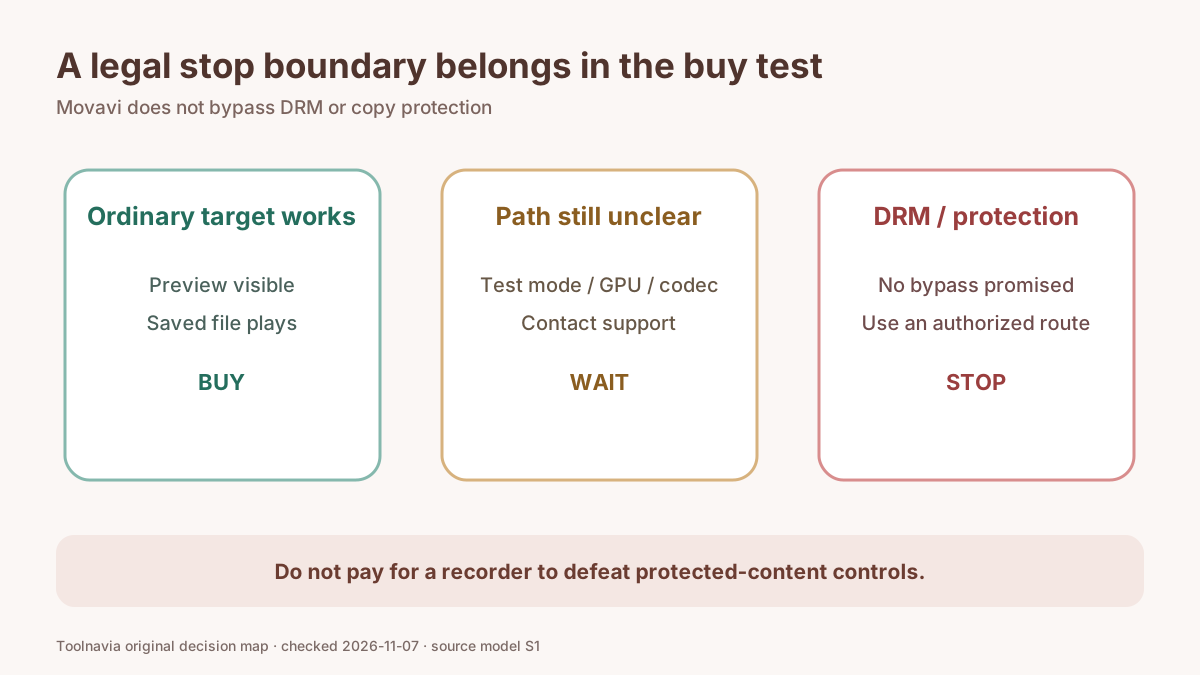
Movavi explicitly says Screen Recorder does not bypass DRM or copy protection. If disabling ordinary acceleration does not resolve the target and the service protects the content, do not treat that as a bug to defeat. Use an authorized download, built-in export, licensed media asset, meeting recording permission, or another lawful workflow.
This boundary is not merely legal fine print; it changes the purchase decision. A recorder that works for desktop tutorials can still be unsuitable for a protected-stream goal. Buying a different recorder does not create permission or guarantee capture.
**Price and affiliate boundary.**
Toolnavia's fresh native index associates this article with the approved, enabled and market-confirmed Movavi Screen Recorder personal one-year offer and the verified direct CJ URL. The official buy page controls the current product, term, currency, tax and renewal. No stable price or discount is quoted here.
The affiliate link should be used only after the target passes the short test. Toolnavia may earn a commission, but that does not change the DRM stop boundary or the requirement to verify the exact checkout.
Buy, wait, or choose another route
**Buy** when the real target appears in preview, the saved sample plays correctly, audio is present, performance is acceptable and the checkout matches the intended one-year personal plan.
**Wait** when only generic desktop capture has been tested, when the preview and saved file disagree, when several GPU/capture settings changed together, or when support still needs logs and sample details.
**Choose another route** when the target is protected, the workflow requires a guaranteed capture surface Movavi does not support, or the authorized source already offers a safer export.
The decisive test is small: exact target, 30 seconds, preview, saved playback, one change at a time. Passing it is more useful than a feature list; failing it before checkout is cheaper than discovering the boundary after payment.
*Affiliate disclosure: Toolnavia may earn a commission from the approved Movavi Screen Recorder link. The recommendation remains conditional on the exact-target preview and saved-file test.*