TOOLNAVIA / BUYING GUIDE
Movavi Screen Recorder 4K/60 FPS: Test Hardware Before Paying
The short answer
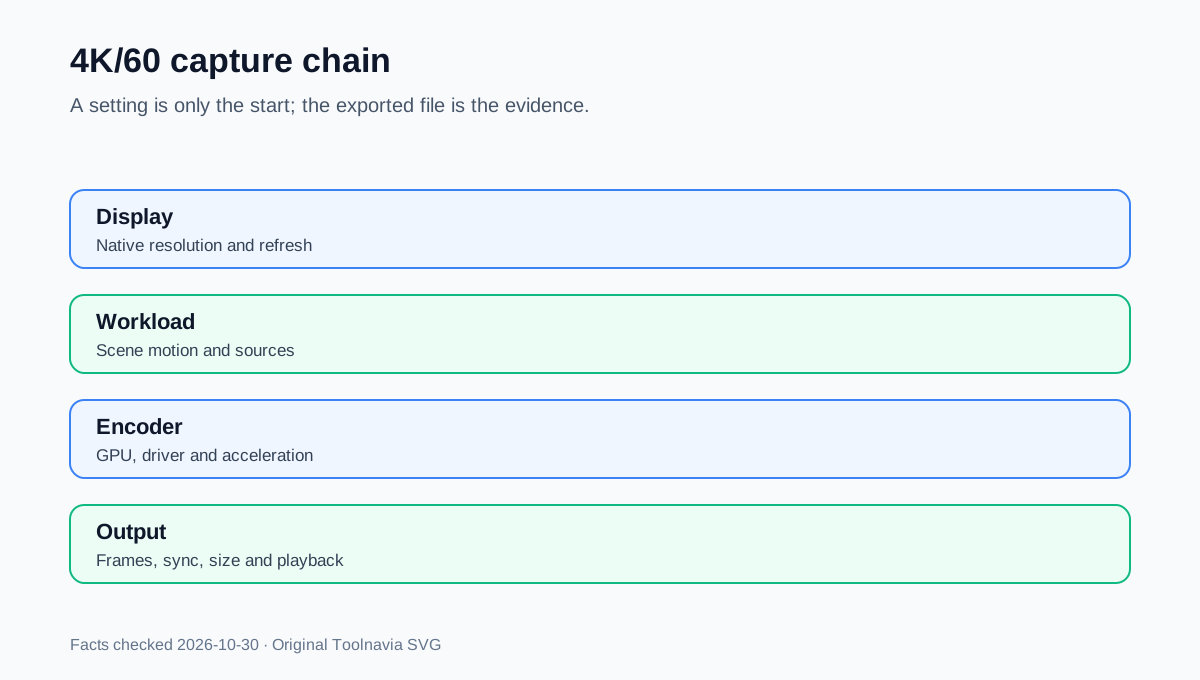
Movavi advertises Screen Recorder as capable of up to 3840×2160 capture and a 5–60 fps range. That is a ceiling, not proof that your computer can hold native 4K at 60 fps with system audio, microphone and webcam enabled. The buying question is therefore practical: can the trial produce a clean file on the actual display, encoder and workload before you pay?
**Affiliate disclosure:** Toolnavia may earn a commission if you buy through the approved Movavi link, at no extra cost to you. The recommendation below depends on your own exported-file test, not the commission.

At a glance
- Best for
- Personal Windows or Mac creators who need fine interface detail or smoother motion and can validate the exact display, encoder, audio path and workload in the seven-day watermarked trial.
- Price model
- Approved Personal one-year destination; final platform, currency, total, tax, renewal and license scope are localized and must be verified at checkout.
- Check first
- Minimum requirements do not guarantee 4K/60. A 1080p display cannot create native 4K detail; unstable drivers, overloaded GPU, storage pressure, protected streams and localized checkout remain boundaries.
Start with the pixels you really have
Movavi says native 4K capture requires a 4K display; a 1080p display still produces at most 1080p detail even if a setting is labelled 4K. Upscaling a smaller source does not create readable interface detail. The current Screen Recorder 2026 requirements list Windows 10/11 64-bit, a dual-core 1 GHz processor, 4 GB RAM and a 1280×768 display; Mac lists macOS 12+, Intel 64-bit or Apple M1+, 4 GB RAM and 1280×800. Those numbers establish launch compatibility, not stable 4K/60 performance.
Before opening the recorder, note the display's actual resolution and refresh rate, the GPU and driver, free local storage, and whether the content itself updates at 60 fps. If the source is a static slide deck or a simple tutorial, 1080p/30 may preserve every meaningful detail while producing a smaller file.
Use a load ladder, not one heroic test
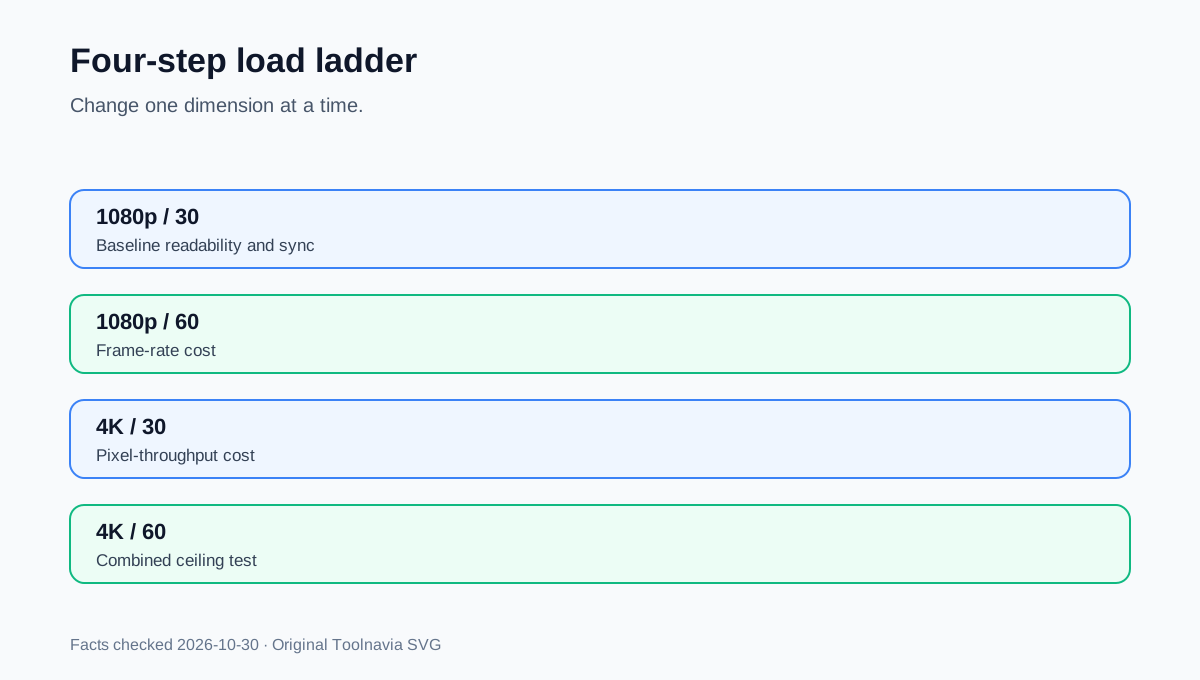
Run the same one-minute scene four ways: 1080p/30, 1080p/60, 4K/30 and 4K/60. Keep the capture region, audio sources and scene actions identical. Then repeat the best candidate for ten minutes. Record dropped or duplicated frames, cursor smoothness, audio synchronization, file size, CPU/GPU pressure and whether the source application becomes less responsive.
OBS warns that compatibility alone does not guarantee recording capacity because encoder, resolution, frame rate and scene complexity all change the load. Its troubleshooting guide recommends lowering output resolution or dropping 60 fps to 30 when the GPU or encoder cannot keep up. Bandicam likewise documents that hardware-encoder limits differ across NVIDIA, Intel and AMD paths rather than providing one universal 4K promise.

Treat 4K and 60 fps as separate gates
4K tests pixel throughput; 60 fps doubles the number of frames compared with 30 fps. A system can pass one and fail the combination. TechSmith's same-intent 4K/60 guidance requires a 4K 60 Hz display path, a suitable encoder and substantial GPU headroom, while its published requirements distinguish minimum startup hardware from stronger recommended hardware. These are competitor boundaries, not Movavi requirements, but they show why “the app opens” is not an acceptance test.
Use 4K when small code, design controls or dense spreadsheets must remain readable after upload compression. Prefer 1080p when the audience watches on smaller displays, the content has little fine detail, or the higher mode creates unstable motion. Prefer 60 fps for fast cursor movement, animation or motion-rich demonstrations; 30 fps is usually enough for slides, forms and slower software walkthroughs.
Verify the encoder and the whole exported file
Movavi markets hardware-accelerated 4K encoding, but its knowledge base says encoder availability depends on GPU model, driver and product version. If acceleration is unavailable or unstable, disable it and repeat the same clip rather than assuming payment will add compatible hardware.
Watch the exported file from beginning to end in a second player. Movavi's own audio/video desynchronization guidance recommends reducing competing load and, for problem recordings, trying 25 fps or disabling acceleration. On Mac it may also suggest scaling down Retina resolution. That troubleshooting advice conflicts with treating the advertised ceiling as a guaranteed result, so this guide keeps the conflict visible: the stable mode on your machine controls the decision.

What the trial must prove before checkout
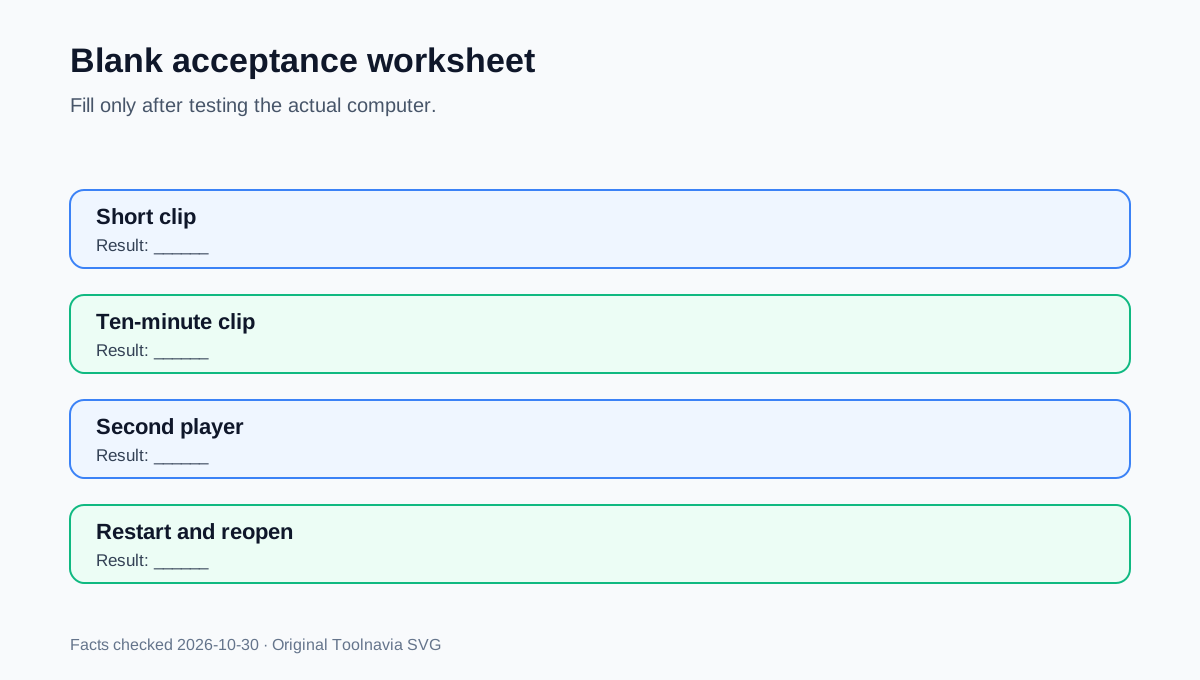
The official product page describes a seven-day trial with a watermark. Use it to prove the workflow, not to produce a final client deliverable. Save one short and one ten-minute file, reopen both after restarting the computer, and inspect:
- native resolution and actual frame rate; - text readability at 100% playback; - cursor and animation smoothness; - system audio, microphone and webcam synchronization; - file size and local free-space margin; - protected-stream restrictions and the intended sharing platform.
The approved Personal one-year offer points to Movavi's official checkout, but the destination localizes. Verify platform, currency, total, tax, renewal and license scope in the final order. Do not turn a search-result price or a CHF/USD snapshot into a universal price.
Buy only after the stable mode is good enough
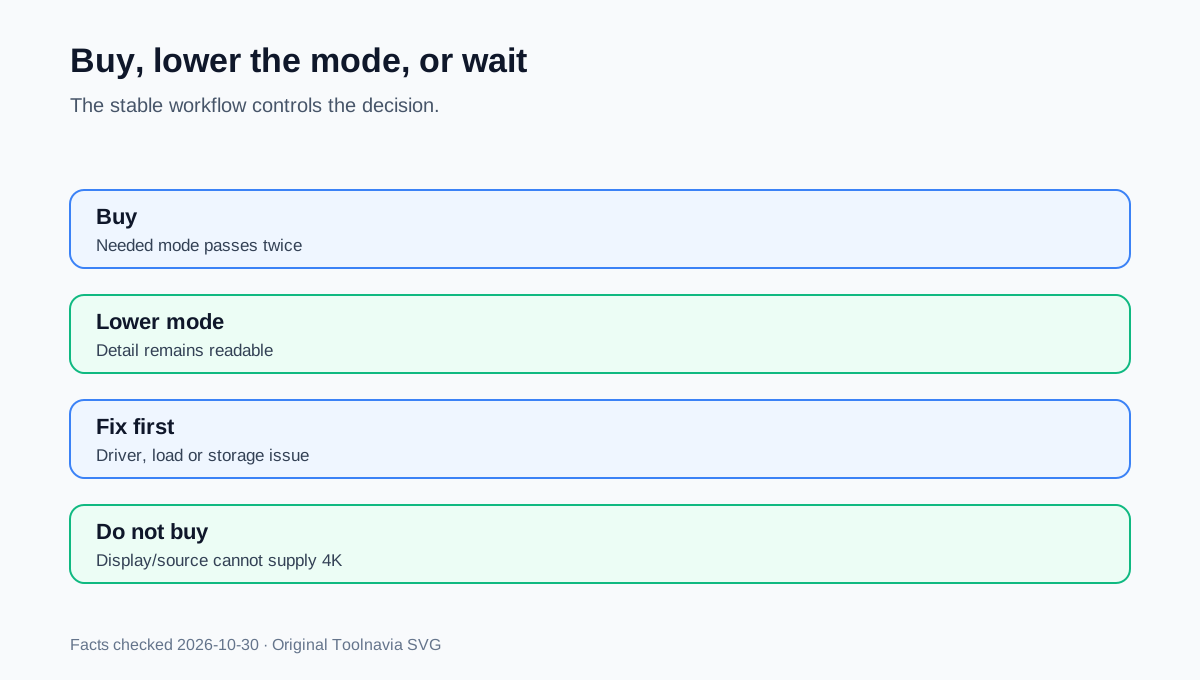
Buy the Personal annual recorder if the trial produces repeatable files at the resolution and frame rate your audience needs, the watermark is the remaining limitation, and the localized renewal terms are acceptable. Stay with a lower mode if it preserves the important detail. Consider OBS when you need a free, highly configurable encoder and can accept setup complexity; consider other paid tools only with the same exported-file test.
Do not buy to compensate for a 1080p display, an overloaded GPU, unstable drivers, insufficient storage or copy-protected content. A truthful 1080p/30 result is more useful than an advertised 4K/60 mode that drops frames or drifts out of sync.